MediaWiki
MediaWiki
by Daniel J. Barrett
Copyright © 2009 Daniel J. Barrett. All rights reserved. Printed in the United States of America.
Published by O’Reilly Media, Inc., 1005 Gravenstein Highway North, Sebastopol, CA 95472.
O’Reilly books may be purchased for educational, business, or sales promotional use. Online editions are also available for most titles (http://safari.oreilly.com). For more information, contact our corporate/institutional sales department: (800) 998-9938 or [email protected].
Editor: Mike Loukides
Production Editor: Sumita Mukherji Copyeditor: Emily Quill
Proofreader: Sumita Mukherji
Indexer: Daniel J. Barrett
Cover Designer: Karen Montgomery Interior Designer: David Futato Illustrators: Robert Romano and Lesley Borash
Printing History:
October 2008: First Edition.
Nutshell Handbook, the Nutshell Handbook logo, and the O’Reilly logo are regis-tered trademarks of O’Reilly Media, Inc. MediaWiki, the image of mimic butterflies, and related trade dress are trademarks of O’Reilly Media, Inc.
Many of the designations used by manufacturers and sellers to distinguish their products are claimed as trademarks. Where those designations appear in this book, and O’Reilly Media, Inc. was aware of a trademark claim, the designations have been printed in caps or initial caps.
Java™ is a trademark of Sun Microsystems, Inc.
While every precaution has been taken in the preparation of this book, the publisher and author assume no responsibility for errors or omissions, or for damages result-ing from the use of the information contained herein.
Table of Contents
Preface . . . xi
Part I. Getting Started
1.
A First Look . . . 3
What’s MediaWiki? 4
A Typical Day on a MediaWiki Site 4
When to Use MediaWiki 5
When Not to Use MediaWiki 6
Additional Resources 7
2.
Basic Use . . . 9
Quick Tour of a Wiki Page 9
Articles 12
Editing Primer 20
Menu Reference 23
Getting Help 27
3.
Your User Identity . . . 29
Creating an Account 30
Logging In and Out 30
User Pages 31
Signatures 32
Watchlists 33
Tracking Your Contributions 35
Preferences 35
Part II. Writing and Editing Articles
4.
Editing Articles . . . 47
Getting Started with Editing 48
Creating an Article 51
Paragraphs and Headings 52
Typestyles and Fonts 54
Links (Briefly) 55
Images and Uploaded Files 56
Lists 61
Tables 68
Mathematical Formulas 70
Escaping Wikitext with <nowiki> 71
Conflicts 72
Beyond the Basics 73
5.
Links . . . 75
Internal Links 75
External Links 81
Interwiki Links 84
Interlanguage Links 84
Graphical Links 86
File Links 86
Linking Tips 87
6.
Organizing Articles . . . 89
Categories 90
Namespaces 96
Subpages 99
Redirects 101
Disambiguation Pages 103
Renaming Articles 104
Deleting Articles 106
7.
Advanced Article Construction . . . 107
Maintaining a Consistent Wiki 108
Variables 109
Templates and Transclusion 112
Logical Parser Functions 122
Dynamic Page List 124
8.
Special Pages . . . 139
Maintenance Reports 140
List of Pages 147
Login/Sign Up 149
Users and Rights 150
Recent Changes and Logs 152
Media Reports and Uploads 155
Wiki Data and Tools 157
Redirects and Random Pages 158
High-Use Pages 159
Page Tools 161
Other Special Pages 163
Special Pages Grouped by Task 165
Part III. Running and Administering MediaWiki
9.
Installing MediaWiki . . . 173
Before You Begin 174
Installing the Prerequisites 176
Installing MediaWiki 180
Important Optional Features 187
A Tour of MediaWiki’s Files 193
Maintaining the Code 196
10. Practical Wiki Design . . . 203
Adopting MediaWiki 203
Planning 206
Establishing Standards 210
Governance 212
Integrating with Other Websites 213
11. Configuring MediaWiki: An Overview . . . 215
Administrative Roles 216
Advanced Page Constructs 217
Special Pages for Sysops and Bureaucrats 218
System Messages 218
Cascading Stylesheets 223
JavaScript 223
Configuration Settings 224
Extensions 225
SQL Programming 225
Maintenance Scripts 226
12. Controlling Wiki Features . . . 227
Users 227
User Rights and Permissions 229
Article Content 236
Configuring the Editing of Articles 238
Maintaining Articles 241
Configuring Namespaces 245
File Uploads 248
Search 250
Special Page List 252
Database Configuration 252
Email Configuration 253
JavaScript Configuration 253
Logging and Debugging 254
13. Changing Appearances . . . 257
The Basics 257
Menus 260
Search Box 265
Tables of Contents 266
External Link Appearance 266
Page Credits 266
Overall Look and Feel 267
International Support 269
14. Installing Extensions . . . 271
Obtaining Extensions 271
Installing an Extension 272
Recommended Extensions 274
15. Creating Extensions . . . 281
Overview of Extension Types 282
Creating a Variable 289
Creating a Parser Function 291
Creating a Tag Extension 294
Behavior Changes 299
Creating a Special Page 301
Useful Tasks for Extension Writers 307
Publishing an Extension 316
Other Extension Topics 316
Finding a MediaWiki Programmer 317
16. Wiki Administration . . . 319
Maintenance Scripts 320
Backups 320
Upgrades 322
Read-Only Wiki 323
Performance and Scaling 323
Security 327
Vandalism 329
Common Maintenance Tasks 330
For More Information 333
Preface
In 2001, Wikipedia changed the world by proving that thousands of strangers could collaborate to produce a valuable information resource. Encyclopedia publishers shuddered. Skeptics scoffed. And in the meantime, users around the world have produced millions of Wikipedia articles.
Wikipedia was not the first wiki,* but it’s clearly the most successful, largely
due to its powerful software, MediaWiki.
This book is about making MediaWiki work for you, whether you plan to read wikis, write and edit articles, or install and run your own MediaWiki site.
Who Should Read This Book?
This book serves four audiences:
Wiki readers
Anyone who reads Wikipedia or other wikis running MediaWiki software.
Wiki authors
Anyone who writes or edits wiki articles.
Wiki sysops
Authors with special privileges for maintaining the wiki.
Wiki administrators
System administrators and programmers who install, configure, and run MediaWiki on a server.
Roadmap
Part I of this book is dedicated to wiki readers, explaining how to navigate a
MediaWiki site effectively. Part II focuses on authors, and discusses how to
write and edit wiki articles, beginning with the basics and moving to more complex tasks. Part III is for administrators and programmers. We’ll cover how to install and maintain a MediaWiki site, how to configure its many settings, and how to program your own features, called MediaWiki extensions.
Conventions Used in This Book
The following typographical conventions are used in this book:
Italic
Indicates new terms, URLs, email addresses, filenames, and file extensions.
Constant width
Used for program listings, wiki articles, wiki categories, wiki namespaces, as well as within paragraphs to refer to program elements such as variable or function names, databases, data types, environment variables, state-ments, and keywords.
Constant width bold
Shows commands or other text that should be typed literally by the user.
Constant width italic
Shows text that should be replaced with user-supplied values or with val-ues determined by context.
This icon signifies a tip, suggestion, or general note.
This icon indicates a warning or caution.
Using Code Examples
Incorporating a significant amount of example code from this book into your product’s documentation does require permission.
We appreciate, but do not require, attribution. An attribution usually includes
the title, author, publisher, and ISBN. For example: “MediaWiki by Daniel J.
Barrett. Copyright 2009 Daniel J. Barrett, 978-0-596-51979-7.”
If you feel your use of code examples falls outside fair use or the permission given above, feel free to contact us at [email protected].
Safari® Books Online
When you see a Safari® Books Online icon on the cover of your favorite technology book, that means the book is available online through the O’Reilly Network Safari Bookshelf.
Safari offers a solution that’s better than e-books. It’s a virtual library that lets you easily search thousands of top tech books, cut and paste code samples, download chapters, and find quick answers when you need the most accurate, current information. Try it for free at http://safari.oreilly.com.
How to Contact Us
Please address comments and questions concerning this book to the publisher: O’Reilly Media, Inc.
1005 Gravenstein Highway North Sebastopol, CA 95472
800-998-9938 (in the United States or Canada) 707-829-0515 (international or local)
707 829-0104 (fax)
We have a web page for this book, where we list errata, examples, and any additional information. You can access this page at:
http://www.oreilly.com/catalog/9780596519797
To comment or ask technical questions about this book, send email to:
For more information about our books, conferences, Resource Centers, and the O’Reilly Network, see our website at:
Acknowledgments
As always, I thank O’Reilly Media and my long-time editor, Mike Loukides, for believing in the idea of this book. I also thank members of the O’Reilly Editorial, Production, and Tools team (Karen Crosby, Keith Fahlgren, Abby Fox, Marlowe Shaeffer, and Adam Witwer) for their quick responses to my DocBook typesetting questions and requests, and the illustrators and produc-tion team for turning my manuscript and sketches into a finished product. Big thanks to the technical review team (Shannon Bohle, Rob Church, Brion Vib-ber, JP Vossen, and Jim R. Wilson) for their careful reading and thoughtful suggestions that tangibly improved the book. (Of course we used a wiki to review and discuss the manuscript.)
I’d also like to thank my colleagues at VistaPrint: Jeromy Carriere and Robert Dulaney for permission to work on this project, Wendy Cebula for harping on “people, process, technology,” Jim Sokoloff for Subversion tips (notably, ex-ternals and vendor branches), Paul Shelman for inspiration, and all my col-leagues in Capabilities Development for their many questions and requests that propelled me up the MediaWiki learning curve. In the MediaWiki com-munity, I thank the MediaWiki development team for creating a
world-changing tool, readers of mediawiki-l who answered my obscure
ques-tions about internals (especially Brion), and the writers of some outstanding third-party extensions (Ilya Haykinson, Amgine, Unendlich, Cyril Dangerville, and Gero Scholz for Dynamic Page List; Tim Starling for ParserFunctions; and many others). Thanks also to Robert Strandh for opening my eyes to the dis-tinction between “ease of use” and “ease of learning.”
CHAPTER 1
A First Look
“The whole world is singin’ this song...wikki-wikki-wikki-wikki....”
—Newcleus, “Jam On Revenge”
A wiki is a website that lets people freely create, edit, and link a collection of articles. Now, every website can be considered a bunch of interlinked pages, but wikis allow the content and the structure to be changed by a community. Wikis are a great way for a group of people to coordinate and create content, even if that group is made up of thousands of people in different places. Here are some typical things you can do on a wiki:
• Create an article on a topic that interests you.
• Make changes to other people’s articles, without requiring their permission.
• Create links between articles.
• Group similar articles together into convenient categories.
• View the history of an article to see all the changes, who made them, and when.
• See interesting statistics about the articles: which ones are most popular, which ones probably need updating, and so on.
Wikis are often devoted to a particular topic or theme. Wikipedia (http://www
.wikipedia.org) is an encyclopedia, videoville (http://www.videoville.org) is
de-voted to music videos, The Aquarium Wiki (http://www.theaquariumwiki
What’s MediaWiki?
MediaWiki is the world’s most popular wiki software, and with good reason. It’s pretty easy to use, has powerful features, is highly configurable, scales up to millions of users, and best of all, it just plain works. More than 2,000 wikis
are powered by MediaWiki worldwide, including Wikipedia.* Thanks to the
generosity of its creators, MediaWiki is freely available, so anyone can create wikis with it.
Wikipedia has some features that aren’t standard in MediaWiki. We’ll point them out as they come up.
MediaWiki is freely distributable,† so you can download, install, run, and
share it without cost. It’s also open source, so any competent programmer can modify its internal behavior (its source code) if desired.
A Typical Day on a MediaWiki Site
To give you an idea of the workings of a wiki, here’s a short story about a nonexistent wiki and its users.
It’s a sunny day on the Web, and the hard drives are humming at BongoWiki, a popular wiki devoted to musical instruments. Users from around the world
come to www.bongowiki.org, log in with a username and password, and create
and edit articles. At the moment, user Wackerman is creating a new article about snare drums, and user StrataVarious is updating an older article on violin strings.
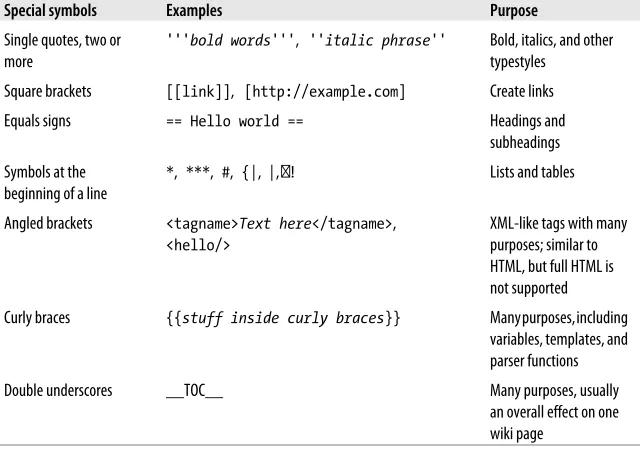
Wackerman uses the wiki’s built-in search engine to check for an existing snare drum article. Finding nothing, he clicks an Edit link and begins writing: not just words, but additional symbols called wikitext that produce headings, bul-leted lists, graphical images, and other typesetting effects. His first sentence looks like this:
The '''snare drum''' is an essential part of a [[drum kit]].
The triple quotes mean “display this word in boldface,” and the brackets
pro-duce a link to another wiki page, drum kit. When finished, Wackerman
* Source: http://www.mediawiki.org/wiki/Sites_using_MediaWiki
previews his work, enters a change comment to describe what he’s done, and saves the article. It is instantly available for other users to read.
Meanwhile, StrataVarious has browsed to an article on violin strings by
fol-lowing category links. Beginning in the Instruments category, she browses to
Stringed instruments, then Violins, then Violin parts, and finally to the
ar-ticle called Violin strings. Clicking the Edit link, she makes the necessary
changes, previews the results, enters a change comment, and saves.
Behind the scenes, a wiki sysop named Scribe is monitoring activity on the site. She visits the Recent Changes page, notices the edits by Wackerman and StrataVarious, and checks that they conform to the wiki’s published standards. She fixes a broken link in the Violin strings article, enters her comment, and
saves. Then she visits the New Pages page to see what articles have appeared today and, to her surprise, discovers that an anonymous user has created hun-dreds of articles with nonsense names. It’s a clear case of wiki vandalism. Using a special page on the wiki, she bans further edits from that user’s IP address. Then she heads to a discussion area called a talk page and posts a note for other sysops, proposing that wiki edits should be restricted to logged-in users only. Other sysops disagree, and vigorous debate follows.
Another sysop, Conductor, reads Scribe’s note and begins deleting the bogus articles. After several dozen, he gets tired and wishes there were a way to re-move all the vandal’s articles in one shot. He emails a wiki administrator, explaining the problem. Using the PHP programming language, the adminis-trator creates and installs a MediaWiki extension that deletes all recent articles
coming from a given IP address.‡ Conductor runs the extension and wipes out
the bogus articles instantly.
Over many months, BongoWiki grows to be the largest and most trusted re-pository of musical instrument knowledge on the Web. And yet none of the hundreds of authors have ever met one another in person. This is the power of wikis.
When to Use MediaWiki
As the preceding story demonstrates, MediaWiki is a terrific collaborative tool. It’s ideal for:
Informal knowledge-sharing
With its “anyone can edit anything” philosophy, MediaWiki works well for building a repository of knowledge in bits and pieces. It’s far lighter-weight than the big, commercial content management systems.
Quick turnaround
MediaWiki is easy and rapid to use. Not all features are easy to learn, but once you know them, you can search, modify, and maintain the content very efficiently.
Communities of like-minded people
MediaWiki is fantastic for rapid, informal sharing of knowledge among company employees, scientists, professors, students, and other groups. It’s particularly great for technical communities, like software developers or system administrators accustomed to markup languages like HTML.
Global communities
MediaWiki is built to be multilingual, supporting a range of languages and locales.
Ease of administration
A small number of people can run a wiki fairly efficiently for large numbers of users. Even a single capable sysop/administrator can support hundreds of readers and authors.
Reliability
MediaWiki is stable, solid software. New releases are run for months on Wikipedia before they’re packaged as official releases, so most bugs are squashed by then. The software just works.
When Not to Use MediaWiki
MediaWiki software is terrific for a community of geographically distributed, like-minded people producing an information resource. But it’s not for every purpose. In particular, it’s not for:
Applications that need strict access control
MediaWiki is a public system at its core. Although you can restrict access to individual articles and, to a limited extent, sets of articles, the software is not optimized for this purpose, maintenance gets painful as the wiki grows, and the access control methods are not necessarily secure.
General content management
MediaWiki is not a content management system (CMS). It has no work-flow, its handling of uploaded documents is fairly primitive, it doesn’t integrate with popular applications like Microsoft Office, and, as men-tioned, its access control model is not very flexible.
Users with limited technical skill
paragraphs of plain text—this doesn’t take advantage of the wiki’s power.
Nontechnical users might be happier with a wiki that has a WYSIWYG*
editor.
Use MediaWiki for what it does best: facilitating collaboration on a massive scale. We’ll speak more about the challenges of rolling out a MediaWiki site to users in Chapter 10.
Additional Resources
MediaWiki is extensively documented online. Most of the material is scattered throughout three sites: Wikipedia, MediaWiki.org, and Meta-Wiki, each or-ganized in its own way. There are also a number of useful mailing lists. Here’s a quick reference guide:
Wikipedia
Wikipedia’s extensive help system, http://en.wikipedia.org/wiki/Help:Con
tents, documents wikitext and covers many interesting policies and pro-cedures. These procedures are tailored to Wikipedia’s needs, but might be applicable to other wikis as well.
MediaWiki.org
The official site http://www.mediawiki.org documents the MediaWiki
soft-ware, third-party extensions, wiki configuration, system administration, and much more. This is also where you download MediaWiki software and updates.
Meta-Wiki
http://meta.wikimedia.org is devoted to all the projects of the Wikimedia Foundation, including MediaWiki and Wikipedia. It also includes exten-sive documentation on MediaWiki’s features, though much of it is being migrated to MediaWiki.org.
mediawiki-l mailing list
Wiki features are discussed in several mailing lists described at http://www .mediawiki.org/wiki/Mailing_lists. You can subscribe or simply read the
archives. The most important list for our purposes is mediawiki-l, which
discusses installing and configuring MediaWiki software; its archives are at http://lists.wikimedia.org/pipermail/mediawiki-l/.
CHAPTER 2
Basic Use
Wikipedia and thousands of other websites run MediaWiki, and this chapter will teach you how to get started using any of them: finding and reading arti-cles, basic editing, and so forth. Thanks to the software’s consistent operation and behavior, once you find your way around one MediaWiki site, you’ll feel at home on any of them. In this chapter, we’ll introduce:
General look and feel
The common parts of a MediaWiki page
Navigation
Moving around from page to page
Articles
The main content of the wiki
Searching
Finding articles by keyword
Categories
Organizing similar articles into groups
Namespaces
Dividing the wiki into sections
We’ll also briefly discuss writing and editing articles, just enough to get you started. Chapter 4 will cover this topic in detail.
Quick Tour of a Wiki Page
On any MediaWiki site, such as Wikipedia, you’ll see the same basic
compo-nents on each page.* Some parts might be stylized (or “skinned”) differently,
* A notable exception is the wiki’s home page, which likely has an individualized layout, as in
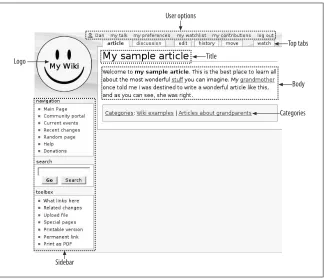
appear in different locations on the page, or be accompanied by additional features, but most of the time they’re all present, looking something like Fig-ure 2-1.
Logo
Sidebar
User options
Top tabs
Title
Body
Categories
Figure 2-1. Sample MediaWiki article
Here are the major parts:
Logo
A picture that identifies the wiki. It appears on every page. Click it to return to the wiki’s home page at any time.
Article title
The name of the article, in this case, My sample article.
Article body
The text and images that make up a wiki article. The text contains links to other wiki articles, depicted here as the underlined words “stuff” and
“grandmother.”†
Categories
Similar articles are grouped into categories for convenient browsing. In
this case, the categories are Wiki examples and Articles about
grandparents. All of the category names are links, and clicking on any of them leads to a list of all the articles in that category.
Sidebar
The sidebar contains a collection of navigation tools:
Navigation menu
This menu links to several important pages that make good starting points.
Search box
The Search button operates like a regular search engine, listing the wiki articles that match your keywords. The Go button jumps directly to a relevant article; if it doesn’t, you are offered the opportunity to create one.
Toolbox
A menu of tasks that changes as you browse the wiki, displaying links appropriate to the page you’re viewing. On an article page, for exam-ple, the Toolbox can display a printable version of the article. When a user page is displayed (see “User Pages” on page 31), the Toolbox contains a link for emailing that user.
Language menu
This optional menu (not pictured) contains links to foreign-language translations of the current article. See “Interlanguage Links” on page 84 for more details.
User options
A menu of links about you (i.e., your identity on the wiki), usually at the top of the page. Here’s where you log in and out, set preferences, and more. If you are not logged in, this menu will lack most of its links. Chap-ter 3 covers this menu and its features in detail.
Top tabs‡
Actions for working with articles: viewing, editing, renaming, and more. See Chapter 4 for details.
MediaWiki’s menus are a bit arbitrary. For instance, “Donations” (in the Nav-igation menu) is hardly about navNav-igation, whereas “Special Pages” (in the Toolbox) arguably is. But these are small issues, you’ll get used to them, and
‡“Tabs” is a bit misleading because some MediaWiki sites don’t display these links as tabs. Most
wiki administrators can change them if desired. (Wikipedia has a slightly dif-ferent menu arrangement, for example.)
Articles
MediaWiki content is contained in articles, one per topic. When people talk
about a “wiki page,” they usually mean an article. In this section, we’ll cover the various types of articles and how to locate them by searching and browsing. Every article has a title and a body. Titles come in many styles: a single noun like Dog, a proper name like William Shakespeare, a verb phrase like Harvesting wheat in the fall, or even Random thoughts that I wanted to share with the world today, so there. The article body is the content: text, images, or other
media. An article titled William Shakespeare might include a biography of the
famous playwright, a portrait or two, and an audio recording of a famous speech from Hamlet.
Articles are written and edited by a community of wiki users. Many MediaWiki sites let anybody edit any article or create new articles. This openness is a core philosophy behind wikis.
Searching for Articles
MediaWiki’s search box has two search buttons, labeled Search and Go, rather than the usual single button. Briefly, the Search button produces traditional search results (hits), while Go jumps directly to articles and offers the oppor-tunity to create new ones. (Pressing Enter is the same as clicking Go.)
The built-in search box of Firefox, IE7, and possibly other web browsers can also search the wiki. When visiting a MediaWiki site, check your browser’s list of available search engines, and you’ll see your wiki listed as a choice next to Google and the rest. This happens automatically, thanks to a technology standard called OpenSearch.
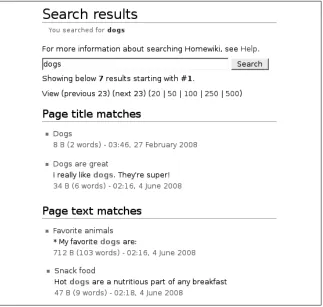
Enter some text in MediaWiki’s search box, click Search, and a page of search results appears: links to wiki articles matching your search text, as shown later in Figure 2-2. An article matches if it contains all the words in your search text. Search is case-insensitive: capital and lowercase letters are equivalent.* If you
* Article titles are case-sensitive in other situations, however: see the sidebar “Article Titles and
enclose your search text in double quotes, then an article matches if it contains that exact phrase.†
The Go button does much the same thing, with two additional features:
Jumping to an article
If your search text exactly matches the title of a article, the Go button brings you directly to that article, rather than displaying a page of search results. So if you enter Dog and click Go, and there’s an article called Dog,
that article will be displayed. The search results page is simply skipped. If there is no exact match to your search text, then you’ll see a search results page as if you’d clicked Search.
Creating an article
If your search terms don’t exactly match an article’s title, the search results page asks if you want to create that article. For example, a failed search for dog bicycles produces a message like this:
There is no page titled “dog bicycles”. You can create this page.
By clicking create this page, you’ll be led to the MediaWiki edit page to create the article.
A search results page, shown in Figure 2-2, displays two types of results:
Page title matches
Articles whose titles contain all your search terms.
Page text matches
Articles whose content contains all your search terms. You will also see at the bottom of the page:
• Links for viewing further search results, one page at a time.
• A search area where you can modify your terms and search again. You can also limit the search to certain collections of articles (see “Namespaces” on page 16). For instance, to search only Help pages, clear all checkboxes except for Help.
The search engine ignores some common words (like “the”); the complete list is at http://dev.mysql.com/doc/refman/5.0/en/ fulltext-stopwords.html. Also, by default, words of three letters or less are ignored. Both of these behaviors can be changed by the wiki administrator: see “Search Database Tuning” on page 251.
Figure 2-2. A search results page
Browsing by Categories
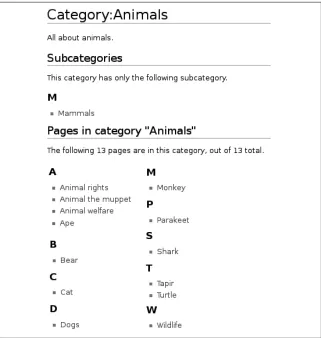
MediaWiki articles on similar topics are grouped into descriptive categories,
which are listed at the bottom of most articles. For example, the article Dog
might be in the categories Mammals, Pets, and Carnivores. Each category name
Figure 2-3. A category page
The list of all categories is not an article, but a special page, a web application within MediaWiki. We’ll see many other spe-cial pages in Chapter 8 and throughout the book.
Categories provide a path for moving through the wiki. From the article Dog,
you could click the Pets category link and see a list of all pets. From here you’d click, for example, Parakeet, and when the Parakeet article loads, you’ll see
it’s in the category Birds. Click Birds to list all bird-related articles in the wiki,
and continue.
Categories can have categories, too. The Pets category could be contained in
Activities, which is in Human Behavior, which is in Psychology, and so on.
When category A is inside category B, we call A the child category or subcate-gory, and B the parent category or supercategory. A single article may be in
many categories, and a single category can have many parents and many children.
These parent/child relationships between categories provide yet another path through the wiki. Suppose your company has a MediaWiki site on its intranet, and you’re looking for information on company-provided travel insurance. You search for “travel insurance” but find nothing. So, you could visit the
Departments category page, which has a subcategory Human Resources, which
has a subcategory Policies, which contains an article called Travel Policy,
which discusses travel insurance. You notice that the benefit is called “business trip insurance” which is why it didn’t show up in your search results. Thank goodness for categories.‡
We’ve been discussing categories purely from a reader’s perspective, as if they were always present, perfectly organized, and ready for use. This is ideal, but not always the case. In an active wiki, contributors are constantly shuffling articles into and out of categories, creating categories, and reorganizing parent and child categories. We’ll see how to do all that in Chapter 6.
Namespaces
Some wiki page titles begin with a word and a colon, such as Help:Contents or
Category:Wiki examples. These prefixes are called namespaces, and they divide the wiki into major sections with particular purposes. Help-related articles are
found in the Help namespace, for example, and categories are found in the
Category namespace. Articles about the wiki’s own operation are found in a namespace named after the wiki. That is, a wiki called MyWiki would have a namespace MyWiki, with articles titled MyWiki:About, MyWiki:Privacy policy,
and so on. (The standard namespaces can be found in Table 6-1 in the section “Namespaces” on page 96.)
Articles such as Dog, which have no namespace specified, are said to be in the main namespace or article namespace.
To list articles in a given namespace, visit the page Special:AllPages.* (Type
“Special:Allpages” in the search box and click Go.) Then select a namespace and click Go.
For now, you don’t need to know much about namespaces. Just be aware that they exist, as we’ll refer to them often. We’ll cover them in depth in “Name-spaces” on page 96.
User Pages
Every registered wiki user has a personal wiki article, called a user page. The name is User:username. If your username is Jsmith, for example, your user page
is User:Jsmith. That article is in the User namespace, which contains all user
pages from User:Aaaaargh to User:Zzzzz.
Talk Pages
Every article has an associated talk page, or discussion page, where visitors can write comments. To visit an article’s talk page, click the article’s Discussion tab.
Talk pages are ordinary wiki articles, but by agreement, they are dedicated to discussions about articles. For example, if the article Dog explains what foods
are appropriate for dogs, but you disagree with the advice, the place to say so
is the article’s talk page, Talk:Dog. If your comments are deemed worthwhile
by the community, they might later move to the Dog article.
Talk pages have an additional top tab, labeled “+” or “New Section”. Click this tab to append a new section to the talk page rather than editing the whole page. This is the easiest way to add a new discussion topic with its own heading.
As you might guess from the name Talk:Dog, all talk pages (for the main
name-space) are contained in a namespace called Talk. Every other namespace (User, Help, Category, etc.) has an associated talk namespace (User talk, Help talk, Category talk, etc.) that contains its talk pages. For example, the user
page User:Jsmith has an associated talk page, User talk:Jsmith, in the User
talk namespace. Likewise, the talk page for Category:Wiki examples is
Categorytalk:Wikiexamples.†
* Special:Allpages is another “special page” in MediaWiki.
†Earlier, we said that article titles in namespaces consist of a word, a colon, and the article name,
Many MediaWiki users remain unaware of talk pages, as the little “discussion” tab is easy to overlook. Sometimes, the dis-cussion provides interesting clues to the collaborative process that developed the main article.
Links
MediaWiki articles are filled with internal links to other articles in the same
wiki. They appear in various colors with different meanings:‡
• Blue means the article is not in your browsing history, meaning you might not have visited it yet.
• Purple means you have visited the article.
• Red means there is no article on the topic. Clicking the link brings you to an edit page to create the article. A red category link means nobody has created a category page of that name.
In addition to internal links, there can also be external links to other websites. These are often accompanied by a small icon to distinguish them from internal links. Secure links are followed by a padlock icon, and ordinary nonsecure links have an arrow.*
History
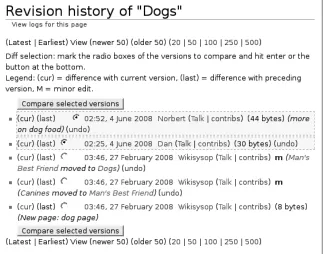
MediaWiki keeps track of every edit made to every article. On any article page, you can see who edited the article, when they did it, and what changes they made, by clicking the top tab labeled History. Each bulleted line of an article’s history, as shown in Figure 2-4, represents a revision of the article, where someone edited the article and saved the changes.
This revision control system is one of MediaWiki’s great fea-tures. You can edit articles without worrying because if you mess things up, the previous revision can be restored easily by clicking an “undo” link.
‡These are the default colors in the default skin; wiki sysops can change them. Also, for a cool trick,
see the preference “Threshold for stub link formatting” in “Miscellaneous Preferences” on page 41.
Figure 2-4. A history page
Here are some interesting things you can do on a history page:
• See who made any revision by examining the username on that line. You can also click the username to visit that user’s personal page, the “talk” link to visit her personal talk page, or the “contrib” link to see her other edits on the wiki (all discussed in Chapter 3).
• View previous versions of the article by clicking the date and time of any revision.
• View the changes, or diffs, made in revisions:
— To see the changes made in a particular revision, click its “last” link. — To compare an old revision to the most recent one, click its “cur” link. — To compare any two revisions, select the radio buttons next to both of
them and click “Compare selected versions”.
To learn the authorship of any wiki page quickly, add the query parameter action=credits to the end of the URL, e.g.:
http://example.com/wiki/My_article?action=credits
Reverting to an Old Revision
You can always undo the most recent revision of an article by visiting the history page, locating that revision, and clicking its “undo” link. Earlier revi-sions also have “undo” links, but the operation will fail if later edits conflict with one another (for example, if there are two incompatible edits to the same line).
As a substitute for “undo”, you can revert back to any revision with the fol-lowing steps:
1. Locate the old revision on the article’s history page.
2. Click the timestamp of that revision (e.g., 22:23, 4 June 2008 ), which displays the article as it used to be.
3. Click the old article’s Edit tab. At the top of the edit page, you’ll see a message indicating it’s an old revision:
WARNING: You are editing an out-of-date revision of this page. If you save it, any changes made since this revision will be lost. Nonetheless, you’ll soon be saving this old revision.
4. In the Summary area, enter an appropriate change comment like “rever-ted to revision of 22:23, 4 June 2008.”
5. Save.
You have now created a new revision that is a copy of the old one, reverting the article.
Editing Primer
On most MediaWiki sites, any article can be modified by any user. This is accomplished on the edit page, available by clicking an article’s Edit link. You’ll see a main Edit link to edit the entire article, and sometimes Edit links next to each section for editing only that section of the article.
Wikitext
Figure 2-5. Toolbar buttons on the edit page
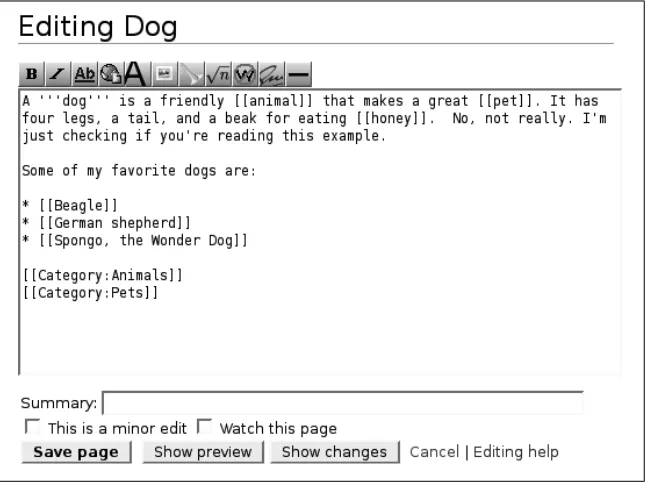
MediaWiki’s edit page has a small button bar, called the toolbar, for making
words bold, italic, and so on. It has familiar-looking buttons, as shown in Figure 2-5; however, they don't work in the same way as in Microsoft Word
or other WYSIWYG editors. Instead, these buttons emit wikitext, special
sym-bols that surround your words. When you highlight a word and click the italics button, for example, the editor does not display the word in italics. Instead, it places two single quotes on each side of the word, like this:
Here is a ''very important'' message.
You can also type the quote marks by hand. When MediaWiki later displays this decorated text, it appears as:
Here is a very important message.
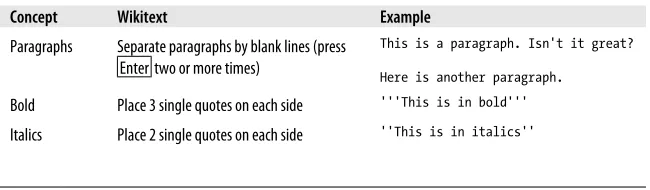
Wikitext might seem cumbersome at first, but most likely you’ll get used to it quickly. (Fifty zillion Wikipedia authors can’t all be wrong, can they?) If you know HTML, you’ll find wikitext much simpler for most tasks. Table 2-1 illustrates some common wikitext.
Table 2-1. A few simple wikitext symbols (not complete)
Concept Wikitext Example
Paragraphs Separate paragraphs by blank lines (press Enter two or more times)
This is a paragraph. Isn't it great?
Here is another paragraph.
Bold Place 3 single quotes on each side '''This is in bold'''
Concept Wikitext Example
Bulleted lists Precede items with an asterisk at the begin-ning of the line
* First item * Second item * Third item
Numbered lists Precede items with a hash mark at the be-ginning of the line; items will be consecu-tively numbered
# First item # Second item # Third item
Headings Place 2 equals signs on each side; must be at the beginning of the line
== This is a heading ==
Subheadings Increase the number of equals signs; must be at the beginning of the line
=== This is a subheading === ==== This is a sub-subheading ==== ===== etc. =====
Internal links Place 2 square brackets on each side to link to another wiki article
Link to the [[dog food]] article.
Edit, Preview, Comment, Save
Editing an article involves four steps that all wiki authors must commit to memory—this process is an integral part of MediaWiki life:
Edit
Click an article’s Edit button, and change the wikitext to your heart’s content.
Preview
At any time, click the edit page’s Show Preview button to examine what the article will look like when saved. You can also click the Show Changes button to see only what you’ve changed, in a two-column “before and after” format that highlights the changes.
Repeat the Edit and Preview steps as many times as you like.
Comment
Below the edit box, there is a Summary line to describe the changes you’ve
made. This step is optional but highly recommended, as your summary
comments will appear in the article’s history, helping other readers un-derstand what you did and why.
Save
Finally, click the Save Page button to make your changes permanent and available to other readers. This creates a new revision of the article. Your summary comment appears on the article history page.
If you have access to a MediaWiki site, take time to practice with wikitext and the edit-preview-comment-save process. One good place to practice is
Wiki-pedia’s sandbox, http://en.wikipedia.org/wiki/Wikipedia:Sandbox, a wiki
Menu Reference
Here’s a quick overview of all the menus you’ll find on a typical MediaWiki page as you saw previously with Figure 2-1 within the section “Quick Tour of a Wiki Page” on page 9.
Navigation Menu
The Navigation menu is completely customizable by wiki sysops; check out Wikipedia for an example of a customized Navigation menu. MediaWiki’s default links are listed here:
Main page
Return to the home page, just like clicking the wiki logo.
Community portal
Each MediaWiki site can interpret this however it likes. On Wikipedia, it’s a collection of wiki-related news.
Current events
Each MediaWiki can site interpret this however it likes. It’s often a list of news articles from media outlets.
Recent changes
A list of changes on the wiki, from newest to oldest. Each bulleted entry is one change. From each entry, you can jump to the article (click its title), see the change itself (click “diff”), view the article’s history (click “hist”), and see information about the author (using the same username, Talk, and contribs links as on the history page). See “Recent Changes” on page 154 for more details.
Random page
Just like it sounds: jump to a randomly selected article. See “Random Page” on page 158.
Help
Each MediaWiki site can interpret this however it likes. If present, this article is usually a list of help articles on the wiki.
Donations
Toolbox Menu
The links in the Toolbox menu vary depending on where you are in the wiki. For a typical article, the links include:
What links here
Follow links in reverse: that is, find out which other articles link to this one. See “What Links Here” on page 162.
Related changes
See changes in articles that are linked from this one. See “Related Changes” on page 154.
Upload file
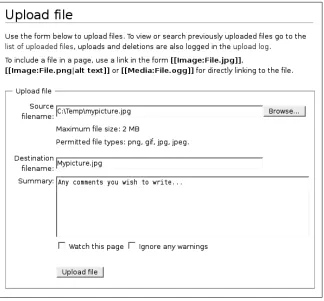
Upload an image or other file for use in the wiki. See “Images and Uploa-ded Files” on page 56.
Special pages
View a list of web applications, called special pages, found on the wiki. See Chapter 8 for the full story.
Printable version
Display the current article in a format more suitable for printing (without the menus).
Permanent link
Produce a link to this specific revision of this article. If the article is edited later, this link will still lead to the old revision. These links are great for bibliographic references.†
Language Menu
MediaWiki is multilingual: articles may exist in many languages if the wiki is set up to support this. Sometimes the articles are straight translations, and other times they say completely different things.
On Wikipedia, if an article exists in multiple languages, an additional “Lan-guages” menu appears in the sidebar. This menu contains a list of every lan-guage in which the article exists. Click Deutsch, for example, to see the German edition of the article. Other MediaWiki sites may have a similar feature, as explained in “Enabling Interlanguage Link Support” on page 333.
†Although the article will be the old revision, any embedded content that can change independently,
You can change the language of all menus, buttons, tabs, and system text. Just click “my preferences” in the user options menu, and under the User Profile tab, change your language and click Save. About 300 languages are supported.
User Options Menu
If you’re logged in to the wiki, the user options menu contains:
your username
Your personal user page (the link displays your MediaWiki username).
My talk
Your personal talk page.
My preferences
Settings to affect your experience on the wiki.
My watchlist
List of articles you’re watching, so you can be alerted when they change.
My contributions
List of your edits.
Log out
Log out of the wiki.
If you’re not logged in, you’ll see some or all of:
nnn.nnn.nnn.nnn (an IP address)
Because MediaWiki cannot identify you, it lists the IP address (numeric Internet address) that you’re coming from. If the site permits anonymous users to have user pages, this will be a link.
Talk for this IP
The talk page for the previously mentioned IP address, if supported by the wiki.
Log in/create account
Log into the wiki or create a new user account.
In some cases, anonymous users can be tracked or identified by their IP address by anyone viewing the wiki. Registered users, on the other hand, do not have their IP addresses dis-played except to the wiki’s system administrators. An inter-esting twist on “anonymous.”
Top Tabs
The top tabs represent operations on articles. If you’re logged in, you’ll see:
Article or Page‡
View the article. This is selected by default when you browse to an article by link or search.
Discussion
View the article’s talk page.
Edit, View Source, or Create
If the article is editable, the Edit tab will appear, leading to MediaWiki’s edit page. If it is not editable, the tab will read View Source, allowing you to see the wikitext of the article but not edit it. If the article doesn’t exist and is being edited for the first time, the tab will read Create.
History
View the history page.
Move
Rename the article.
Watch
Be alerted when the article changes. See “Watchlists” on page 33. If you’re not logged in or you have special privileges, you might see more or fewer tabs.
Footer
The footer menu appears at the bottom of every wiki page. Its linked articles may be interpreted differently by each wiki, but their intended contents are the following:
About...
A description of the wiki’s purpose.
Disclaimers
Legal (or other) disclaimers about the wiki and its contents.
Privacy policy
The wiki’s official policy on information privacy and/or user privacy. The footer may also display the time of an article’s last change. For example, “This page was last modified 01:13, 26 March 2008.”
‡This tab changes depending on the namespace of the article. For help pages, for example, it reads
Getting Help
In the Navigation menu there’s a Help link, and on most MediaWiki sites it
leads to something useful.* In case you don’t find what you need in the local
help pages, Table 2-2 lists some good resources.
Table 2-2. Websites with MediaWiki help
Resource URL Description
MediaWiki help http://www.mediawiki.org/wiki/Help:Contents Basic help for any MediaWiki site
Wikipedia help http://en.wikipedia.org/wiki/Help:Contents More in-depth articles; however, many are spe-cific to Wikipedia’s poli-cies and practices
Wikimedia Meta-Wiki help
http://meta.wikimedia.org/wiki/Help:Help Various user guides and more
* It depends whether the wiki administrator has installed the standard help pages, or if the wiki’s
CHAPTER 3
Your User Identity
Most MediaWiki sites can be browsed anonymously, but there are advantages to signing up as a registered user.* Before you fret, “Oh no! Not another
user-name and password to memorize,” consider the benefits of creating an ac-count: tailoring the behavior of the wiki to your liking, keeping track of your edits over months or years, monitoring other people’s changes to your articles, and, of course, that warm, fuzzy sense of community. (Assuming the com-munity members are getting along!)
In this chapter, we’ll discuss MediaWiki’s features for registered users, in-cluding the following:
Creating an account
How to sign up and have an identity on the wiki
Your user page
A personal wiki page just for you (although anyone else can edit it)
The Toolbox menu for users
Special links that appear on user pages
Communicating via user talk pages
Sending messages to other wiki users
Your watchlist
Monitoring changes to selected articles
Your contributions
Listing all the edits you’ve made
Setting preferences
Tailoring your wiki experience
* Sign ups and anonymous use can be disabled by the wiki administrator; see “User Rights and
User CSS and JavaScript
Writing custom code to change the behavior of the wiki
Many of these features are reachable from the user options menu found on every wiki page (see “User Options Menu” on page 25).
Creating an Account
To create an account (assuming you aren’t logged in already): 1. Click the link “Log in/Create account” on any wiki page. 2. On the login page, click “Create an account”.
3. Follow the simple directions. Creating your account will automatically log you in to the wiki.
This assumes that your wiki permits people to create their own accounts. (This feature is sometimes disabled.)
After you’re logged in, you’ll no longer see a “log in” link (only “log out”). If you need to visit the login page in this case, say, to create an account for someone else, go to the Toolbox, click “Special pages”, and locate and click “Log in/create account” in the list. Alternatively, enter Special:UserLogin in the search box and click Go.
Logging In and Out
If you are already a registered user, log in by clicking the same “Log in/create account” link just mentioned. Enter your username and password.
Once you’re logged in, the “Log in” link becomes a “Log out” link, available on all pages.
Remember My Login on This Computer
User Pages
Every registered user on a MediaWiki site has a user page, which is an article devoted to him or herself. The article name is User:username. For example, if
your username is Dolphin, your user page will be User:Dolphin.
To visit your user page, click your username in the user options menu. If the page does not yet exist, you’ll be presented with a MediaWiki edit page to create it. You can then edit and save it like any other article, as we saw in “Editing Primer” on page 20.
Your user page is neither private nor protected. Any other user can edit it, just like any other wiki article.
On some MediaWiki sites, even non-logged-in visitors may have a user page. Its name is based on the visitor’s IP address, for example, User:123.45.67.89.
Photo on Your User Page
You can place a photograph of yourself on your user page. Here’s a quick and easy layout:
1. Upload a small photo, say, YourPhoto.jpg (see “Images and Uploaded Files” on page 56).
2. Edit your user page. 3. On the first line, write:
[[Image:YourPhoto.jpg|right|frame]]
This sets your photo on the right side of the page, and the text flows around it.
User Talk Pages
As mentioned in “Talk Pages” on page 17, every namespace has an associated
talk namespace, and the User namespace is no exception. So, you not only have
a user page, but also a user talk page, User talk:username (e.g.,
User talk:Dolphin).
• Next time you hit a wiki page, you’ll see an alert at the top of the browser, as in Figure 3-1. The alert remains until you visit your user talk page. • If you set your email preferences to do so (see “Email Preferences” on page
37), you’ll receive an email message.
If you edit your own user talk page, no alert occurs.
Figure 3-1. User talk page alert
User Toolbox
Because a user page is an article, its Toolbox menu contains the usual links for articles: “What links here”, “Upload file”, and so on. But it also adds several user-related links:
User contributions
Same as “my contributions” (see “Tracking Your Contributions” on page 35), but displaying that user’s contributions instead of yours.
Logs
A list of recent actions by that user, such as uploading files and renaming and deleting articles. See “Recent Changes and Logs” on page 152.
E-mail this user
Send email to the user, assuming that an email address is set in that user’s preferences.
Signatures
All registered users have a signature: a compact display of the username and
Table 3-1. Wikitext signatures
Signature Meaning
~~~ Your username or nickname alone, linked to your user page.
~~~~ Same as above, but with the addition of a timestamp. This is the recommended signature for talk pages. Sometimes people precede it with two dashes (--~~~~), especially if on a line by itself.
~~~~~ Just a timestamp, no username or nickname.
For example:
Yes, I completely agree! ~~~~
appears something like this:
Yes, I completely agree! Jsmith 03:21, 4 June 2008 (UTC)
Signatures are controlled by several preferences: see “User Profile Preferences” on page 35.
Watchlists
Suppose you’ve worked hard on an article and want to know when anyone else changes it. Simply add it to your watchlist—your personal list of articles of interest—by clicking its “watch” tab. To remove an article from your watch-list, click its “unwatch” tab. You can watch any article, not only those you’ve edited.
Watching an article also watches its talk page, and vice versa.
Viewing Your Watchlist
To see your watchlist, click the link “my watchlist” in the user options menu. This displays the most recent changes to your watched articles, organized by date. A typical change looks like this:
22:04 My article (diff; hist) . . (+9) . . Dan (Talk | contribs)
The parts are:
22:04
Time of the edit (the date is listed as a heading)
My article
diff
Link to a diff page displaying the change
hist
Link to the article’s history page
+9
Number of characters added (+) or removed (–) in the change
Dan
Name of the user who made the change: a link to a user page
Talk
Link to the user’s talk page
contribs
Link to the user’s contribution list
You might also see an “m” next to an entry, indicating a minor edit, or an exclamation point, indicating that the change has not yet been marked as “approved” (patrolled) yet by someone in charge (see “Patrolling Articles” on page 243).
Email Notifications
Want to receive emails when your watched articles are modified? Visit your preferences page (see “Preferences” on page 35) and under the User Profile tab, check, “E-mail me when a page I’m watching is changed”. This feature is disabled by default.
Also by default, you will not be emailed about minor edits. To receive email notifications for minor edits, check, “E-mail me also for minor edits of pages”.
If you edit an article on your watchlist yourself, MediaWiki does not send you an email about it. (New users commonly “test” the email notification feature by editing a page on their own watchlist, then wonder why no email arrives. Now you know.)
Other Watchlist Preferences
Changing Your Watchlist
To update your watchlist, return to the link “my watchlist” in the user options menu. Several of the views on this page are for modifying your watchlist:
View and edit watchlist
Lists all watched articles, and lets you remove them by clicking checkboxes.
Edit raw watchlist
Lists all watched articles in a traditional edit box, where you can add and remove titles.
Tracking Your Contributions
Want to see all the articles and edits you’ve made on the wiki? In the user options menu, click the link “my contributions”. You’ll see a bulleted list of your edits, looking much like a history page:
22:04, 1 April 2008 (hist) (diff) My article
This line is almost exactly like the ones that appear in your watchlist, except it includes the date and skips your name, talk page link, and contributions link. You’ll also see a bunch of widgets to control the output. You can choose to view contributions:
• From other users, or from new accounts only • In particular namespaces
• From particular years and months
Preferences
Now that you’re a registered user, you can tailor your MediaWiki experience
by changing your preferences. To begin, click “my preferences” in the user
options menu, or visit Special:Preferences via the search box. You’ll see
sev-eral collections of settings that affect how MediaWiki works for you. Let’s cover each collection.
User Profile Preferences
Real name
If you fill in your real name here, it will appear instead of your username or nickname (see below) on Credits pages. It will not appear anywhere else (e.g., history pages, my contributions, etc.).
This address is used in several situations:
• When someone visits your user page and clicks “email this user” • When the MediaWiki software contacts you for some reason, such as
a watchlist notification
Sending email will reveal your email address to the recipient.
Nickname
Overrides your username for signatures. This does not affect your user-name as displayed on history pages, the Recent Changes page, and so on.
Raw signatures (without automatic link)
When enabled, anything you’ve entered as your nickname—including
wikitext—will be displayed instead of a link to your user page. For
exam-ple, the nickname [http://example.com '''Joe Example'''] produces an
external link to example.com labeled “Joe Example” in bold. Avoid putting images or templates (Chapter 7) in signatures: this is considered bad wiki etiquette.
Language
Your choice of (human) language for MediaWiki’s user interface (menus, messages, etc.). On some wikis, the choice affects language for the articles as well.
Changing your nickname or signature style will not affect any previous signatures in articles, only future signatures.
Change Password
If you want to change your username, you’re out of luck: MediaWiki does not have this feature. So, pick a good one!†
Email Preferences
These checkboxes control how you are notified by MediaWiki. You must have entered your email address preference for these to work. (See “User Profile Preferences” on page 35.)
Email me when a page I’m watching is changed
When you’re watching an article and it changes, MediaWiki notes this in your watchlist, but it does not email you unless you’ve checked this box.
Email me when my user talk page is changed
Normally when your user talk page is changed, a notice will appear at the top of each wiki page. If you additionally want an email about the change, check this box.
Email me also for minor edits of pages
For the previous two settings, if the edit is minor (i.e., the checkbox “This is a minor edit” is checked on the edit page), you won’t be emailed. This checkbox overrides this behavior, so you are emailed even for minor edits.
Enable e-mail from other users
This permits other users to email you via MediaWiki, e.g., from the Tool-box on your user page. If this is unchecked and another user tries to email you, they’ll see a message that you’ve “chosen not to receive email from other users.”
Send me copies of emails I send to other users
Any email you send via the wiki will be cc’ed to your address.
Skin Preferences
MediaWiki’s skin determines the look and feel of all its wiki pages. It sets the colors, fonts, positioning, and other attributes of the page.
The default skin (and the most popular, and the most actively maintained) is called MonoBook, and all examples in this book are based on it. Nevertheless, you can change the skin for your account on this preferences page.
To preview skins without changing your account, click the Preview link next to each skin. If you find one you prefer, select it, and click Save.
Uploaded Files Preferences
These preferences control the display of uploaded images and other files, discussed in “Images and Uploaded Files” on page 56:
Limit images on file description pages to...
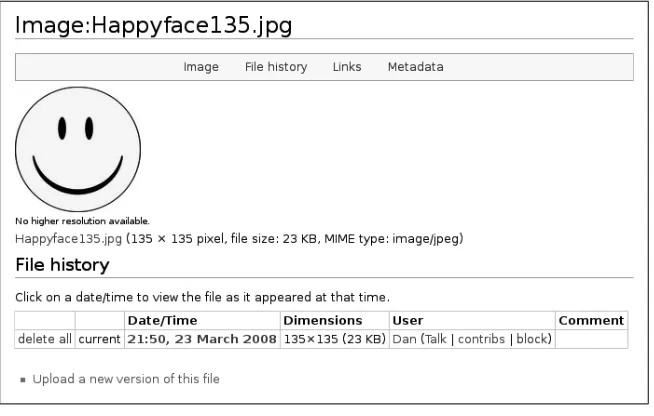
When viewing an image page (e.g., Image:File.jpg), this setting
deter-mines the maximum display size of the image.
Thumbnail size
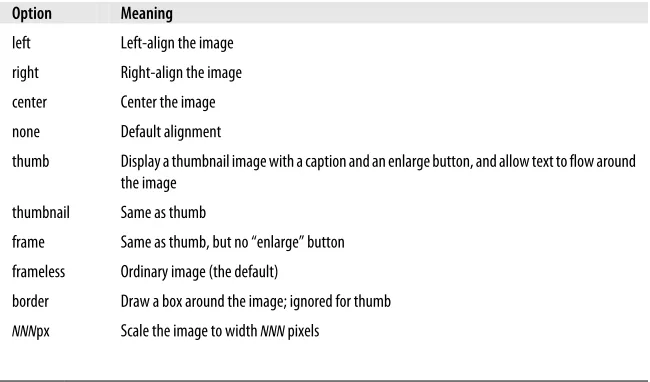
When using the “thumb” option on images, as in [[Image:File.jpg|
thumb]], this setting determines the width of the displayed image.
Date and Time Preferences
These preferences control date and time display throughout the wiki: in the footer, on history pages, on the Recent Changes page, and more:
Date format
Your preferred way to see dates and times displayed.
Time zone
If you are geographically located in a different time zone from the wiki server, use this setting to make dates and times correct for your local time, rather than the server time. The easiest method is to click the “Fill in from browser” button, which calculates your time difference from GMT (Greenwich Mean Time).
Editing Preferences
These preferences affect the behavior of the edit page for articles:
Rows
The height (number of lines) of the editing area.
Columns
The width of the editing area, in characters. The default skin, MonoBook, ignores this setting and always stretches the edit box to the full browser width.
Enable section editing via [edit] links
If enabled, edit links are placed next to each section heading, so you can edit a section at a time.
Enable section editing by right-clicking on section titles (JavaScript)
Edit pages on double-click (JavaScript)
If enabled and you double-click anywhere in an article’s title or body, the edit page will be displayed with that article loaded.
Edit box has full width
In some skins, this preference stretches the edit box to the full width of the browser window. The default skin, MonoBook, ignores this preference.
Show edit toolbar (JavaScript)
When enabled (it’s the default), the edit page has a button bar above the edit box for bold, italics, linking, and other wikitext features.
Show preview on first edit
Normally when you visit the edit page, the original article text is not dis-played. When this checkbox is enabled, the edit page displays the article text, as if you’d pressed the Show Preview button.
Show preview before edit box
When enabled (the default), previews are shown near the top of the edit page. When disabled, previews are near the bottom of the page.
Mark all edits minor by default
When enabled, the checkbox “This is a minor edit” will be checked au-tomatically when you visit the edit page. This is a time-saver if most edits you make are minor.
Use external editor by default, Use external diff by default
These preferences allow you to edit wiki pages and perform diffs (com-parisons) using external programs. At press time, this is quite difficult to set up. Although MediaWiki can do the sending, setting up a receiver is complicated, and pretty much beyond the ability of nonprogrammers. For more details see:
http://en.wikipedia.org/wiki/Help:External_editors http://help.wikia.com/wiki/External_editors
http://en.wikipedia.org/wiki/Wikipedia:Text_editor_support Prompt me when entering a blank edit summary
This tries to prevent users from skipping the edit summary (change com-ment) by printing a warning when it’s blank:
Recent Changes Preferences
These settings affect the behavior of the Recent Changes page, reachable via
the Navigation menu or as Special:RecentChanges (see “Recent Changes” on
page 154).
Days to show in recent changes
Limit the number of days’ worth of entries to display.
Number of edits to show in recent changes
Limit the total number of entries to display.
Hide minor edits in recent changes
By default, do not display edits marked as “minor” by their authors.
Enhanced recent changes (JavaScript)
A more compact display with one line per article, rather than one line per change. If an article has multiple changes, you can expand the list with a click. Try it out!
Watchlist Preferences
These preferences affect the behavior of your watchlist:
Days to show in watchlist
Limit the length of the watchlist display.
Expand watchlist to show all applicable changes
Normally, if an article was changed several times, it will appear in your watchlist only once. This preference causes your watchlist to display all the changes, one per line. Multiple changes may be rolled together into a single line, with a clickable icon that expands the display to show all lines.
Maximum number of changes to show in expanded watchlist:
Limit the number of entries displayed if you’ve selected the previous pref-erence (“Expand watchlist...”).
Hide my edits from the watchlist
Don’t display your own edits.
Hide bot edits from the watchlist
Don’t display edits made by bots (software applications that modify the wiki).
Hide minor edits from the watchlist
Don’t display edits marked as minor by their authors.
Add pages I create to my watchlist
Add pages I edit to my watchlist
Automatically add articles that you edit to your watchlist.
Add pages I move to my watchlist
Automatically add articles that you rename to your watchlist.
Search Preferences
These preferences control the behavior of the search results page,
Special:Search:
Hits per page
Limit the number of search results displayed.
Lines per hit
Limit the number of matching lines displayed for each matching article. So, if an article has 10 lines that match your search keywords, and this preference is set to 3, only 3 of those lines will be displayed.
Context per line
Limit the length of the ma