• Tidak ada hasil yang ditemukan

PDF Hacks Free ebook download Free ebook download

N/A
N/A
Protected

Academic year: 2019

Membagikan "PDF Hacks Free ebook download Free ebook download "

Copied!
486
0
0

Teks penuh

(1)

< Day Day Up >

Index Reviews

• Reader Reviews

• Errata

• Academic

PDF Hacks

By Sid Steward

Publisher: O'Reilly Pub Date: August 2004

ISBN: 0-596-00655-1 Pages: 296

PDF Hacks is ideal for anyone who works with PDF on a regular basis. Learn how to create PDF documents that are far more powerful than simple representations of paper pages. Hacks cover the full range of PDF functionality, including generating, manipulating, annotating, and consuming PDF information. Far more than another guide to Adobe Acrobat, the book covers a variety of readily available tools for generating, deploying, and editing PDF.

< Day Day Up >

(2)
(3)

< Day Day Up > &"87%" class="v1" height="17">Table of Contents &"87%" class="v1" height="17">Index &"87%" class="v1" height="17">Reviews

• Reader Reviews

• Errata

• Academic

PDF Hacks

By Sid Steward

Publisher: O'Reilly Pub Date: August 2004

ISBN: 0-596-00655-1 Pages: 296

Copyright Credits

About the Author Contributors Acknowledgments Preface

Why PDF Hacks? How to Use This Book

A Note on Software Using Code Examples

How This Book Is Organized

Conventions Used in This Book How to Contact Us

Got a Hack? Chapter 1. Consuming PDF

(4)

Adobe Reader Hack 2. Read PDFs with Mac OS X's Preview Hack 3. Read PDFs with Ghostscript's GSview

Hack 4. Speed Up Acrobat Startup Hack 5. Manage Acrobat Plug-Ins with Profiles on Windows Hack 6. Open PDF Files Your Way on Windows Hack 7. Copy Data from PDF Pages

Hack 8. Convert PDF Documents to Word

Hack 9. Browse One PDF in Multiple Windows Hack 10. Pace Your Reading or Present a

Slideshow in Acrobat or Reader Hack 11. Pace Your Reading or Present a

Slideshow in Mac OS X Preview Hack 12. Unpack PDF Attachments (Even Without Acrobat)

(5)

Bookmark PDF Pages in Reader Hack 16. Create Windows Shortcuts to Online PDF Pages with Acrobat Hack 17. Create Windows

Shortcuts to Local PDF Pages Hack 18. Turn PDF Bookmarks into Windows Shortcuts Hack 19. Generate Document Keywords Hack 20. Index and Search Local PDF Collections on Windows Hack 21. Spinning Document Portals Hack 22. Spinning Collection Portals Hack 23. Identify Related PDFs Chapter 3. Authoring and Self-Publishing: Hacking Outside the PDF

Introduction: Hacks #24-31 Hack 24. Keep Your Source Smart

Hack 25. Convey Your Document's Value with Good Design

(6)

Hack 29. Publish POD and E-books Hack 30. Sell Through Amazon Hack 31. Sell Your Book, Sell Yourself

Chapter 4. Creating PDF and Other Editions

Introduction: Hacks #32-50 Hack 32. Create Interactive PDF with Your Word Processor

Hack 33. Create a Printable,

On-Screen Edition from Word Hack 34.

Multipurpose PDF Hack 35. Create an HTML Edition from Your Word Processor

Hack 36. Create a Handheld Edition from Your HTML Hack 37. Convert Documents from Tools You Don't Own to PDF Hack 38. Acrobat Distiller and Its Profiles

Hack 39. Print to PDF with

Ghostscript and RedMon on Windows

(7)

Advantage Hack 44. Share a PDF Network Printer with Samba

Hack 45. Print to Image and Other Rasterizing Options

Hack 46. Print to SVG

Hack 47. Print Over the Internet Hack 48. Create a PDF Album of Your Digital Pictures

Hack 49. Print to Fax on Windows Hack 50. Convert Incoming Faxes to PDF on Linux Chapter 5. Manipulating PDF Files

Introduction: Hacks #51-73 Hack 51. Split and Merge PDF Documents (Even Without Acrobat) Hack 52. Encrypt and Decrypt PDF (Even Without Acrobat) Hack 53. Add PDF Encryption Actions to

Windows Context Menus

Hack 54. Add Attachments to Your PDF (Even Without Acrobat) Hack 55. Easily Attach Your Document's Tables

Hack 56. Add PDF Attachment Actions to

Windows Context Menus

(8)

Traditional Index Section from Keywords Hack 58. Rasterize Intricate Artwork with Illustrator or Photoshop Hack 59. Crop Pages for Clarity Hack 60. Refry Before Posting Documents Online Hack 61. Copy Features from One PDF to Another Hack 62. Polish Your PDF Edition Hack 63. Add and Maintain PDF Bookmarks Hack 64. Get and Set PDF Metadata Hack 65. Add a Web-Style Navigation Bar to PDF Pages Hack 66. Copy-Protect Your PDF

Hack 67. Support Online PDF Reading Hack 68. Force PDF Download Rather than Online Reading Hack 69.

(9)

Introduction: Hacks #74-92 Hack 74. Collect Data with Online PDF Forms Hack 75. Serve Filled-Out PDF Forms

Hack 76. Drive PDF Forms with Your Data Hack 77. PDF Form-Filling Sessions Hack 78. Permanently Merge a PDF Form and its Data Hack 79. Tool Up with pdftk

Hack 80. Decipher and Navigate PDF at the Text Level Hack 81. Edit PDF Code Freely Hack 82.

Integrate pdftk with gVim for Seamless PDF Editing

Hack 83. Modify PDF Hyperlinks at Serve-Time Hack 84. Tailor PDF Text at Serve-Time Hack 85. Use HTML to Create PDF

Hack 86. Use Perl to Create PDF Hack 87. Use PHP to Create PDF

Hack 88. Use Java to Create PDF

Hack 89. Assemble Pages and Serve PDF Hack 90.

(10)

Hack 91. Generate PDF Documents from XML and CSS Hack 92. Create PDF with

XSL-FO and FOP Chapter 7. Scripting and Programming Acrobat Introduction: Hacks #93-100 Hack 93. Modify or Convert Batches of Documents Hack 94. Script Acrobat Using Visual Basic on Windows Hack 95. Script Acrobat Using Perl on Windows Hack 96.

Customize Acrobat Using JavaScript

(11)

< Day Day Up >

Copyright &"docText">Printed in the United States of America.

Published by O'Reilly Media, Inc., 1005 Gravenstein Highway North, Sebastopol, CA 95472.

O'Reilly books may be purchased for educational, business, or sales promotional use. Online editions are also available for most titles (http://safari.oreilly.com). For more information, contact our corporate/institutional sales department: (800) 998-9938 or [email protected].

Nutshell Handbook, the Nutshell Handbook logo, and the O'Reilly logo are registered trademarks of O'Reilly Media, Inc. The Hacks series designations, PDF Hacks, the image of a sledge hammer, "Hacks 100

Industrial-Strength Tips and Tools," and related trade dress are trademarks of O'Reilly Media, Inc. Many of the designations used by manufacturers and sellers to distinguish their products are claimed as trademarks. Where those designations appear in this book, and O'Reilly Media, Inc. was aware of a trademark claim, the designations have been printed in caps or initial caps.

While every precaution has been taken in the preparation of this book, the publisher and author assume no responsibility for errors or omissions, or for damages resulting from the use of the information contained herein.

Small print: The technologies discussed in this publication, the limitations on these technologies that

technology and content owners seek to impose, and the laws actually limiting the use of these technologies are constantly changing. Thus, some of the hacks described in this publication may not work, may cause

unintended harm to systems on which they are used, or may not be consistent with applicable user

agreements. Your use of these hacks is at your own risk, and O'Reilly Media, Inc. disclaims responsibility for any damage or expense resulting from their use. In any event, you should take care that your use of these hacks does not violate any applicable laws, including copyright laws.

(12)
(13)

< Day Day Up >

Credits

About the Author Contributors Acknowledgments

(14)
(15)

< Day Day Up >

About the Author

Sid Steward works with publishers to make PDF do what they need. Sometimes, the solution is simply a script; other times, it is an entire document conversion workflow. He is a dreamer, a contrarian, and an idealist, all of which help him devise good solutions to interesting problems. His heroes include Bjarne Stroustrup and Vern Giles.

(16)
(17)

< Day Day Up >

Contributors

The following people contributed material or expertise to this book:

Simon St.Laurent (http://simonstl.com/) is an editor with O'Reilly Media, Inc. Prior to that, he'd been a web developer, network administrator, computer book author, and XML troublemaker. He lives in Dryden, New York. His books include XML: A Primer, XML Elements of Style, Building XML Applications, Cookies, and Sharing Bandwidth.

Michael Fitzgerald is principal of Wy'east Communications (http://www.wyeast.net), a writing, training, and programming consultancy specializing in XML. He is the author of Learning XSLT (O'Reilly), XSL Essentials (John Wiley), and Building B2B Applications with XML: A Resource Guide (John Wiley). Mike is the creator of Ox (http://www.wyeast.net/ox.html), an open source Java tool for generating brief, syntax-related documentation at the command line. He was also a member of the original RELAX NG technical committee at OASIS (2001-2003). A native of Oregon, Mike now lives with his family in Mapleton, Utah. You can find his technical blog at

http://www.oreillynet.com/weblogs/author/1365. •

C. K. Sample III maintains 3650 and a 12-inch (http://3650anda12inch.blogspot.com), a weblog discussing the use of a 12" PowerBook G4 and a Nokia 3650. He is a doctoral candidate in English at Fordham University, focusing on 20th-century American and British literature, as well as

20th-century world literature, biblical studies, and critical theory. C. K. (Clinton Kennedy; no relation) works in Fordham's Department of Instructional Technology and Academic Computing as the Technical Supervisor for the Fordham Graduate Center's North Hall Labs in Tarrytown, New York. His first "computer" was an Atari 400, and his first Mac was a PowerBook 5300CS. Originally from Jackson, Mississippi, C. K. currently lives in Bronxville, New York, with his fiancée, Kristin Landgrebe, and his pet Eclectus parrot, Misha, who just turned two years old.

Darren Nickerson is a long-time member of the HylaFAX open source community and the founder of its online portal: http://www.hylafax.org. He is employed as a senior sales and support engineer at iFAX Solutions, delivering HylaFAX-based fax solutions to businesses worldwide.

Ross Presser manages a small printing company's Windows network and develops humdrum in-house applications in several flavors of Visual Basic. During the few hours he is allowed to relax, he

voraciously reads all kinds of text and kicks back to the music of Jimmy Buffett. He and his Parrothead wife live in southern New Jersey ("the part that has less pollution and more taxes"). •

(18)
(19)

< Day Day Up >

Acknowledgments

I would like to thank my family and friends for their support, encouragement, and patience. I especially would like to thank my wife, Linda, for bravely adapting to my life of adventure. A special thanks goes to Chris DiBona for suggesting I write a book and then introducing me to Rael Dornfest.

Many thanks to Tim O'Reilly and the fine folks at O'Reilly Media who conceived PDF Hacks and then worked with me to create the excellent book you are holding. In particular, I am most grateful to Rael

Dornfest for his keen oversight and to Simon St.Laurent for taking my manuscript in hand and turning it into a book.

A special thanks goes to Eric Tamm (http://www.erictamm.com) for allowing me to use his book, Brian Eno: His Music and the Vertical Color of Sound (Da Capo Press), in my examples. Visit

http://erictamm.com/tammeno.html to download his book, or purchase the print edition from your favorite bookstore.

Thanks to Scott Tupaj for going through the code and double-checking the technical details. Thanks also go to Raph Levien, Edd Dumbill, Scott Tupaj, Marsha Steward, Stan Shoptaugh, Paula Morrison, and Mike

Sherman (http://www.svwh.net) for their ideas, their careful review, and their thoughtful feedback. Many thanks and deep gratitude go to the folks behind C++, STL, GCC, GCJ, and Debian.

(20)
(21)

< Day Day Up >

Preface

Many people think of Adobe's Portable Document Format (PDF) as a proprietary format for delivering unchangeable content that readers can print out or view on-screen conveniently. That may be how most people work with it, but you can do many more things with PDF, with or without Adobe's tools.

PDF has come a long way since it first appeared in the early '90s. When Adobe began offering its Acrobat Reader for free, PDF spread across the Web as a paginated alternative to HTML. PDF has replaced or supplemented Adobe's PostScript language files as a format for exchanging print-ready layouts, and evolving forms capabilities have made PDF a more interactive format over time.

Although most people still think of Acrobat when they think of PDF, the format has become a standard for other applications as well. Adobe publishes the PDF specification, so developers can create their own tools for creating and consuming PDF. Ghostscript software, for example, is an open source toolkit for working with PostScript and PDF. OpenOffice.org enables users to create PDF files from its applications, and Apple has integrated PDF tightly with Mac OS X, including its own PDF reader and tools for printing to PDF from any application.

Many people treat PDF documents as finished products, simply reading them or printing them out, but you can create and modify PDFs in many ways to meet your needs. Adobe's Acrobat family of products, beyond the Acrobat Reader, includes a variety of tools for creating and changing PDFs, but there are lots of other helpful tools and products for working with PDF, many of which are covered in this book.

(22)
(23)

< Day Day Up >

Why PDF Hacks?

The term hacking has a bad reputation in the press. They use it to refer to someone who breaks into systems or wreaks havoc with computers as their weapon. Among people who write code, though, the term hack refers to a "quick-and-dirty" solution to a problem, or a clever way to get something done. And the term hacker is taken very much as a compliment, referring to someone as being creative, having the technical chops to get things done. The Hacks series is an attempt to reclaim the word, document the good ways people are hacking, and pass the hacker ethic of creative participation on to the uninitiated. Seeing how others approach systems and problems is often the quickest way to learn about a new technology.

PDF has traditionally been seen as a pretty unhackable technology. Most people work with PDF using tools provided by a single vendor, Adobe, and PDFs are often distributed under the assumption that people can't (or at least won't) modify them. In practice, however, PDF tools offer an enormous amount of flexibility and support a wide range of ways to read, share, manage, and create PDF files. Even if you only read PDF files, there are lots of ways to improve your reading experience, many of which are not obvious. Creators of PDF files can similarly do much more than just "print to PDF"; they can generate files with custom content or create forms for two-way communications.

(24)
(25)

< Day Day Up >

How to Use This Book

You can read this book from cover to cover if you like, but each hack stands on its own, so feel free to browse and jump to the different sections that interest you most. If there's a prerequisite you need to know about, a cross-reference will guide you to the right hack. If you're looking for something specific, the index might help you as well.

(26)
(27)

< Day Day Up >

A Note on Software

Although PDF still is closely associated with Adobe's Acrobat family of tools, you don't always need Acrobat to do useful work. And even though many of the hacks are specific to particular commercial tools (Acrobat 5, Acrobat 6 Standard, or Acrobat 6 Professional) or are bound to a particular operating system, overall the book tries to stay as environment-agnostic as possible. Whether you're running Windows, Mac OS X, or Linux, there should be a way to do most of the things described here. Some hacks are specific to a particular operating system, in which case they will say so.

(28)
(29)

< Day Day Up >

Using Code Examples

This book is here to help you get your job done. In general, you can use the code in this book in your programs and documentation (all the code is available for download in a zip archive from

http://examples.oreilly.com/pdfhks/; most of the hacks assume these example files are in place in a working directory). You do not need to contact us for permission unless you're reproducing a significant portion of the code. For example, writing a program that uses several chunks of code from this book does not require permission. However, selling or distributing a CD-ROM of examples from this book does require permission. Answering a question by citing this book and quoting an example does not require permission, but

incorporating a significant number of examples from this book into your product's documentation does require permission.

We appreciate, but do not require, attribution when using code. An attribution usually includes the title, author, publisher, and ISBN. For example: "PDF Hacks by Sid Steward. Copyright 2004 O'Reilly Media, Inc., 0-596-00655-1."

If you feel your use of code examples falls outside fair use or the permission given here, feel free to contact us at [email protected].

(30)
(31)

< Day Day Up >

How This Book Is Organized

This book is divided into seven chapters, each of which is described briefly here:

Chapter 1, Consuming PDF

This chapter discusses various tools for reading PDF files and teaches you how to make these tools more convenient to use. It also describes ways in which you can get the information you want out of Acrobat and into other applications.

Chapter 2, Managing a Collection

Reading and working with individual PDF files often leads to having a collection of files. This chapter provides tools and techniques for keeping track of what's in all those files and for presenting them to users looking for information.

Chapter 3, Authoring and Self-Publishing: Hacking Outside the PDF

Most PDFs aren't created directly as PDFs; they start in other formats and then are converted to PDF. PDFs also feed into a lot of other processes, from printing to e-book distribution. This chapter examines techniques for creating rich sources of PDF content and looks at things you can do with PDF files outside of the usual viewing and printing contexts.

Chapter 4, Creating PDF and Other Editions

There are lots of different ways to create PDF files and useful ways to supplement your PDFs with the same information in different formats. This chapter looks at a variety of tools and techniques you can use to create your own PDFs.

Chapter 5, Manipulating PDF Files

Once you have PDF files, you might want to do more to them. This chapter shows you how to perform such techniques as splitting PDF files, encrypting documents, attaching data, reducing file sizes, building indexes, and working with bookmarks.

Chapter 6, Dynamic PDF

PDF files don't have to be static representations of documents created once. This chapter shows you how to make PDF itself more active through its forms capabilities and teaches you how to use a variety of different tools to generate PDFs from your data on the fly.

(32)

Adobe's Acrobat family of applications remains at the heart of much PDF creation and processing. This chapter includes techniques for automating common tasks and stretching these applications in new and different ways.

(33)

< Day Day Up >

Conventions Used in This Book

The following is a list of typographical conventions used in this book:

Italic

Used to indicate new terms, URLs, filenames, file extensions, directories, and program names, and to highlight comments in examples. For instance, a path in the filesystem will appear as

C:\Hacks\examples or /usr/sid/hacks/examples.

Constant width

Used to show code examples, XML markup, Java&"docPubcolor">

Constant width bold

Used in examples to show emphasis or commands and other text that should be typed literally.

Constant width italic

Used in examples and tables to show text that should be replaced with user-supplied values. You should pay special attention to notes set apart from the text with the following icons:

This is a tip, a suggestion, or a general note. It contains useful supplementary information about the topic at hand.

This is a warning or a note of caution.

The thermometer icons, found next to each hack, indicate the relative complexity of the hack:

beginner moderate expert

(34)
(35)

< Day Day Up >

How to Contact Us

We have tested and verified the information in this book to the best of our ability, but you might find that some software features have changed over time or even that we have made some mistakes. As a reader, you can help us to improve future editions of this book by sending us your feedback. Let us know about any errors, inaccuracies, bugs, misleading or confusing statements, and typos that you find anywhere in this book. Also, please let us know what we can do to make this book more useful to you. We take your comments seriously and will try to incorporate reasonable suggestions into future editions. You can write to us at:

O'Reilly Media, Inc. 1005 Gravenstein Hwy. N. Sebastopol, CA 95472

(800) 998-9938 (in the U.S. or Canada) (707) 829-0515 (international/local) (707) 829-0104 (fax)

To ask technical questions or to comment on the book, send email to: [email protected]

The O'Reilly web site for PDF Hacks offers a zip archive of example files, errata, a place to write reader reviews, and much more. You can find this page at:

http://www.oreilly.com/catalog/pdfhks/ You can also find information about this book at:

http://www.pdfhacks.com

For more information about this and other books, see the O'Reilly web site: http://www.oreilly.com

(36)
(37)

< Day Day Up >

Got a Hack?

To explore other books in the Hacks series or to contribute a hack online, visit the O'Reilly hacks web site at: http://hacks.oreilly.com

(38)
(39)

< Day Day Up >

Chapter 1. Consuming PDF

Introduction: Hacks "docList">Hack 1. Read PDFs with the Adobe Reader Hack 2. Read PDFs with Mac OS X's Preview

Hack 3. Read PDFs with Ghostscript's GSview Hack 4. Speed Up Acrobat Startup

Hack 5. Manage Acrobat Plug-Ins with Profiles on Windows Hack 6. Open PDF Files Your Way on Windows

Hack 7. Copy Data from PDF Pages Hack 8. Convert PDF Documents to Word Hack 9. Browse One PDF in Multiple Windows

Hack 10. Pace Your Reading or Present a Slideshow in Acrobat or Reader Hack 11. Pace Your Reading or Present a Slideshow in Mac OS X Preview Hack 12. Unpack PDF Attachments (Even Without Acrobat)

Hack 13. Jump to the Next or Previous Heading

(40)
(41)

< Day Day Up >

Introduction: Hacks "docText"> Most people experience PDF as a

document they must read or print. Adobe Reader and Adobe Acrobat are

the most common tools for consuming PDF, but other tools provide their

own distinctive features. First, we will look into the most popular PDF

readers, and then we will discuss ways you can improve your PDF

reading experience.

(42)
(43)

< Day Day Up >

Hack 1 Read PDFs with the Adobe Reader

Use Adobe's Acrobat Reader, renamed Adobe Reader in its latest release, to read PDF files on the Web and elsewhere.

Lots of web sites that use PDF files include a Get Adobe Reader icon along with the PDF files. Whether you're running Windows, Mac OS X, Mac OS 7.5.3 or later, Linux, Solaris, AIX, HP-UX, OS/2, Symbian OS, Palm OS, or a Pocket PC, Adobe has a reader for your platform. (Different platforms are frequently at

different versions and have different capabilities, but they all can provide basic PDF-reading functionality.) To get your free reader, visit http://www.adobe.com/products/acrobat/readstep2.html. You'll need to choose a language, platform, and connection speed, and then a second field showing your download options will appear. Each version has slightly different installation instructions, but when you're done you'll have either the Adobe Reader or Adobe Acrobat Reader installed. The installer will also integrate Reader with your web browser or browsers, if appropriate.

Depending on your needs, newer isn't always better. If you want an older version of Acrobat Reader, visit http://www.adobe.com/products/acrobat/reader_archive.html.

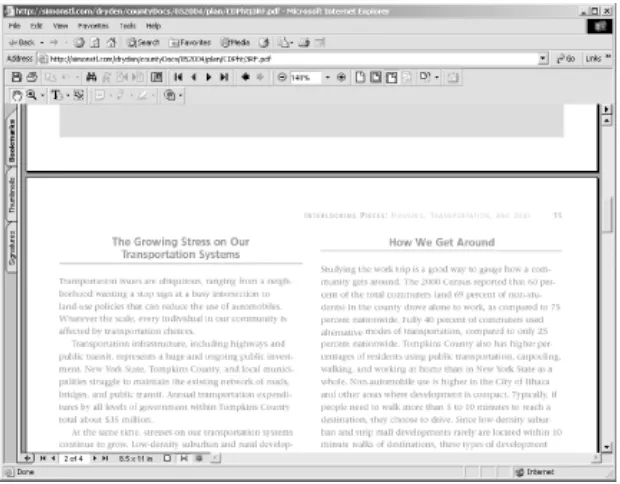
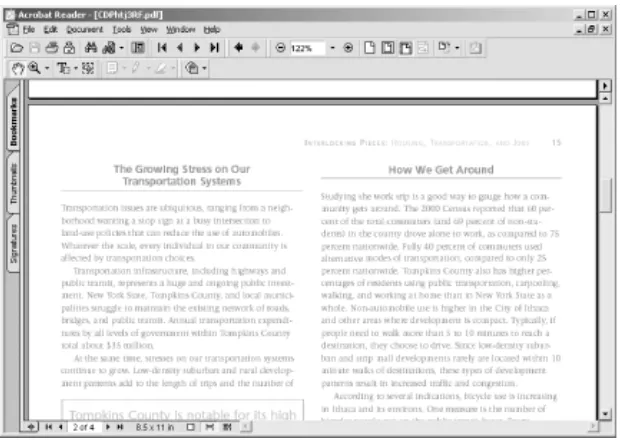
Once Reader is installed, clicking web site links to PDFs will bring up a reader that enables you to view the PDFs, typically inside the browser window itself. You can also open PDFs on your local filesystem by selecting File Open . . . , or by opening them through your GUI environment as usual, typically by

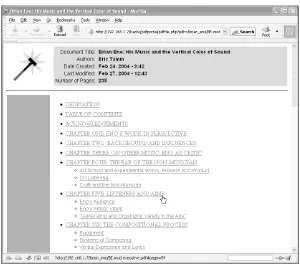
double-clicking. Figure 1-1 shows a document as seen through Acrobat Reader running in a web browser, and Figure 1-2 shows the same document through Acrobat Reader running as a separate application.

(44)

Figure 1-2. Viewing a PDF document through Acrobat Reader running as a separate application

As with any GUI application, you can scroll around the document, and Acrobat provides zoom options (the magnifying glass and the zoom percentage box in the toolbar), print options (the printer), search options (the binoculars), and navigation options (the arrows in the toolbar, as well as the Show/Hide Navigation Pane button to the left of the arrows that enables you to see bookmarks, if any are provided by the document's creator). Unlike the commercial Acrobat applications, Reader doesn't provide means for creating or modifying PDF documents.

After installing Reader, adjust its program properties to ensure you get the best reading experience. In Reader 5 or 6, access these properties by selecting Edit Preferences General from the main menu. For example, I always set the default page layout to Single Page and the default zoom to Fit Page (Reader 6) or Fit in Window (Reader 5). You can access these properties from the Page Display (Reader 6) or Display (Reader 5) sections of the Preferences dialog.

(45)

< Day Day Up >

Hack 2 Read PDFs with Mac OS X's Preview

If you have a Macintosh running OS X, the operating system includes a Preview application that enables you to look at PDFs without downloading Acrobat Reader.

Apple's latest operating system, Mac OS X, uses PDF all over. Icons and other pieces of applications are PDFs, the rendering system is tied closely to the data model used by PDFs, and any application that can print can also produce PDFs. Given this fondness for PDF, it makes sense that the Preview application Apple provides for examining the contents many different file types also supports PDF.

The Preview application is installed on Macs at Macintosh HD:Applications:Preview. It reads a variety of graphics formats, including JPEG, TIFF, and GIF, as well as (of course) PDF. You can open PDFs in Preview by selecting File Open . . . , by dragging their icons to the Preview application, or (if Acrobat isn't installed) by double-clicking. An open PDF in Preview looks like Figure 1-3.

Figure 1-3. Viewing a PDF document through Mac OS X's Preview application

(46)

Preview also supports the PDF-creation functionality built into Mac OS X [Hack #40] .

Also, Preview's File Export . . . command enables you to save the PDFs or graphics you're examining in any of a variety of PDF formats. If you need to convert a JPEG to a PDF file, or a PDF to a TIFF file, it's a convenient option. (It's also worth noting that screenshots taken using Mac OS X's Command-Shift-3 or Command-Shift-4 options are saved to the desktop as PDFs. Those PDFs contain bitmaps, much as if they were created as TIFFs and exported to PDF through Preview.)

(47)

< Day Day Up >

Hack 3 Read PDFs with Ghostscript's GSview

The Ghostscript toolkit for working with PostScript and PDF supports a number of simple viewers, including GSview.

The Ghostscript set of tools (http://www.cs.wisc.edu/~ghost/) is an alternative to a number of Adobe products. At its heart is a PostScript processor, which also works on PDF files.

PostScript is both an ancestor of PDF and a complement to it. PostScript is a programming language focused on describing how pages should be printed, while PDF is more descriptive. You can convert from PostScript to PDF and back. Many printers and typesetting systems handle PostScript, while PDF is more commonly used as a format for exchange between computers.

Although typically you run Ghostscript from the command line or you integrate it with other processes, you can also use it as the rendering engine inside a number of viewers. Ghostview and GV support Unix and VMS, while MacGSview is a viewer for the Macintosh and GSview supports Windows, OS/2, and Linux. You'll need to install Ghostscript [Hack #39] before you install GSview. Once GSview is installed, it can open PostScript, Encapsulated PostScript (EPS), and, of course, PDF, as shown in Figure 1-4.

Figure 1-4. Viewing a PDF document through GSview

(48)

functions. GSView is a useful tool if you need to work with PostScript and EPS files generally, because it lets you explore these files just as if they were PDFs. GSView is also a useful tool if you have a file that's

misbehaving, because it provides a fair amount of detail about errors in PostScript and PDF handling. For many users, it's too stripped down to be useful, but what it lacks in chrome it has in power.

(49)

< Day Day Up >

Hack 4 Speed Up Acrobat Startup

Move the plug-ins you don't need out of your way.

Both Adobe Acrobat and Reader implement several standard features as modular application plug-ins. These plug-ins are loaded when Acrobat starts up. You can speed up Acrobat startup and clean up its menus by telling Acrobat to load only the features you desire.

One simple technique is to hold down the Shift key when launching Acrobat; this prevents all plug-ins from loading. A longer-term solution is to move unwanted plug-ins to another, inert directory where the startup loader won't find them. Another solution is to create plug-in profiles [Hack #5] that are switched using a batch file gateway. This latter solution becomes really useful when combined with context menu hacks [Hack #6].

Keep in mind that omitting plug-ins will alter how some PDFs interact with you. If a PDF seems to be malfunctioning, try viewing it with the full complement of Adobe's stock plug-ins installed.

1.5.1 Unplugging Plug-Ins

Acrobat (or Reader) loads its plug-ins only once, when the application starts. On Windows, it scans a specific directory and tries to interface with specific files, recursing into subdirectories as it goes. This directory is named plug_ins and it usually lives someplace such as:

C:\Program Files\Adobe\Acrobat 6.0\Acrobat\plug_ins\

or:

C:\Program Files\Adobe\Acrobat 6.0\Reader\plug_ins\

On Windows, plug-in files are named *.api, but they are really DLLs [Hack #97] .

On the Macintosh, plug-ins are stored inside the Acrobat package. Control-click (or right-click, if you have a two-button mouse) the icon for Acrobat, and choose Show Package Contents from the menu. A window with a folder named Contents will appear. Inside that folder is another folder called Plug-ins, which contains the Macintosh version of the same plug-ins. These have names like Checkers.acroplugin.

Create a directory called plug_ins.unplugged in the same directory or folder where plug_ins (or Plug-ins) lives so that they are siblings. To prevent a plug-in from being loaded, simply move it from plug_ins to

plug_ins.unplugged. When a plug-in is located in a subdirectory, such as preflight, move the entire subdirectory.

(50)

1.5.2 Which Plug-Ins Do What?

Acrobat and Reader Versions 5 and 6 describe your installed Adobe plug-ins in the Help About Adobe Plug-Ins dialog (Acrobat About Adobe Plug-Ins on the Mac). Human-readable plug-in names are on the left side, as shown in Figure 1-5. Click one of these and the right side gives you the plug-in filename, a basic description, and the plug-in's dependencies. It is a good read, as it provides a straightforward laundry list of Acrobat's features.

Figure 1-5. About Adobe Plug-Ins explaining Acrobat's stock plug-ins

Go through this list and write down the filenames of plug-ins you don't need. Close Acrobat and use your file manager to move these files (or directories) from plug_ins into plug_ins.unplugged. Open Acrobat and test the new configuration.

Examples of Acrobat 5 plug-ins that I rarely use include Accessibility Checker, Catalog, Database Connectivity, Highlight Server, Infusium, Movie Player, MSAA, Reflow, SaveAsRTF, Spelling, and Web-Hosted Service. Plug-ins I would never omit include Comments, Forms, ECMAScript (a.k.a. JavaScript), and Weblink.

(51)

< Day Day Up >

Hack 5 Manage Acrobat Plug-Ins with Profiles on Windows

If you use Acrobat for several purposes, create several profiles.

If you use Acrobat for many different tasks, you probably need different plug-ins at different times. If you use third-party or custom plug-ins [Hack #97], it can become essential to distinguish the "production workflow" Acrobat from the "plug-in beta testing" Acrobat from the "on-screen reading" Acrobat. We can do that. In the same directory as your plug_ins folder [Hack #4], create one folder for each profile, naming it like this: plug_ins.profile_name. For example, a production profile might have the folder name

plug_ins.production. Copy the desired plug-ins into each profile folder; you can copy a plug-in into one or more folders. The plug_ins folder will be your default profile.

Copy the following code into a text file called C:\switchboard.bat. Edit its path to Acrobat.exe to suit your configuration. This batch file takes two arguments: the name of the desired profile and, optionally, a PDF filename. Following our previous example, launch Acrobat under the production profile by invoking C:\switchboard.bat production.

:: switchboard.bat, version 1.0

:: visit: http://www.pdfhacks.com/switchboard/

::

:: switch the Acrobat plug_ins directory according to the first argument;

:: the second argument can be a PDF filename to open; we assume that the

:: second argument has been quoted for us, if necessary

::

:: change into the directory with Acrobat.exe and plug_ins

@echo off

echo Acrobat Plug-In Switchboard Activated

echo ~ ~ ~ ~ ~ ~ ~ ~ ~ ~ ~ ~ ~ ~ ~ ~ ~ ~

echo Do not close this command session;

echo it will close automatically after Acrobat is closed.

cd /D "c:\program files\adobe\acrobat 6.0\acrobat\"

if exist plug_ins.on_hold goto BUSY

if not exist "plug_ins.%1" goto NOSUCHNUMBER

:: make the switch

rename plug_ins plug_ins.on_hold

(52)

Acrobat.exe %2

:: switch back

rename plug_ins "plug_ins.%1"

rename plug_ins.on_hold plug_ins

goto DONE

:BUSY

@echo off

echo

NOTE-echo Acrobat is already running with a switched plug_ins directory.

Acrobat.exe %2

goto DONE

:NOSUCHNUMBER

@echo off

echo

ERROR-echo The argument you passed to switchboard.bat does not match

echo a custom plug_ins directory, at least not where I am looking.

Acrobat.exe %2

:DONE

Now, create a shortcut to switchboard.bat by right-clicking it and selecting Create Shortcut. Right-click the new shortcut, select Properties Shortcut, and add a profile name after the switchboard.bat target e.g., C:\switchboard.batproduction. Set the shortcut to run minimized. Change its icon to the Acrobat icon by selecting Change Icon . . . Browse . . . , opening Acrobat.exe, and double-clicking an icon. Click OK to close the Shortcut Properties dialog when you are done. Your result will look like Figure 1-6.

(53)

Double-click your new shortcut to see that it works as expected. As you add profiles, copy this model shortcut and then edit its target to reflect the new profile's name. Copy these shortcuts to your desktop or your Start button for easy access.

If your production shortcut is named Acrobat Production and it is located in C:\, you can use it to open a PDF from the command line by running:

"C:\Acrobat Production.lnk" C:\mydoc.pdf

(54)
(55)

< Day Day Up >

Hack 6 Open PDF Files Your Way on Windows

Multipurpose PDF defies the double-click, so make a right-click compromise. Impose your will on Internet Explorer or Mozilla with a registry hack.

In Windows, you double-click to open a PDF in the default viewer. But what if you have a couple of different Acrobat profiles from [Hack #5] ? Or maybe you want a quick way to open a PDF inside your web browser [Hack #9] ? Add these file-open options to the context menu that appears when you right-click a PDF file. You can even configure Windows to use one of these options when double-clicking a PDF file. Convincing web browsers to open PDFs your way takes a little more work.

Windows XP and 2000 offer a convenient way to open a PDF file using an alternative application. Right-click your PDF file and select Open With from the context menu. A submenu will open with a variety of alternatives. Your options might include Illustrator and Photoshop, for example.

1.7.1 Add an "Open with Acrobat Profile . . . " Option to PDF Context Menus

In [Hack #5] we used a batch program to switch between named Acrobat profiles. You can add these profiles to your PDF context menu, too. In the steps that follow, substitute your profile's name for production. Windows XP and 2000:

In the Windows File Explorer menu, select Tools Folder Options . . . and click the File Types tab. Select the Adobe Acrobat Document (PDF) file type and click the Advanced button.

1.

Click the New . . . button and a New Action dialog appears. Give the new action a name: Acrobat: production.

2.

Give the action an application to open by clicking the Browse . . . button and selecting cmd.exe, which lives somewhere such as C:\windows\system32\ or C:\winnt\system32\.

3.

Add these arguments after cmd.exe, changing the paths to suit, so it looks like this: C:\windows\system32\cmd.exe /C c:\switchboard.bat production "%1"

4.

Click OK, OK, OK and you are done. 5.

Windows 98:

In the Windows File Explorer menu, select Tools Folder Options . . . and click the File Types tab. Select the Adobe Acrobat Document (PDF) file type and click the Edit . . . button.

1.

Click the New . . . button and a New Action dialog appears. Give the new action the name Acrobat: production.

2.

Give the action an application to open by clicking the Browse . . . button and selecting command.com, which lives somewhere such as C:\windows\.

3.

(56)

C:\windows\command.com /C c:\switchboard.bat production "%1"

Click OK, OK, OK and you are done. 5.

1.7.2 Add an "Open in Browser" Option to PDF Context Menus

This procedure adds an Open in Browser option to PDF context menus, but you can adapt it easily to use any program that opens PDFs. Viewing a PDF from inside a web browser enables you to spawn numerous views [Hack #9] into the same PDF, which can be handy. Opening a PDF in a web browser requires Adobe Acrobat or Reader [Hack #1].

Windows XP, 2000, and 98:

In the Windows File Explorer menu, select Tools Folder Options . . . and click the File Types tab. Select the PDF file type and click the Advanced button (Windows XP and 2000) or the Edit . . . button (Windows 98).

1.

Click the New . . . button and a New Action dialog appears. Give the new action a name: Open in Browser.

2.

Give the action an application to open by clicking the Browse . . . button and selecting your favorite browser. Explorer fans select iexplore.exe, which lives somewhere such as C:\Program Files\Internet Explorer\. Mozilla fans select mozilla.exe, which lives somewhere such as C:\ Program

Files\mozilla.org\Mozilla\. 3.

Add "%1" to the end, so it looks like this:

"C:\Program Files\Internet Explorer\iexplore.exe" "%1"

4.

Click OK, OK, OK and you are done. 5.

If you want to use an application such as Illustrator or Photoshop, it probably has its own entry in the File Explorer's Tools Folder Options File Types dialog. If it does, use its native Open action as a model for your new PDF Open action.

You can set the action that Windows performs when you double-click a PDF by opening the Edit File Type dialog (Tools Folder Options . . . File Types PDF Advanced), selecting the action, and then clicking Set Default.

(57)

If you have Acrobat or Reader already running when you open an online PDF, the browser will use this open viewer instead of the viewer given in the registry key.

(58)
(59)

< Day Day Up >

Hack 7 Copy Data from PDF Pages

Extract data from PDF files and use it in your own documents or spreadsheets.

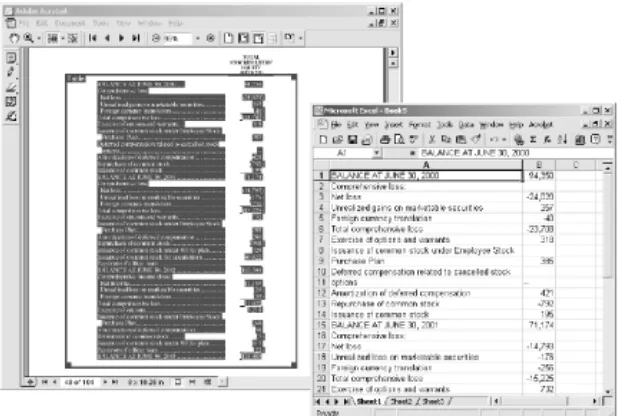
Copying data from one electronic document to paste into another should be painless and predictable, such as the process depicted in Figure 1-7. Trying to copy data from a PDF, however, can be frustrating. The solution for Acrobat 6 and Adobe Reader users (on Windows, anyway) comes from an unlikely source: Acrobat 5.

Figure 1-7. TAPS faithfully copying formatted text and tables using Acrobat or Reader

Acrobat 5 includes the excellent TAPS text/table selection plug-in. Acrobat 6 does not. Because Acrobat plug-ins are modular, you can copy the TAPS folder (named Table) from the Acrobat 5 plug_ins folder [Hack #4] and paste it into the Acrobat 6 plug_ins folder. Voilà! Don't have Acrobat 5? The TAPS license permits liberal distribution, so visit http://www.pdfhacks.com/TAPS/ to view the license and download a copy. Don't have Acrobat 6, either? Use Adobe Reader instead. TAPS works in both Acrobat and Reader. Who would have guessed?

1.8.1 Adobe Reader 5 and 6

Adobe Reader gives you a single, simple Text Select tool that works well on single lines of text but not on tables or paragraphs. Sometimes it selects more text than you want. For greater control, hold down the Alt key (Version 6) or the Ctrl key (Version 5) and drag out a selection rectangle. Multiline paragraphs copied with this tool do not preserve their flow. Pasted into Word, each line is a single paragraph. Yuck!

(60)

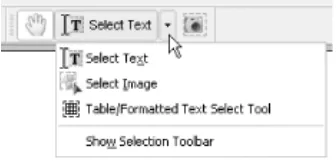
If you don't have Acrobat 5, visit http://www.pdfhacks.com/TAPS/ and download Acrobat_5_TAPS.zip. Unzip, and then move the resulting TAPS folder into your Reader plug_ins directory. Restart Reader. You'll now have the Table/Formatted Text Select Tool, as shown in Figure 1-8.

Figure 1-8. TAPS adding the Table/Formatted Text Select Tool under your Select Text button

The next section provides tips on how to use TAPS.

1.8.2 Acrobat 5

Acrobat 5 provides the same simple Text Select tool that Reader has. Use this basic tool for copying small amounts of unformatted text, as described previously in this hack.

For copying large amounts of formatted text, use the Table/Formatted Text Select (a.k.a. TAPS) tool. You can use it on paragraphs, columns, and tables. It preserves paragraph flow and text styles. Check its preferences (Edit Preferences Table/Formatted Text . . . ) to be sure you are getting the best performance for your purposes.

Activate the TAPS tool, then click and drag a rectangle around the text you want copied. Release the mouse and your rectangle turns into a resizable zone. There are two types of zones: Table (blue) and Text (green). If the tool's autodetection creates the wrong type of zone, right-click the zone and a context menu opens where you can configure it manually.

Copy the selection to the clipboard or drag-and-drop it into your target program.

1.8.3 Acrobat 6

Something went wrong with Acrobat 6 text selection. Adobe dropped the Table/Formatted Text Select tool (a.k.a. TAPS) and added the Select Table tool (a.k.a. TablePicker). This new tool is slow and performs poorly on many PDFs.

(61)

1.8.4 Selecting Text from Scanned Pages

If your document pages are bitmap images instead of text, try using Acrobat's Paper Capture OCR tool. It will convert page images into live text, though the quality of the conversion varies with the clarity of the bitmap image. You can tell when a page is a bitmap image by activating the Text Select tool and then selecting all text (Edit Select All). If the page has any text on it, the tool will highlight it. If nothing gets highlighted, yet the page appears to contain text, it is probably a bitmap image.

Sometimes, page text is created using vector drawings. This kind of text is not live text (so you can't copy it) and it also does not respond to OCR.

Acrobat 6 users can begin capturing a PDF by selecting Document Paper Capture Start Capture . . . . Unlike Acrobat 5, Acrobat 6 has no built-in limit on the number of pages you can OCR.

Acrobat 5 users (on Windows) must download the Paper Capture plug-in from Adobe. Select Tools Download Paper Capture Plug-in, and a web page will open with instructions and a download link. Or, download it directly from http://www.adobe.com/support/downloads/detail.jsp?ftpID=1907. This plug-in will OCR only 50 pages per PDF document.

(62)
(63)

< Day Day Up >

Hack 8 Convert PDF Documents to Word

Automatically scrape clipboard data into a new Word document.

In general, PDFs aren't as smart as they appear. Unless they are tagged [Hack #34], they have no concept of paragraph, table, or column. This becomes a problem only when you must create a new document using material from an old document. Ideally, you would use the old document's source file, or maybe even its HTML edition. This isn't always possible, however. Sometimes you have only a PDF to work with.

1.9.1 Save As . . . DOC, RTF, HTML

Adobe Acrobat 6 enables you to convert your PDF to many different formats with the Save As . . . dialog. These filters work best when the PDF is tagged. Try one to see if it suits your requirements. Adobe Reader enables you to convert your PDF to text by selecting File Save As Text . . . .

If your PDF is not tagged, Acrobat uses an inference engine to assemble the letters into words and the words into paragraphs. It tries to detect and create tables. It works best on documents with very simple formatting. Tables and formatted pages generally don't survive.

1.9.2 The Human Touch

Fully automatic conversion of PDF to a structured format such as Word's DOC is not generally possible because the problem is too big. One workaround is to break the problem down to the point where the automation has a chance. The TAPS tool [Hack #7] works well because you meet the automation halfway. You tell it where the table is and it creates a table from the given data. This approach can be scaled to fit the larger problem of converting entire documents.

1.9.3 Scrape the Clipboard into a New Document with AutoPasteLoop

Copy/Paste works fine for a few items, but it grows cumbersome when processing several pages of data. AutoPasteLoop is a Word macro that watches the clipboard for new data and then immediately pastes it into your new document. Instead of copy/paste, copy/paste, copy/paste, you can just copy, copy, copy. Word automatically pastes, pastes, pastes.

Scott Tupaj has ported AutoPasteLoop to OpenOffice. Download the code from http://www.pdfhacks.com/autopaste/.

Create a new Word macro named AutoPasteLoop in Normal.dot and program it like this: 'AutoPasteLoop, version 1.0

'Visit: http://www.pdfhacks.com/autopaste/

(64)

'Start AutoPasteLoop from MS Word and switch to Adobe Reader or Acrobat.

'Copy the material you want, and AutoPasteLoop will automatically

'paste it into the target Word document. When you are done, switch back

'to MS Word and AutoPasteLoop will stop.

Option Explicit

' declare Win32 API functions that we need

Declare Function Sleep Lib "kernel32" (ByVal insdf As Long) As Long

Declare Function GetForegroundWindow Lib "user32" ( ) As Long

Declare Function GetOpenClipboardWindow Lib "user32" ( ) As Long

Declare Function GetClipboardOwner Lib "user32" ( ) As Long

Sub AutoPasteLoop( )

'the HWND of the application we're pasting into (MS Word)

Dim AppHwnd As Long

'assume that we are executed from the target app.

AppHwnd = GetForegroundWindow( )

'keep track of whether the user switches out

'of the target application (MS Word).

Dim SwitchedApp As Boolean

SwitchedApp = False

'reset this to stop looping

(65)

'

Dim DocHwnd As Long

Selection.TypeText Text:="abc"

Selection.MoveLeft Unit:=wdCharacter, Count:=3, Extend:=wdExtend

Selection.Cut

DocHwnd = GetClipboardOwner( )

Do While KeepLooping

Sleep 200 'milliseconds; 100 msec == 1/10 sec

'if the user switches away from the target

'application and then switches back, stop looping

'

Dim ActiveHwnd As Long

ActiveHwnd = GetForegroundWindow( )

If ActiveHwnd = AppHwnd Then

If SwitchedApp Then KeepLooping = False

Else

SwitchedApp = True

End If

'if the clipboard owner has changed, then somebody else

'has put something on it; if the clipboard resource isn't

'locked (GetOpenClipboardWindow), then paste its contents

'into our document; use Copy to change the clipboard owner

'back to DocHwnd

'

If GetClipboardOwner( ) <> DocHwnd And _

GetOpenClipboardWindow( ) = 0 Then

Selection.Paste

Selection.MoveLeft Unit:=wdCharacter, Count:=1, Extend:=wdExtend

Selection.Copy

Selection.Collapse wdCollapseEnd

(66)

Loop

End Sub

1.9.4 Running AutoPasteLoop

Open a new Word document. Start AutoPasteLoop by opening the Macros dialog box (Tools Macros Macros . . . ), selecting the macro name AutoPasteLoop, and clicking Run. When your loop is running, you are not able to interact with Word. Stop the loop by switching to another application and then switching back to Word.

Start the loop. Switch to Acrobat (or Reader) and use its tools to individually select and copy its columns, tables, paragraphs, and images. Switch back to Word and you should find all of your selections pasted into the new document. Start AutoPasteLoop again if you want to copy more material.

1.9.5 Hacking AutoPasteLoop

Add content filters or your own inference logic to the AutoPasteLoop macro. Use your knowledge of the input documents to tailor the loop, so it creates documents that require less postprocessing.

(67)

< Day Day Up >

Hack 9 Browse One PDF in Multiple Windows

Tear off pages and leave them on your desktop for reference as you continue reading.

Both Adobe Reader and Acrobat confine us to a linear view of documents. Often, for instance, page 17 of a file contains a table I would like to consult as I read page 19, and Acrobat makes this difficult. Here are a couple ways to open one PDF document in many windows, as shown in Figure 1-9. These tricks work with both Acrobat and the free Reader.

Figure 1-9. Using your favorite web browser to open one PDF document in many windows

1.10.1 Read PDF with Your Web Browser

One quick solution is to read the PDF from within your web browser. When you open a new browser window (or Mozilla tab), it will duplicate your current PDF view, giving you two views of the same document. This works in Internet Explorer by default. Mozilla requires a little configuration. In Mozilla, select Edit Preferences . . . Navigator. On the right, find the Display On section and note its adjacent drop-down box. Set Display on New Window and Display on New Tab to Last Page Visited, as shown in Figure 1-10. Click OK. You must restart Mozilla before these changes take effect.

(68)

Drag-and-drop a PDF into your browser to open the PDF. Acrobat/Reader should display the PDF inside the browser. Select File New . . . Window (or File New . . . Tab) from the browser menu and you'll have two views into your one PDF.

While you're viewing a PDF file in your browser, the browser hot keys won't work if Acrobat has the input focus. You will need to create new windows or tabs using the browser menu.

If trying to open a PDF inside your browser causes it to open inside of Acrobat/Reader instead, check these settings (Windows only):

Acrobat/Reader 6

(69)

Reader. Also look into adding an "Open with Browser" option [Hack #6] to the PDF context menu.

1.10.2 Open a New PDF View from Acrobat or Reader

The following little JavaScript adds a menu item to Acrobat/Reader that opens your current PDF inside a browser window, giving you two views of the same document. To use this hack with Acrobat, you will need to disable Acrobat's web capture functionality by unplugging [Hack #4] its Web2PDF (WebPDF.api) plug-in.

1.10.2.1 Configure Mozilla

If Mozilla is your default browser and you're using Windows, read this section for possible configuration changes.

When Java is disabled, Mozilla often fails to display PDF inside the browser window; it tries to open PDF using an external program, instead. Select Edit Preferences Advanced, check the Enable Java checkbox, and click OK. This is a general problem with Mozilla and is not specific to this hack.

To run this hack with Acrobat 5, you will need to trick Mozilla into keeping its DDE ears open for Acrobat's calls. Mozilla activates DDE when it opens, then deactivates it when it closes. We'll open Mozilla and then alter the Windows http handler. This tricks Mozilla into thinking it is no longer the default browser. Under this illusion, Mozilla won't remove the DDE registry entries it created on startup.

Open Mozilla. 1.

In the Windows File Explorer menu, select Tools Folder Options . . . and click the File Types tab. Select the URL: HyperText Transfer Protocol file type and click the Advanced button (Windows XP and 2000) or the Edit . . . button (Windows 98).

2.

Double-click the Open action to edit its settings. 3.

Add -nostomp to the very end of the Application Used to Perform Action entry, so it looks like this: ...\MOZILLA.EXE -url "%1" -nostomp

4.

Click OK, OK, OK. 5.

Close and reopen Mozilla. It will probably complain (erroneously) that it is no longer the default browser. Uncheck the box and click No to keep it from harassing you in the future. If you click Yes, or if you ever change the default browser, your previous changes will be overwritten.

6.

The -nostomp argument is not really a Mozilla parameter. By simply adding this text to the Open action, you trick Mozilla into thinking it is no longer the default browser.

1.10.3 The Code

Copy one of the following scripts into a file called open_new_view.js and put it in your Acrobat or Reader JavaScripts directory. Choose the code block that suits your default browser. [Hack #96] explains where to find the JavaScripts directory on your platform. Restart Acrobat/Reader, and open_new_view.js will add a new item to your View menu.

(70)

Example 1-1. open_new_view.moz.js

// open_new_view.moz.js ver. 1.0 (for Mozilla users)

//

app.addMenuItem( {

cName: "-", // menu divider

cParent: "View", // append to the View menu

cExec: "void(0);" } );

//

app.addMenuItem( {

cName: "Open New View &3", // shortcut will be: ALT-V, 3

cParent: "View",

cExec: "this.getURL( this.URL+ '#page='+ (this.pageNum+1), false );",

cEnable: "event.rc= (event.target != null);" } );

Example 1-2. open_new_view.ie.js

// open_new_view.ie.js ver 1.0 (for Internet Explorer users)

//

app.addMenuItem( {

cName: "-", // menu divider

cParent: "View", // append to the View menu

cExec: "void(0);" } );

//

app.addMenuItem( {

cName: "Open New View &3", // shortcut will be: ALT-V, 3

cParent: "View",

(71)

1.10.4 Running the Hack

After you restart Acrobat, open a PDF document. From the View menu, select Open New View. Your default browser should open and display the PDF, giving you two views of the same PDF.

(72)
(73)

< Day Day Up >

Hack 10 Pace Your Reading or Present a Slideshow in Acrobat or Reader

You can make Acrobat or Reader advance a document at a preset interval, making it easy to maintain a given reading pace or to present slides.

If you are sitting down for a long, on-screen read, consider adding this "cruise control" feature to Acrobat/Reader. It turns PDF pages at an adjustable pace. Acrobat and Reader already have a similar "slideshow" feature, but it works only when viewing PDFs in Full Screen mode.

In Acrobat or Reader 6.0, also try the View Automatically Scroll feature. It smoothly scrolls the pages across the screen.

1.11.1 Acrobat/Reader Full-Screen Slideshow

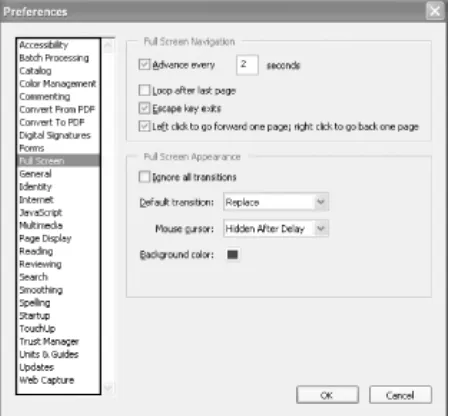
If you have a PDF photo album [Hack #48] or slideshow presentation, you can configure Acrobat/Reader to automatically advance through the pages at a timed pace. Select Edit Preferences . . . General . . . Full Screen (Acrobat/Reader 6 Windows) or Edit Preferences . . . Full Screen (Acrobat/Reader 5 Windows) or Acrobat Preferences . . . Full Screen (Acrobat/Reader 6 Macintosh). Set the page advance, looping, and navigation options as shown in Figure 1-11, and click OK. Open your PDF, select Window Full Screen View (Acrobat/Reader 6 for Windows or Macintosh) or View Full Screen (Acrobat/Reader 5), and the slideshow begins. To exit Full Screen mode, press Ctrl-L (Windows) or Command-L (Mac).

(74)

You can also use this slideshow feature as a "cruise control" for on-screen reading. However, the Full Screen mode hides document bookmarks and application menus, and adjusting its timing is a multistep burden.

1.11.2 JavaScript Page Turner

The following JavaScript for Acrobat and Reader provides a more flexible page turner. You can run it outside of Full Screen mode, and its timing is easier to adjust.

Visit http://www.pdfhacks.com/page_turner/ to download the JavaScript in Example 1-3. Unzip it, and then copy it into your Acrobat or Reader JavaScripts directory. [Hack #96] explains where to find this directory on your platform. Restart Acrobat/Reader, and page_turner.js will add new items to your View menu.

Example 1-3. JavaScript for turning pages

// page_turner.js, version 1.0

// visit: http://www.pdfhacks.com/page_turner/

var pt_wait= 3000; // three seconds; set to taste

var pt_step= 1000; // adjust speed in steps of one second

var pt_timeout= 0;

var pt_our_doc= 0;

var pt_our_path= 0;

function PT_Stop( ) {

if( pt_timeout!= 0 ) {

// stop turning pages

app.clearInterval( pt_timeout );

pt_timeout= 0;

pt_our_doc= 0;

(75)

PT_Stop( );

}

else if( 0< this.pageNum &&

this.pageNum== this.numPages- 1 )

{

app.execMenuItem("FirstPage"); // return to the beginning

}

else {

// this works better than this.pageNum++ when

// using 'continuous facing pages' viewing mode

app.execMenuItem("NextPage");

}

}

function PT_Start( wait ) {

if( pt_timeout== 0 ) {

// start turning pages

pt_our_path= this.path;

pt_our_doc= this;

pt_timeout= app.setInterval( 'PT_TurnPage( )', wait );

}

}

////

// add menu items to the Acrobat/Reader View menu

app.addMenuItem( {

cName: "-", // menu divider

cParent: "View", // append to the View menu

cExec: "void(0);"

} );

app.addMenuItem( {

(76)

cParent: "View",

cExec: "PT_Start( pt_wait );",

//

// "event" is an object passed to us upon execution;

// in this context, event.target is the currently active document;

// event.rc is the return code: success <==> show menu item

cEnable: "event.rc= ( event.target!= null && pt_timeout== 0 );"

} );

app.addMenuItem( {

cName: "Slower",

cParent: "View",

cExec: "PT_Stop( ); pt_wait+= pt_step; PT_Start( pt_wait );",

cEnable: "event.rc= ( event.target!= null && pt_timeout!= 0 );"

} );

app.addMenuItem( {

cName: "Faster",

cParent: "View",

cExec: "if(pt_step< pt_wait) { PT_Stop( ); pt_wait-= pt_step; PT_Start(pt_wait);

}",

cEnable: "event.rc= (event.target != null && pt_timeout!= 0 && pt_step< pt_wait);"

} );

app.addMenuItem( {

(77)

1.11.3 Running the Hack

After you restart Acrobat, open a PDF document. Select View Start Page Turner and it will begin to advance the PDF pages at the pace set in the script's pt_wait variable. Adjust this pace by selecting View Faster or View Slower. As the script runs, use the Page Down and Page Up keys to fast-forward or rewind the PDF. Stop the script by selecting View Stop Page Turner.

After starting the page turner and setting its speed, activate Acrobat/Reader's Full Screen mode for maximum page visibility. Select Window Full Screen View (Acrobat/Reader 6) or View Full Screen (Acrobat/Reader 5). The Page Down and Page Up keys still work as expected. Press Ctrl-L (Windows) or Command-L (Mac) to exit Full Screen mode.

(78)
(79)

< Day Day Up >

Hack 11 Pace Your Reading or Present a Slideshow in Mac OS X Preview

Turn your Mac into a big, beautiful e-book reader, thanks to the wonders of Preview.

It likely comes as no big news to you that you can open images of various flavors and PDFs in Preview (Applications Preview). But it never fails to surprise people that they've somehow managed to overlook the fact that you can hop into Full Screen mode (View Full Screen) and view these images and pages without all the clutter of anything else you happen to have open to distract you from their stunning Quartz-rendered visage.

Just as iDVD's Full Screen mode transforms a Mac into a little movie theater, so too does Preview's Full Screen view turn your 23-inch Apple Cinema Display or, more likely, your iBook's 12-inch screen into a rather nice e-book, as shown in Figure 1-12.

Figure 1-12. Cory Doctorow's Eastern Standard Tribe (available from http://craphound.com/est/ under a Creative Commons License), viewed in Full Screen mode in Preview

Flip forward page by page with a click of your mouse or rap on your spacebar. The Page Up, Page Down, and arrow keys move you forward and backward, while Home takes you to the first page and End to (surprise!) the end of the document.

If you switch to another application by using the basic Application Switcher (Command-Tab) and then switch back to Preview, you'll be right back in Full Screen mode. Hit the Esc key to return to normal, fully cluttered view.

It gets even better for iBook and PowerBook owners. This newfound ability to use your Mac as an electronic book means being able to tote about the Library of Alexandria or at least what's available in Project

(80)

If your PDF is formatted (as most are) in standard page layout, rotate it left or right (View Rotate Left or View Rotate Right) just before going full screen and hold your laptop on its side as if it were actually a book a book with a keyboard, admittedly. Sit back, take a sip of tea, and catch up with Ms. Austen and life at Mansfield Park.

Be sure to keep tabs on where you are in your reading, as Preview doesn't yet have any sort of bookmark functionality. I suggest using a Sticky (Applications Stickies) with a "Current Read" list of PDFs with associated page numbers.

C. K. Sample III

(81)

< Day Day Up >

Hack 12 Unpack PDF Attachments (Even Without Acrobat)

Save attachments to your disk, where you can use them.

Authors sometimes supplement their documents with additional electronic resources. For example, a

document that displays large tables of data might also provide the reader with a matching Excel spreadsheet to work with. PDF's file attachment feature is an open-ended mechanism for packing any electronic file into a PDF like this. As discussed in [Hack #54], these attachments can be associated with the overall document or with individual pages. You can unpack PDF attachments to your disk using Acrobat, Reader, or our pdftk [Hack #79] . After unpacking an attachment, you can view and manipulate it independently from the PDF document.

1.13.1 Unpack Attachments with Acrobat or Reader

In Acrobat/Reader 6, you can view and access all PDF attachments by selecting Document File Attachments . . . . Select the desired attachment and click Export . . . to save it to disk.

In Acrobat 5, you can view and access a document's page attachments using the Comments tab. Open this tab by selecting Window Comments. Select the attachments you desire to unpack, click the Comments button, and choose Export Selected . . . from the drop-down menu. View and access document attachments in Acrobat 5 by selecting File Document Properties Embedded Data Objects . . . .

Reader 5 and earlier versions do not enable you to unpack attachments.

1.13.2 Unpack Attachments with pdftk

pdftk simply unpacks all PDF attachments into the current directory. Future versions might introduce more control. For now, invoke it like this:

pdftk mydoc.pdf unpack_files

If the PDF is encrypted, you must supply a password, too:

pdftk mydoc.pdf input_pw bazpass unpack_files

Unpacking a PDF's attachments does not remove them from the PDF. You can always unpack them again later.

1.13.3 Hacking the Hack

(82)
(83)

< Day Day Up >

Hack 13 Jump to the Next or Previous Heading

Use PDF bookmark information to stride from section to section in Acrobat on Windows.

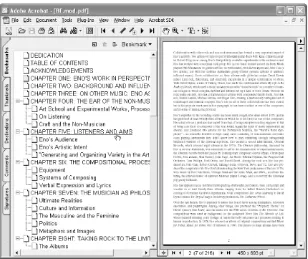
PDF bookmarks greatly improve document navigation, but they also have their annoyances. When I click a bookmark in Acrobat, shown in Figure 1-13, the document loses input focus. Pressing arrow keys or Page Up and Page Down has no effect on the document until I click the document page. That makes two clicks, and clicking two times to visit one bookmarked page is annoying.

Figure 1-13. A no-click solution to annoying bookmark behavior

So, I created a "no-click" solution for navigating bookmarks. After installing this Acrobat plug-in, you can jump from bookmarked page to bookmarked page by holding down the Shift key and pressing the left and right arrow keys.

Visit http://www.pdfhacks.com/jumpsection/ and download jumpsection-1.0.zip. Unzip, and then move jumpsection.api to your Adobe Acrobat plug-ins directory. This directory is located somewhere such as C:\Program Files\Adobe\Acrobat 5.0\Acrobat\plug_ins\.

Restart Acrobat, open a bookmarked PDF, and give it a try. Hold down the Shift key and press the right and left arrow keys to jump forward and back.

[Hack #97] uses jumpsection as an example of customizing Acrobat with plug-ins. jumpsection does not work with the free Adobe Reader.

(84)
(85)

< Day Day Up >

Hack 14 Navigate and Manipulate PDF Using Page Thumbnails

Acrobat's thumbnail view pane has some useful, unexpected features for reorganizing or jumping through your documents.

At first glance, the Acrobat Pages (Acrobat 6) or Thumbnails (Acrobat 5) pane might seem like a cute but unnecessary view into your PDF files. In fact, it is not a passive view, but an interactive easel with features not available anywhere else.

1.15.1 Tune the Thumbnail View

As you widen this pane, more thumbnails become visible and they organize themselves into rows and columns. The nearby Options (Acrobat 6) or Thumbnail (Acrobat 5) button opens a menu where you can change the thumbnail size. Acrobat 6 enables you to enlarge or reduce thumbnails as you desire. Acrobat 5 enables you to choose between small and large thumbnail sizes.

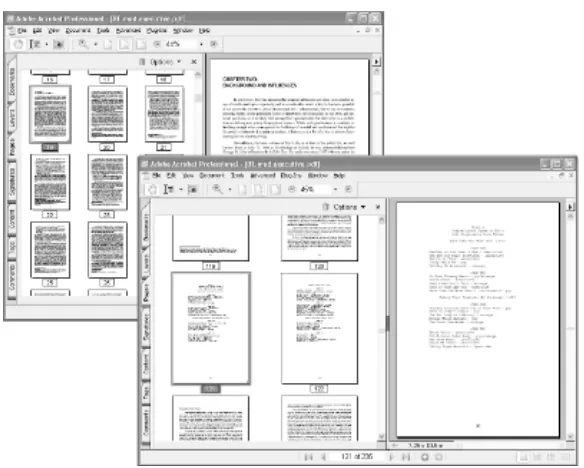
If the Acrobat 6 thumbnails appear grainy as you enlarge them, choose Remove Embedded Thumbnails from the Options menu. This forces Acrobat to render pages on the fly, as shown in Figure 1-14.

Figure 1-14. Large thumbnails showing more detail

(86)

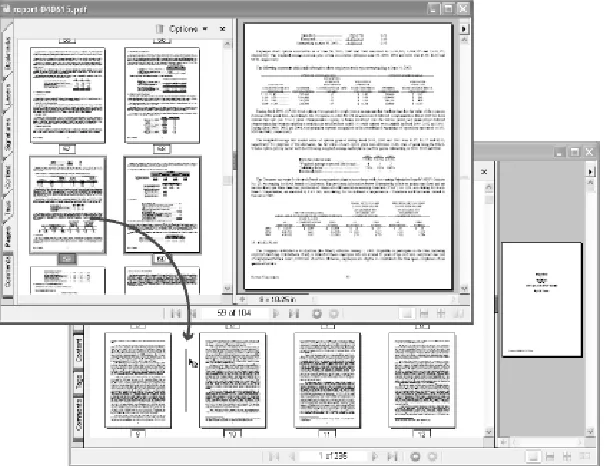
Your current PDF page view, on the right, is represented by a red box in the thumbnail pane. You can resize this bo

Gambar

Figure 1-1. Viewing a PDF document through Acrobat Reader in the browser
Figure 1-2. Viewing a PDF document through Acrobat Reader running as a separate application
Figure 1-7. TAPS faithfully copying formatted text and tables using Acrobat or Reader
Figure 1-8. TAPS adding the Table/Formatted Text Select Tool under your Select Text button
+7

Referensi

Dokumen terkait