Contents
Chapter 1: avast! BackUp Overview
... 5Chapter 2: Installing avast! BackUp
... 7Downloading avast! BackUp...7
Installing the avast! BackUp Client... 8
Using the Setup Wizard...8
Signing In with a Licence Key...8
Scanning for Files...9
Setup Complete... ....9
Chapter 3: Using the Settings Window
... 11Understanding Backup Sets...12
Selecting Backup Sets...13
Editing Backup Sets...13
Creating Custom Backup Sets...13
Using the File System Tab to Select Backup Content...16
Adding Files and Folders Through Windows Explorer...17
Adding a Network Share...18
About Deleting, Moving and Renaming Files...18
Scheduling Backups...19
Seeing Percentage Complete on the Status Window... 32
Seeing What Files Are Backed Up...33
Chapter 5: Restoring Files from the Client
...35Restoring Files Using the Restore Tab...35
Performing VSS Restores...37
Restoring Microsoft Exchange Server Data...37
Restoring Active Directory and SYSVOL Data...38
Restoring Microsoft SQL Server Data...39
Restoring COM+...40
Restoring the Registry...40
Using the avast! BackUp Virtual Drive... 40
Right-Click Restores...41
Choose Files to Restore...44
Restoring All My Files...45
Restoring a Single File...46
Restoring Several Files...47
Restoring a File I Deleted from My Computer...47
Restoring an Older Version of a File...48
Restoring Files from a Different Drive...49
Restoring Files from a Different Computer...50
Restoring Backup Sets...50
Understanding the Browse Page... 51
Searching for Files...52
Strategies for Using avast! Web Restore...53
Choose the Delivery Method for Your Restored Files...54
Choosing the Delivery Method...54
Get Your Restored Files...55
Where can I see information about my restores?...55
Understanding the avast! Restore
Why do I see extra files that I didn't back up?...59
Chapter 7: Replacing a Computer
...61How do I migrate from one platform to another?...63
Chapter 8: Managing Your Account Online
...65Logging in to Your Account Online...65
Logging Out...65
How Your avast! BackUp Online Account Pages Select Language During Log-in...69
How the avast! BackUp Admin Console Selects Language During Log-in...69
Chapter 10: Uninstalling avast! BackUp
...71Chapter 11: Installation Command Line Switches
...73Chapter 12: Frequently Asked Questions
...75How long does it take to back up?...75
Why does the first backup take so long?...75
Amount of Data to Back Up...75
Upload Speed...76
Can I Test My Bandwidth?...76
Chapter
1
avast! BackUp Overview
avast! BackUp is a secure and reliable backup solution for your business needs. Through the easy-to-use avast! BackUp client interface, you can customise your file selection and backup scheduling. The
avast! BackUp backup service saves 30 days of data history for each file you back up. In the event that you need to restore files (in the case of computer failure, loss, etc.), avast! BackUp makes it easy to recover the data via the avast! BackUp client.
avast! BackUp encrypts your data locally before it is sent to avast! data centres over an SSL connection. Your backups are then stored in the avast! data centre with either 448-bit Blowfish or 256-bit AES encryption to ensure your data is protected.
Chapter
2
Installing avast! BackUp
To install avast! BackUp, you must perform the following tasks.
• Download avast! BackUp. For more information, see Downloading avast! BackUp on page 7. • Install avast! BackUp, choosing sets of files to back up and setting encryption for your files. For more
information, see Installing the avast! BackUp Client on page 8 and Using the Setup Wizard on page 8.
• Your first back up should start automatically. For more information on additional settings, see Using the Settings Window on page 11.
Topics:
• Downloading avast! BackUp
• Installing the avast! BackUp Client
• Using the Setup Wizard
Downloading avast! BackUp
You can download avast! BackUp on any computer. You may need to do this for any of these reasons: • To manually upgrade to the latest version of avast! BackUp on a computer you are currently backing up. • To start backing up a new computer you've added to your account.
• To start backing up a replacement computer if your old computer was lost, stolen or damaged.
Tip: Before you install avast! BackUp on your new computer to replace a computer you can no longer use,
you should restore all the files backed up from your old computer. To do this, log in to your account online and restore from the Web. This is a good idea because once your replacement computer is backed up, any files that are not on your new computer are marked for deletion from the
avast! servers after 30 days. This approach gives you as much time as you need to be sure all your files are safely restored to your new computer. Only after you are sure, install
avast! BackUp to tell avast! you've replaced the old computer and to continue backing up those files.
To download avast! BackUp on any computer:
1. In your browser's address bar, type http://files.avast.com/files/backup/avast_backup_setup.exe; then press
Enter.
Installing the avast! BackUp Client
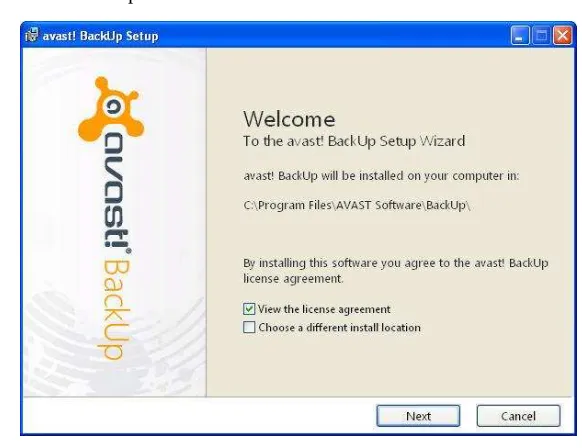
1. Browse to the location where you saved the avast! BackUp client, then double-click the avast! BackUp Client on Windows executable file (ends in .exe). The
avast! BackUp Wizard starts.
Figure 1: Welcome screen
2. (Optional) To choose a different installation directory, select the Choose a different install location checkbox. 3. Click Install to start the installation and continue with the Setup Wizard.
Using the Setup Wizard
The Setup Wizard automatically starts after the avast! BackUp files have been copied. If you do not complete the Setup Wizard, it starts when you try to open the avast! BackUp Settings. After the Setup Wizard has been completed, use the Settings window to make any additional changes to your configuration.
Signing In with a Licence Key
If a licence key was emailed to you to register your client, you will find the licence key at the bottom of the email.
1. In the Licence Key field, type or copy the licence key that you received in the email. 2. In the Email Address field, type the email address that received the email.
Installing avast! BackUp
4. If prompted, enter the password for this account.
Scanning for Files
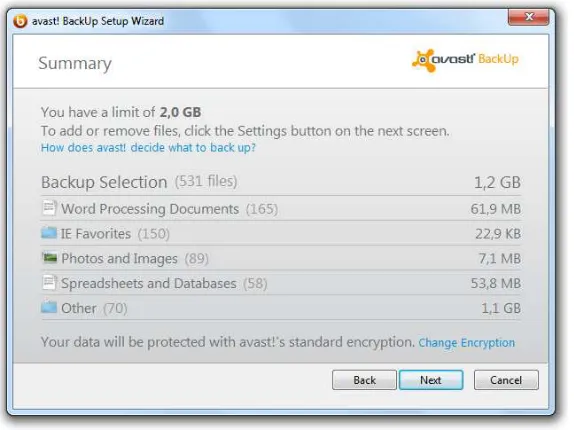
avast! BackUp scans your hard drive for data files and groups them by common file types into backup sets. You can edit these backup sets using the Settings button at the end of the Setup Wizard. If your account has a limit and the selected files exceed your limit, you can deselect files until you are under your limit. If you choose to continue while still over your limit, avast! BackUp backs up your files until your limit is reached, and any files over your limit are not backed up.
If you need more storage space, contact your administrator.
Figure 2: Select Files
1. (Conditional) If you have a space limitation, choose one of these options. • Ask your administrator for more space.
• Select the sets of files you want to back up until your limit is reached. If you go over your limit, you can deselect files until you're back under. If you need more precision in selecting files, you can click Settings on the next window.
If the selected files exceed your limit and you continue, avast! BackUp backs up your files until your limit is reached. Any additional files are not backed up.
2. Click Next.
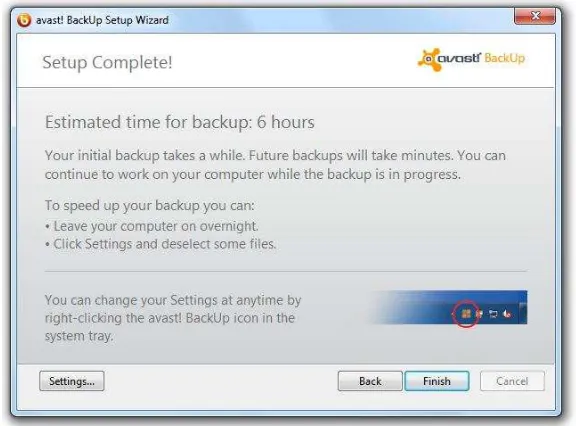
Setup Complete
Figure 3: Setup Complete Screen
Select an option:
• Settings: Exits the Setup Wizard and opens the Settings window so you can edit backup sets and change
other settings.
• Back: Use this button to go back in the Setup Wizard to change the choices you have made.
• Finish: Exits the Setup Wizard and starts your first backup.
• Cancel: Exits the Setup Wizard without saving the choices you made. avast! BackUp is still installed but
Chapter
3
Using the Settings Window
The Settings window lets you set additional configuration options such as choosing specific files to back up, when you want backups to take place and what alerts you want displayed. You can open the Settings window using one of the following options:
• Right-click the avast! BackUp icon in your system tray, then click Settings.
• When the backup completes, the Status window is displayed. Click Settings to open the avast! BackUp Settings window.
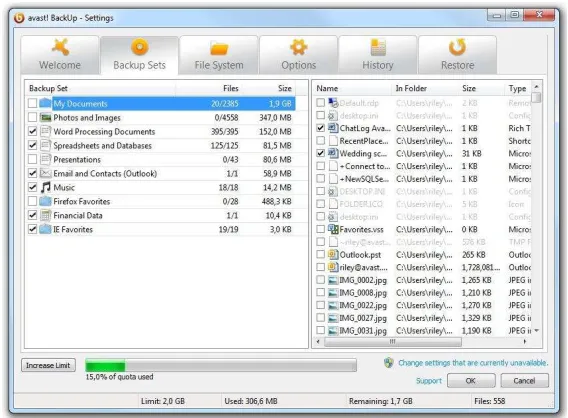
Click the tabs to view and change your backup settings. When you have finished making all your changes, click Save. The Settings window closes.
Figure 4: Settings Window
The following topics are available:
Topics:
• Understanding Backup Sets
• Using the File System Tab to Select Backup Content
• About Deleting, Moving and Renaming Files
• Setting Options
• Understanding Local Backup
• About the History
Understanding Backup Sets
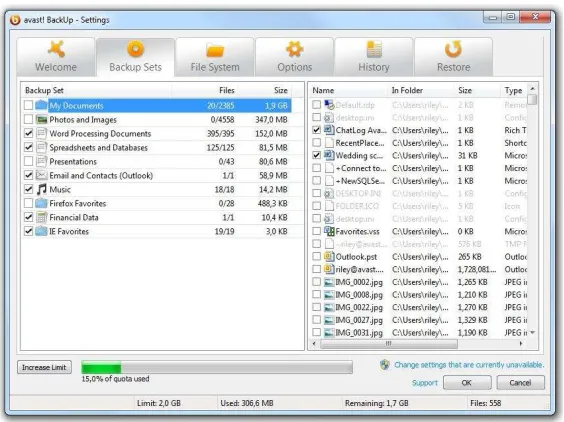
Backup sets let you easily select files to back up according to file type in specified directories. Each time a new file of a type you have selected for backup is saved to your computer, avast! BackUp automatically selects that file for all subsequent backups.
By default, backup sets containing no files that meet the backup set criteria are not listed as available backup sets. To view all available backup sets, the Show all pre-configured backup sets option must be selected. For information on how to change this option, see Setting Options on page 22.
For example, selecting the box for the Word Processing Documents backup set automatically backs up all Microsoft Word, OpenOffice.org, WordPerfect, Adobe Acrobat, and text files on your computer under the My Documents and Desktop folders. All subsequent files saved to your computer in these folders with the same file extensions are automatically added to your backups.
Figure 5: Backup Sets
When you click the name of a backup set, a list of the files included in the backup set is displayed in the right pane. File names for encrypted files are displayed in a different colour than the rest of the files.
Note: If you are using local backup, you cannot back up any files that are locally EFS encrypted. Before
you run your first local backup with avast! BackUp, you must first exclude any EFS encrypted files.
Checkbox Description
New files matching this backup set will not be backed up. However, the backup set displays files that are being backed up because they match the rules of a different backup set or they were explicitly selected.
All of these files will be backed up, and new files in this set will be backed up.
When you select the box for a backup set, all the existing files are selected for backup. De-selecting the box de-selects all files in the backup set.
Selecting Backup Sets
1. Right-click the avast! BackUp icon in your system tray, then select Settings. 2. Select More Settings, then click Backup Sets.
3. From the Backup Set list in the left pane, select the check box next to the set you want to include in your backup.
Select the name of the set to view its list of files in the right pane. 4. Deselect the check box next to any unwanted files in the file list.
5. When you have finished changing this setting or other settings, click OK. Your settings are saved and the Settings window closes.
Editing Backup Sets
Editing a backup set takes just moments and is easy to accomplish. When you edit a backup set, you can change the file attributes or the directories that should be used to determine if files are included in the backup.
1. Right-click the avast! BackUp icon in your system tray, then select Settings. 2. Select More Settings, then click Backup Sets.
3. Under Backup Sets, double-click the backup set you want to edit. 4. Edit the backup set.
See Creating Custom Backup Sets on page 13 for more information.
5. When you have finished changing this setting or other settings, click OK. Your settings are saved and the Settings window closes.
Creating Custom Backup Sets
avast! BackUp lets you create custom backup sets for your specific needs. When you create a custom backup set, you select the specific files or directories to include in the set or you create rules that include or exclude files and directories. For example, if you often enhance your photos using Photoshop, you might not want to keep all of the resulting output files because you have the original Photoshop .psd file. You can select your working Photoshop directory and then create a rule to exclude all the .jpg, .gif and other graphic file types. The result is that only Photoshop files are backed up.
Additionally, after creating a backup directory, you can choose to exclude the set from your backup by selecting
the Files matching this set will be EXCLUDED from the final backup set checkbox. This checkbox appears
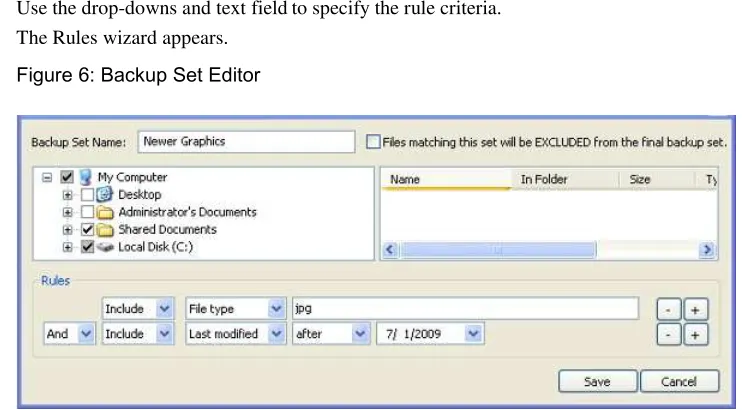
3. On the Backup Sets tab, right-click in the left pane of the window and select Add Backup Set. The Backup Sets window appears.
4. In the Backup Set Name field, specify a name for your new backup set. 5. In the right pane, select the locations where your files are stored. 6. To create rules for your backup set, click Add a rule.
Use the drop-downs and text field to specify the rule criteria. The Rules wizard appears.
Figure 6: Backup Set Editor
7. To add another rule, click +.
8. When you have finished changing this setting or other settings, click OK. Your settings are saved and the Settings window closes.
Setting Up Rules
There are many possible rule combinations for backup sets. They are all based on either including or excluding certain files according to your specifications. The following sections explain the different options you can use to build a rule, moving from left to right while building your rules.
Including and Excluding Data
The first criterion you select is whether to include or exclude the data from the backup set. Click the first drop-down box and select:
• Include to include data.
• Exclude to exclude data.
Selecting File Attributes
This section contains the following topics: File Type
Specify the file extension in the text box. Examples are exe, doc, txt, pdf. Separate file extentions with spaces. Dots are not necessary.
Last Modified
Select either before, after, or between from the next drop-down list
Before and after allow you to select one date for the date field. If you select between, two date fields appear so
you can set the range.
You can enter the date manually or select the date from a calendar that appears when you click the date field drop-down menu.
Created
Select either before, after, or between from the next drop-down list
Before and after allow you to select one date for the date field. If you select between, two date fields appear so
you can set the range.
You can enter the date manually or select the date from a calendar that appears when you click the date field drop-down menu.
File Name
Select one of the following from the next drop-down list: • is
Specify the word or characters in the text box.
Note: If you are specifying the name of a file, and if that name contains a space, you must enclose the
entire name within inverted commas. For example, if the file name is expense reports, you must type "expense reports".
Folder Name
Select one of the following from the next drop-down list. • is
Specify the word or characters in the text box and then select the desired criteria that you want to search: Files
Note: If you are specifying the name of a folder, and if that name contains a space, you must enclose the entire name within inverted commas. For example, if the folder name is my docs, you must type "my docs".
Configuring Microsoft Volume Shadow Services Backup Set Rules
For server backups, you might want to back up Microsoft Exchange, Active Directory, Microsoft SQL Server, SYSVOL, registry and COM+ data. This helps with quick restoration when you have lost data.
avast! makes this process easy for you. For Microsoft Exchange, Active Directory, Microsoft SQL Server, SYSVOL, registry, and COM+ data, avast! BackUp uses the native Microsoft VSS writers to back up the data while the services are running. Microsoft VSS support is only available with Windows 2003 server or later.
Important: This functionality is only available with a avast! BackUp server licence.
If these services are running on your machine, the avast! BackUp client automatically detects the available services and displays them in the Backup Sets tab.
To back up these applications for file sets, select the check box next to the backup set. The avast! BackUp client then automatically uses the Microsoft Volume Shadow-copy Service (VSS) Writer to do the backup. At the time of backup, if the Exchange services are running, a request is made to the VSS, which notifies the Exchange services that a backup is about to take place. Once the backup has occurred, Exchange is notified that the backup has occurred successfully and Exchange deletes the Exchange logs.
For the Microsoft SQL Server to back up, the SQL Server VSS Writer service must be started before the backup set displays. It is suggested that you set the SQL Server VSS Writer service to automatically start when Windows starts. When the backup sets appear for Microsoft SQL Server, each database displays as a separate backup set. The SQL Server services and SQL Server VSS Writer then move any pending transactions in memory to the store file to ensure that the backup includes the most recent changes available; after which, a snapshot of the files is backed up.
After avast! BackUp has backed up the file, only the changed blocks of the file are transmitted. This happens at the block level, not the file level, so subsequent backups can take minutes instead of hours.
This style of Exchange and SQL Server backup results in a significantly reduced impact on the performance of the server as well as on the SQL/Exchange services. Because avast! BackUp avoids interfacing with the services directly, no downtime or slowdown of any kind is experienced.
Important: If you are configuring avast! BackUp to back up a Microsoft Exchange Server residing on the
same hardware as the domain controller, it is important to select the VSS Active Directory and Windows File Replication Service (SYSVOL) backup sets.
Using the File System Tab to Select Backup Content
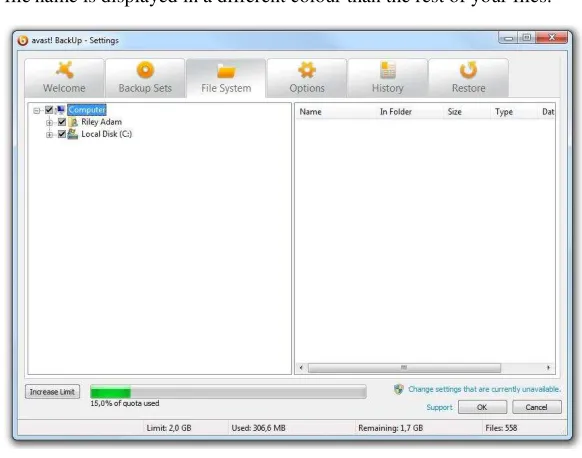
The File System tab lets you select or deselect any files or folders on your system to include with your backup.
This method differs from selecting backup sets because instead of searching for a file type, you specify the individual files or folders to include in the backup. Any files selected on either Backup Sets or File System are shown as selected in both places. Likewise, deselecting a file in either place also deselects it in the other. 1. Right-click the avast! BackUp icon in your system tray, then select Settings.
3. Click File System.
The File System is displayed in the left pane and individual files are displayed in the right pane. An encrypted file name is displayed in a different colour than the rest of your files.
Figure 7: File System Tab
4. Select the folders you want to include in the backup. When you select a folder, all its subfolders are also selected.
5. Select or deselect individual files in the right pane that you want to include or exclude from the backup. 6. When you have finished changing this setting or other settings, click OK. Your settings are saved and the
Settings window closes.
None of the steps above affects the feature that automatically marks subsequently created files in selected folders. You can hover your mouse pointer over a folder to reveal a tooltip explaining how it is treated during a backup.
Adding Files and Folders Through Windows Explorer
You can add files and folders to your backup list by right-clicking on the file or folder in Windows Explorer. If the option to "Add to the avast! BackUp backups" isn't an option, that means the file is already selected for backup, or it is a file that avast! cannot backup such as shortcuts. You cannot add a network-mapped drive to the backup using this method.
You cannot remove files and folders from a backup by right clicking on them; you have to use the Settings window.
To add a file or folder to your backup list 1. Open Windows Explorer.
2. Right-click the file or folder you want to add, then select Add to avast! BackUp backups.
Adding a Network Share
If your computer is in a network environment, you can add network shares to your file system backups. This allows you to back up content on another computer that is shared. You can only add a network share with a server licence type.
Important: This functionality is only available with a avast! BackUp server licence.
For information on how to share files and folders on another computer, see the computer's operating system help. 1. Right-click the avast! BackUp icon in your system tray, then select Settings.
2. Click the File System tab.
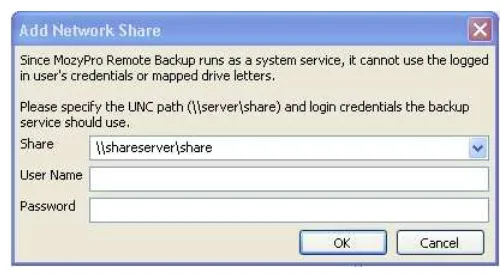
3. Right-click the left folder list panel, then select Add network share. 4. In the Share field, enter the UNC path to the share.
An example of a UNC path could be ¥¥shareserver¥share.
Figure 8: Network Share
5. If the machine requires you to log in to use the share, enter the user name in the Username field. 6. In the Password field, enter the password that is required by the share.
7. Click OK.
If the share has been configured correctly, the share point displays in the list in the left pane.
About Deleting, Moving and Renaming Files
avast! BackUp recognises when you delete, move or rename files on your computer, and updates the backup servers. avast! BackUp keeps an exact copy of your current selections on the backup servers, meaning that all changes (deleting, renaming, moving) to files on your system are mirrored. Only your current selections are counted against your use of storage space.
Versions of files are kept as far back as 30 days. For example, if you back up a file and then never change it, you may restore that initial version of the file, regardless of how long ago it was backed up, as long as your account is valid. If you change a file daily and back it up daily, the oldest version you can restore is from 30 days ago. If you change a file once every seven days and you back up daily, the four most recent versions are available for restore.
space. However, the most recent version of the file is kept for 30 days, after which the file is deleted permanently from the backup servers and is no longer retrievable.
When you rename a file on your computer, avast! BackUp treats it as deleting a file (with the old name) and creating a new file with the same content (with the new name). If you need to restore a file after you renamed it, you can restore the most recent versions under the new name, or within 30 days you can restore any versions under the old name.
When you move a file from one folder to another on your computer, avast! BackUp treats it the same as renaming a file.
Scheduling Backups
There are two scheduling methods you can use to customise when and how often avast! BackUp should back up your computer.
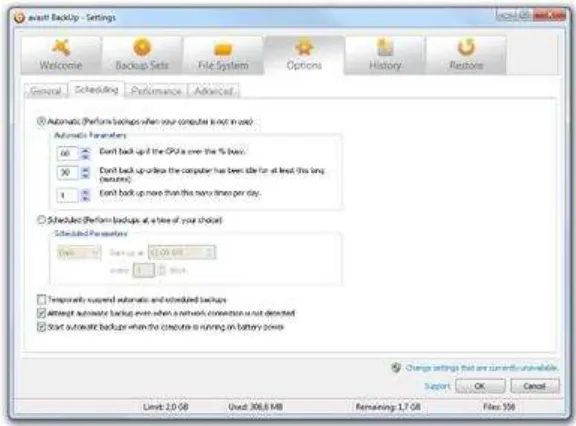
• Automatic: Backups occur when your computer is not in use. You can choose the parameters that
avast! BackUp uses to determine when to start an automatic backup. See Configuring an Automatic Backup on page 19.
• Scheduled: Backups occur at the time you select. You can choose how often and when the backup occurs. See
Setting Backup Schedule on page 20.
Figure 9: Scheduling
Configuring an Automatic Backup
Automatic backups occur when your computer meets specific criteria such as how long it has been idle. 1. Right-click the avast! BackUp icon in your system tray, then select Settings.
2. Enter your Username and Password, if prompted.
4. Select Automatic (Perform Backup when your computer is not in use). 5. Set the parameters by clicking the up and down arrows.
Option
Don't back up if the CPU is over this % busy.
Don't back up unless the computer has been idle for at least this long
Description
Specify the highest percentage for the computer use in which a backup will run.
If your computer use exceeds this percentage during an automatic backup, the backup stops until the system falls below the setting you specify.
For example, if you set this to 15%, then a backup won't start unless the CPU utilisation falls below 15%.
Specify how long (in minutes) that your PC is idle before a backup is run.
(minutes). If a program or system settings cause the computer to become active, the backup stops until the system is idle for the number of minutes specified.
For example, if you set this to 30 minutes, then a backup will not start unless the computer has been idle for over 30 minutes. If, during a backup, the computer becomes active, the backup stops and does not resume until the computer has been idle for 30 minutes again.
Don't back up more than this many times per day.
Specify the minimum number of hours avast! BackUp waits before performing an automatic backup.
Caution: These parameters are cumulative, meaning that all conditions must be met before a backup
starts or resumes.
6. (Optional) Set the following options:
Option
Attempt automatic backup even when a network connection is not detected
Start automatic backups when the computer is running on battery power
Description
Backups are attempted regardless of whether a network connection is detected. Use this if your network connection is unreliable. It is not selected by default.
Backups will start even when your computer is running on battery power. It is not selected by default.
7. When you have finished changing these settings or other settings, click OK. Your settings are saved and the Settings window closes.
Note: You do not need to be logged in to Windows for your backup to run.
If settings are visible but you cannot access them, and if you use Microsoft's Vista or Windows 7, you may need to notify Windows to grant you access to these avast! BackUp settings.
• For Windows 7, click the link for the User Account Control icon on the avast! BackUp Settings window. • For Vista, in the upper-right part of the avast! BackUp Settings window, click Change settings that are
currently unavailable, then in the Windows Access Control Window, click Trust.
The avast! BackUp Settings window reloads, and you can now access settings that were previously greyed out.
Setting Backup Schedule
Set a schedule for when your computer backs up. For example, you might want your computer to back up during your lunch hour, or at a specific time at night, or once a week on a specific day.
1. Right-click the avast! BackUp icon in your system tray, then select Settings. 2. Select More Settings, clickOptions, then click the Scheduling tab.
3. Select Scheduled.
4. Select either Daily or Weekly for the frequency of your backup.
5. Select the approximate time of the day you want to back up your computer. If you selected Weekly backups, you must also select the day of the week you want the backup to run.
Your computer starts to back up during a 30-minute window, from 15 minutes before to 15 minutes after the time you select. The exact time can be different for every backup. This makes it easier for your backup to succeed, rather than fail because too many computers start uploading to the avast! BackUp servers at exactly the same time.
6. Select the daily or weekly frequency of backups. (For example, every two days or every week.) 7. (Optional) Set the following options:
Option
Attempt automatic backup even when a network connection is not detected
Start automatic backups when the computer is running on battery power
Description
Backups are attempted regardless of whether a network connection is detected. Use this if your network connection is unreliable. It is not selected by default.
Backups will start even when your computer is running on battery power. It is not selected by default.
8. When you have finished changing these settings or other settings, click OK. Your settings are saved and the Settings window closes.
Note: You do not need to be logged in to Windows for your backup to run as scheduled. However, your
computer must be turned on, not in sleep or hibernation mode, and must be connected to the Internet.
If settings are visible but you cannot access them, and if you use Microsoft's Vista or Windows 7, you may need to notify Windows to grant you access to these avast! BackUp settings.
• For Windows 7, click the link for the User Account Control icon on the avast! BackUp Settings window. • For Vista, in the upper-right part of the avast! BackUp Settings window, click Change settings that are
currently unavailable, then in the Windows Access Control Window, click Trust.
The avast! BackUp Settings window reloads, and you can now access settings that were previously greyed out.
Temporarily Suspending Backups
You can temporarily suspend automatic and scheduled backups.
1. Right-click the avast! BackUp icon in your system tray, then select Settings. 2. Select More Settings, clickOptions, then click the Scheduling tab.
3. Select Temporarily suspend automatic and scheduled backups
Note: avast! BackUp will not run backups until you deselect the suspend option.
Setting Options
You can switch certain features on or off according to your preferences and system setup. 1. Right-click the avast! BackUp icon in your system tray, then select Settings. 2. Click More Settings, then click Options.
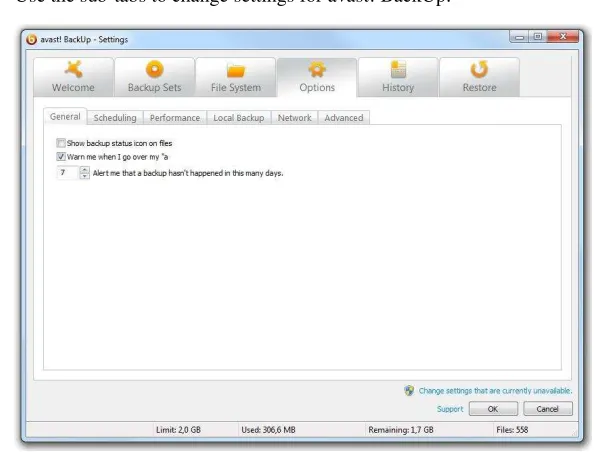
3. Use the sub-tabs to change settings for avast! BackUp.
Figure 10: Client Options
If settings are visible but you cannot access them, and if you use Microsoft's Vista or Windows 7, you may need to notify Windows to grant you access to these avast! BackUp settings.
• For Windows 7, click the link for the User Account Control icon on the avast! BackUp Settings window. • For Vista, in the upper-right part of the avast! BackUp Settings window, click Change settings that are
currently unavailable, then in the Windows Access Control Window, click Trust.
The avast! BackUp Settings window reloads, and you can now access settings that were previously greyed out.
Setting General Options
You can switch certain features on or off according to your preferences.
1. Right-click the avast! BackUp icon in your system tray, then select Settings. 2. Click More Settings, then click Options.
Option
Show backup status icon on files
Warn me when I go over my quota
Alert me that a backup hasn’t happened in this
many days
Description
Displays icons next to files and folders in Windows Explorer when a file is included in your backup list. It is selected by default.
Opens a small window alerting you when you have exceeded your quota. It is selected by default.
Lets you set the number of days before an alert pops up to tell you a backup has not occurred.
4. When you have finished changing this setting or other settings, click OK. Your settings are saved and the Settings window closes.
If settings are visible but you cannot access them, and if you use Microsoft's Vista or Windows 7, you may need to notify Windows to grant you access to these avast! BackUp settings.
• For Windows 7, click the link for the User Account Control icon on the avast! BackUp Settings window. • For Vista, in the upper-right part of the avast! BackUp Settings window, click Change settings that are
currently unavailable, then in the Windows Access Control Window, click Trust.
The avast! BackUp Settings window reloads, and you can now access settings that were previously greyed out.
Adjusting Performance
Use the following options to adjust the performance of your backups. Setting Bandwidth restriction
To understand how bandwidth restriction works, imagine a set of two power lines running to and from your house, but instead of power, information such as word processing files or images is flowing through the lines. One line is only for uploading to the Internet (avast! BackUp backups, email, etc.), while the other is only for downloading from the Internet (incoming email, photos, programs, etc.). Your Internet service provider supplies your information lines and determines the size of those lines. Only so much data can flow through them at a time. During some parts of the day (or always, depending on your service), you might need avast! BackUp to use less of your upload bandwidth so other higher priority services such as email can use it. This is called
"restricting." You can customise the backup restriction so that you don't tie up your information lines when you need them the most. While throttling determines the amount of bandwidth you want to dedicate to
avast! BackUp, Backup Speed determines how much of your computer's resources (CPU) is dedicated to the encryption and backup of your files.
1. Right-click the avast! BackUp icon in your system tray, then select Settings. 2. Click More Settings, then click Options.
3. Click the Performance tab, then select Enable Bandwidth Throttle. 4. Click and hold the slider to move it left or right.
Slide the control to the left to decrease the bandwidth used or to the right to increase the bandwidth available for backups.
5. Decide whether you want avast! BackUp to always throttle or only during a specified period of the day, such as during office hours.
If you select restrict Between These Hours, specify the range.
7. When you have finished changing this setting or other settings, click OK. Your settings are saved and the Settings window closes.
Setting Backup Speed
Backup Speed determines how much of your computer's resources (CPU) are dedicated to encrypting and backing up your files. You can choose to have faster backups or better performance for your computer.
To set backup speed:
1. Right-click the avast! BackUp icon in your system tray, then select Settings. 2. Choose one of these options:
• To quickly set the backup speed, select Backup Speed, then click either Slow, Medium or Fast.
• To have more options in setting the backup speed, go to the next step.
3. Click More Settings. The Settings window opens.
4. Click Options, then click the Performance tab.
5. Under Backup Speed, click and hold the slider, then drag it to the right for quicker backups or to the left for faster computer performance.
6. When you have finished changing this setting or other settings, click OK. Your settings are saved and the Settings window closes.
Preventing Backups on Specified Networks
You can prevent avast! BackUp from backing up your computer when it is connected to the Internet on specifc networks. You may want to do this, for example, when connected to a metered network or a mobile network. When this is set by avast! BackUp administrators, you cannot deselect a network.
To prevent backing up on a specific network:
1. Right-click the avast! BackUp icon in your system tray, then select Settings. 2. Click More Settings, then click Options.
3. Click the Network tab, then under Network Filter select networks to never use when backing up the computer. If any networks are selected and locked, your avast! BackUp administrator has chosen for you to never use that network. To change this setting, contact your avast! BackUp administrator.
Using Proxy Servers
If your computer uses a proxy server, you can choose if you want avast! BackUp to use the server during backups. By default, proxy servers are not used and the Do not use a proxy to connect to servers option is selected.
1. Right-click the avast! BackUp icon in your system tray, then select Settings. 2. Click More Settings, then click Options.
Figure 11: Proxy Configuration
4. To use a proxy server, select one of the following
• Use this proxy server: Enter the proxy server you want avast! BackUp to use.
• Use this computer's default proxy server: avast! BackUp uses the default proxy server configured for
this computer.
• Automatically detect proxy settings: avast! BackUp configures the proxy server based on your local
network proxy settings.
• Use automatic configuration script: avast! BackUp uses the specified script to activate the proxy
service. Enter the URL where the script is located.
• Import Windows Proxy Settings: avast! BackUp automatically copies your existing Windows proxy
settings at the time you select it. It does not continually monitor your Windows proxy settings for modifications. If your proxy settings change, you need to import your settings again using the Proxy Configuration window.
5. Select a Proxy authentication option:
• My proxy server does not require authentication: No authentication is used.
• My proxy server authenticates my computer via the domain: Uses your domain for authentication.
• My proxy requires a user name and password: Specify the user name, password and domain (optional)
for the proxy server. 6. Click OK to save your settings.
7. When you have finished changing this setting or other settings, click OK. Your settings are saved and the Settings window closes.
2. Enter your username and password, if prompted. 3. Click More Settings, then click Options.
4. Click the Advanced tab, then select the options you want to activate. Deselect any undesired options.
Option
Automatically update the client software without prompting me
Automatically log me in when opening the Settings window
Show status when a backup successfully completes
Show all pre-configured backup sets
Show advanced backup set features
Show the virtual drive in Computer
Show the restore option on the right-click menu in Windows Explorer
Enable support for backing up open files
Enable support for backing up EFS encrypted files
Description
Automatically installs any updates as soon as they are released. It is selected by default.
Saves your username and password so that you do not need to log in each time you access the Settings window. It is selected by default.
Launches the Status window when a backup has completed successfully. It is selected by default.
Displays all the preconfigured backup sets on the Backup Sets tab. It is not selected
by default.
Lets you define a backup set that prevents files from being backed up, rather than includes files to back up. It is not selected by default.
Displays the virtual drive, {{{virtual_drive_name}}}, when you open My Computer. It is selected by default.
Displays the Restore Files in Folder entry in the right-click menu in Windows Explorer. It is selected by default.
Lets avast! BackUp back up both open and locked files. This is not available on systems that do not have an NTFS-formatted drive, or on Windows
2000. It is selected by default.
Lets avast! BackUp back up files that have been EFS encrypted.
Note: You cannot use local backup for EFS encrypted files. To use local backup, you must deselect any EFS encrypted files from your backup set.
Allow backup and display of protected operating system files
Show more details in Status window
It is not selected by default.
Displays the C:¥Program Files and C:¥Windows folders to allow
selection of files within them for backup. When this option is not selected, no files in these folders are backed up. Hiding these folders assists users in making wiser backup choices. It is not selected by default.
Displays additional information about your backup or restore in the Status window such as the number of megabytes. It is not selected by default.
5. When you have finished on this tab, continue changing settings on other tabs if you wish, then click OK. Your settings are saved and the Settings window closes.
Note: You do not need to be logged in to Windows for your backup to run.
Understanding Local Backup
In addition to backing up your files to the online backup servers, you can back up the same files to a drive which is attached to your computer or to a network drive using a UNC path. This lets you keep a snapshot of your last online backup locally, so that you can immediately restore from your local backup, rather than wait for a restore request to be fulfilled. This provides you with a second level of protection as well as convenience.
not contain any backup data, all of your backed up data will be synchronised to the new drive, as long as it has the same drive letter. If a local backup occurs when an online backup cannot occur, such as if you have no Internet connection, the status will show either Preparing data or Communicating with server until the local backup is complete.
Unlike your online backup, the files in your local backup are not encrypted. This means your data can be readily accessed by you or someone else using the same drive. If needed, you can use programs such as Bitlocker or Truecrypt to encrypt your data on the local drive. If you do directly access your local backup files, and if you do delete any folder in that backed up set, that folder will no longer be backed up locally; however, it will still be backed up online. If a restore is ever necessary, the files will be restored from the online backup.
Just like your online backup account you can see local backup events in your history, but you will see only whether a local back up was successful; you will not see details. Only final status information is provided for local backup, though during a local backup to a removable drive, you may see indications of drive activity. If you change your settings to exclude something, or if you delete something that had been selected for backup, those files and folders are no longer restorable from the local backup. However, because online backup stores files for 30 days, a restore can still be done from your online backup.
The maximum size of your local backup is the same as your online backup account. For example, if your account is limited to 2 GB, then your local backup is also limited to 2 GB.
Requirements for Using Local Backup
• Local backup works with either the NTFS or FAT32 file system; however, FAT32 does not support backing up files larger than 4 GB.
• You can use local backup with an internal drive, or an externally attached USB or Firewire drive; however, the drive must have an assigned drive letter. If the Status window shows that the backup was successful, but you also see this message, An attempt n minutes ago was incomplete with a link to
LocalBackupError0, this means that the online backup was successful, but that the local backup was not. This is because the drive you had used for local backup is not connected.
• You can use local backup with a network drive using the UNC path.
• You cannot use local backup for files that are locally EFS encrypted. If you are backing up EFS encrypted files online with avast! BackUp, you must deselect them before your first local backup with
avast! BackUp.
• If there is not enough room on the drive selected for local backup, the local backup fails and DISK FULL is entered in the error log file. Because the local backup failed, no files are written to the drive and therefore the drive will not actually be full as reported in the log file.
• Avoid deep file paths. Local backup cannot back up a file with a full path and file name that is longer than 260 characters.
• Local backups are made to the root of the drive. You cannot specify a path on the local drive, to back up to a specific folder on that drive.
Setting Up Local Backup
1. If the drive you intend to use for local backup is removable, such as a USB drive or an external hard drive, ensure it is connected.
2. Right-click the avast! BackUp icon in your system tray, then select Settings. 3. Click More Settings, then click Options.
4. Click Local Backup, then select Enable local backup.
Note: While it is possible to select a drive that you are backing up files from, we caution you against doing this because if your computer crashes, you lose both your files and your local backup.
If you select Add Network Share, you are prompted to provide the UNC path and the user name and password so that avast! BackUp can back up to the network drive.
If settings are visible but you cannot access them, and if you use Microsoft's Vista or Windows 7, you may need to notify Windows to grant you access to these avast! BackUp settings.
• For Windows 7, click the link for the User Account Control icon on the avast! BackUp Settings window. • For Vista, in the upper-right part of the avast! BackUp Settings window, click Change settings that are
currently unavailable, then in the Windows Access Control Window, click Trust.
The avast! BackUp Settings window reloads, and you can now access settings that were previously greyed out.
About the History
The History tab displays all attempted avast! BackUp backups and restores. The top pane lists all the backups and restores and the bottom pane displays the details for each backup and restore.
Figure 12: History
The following information is displayed in the top pane: • The start time
• Type of backup or restore • Duration
• Result
• Size of the entire backup or restore • Number of files encoded and transferred • Size of backup or restore and encoded files
Viewing Backup and Restore History
To open History on the Settings window:
1. Right-click the avast! BackUp icon in your system tray, then select Settings. 2. SelectMore Settings, then click History.
3. Click a backup or restore in the top pane. The list of files for that backup or restore appears in the bottom pane.
You can sort by any of the column headings in either pane. 4. (Optional) Click Clear History to clear the history.
5. When you have finished changing this setting or other settings, click OK. Your settings are saved and the Settings window closes.
You can also see History by right-clicking the avast! BackUp icon in your system tray, then clicking
Chapter
4
The Status Window
The avast! BackUp status window lets you see the status of the latest backup or restore and start a backup manually. It also provides access to see what files are backed up, to restore files, to change your settings and to get more space for your backups.
Figure 13: Status Window
After a backup or a restore has been attempted, the Status window displays whether the backup or restore was successful and when it was completed. If an error occurred during the backup or restore, the window displays an error code with a brief explanation for the error and a link to more information.
The following topics are available:
Topics:
• Using the Status Window
• Seeing Percentage Complete on the Status Window
• Seeing What Files Are Backed Up
Using the Status Window
Figure 14: Status Window
1. Right-click the avast! BackUp icon in your system tray, then select Status. 2. On the Status window, you can select any of the following options:
Option
If you see a message that the backup failed because of bad credentials, the most likely cause is that you changed your password in your online account pages. To change your password in the
avast! BackUp software, click Set credentials now, then change your password to match the
password you set online.
If a backup is in progress, pauses the backup.
If a restore is in progress, stops the restore.
Opens Help
Opens the avast! BackUp online support page in your browser.
Opens the Backed up files window, where you can see detailed information about currently backed up files.
Opens the Scheduling tab, where you can change when your files are backed up.
(Optional) Shows how much of a backup in progress is complete.
Opens the Restore tab, where you can find files to restore.
Opens the Settings window.
Seeing Percentage Complete on the Status Window
You can choose to see progress information for your backups on the Status window. To toggle Percentage Complete on or off on the Status window:
The Status Window
When Enable Advanced View is on, the Percentage Complete for any backup in progress is visible on the Status window. This is the size of all the files backed up so far out of the total size of all the files selected for backup.
Figure 15: Percent Complete, Status Window
Seeing What Files Are Backed Up
In addition to seeing the history of your backup and restore transactions, you can see what files are backed up. Before and after a backup, you see only the Files backed up list. But while files are being backed up, you can also see the Files awaiting backup list.
To see what files are backed up, choose one of these options:
• Right click the avast! BackUp icon in your system tray , then click View Backed Up Files. • On the Status window, click Files backed up.
Action Description
Find a file
Sort the list
Resize a column
In the Search for field, type characters to use in searching for files, then click Search. You use letters,
numbers, symbols, spaces and the wildcard. The search looks for these characters in the name of the file,
and in the full path of the folder. To once again see the complete list of all files, clear the Search for field,
then click Search.
Click the label of any column to sort by that column, either in ascending or descending order. You can sort with these columns:
• Name: The name of the file, including its extension.
• In Folder: The full path for the folder the file is in on your computer. • Size: The size of the file.
• Type: The type of file.
• Date Modified: The date and time the file was last modified on your computer.
Chapter
5
Restoring Files from the Client
The following table describes the ways you can restore files using avast! BackUp:
Option Description
The Restore tab Lets you restore files from the Settings window in avast! BackUp. The Restore tab does not appear
until after the first backup has taken place.
{{{virtual_drive_name}}} Lets you restore files from a virtual drive using either the file explorer window or the My Computer
window.
Right-click restores Lets you restore files from the file explorer window or the My Computer window by right-clicking in
the window and selecting the files to restore.
You can also restore files to a new computer from a previously backed up computer. For more information, see Replacing a Computer on page 61.
The following topics are available:
Topics:
• Restoring Files Using the Restore Tab
• Performing VSS Restores
• Using the avast! BackUp Virtual Drive
• Right-Click Restores
Restoring Files Using the Restore Tab
You can restore files from the Restore tab on the avast! BackUp Settings window.
When you restore this way, your files are automatically restored to the folders they were in originally, at the time they were backed up, unless you specify a different destination folder.
You can restore a single file, many files, an older version of a file or even all your files. If you part of the name of the file, you can search for it. Or if you know where on your computer a file was when it was backed up, you can browse for it. You can overwrite files existing on your computer with the versions you are restoring, or you can keep the version on your computer already as well as the restored, renamed version.
If you have chosen to use Local Backup, and if that avast! BackUp local backup drive is connected, files are restored from that drive instead of over the Internet. If any files cannot be restored from the local backup for some reason, they are downloaded from the avast! BackUp servers.
Important: You cannot use the Restore tab until after the first backup is complete, or while your computer
Figure 17: Restore Tab
To restore files using the Restore tab:
1. Right-click the avast! BackUp icon in your system tray, then select Settings. 2. Select More Settings, then click Restore.
Tip: You can also click Restore Files in the Status window or right click the avast! BackUp
icon in the system tray and select Restore Files.
3. Choose one of the following options:
• To restore the most recent version of files you search or browse for regardless of when they were backed up, click Search All.
• To restore from a backup made at a specific date and time, click Search by Date, then in the top right corner of the Restore tab, choose the date and time.
4. Choose one of the following options:
• To search for files using any part of the filename, in the Search for box, type a part of a file name to search for, then click Search.
• To look for files, folders or backup sets to restore, in the left pane, click the drive, folder or backup set from which to restore files. Observe the appearance of the boxes as you select and deselect items to know whether they are completely included, partly included or excluded.
5. (Optional) To restore specific files, in the right pane, select the files to restore. 6. Choose one of the following options:
Option
Choose a specific folder to restore files to
Description
Click Browse. Browse to the destination folder, creating a new folder if necessary,
then click OK. In the Destination Folder field, see the full path of the folder
Option
Automatically restore the selected files into the original folder structure they were backed up in
Description
Ensure that Destination Folder is blank.
7. Select whether to overwrite existing files in the destination folder, or whether to rename files being restored and preserving the files currently in that location, adding the renamed restored version.
8. Click Restore Files.
The Status window opens, showing the progress of files being restored.
Figure 18: Status Window
Performing VSS Restores
If you have a server licence and you have backed up VSS data such as Microsoft SQL Server, Microsoft Exchange Server, Active Directory and the Windows File Replication Service (for example, SYSVOL), you can use the VSS Restore to recover this data.
Important: This functionality is only available with a avast! BackUp server licence.
The process for restoring VSS data is slightly different depending on the type of data you are restoring.
Restoring Microsoft Exchange Server Data
This task involves these steps:
Dismount All Mailbox Stores on page 37
Perform the Restore on page 38
1. Open the Microsoft Exchange System Manager and navigate to the Servers folder. 2. Expand each storage group.
3. For each mailbox store, right-click the mailbox store, then click Dismount Store.
Perform the Restore
Once each mailbox store has been successfully dismounted, you can perform the restore. 1. Right-click the avast! BackUp icon in the system tray, then click Restore Files. 2. Click VSS Restore.
3. Select the VSS: MS Exchange Server backup set.
Caution: Selecting the Authoritative Restore forces the restored directory database to be replicated to
other servers on the domain after the backups have been restored.
4. Select the method used to access the backup set:
• Download files from the avast! BackUp Remote Backup Server. • Use previously downloaded restore.
5. If you select to use a previously downloaded restore, browse to the location where the files are stored. 6. Click Next.
The VSS downloading window appears.
Once the data has been downloaded, the VSS writer automatically copies the files to the correct locations.
Mount All Mailbox Stores
Once the restore has been completed, all mailbox stores need to be entered.
1. Open the Microsoft Exchange System Manager and navigate to the Servers folder. 2. Expand each storage group.
3. For each mailbox store, right-click the mailbox store, then click enter Store.
Restoring Active Directory and SYSVOL Data
This task involves these steps:
• Restart the Server in Directory Service Restore Mode on page 38 • Restore Data to Active Directory and SYSVOL on page 39 Restart the Server in Directory Service Restore Mode
Before restoring data to Active Directory and SYSVOL, you must restart the server in Directory Service Restore mode.
1. Restart the server.
2. During the restart process, press and hold the F8 key on the keyboard.
Restore Data to Active Directory and SYSVOL
Once you have restarted the server in Directory Services Repair mode, you are ready to begin the restoration process.
1. Right-click the avast! BackUp icon in the system tray, then click Restore Files. 2. Click VSS Restore.
3. Select VSS Active Directory and SYSVOL.
Caution: When you select the Authoritative Restore, Windows causes Active Directory to replicate
and overwrites objects and object trees of objects to all domain controllers in the domain.
4. Select the method used to access the backup sets:
• Download files from the avast! BackUp Remote Backup Server. • Use previously downloaded restore.
5. If you select to use a previously downloaded restore, browse to the location where the files are stored. 6. Click Next.
The VSS downloading window appears.
Once the data has been downloaded, the VSS writer automatically copies the files to the correct locations.
After successfully restoring Active Directory and SYSVOL, restart Windows Server in normal mode, then log in as the domain controller Admin.
Restoring Microsoft SQL Server Data
1. Click Start > Run, type Service.msc, then click OK. 2. Right-click the SQL Server service, then click Stop.
Note: Do not stop the SQL Server VSS writer process.
3. Right-click the avast! BackUp icon in the system tray, then click Restore Files. 4. Click VSS Restore.
5. Select the VSS: MS SQL Server backup sets that need to be restored. 6. Select the method used to access the backup set:
• Download files from the avast! BackUp Remote Backup Server. • Use previously downloaded restore.
7. If you select to use a previously downloaded restore, browse to the location where the files are stored. 8. Click Next.
The VSS downloading window appears.
Once the data has been downloaded, the VSS writer automatically copies the files to the correct locations. 9. Click Start > Run, type Service.msc, then click OK.
Restoring COM+
1. Right-click the avast! BackUp icon in the system tray, then click Restore Files. 2. Click VSS Restore.
3. Select the VSS: COM+ backup set:
• Download files from avast! BackUp Remote Backup Server.
• Use previously downloaded web restore or files copied from DVD restore.
4. If you select to use a previously downloaded restore, browse to the location where either the files or the DVD is stored.
5. Click Next. The VSS downloading window appears.
6. Once the data has been downloaded, the VSS writer automatically copies the files to the correct locations. Once you have completed the restore, you must restart Windows for the restore to take effect.
Restoring the Registry
1. Right-click the avast! BackUp icon in the system tray, then click Restore Files. 2. Click VSS Restore.
3. Select the VSS: Registry backup set:
• Download files from avast! BackUp Remote Backup Server. • Use previously downloaded restore.
4. If you select to use a previously downloaded restore, browse to the location where the files are stored. 5. Click Next. The VSS downloading window appears.
Once the data has been downloaded, the VSS writer automatically copies the files to the correct locations.
Once you have completed the restore, you must restart Windows for the restore to take effect.
Using the avast! BackUp Virtual Drive
1. To access the My Computer window:
• Use either the Start menu or your desktop icon to navigate to My Computer (Computer for Vista users) • Right-click on the Start button, click Explore , then click My Computer (Computer for Vista users).
2. When the file listing appears, select {{{virtual_drive_name}}} . 3. Navigate to the folders and files you want to restore.
You might need to select from a number of different dates and times of backed up files. 4. Select the most recent or the specific files you require.
5. Right-click on the folder or file and select Restore from the drop-down menu.
If you know the file is corrupt and would like to overwrite the file, click Overwrite . If you are unsure, click
Rename and rename the file. Make sure you keep track of the new file you created.
The Status window opens showing the progress of your file restore.
Right-Click Restores
The right-click restore lets you right-click in a Windows Explorer window and select the files to restore. The right-click restore is the simplest and most efficient way for Windows users to perform a restore for a small number of files in the event of accidental loss, deletion or corruption. You can restore a single file, multiple files in a folder, or a previous version of a file. To restore files across multiple directories, use the Restore tab in Settings. See Restoring Files Using the Restore Tab on page 35 for more information.
1. Open Windows Explorer.
Option Description
Windows 2000/XP/2003 • Navigate to My Computer using either the Start menu or the desktop icon.
• Right-click on the Start button, click Explore.
Windows Vista/ • Navigate to Computer using either the Start menu or the desktop icon.
• Right-click on the Start button, click Open Windows Explorer.
2. Browse to the file or folder you want to restore. 3. Select one of the following options:
Option
Restore Files in Folder
Description
Right-click an open space in the Windows Explorer window, then click Restore Files in
Folder.
A new window opens and displays the files available to be restored.
Restore Previous Version of a File Right-click the file, then click Restore Previous Version.
A new window opens and displays the previous versions of the file that are available to be restored.
4. Select the files or file versions you want to restore from the list, then right-click the selected files or folders. 5. Select one of the following options:
Option Restore
Restore to
Description
Used to restore the files or folders to the same location. If the file already exists, you must select
whether you want to Overwrite, Rename, or Cancel the restore.
Used to restore files or folders to a new location. Browse to the location where you want to save the
files, then click Save.
Chapter
6
Restoring Files from the Web
This chapter contains the following topics:
Topics:
• Logging In to avast! Web Restore
• Restoring Files from the Web
• Choose Files to Restore
• Strategies for Using avast! Web Restore
• Choose the Delivery Method for Your Restored Files
• Get Your Restored Files
• Troubleshooting
Logging In to avast! Web Restore
To log in to your account online and restore files from the Web:
1. Log in to your account online at the URL provided by your avast! BackUp administrator.
It should resemble this, https://subdomain.mozypro.com/login, where subdomain is replaced by the actual subdomain for your avast! BackUp account.
2. Find the name of the computer from which you want to restore files, then click Restore Files.
avast! Web Restore opens and you can begin to restore files backed up from the selected computer. For more information, see Choose Files to Restore on page 44.
Restoring Files from the Web
Choose Files to Restore
avast! Web Restore provides several ways for you to look for files or folders to restore. If you would like to understand the restore process better, you can find recommendations and strategies to help you have the best possible experience. For more information, see Strategies for Using avast! Web Restore on page 53.
• Look for files in the same folder structure as on your computer with the Browse page. For more information, see Understanding the Browse Page on page 51.
• Search for files or folders using some or all of the characters in their names, then select files or folders on the Search Results page. For more information, see Searching for Files on page 52 and Understanding the Search Results Page on page 52.
• Look for files or folders in groups based on the default or custom backup sets in avast! BackUp. For more information, see Understanding the Backup Sets Page on page 50.
• Select all your files to restore with a single click. For more information, see What is Restore All? on page 46 When you view your files on the Browse, Backup Sets or Search Results pages, you can take any of these actions:
Action
Navigate using breadcrumbs
Description
Available only on the Browse page or the Backup Sets page. For
more information, see Understanding the Browse Page on page 51
or Understanding the Backup Sets Page on page 50.
See information about a file or folder
Change between list or thumbnail view
Click a file or folder.
You can see information in the Detail pane, to the right. You may or may not see a preview of the file.
If you do not see the Detail pane, click .
Click either or .
Sort the view of files and folders differently In list view, click the label for any column to sort by that column in
ascending or descending order.
In thumbnail view, click SORTING, then choose the attribute to
sort by in ascending or descending order.
Change the width of a column
Restore a single file now
In any view that shows columns, hover the mouse pointer over the divider between column labels, then when the mouse pointer becomes a pair of arrows, click and drag to change the width of the column.
For the file, click .
The file is downloaded to your computer. Depending on your Web browser, the file is saved or opened on your computer the same as any other file you download from the internet.
Note: Files larger than 100 MB cannot be instantly downloaded. Instead, you must add such files to a set to restore.
Add a file or folder to a set of files to restore Click the box for a file or folder.
The file or folder is added to the set you are creating in the Restore Summary pane.
See files you deleted from your computer in the past 30 days On the Browse or Search Results page, click Show Deleted Files.