Experience
Design
©2016 O’Reilly Media, Inc. The O’Reilly logo is a registered trademark of O’Reilly Media, Inc. D1813
Seriously useful.
Free ebooks and reports from O’Reilly
at
oreil.ly/fr-design
Data-Informed
Product Design
Pamela Pavliscak
Laura Klein
D
sign for
Voice Interfaces
Building Products that TalkFree ebooks, reports and other articles on UX design,
data-informed design, and design for the IoT.
Get insights from industry experts and stay current
from the O'Reilly Design Library
As a designer, you know that continuously learning about the
latest methodologies, tools, and techniques is critical to your
success. O’Reilly Design books provide experienced designers with
the knowledge and guidance to continue to build on your skillset.
Whether you’re interested in designing for Internet of Things (IoT),
adopting Lean UX, or understanding the principles for creating
user experiences in a multi-device ecosystem, there’s something
in this sample for you. We’ve selected titles from published and
forthcoming books that span Process (Lean UX), Strategy,
Data-Informed Design, Designing for IoT, Branding, Behavioral
Economics, Designing Across Devices, and more.
Mary Treseler
Chapter 1. What’s Different About UX for the Internet of Things?
Chapter 8. Interface and Interaction Design
UX Strategy
Available in Early Release: http://shop.oreilly.com/product/0636920032090.do
Chapter 2. The Four Tenets of UX Strategy
Designing with Data
Available soon: http://shop.oreilly.com/product/0636920026228.do
Chapter 1. Data-Driven vs Data-Informed Design: Does It Matter?
Chapter 4. The Culture of Data
Lean Branding
Available now: http://shop.oreilly.com/product/0636920032106.do
Chapter 3. Brand Strategy
Lean UX
Available now: http://shop.oreilly.com/product/0636920021827.do
Chapter 5. MVPs and Experiments
Designing for Behavior Change
Available now: http://shop.oreilly.com/product/0636920030201.do
Chapter 3. Strategies for Behavior Change
Designing Multi-Device Experiences
Available now: http://shop.oreilly.com/product/0636920027089.do
Chapter 1. An Ecosystem of Connected Devices
Chapter 3. The Continuous Design Approach
Designing for Emerging Technologies
Available soon: http://shop.oreilly.com/product/0636920030676.do
Chapter 1. Designing for Emerging Technologies
Chapter 2. Things: the technology of connected devices
Chapter 3. Networks: the technology of connectivity
Chapter 4. Product/service definition and strategy
Chapter 5. Understanding Users
Chapter 6. Translating research into product definitions
Chapter 7. Embedded Device Design
Chapter 8. Interface Design
Chapter 9. Cross-‐Device Interactions and Interusability
Chapter 10. Key interactions
Chapter 11. Designing with Data
Chapter 12. Evaluation and Iterative Design methods
Chapter 13. Interoperability
Chapter 14. Designing Complex Interoperable Products and
Services
Chapter 15. Responsible IoT Design
What’s different about UX for the
internet of things?
Introduction
UX design and human-computer interaction emerged in a world of desktop
computing. But our experience of computing has changed radically in the last 10-15 years. Many of our interactions now take place on mobile phones, tablets, e-readers and smart TVs. And it’s common to use one service across multiple devices with different form factors (figure 1-1).
Figure 1-1: BBC iPlayer can be used on connected TVs, games consoles, set top boxes, smartphones, tablets and desktop computers.
We’re still figuring out the best ways to design for new devices and experiences. Interactions can happen in a wide variety of contexts, especially for mobile devices. They can happen on a variety of scales, such TV UIs (user interfaces) viewed from 10 feet away. Even academic researchers in HCI (human-computer interaction) have published relatively few papers on cross-platform design.
Designing for IoT raises all the challenges of cross-platform design, and more.
An obvious difference is the much wider variety of device form factors, many without screens (e.g. figure 1-2).
Figure 1-2: the Lockitron connected door lock is one of a huge number of connected devices with no screen.
Less obvious differences include the effects of many IoT devices being only intermittently connected. And even a simple task, like unlocking a door, can quickly become complex when it forms part of a system spanning many interconnected devices, services and users.
In this chapter, we begin by introducing the differentiators that make UX design for IoT a new and challenging domain.
This chapter introduces:
• What’s different about UX for IoT
• A design model for IoT
It considers the following issues:
• The challenges of distributing functionality across multiple devices (see page 3)
• How the focus of the UX is increasingly in the service (see page 3)
• Whether we are ready for the real world to start behaving like the internet (see page 3)
• How the ways devices connect to the network affects the UX (see page 4)
• How multiple devices create more complexity for the user to understand (see page 5)
• How controlling distributed devices is similar to programming (see page 6)
• The problems of having many different technical standards (see page 7)
• How what seem like simple systems can rapidly become complex (see page 7)
• How data is at the core of many IoT services (see page 8)
• The layers of UX thinking required to create a successful IoT product: from UI and interaction design all the way down to the platform (see page 9)
How is UX for IoT different?
Designing for IoT comes with a bunch of challenges that will be new to designers accustomed to pure digital services. How tricky these challenges prove will depend on:
• The maturity of the technology you’re working with
• The context of use or expectations your users have of the system • The complexity of your service (e.g. how many devices the user has to
interact with).
1 Amberlight Partners for the Department of Energy and Climate Change, 2013: ‘Usability
testing of smarter heating controls’.
But even if you are already familiar with embedded device and networking technology, you might not have considered the way it shapes the UX.
Functionality can be distributed across multiple devices with different capabilities
IoT devices come in a wide variety of form factors with varying input and output capabilities. Some may have screens, such as heating controllers or washing machines (see figure 1.3). Some may have other ways of communicating with us (such as flashing LEDs or sounds) (see figure 1.4).
Figure 1-3: The Honeywell evohome connected radiator valve has a basic LCD screen
Figure 1-4: The GlowCaps connected pill bottle lid uses light and sound notifications to remind the user to take medication
Some may have no input or output capabilities at all and are unable to tell us directly what they are doing. Interactions may be handled by web or smartphone apps. Despite the differences in form factors, users need to feel as if they are using a coherent service rather than a bunch of disjointed UIs. It’s important to consider not just the usability of individual UIs but interusability: distributed user experience across multiple devices (e.g. figure 1-5). This is explained further in chapter 10: Cross-device Interactions and Interusability.
Figure 1-5: The Nest thermostat can be controlled by the on-device UI, a smartphone app or a web app
The locus of the user experience may be in the service
Although there’s a tendency to focus on the novel devices in IoT, much of the information processing or data storage often depends on the internet service. This means that the service around a connected device is often just as critical to the service, if not more so, than the device itself. For example, the London Oyster travelcard is often thought of as the focus of the payment service. But the Oyster service can be used without a card at all via an NFC enabled smartphone or bank card (figure 1-6). The card is just an ‘avatar’ for the service (to borrow a phrase from the UX expert Mike Kuniavsky)2. For more on service business models see chapter 4: Product/service definition and strategy. Service design is covered in chapter 7.
2 Mike Kuniavsky, ‘Smart Things: Ubiquitous Computing User Experience Design’, Morgan
It’s frustrating when a web page is slow to download or a Skype call fails. But we accept that these irritations are just part of using the internet. By contrast, real world objects respond to us immediately and reliably.
When we interact with a physical device over the internet, that interaction is subject to the same latency and reliability issues as any other internet communication. So there’s the potential for delays in response and for our requests and commands to go missing altogether. This could make the real world start to feel very broken. Imagine if you turned your lights on and they took 2 minutes to respond, or failed to come on at all.
In theory, there could be other unexpected consequences of things adopting internet-like behaviors. In the Warren Ellis story ‘The Lich House’3 a woman is unable to shoot an intruder in her home: her gun cannot contact the internet for the
authentication that would allow her to fire it. This might seem far-fetched, but we already have objects that require authentication, such as Zipcars (figure 1-7).
For more information on networking and its impact on UX, see chapter 3 on Networks.
Figure 1-7: When you book a Zipcar online, the service sends details of the
reservation to the car. Swiping your card authenticates you as the person who made the booking.
IoT is largely asynchronous
When we design for desktops, mobiles and tablets, we tend to assume that they will have constant connectivity. Well-designed mobile apps handle network outages gracefully, but tend to treat them as exceptions to normal functioning. We assume that the flow of interactions will be reasonably smooth, even across devices. If we make a change on one device (such as deleting an email), it will quickly propagate across any other devices we use with the same service.
Many IoT devices run on batteries, and need to conserve electricity. Maintaining network connections uses a lot of power, so they only connect intermittently. This means that parts of the system can be out of sync with each other, creating
discontinuities in the user experience. For example, your heating is set to 19C. You use the heating app on your phone to turn it up to 21C. But it takes a couple of minutes for your battery powered heating controller to go online to check for new instructions. During this time, the phone says 21C, and the controller says 19C
status information.
For more on the technical background see chapters 2 and 3 on Devices and Networks. For more on the design impact see chapter 10: Cross device interactions and interusability.
Code can run in many more places
The configuration of devices and code that makes a system work is called the system model. In an ideal world, users should not have to care about this. We don’t need to understand how a conventional internet services, like Amazon, works in order to use it successfully. But as a consumer of an IoT service right now, you can’t always get away from some of this technical detail.
A typical IoT service is composed of: • one or more embedded devices • a cloud service
• perhaps a gateway device
• one or more control apps running on a different device, such as a mobile, tablet or computer.
Compared to a conventional web service, there are more places where code can run. There are more parts of the system that can, at any point, be offline. Depending on what code is running on which device, some functionality may at any point be unavailable.
For example, imagine you have a connected lighting system in your home. It has controllable bulbs or fittings, perhaps a gateway that these connect to, an internet service and a smartphone app to control them all (e.g. see figure 1-9). You have an automated rule set up, to turn on some of your lights at dusk if there’s no one home. If your home internet connection goes down, does that rule still work? If the rule runs in the internet service or your smartphone, it won’t. If it runs in the gateway, it will. As a user, you want to know whether your security lights are running or not. You have to understand a little about the system model to understand which devices are responsible for which functionality, and how the system may fail.
Figure 1-9: The Philips Hue system consists of connected bulbs, a gateway, an internet service and a smartphone app
Devices are distributed in the real world
The shift from desktop to mobile computing means that we now use computers in a wide variety of situations. Hence, mobile design requires a far greater emphasis on understanding the user’s needs in a particular context of use. IoT pushes this even further: computing power and networking is embedded in more and more of the objects and environments around us. For example, a connected security system can track not just whether the home is occupied, but who is in, and potentially video record them. Hence the social and physical contexts in which connected devices and services can be used is even more complex and varied.
Remote control and automation are programming-like activities In 1982, the HCI researcher Ben Shneiderman defined the concept of direct manipulation. User interfaces based on direct manipulation “depend on visual representation of the objects and actions of interest, physical actions or pointing instead of complex syntax, and rapid incremental reversible operations whose effect on the object of interest is immediately visible. This strategy can lead to user interfaces that are comprehensible, predictable and controllable.”4 Ever since, this
has been the prevailing trend in consumer UX design (see e.g. figure 1-10). Direct manipulation is successful because interface actions are aligned with the user’s understanding of the task. They receive immediate feedback on the consequences of their actions, which can be undone.
Figure 1-10: MacPaint was an early example of a popular direct manipulation interface
IoT creates the potential for interactions that are displaced in time and space: configuring things to happen in the future, or remotely. For example, you might set up a home automation rule to turn on a video camera and raise the alarm when the house is unoccupied and a motion sensor is disturbed. Or you might unlock your porch door from your work computer to allow a courier to drop off a parcel.
Both of these break the principles of direct manipulation. To control things that happen in future, you must anticipate your future needs and abstract the desired behavior into a set of logical conditions and actions. As the HCI researcher Alan
4 This text quoted from Ben Shneiderman, ‘Direct Manipulation for Comprehensible,
Unlocking the door remotely is an easier action to comprehend. But we are distanced from the consequences of our actions, and this poses other challenges. Can we be sure the door was locked again once the parcel had been left? A good system should send a confirmation, but if our smartphone (or the lock) lost connectivity we might not receive this.
For more information, see chapter 13: Designing complex interoperable products and services.
Complex services can have many users, multiple UIs, many devices, many rules and applications
A simple IoT service might serve only one or two devices: e.g. a couple of connected lights. You could control these with a very simple app. But as you add more devices, there are more ways for them coordinate with one another. If you add a security system with motion sensors and a camera, you may wish to turn on one of your lights when the alarm goes off. So the light effectively belongs to two functions or
services: security, and lighting. Then add in a connected heating system that uses information from the security system to know when the house is empty. And assume that there are several people in the house with slightly different access privileges to each system. For example, some can change the heating schedule, some can only adjust the current temperature. Some have admin rights to the security system, some can only set and unset the alarm. What started out as a straightforward system has become a complex web of interrelationships.
For a user, understanding how this system works will become more challenging as more devices and services are added. It will also become more time consuming to manage.
For more information, see chapter 13: Designing complex interoperable products and services.
Many differing technical standards make interoperability hard
The internet is an amazing feat of open operating standards, but, before embedded devices were connected, there was no need for appliance manufacturers to share common standards. As we begin to connect these devices together, this lack of common technology standards is causing headaches. Just getting devices talking to one another is a big enough challenge, as there are many different network standards. Being able to get them to co-ordinate in sensible ways is an order of magnitude more
5 Personal communication. See Blackwell, A.F. (2002). What is programming? In
Withings, will work together. But this is the only given. In the case of Withings, this means that devices share data with a common internet service, which the user accesses via a smartphone app (see figure 1-11). Apple’s Airplay is an example of a proprietary ecosystem in which devices talk directly to each other.
Figure 1-11: The Withings ecosystem of devices.
We’re starting to see manufacturers collaborating with other manufacturers too. So your Nest Protect smoke detector can tell your LIFX lightbulbs to flash red when smoke is detected. (This is done by connecting the two manufacturer’s internet services rather than connecting the devices).
There are also some emerging platforms which seek to aggregate devices from a number of manufacturers and enable them to interoperate. The connected home platform Smart Things supports a range of network types and devices from manufacturers such as Schlage and Kwikset (door locks), GE and Honeywell (lighting and power sockets), Sonos (home audio), Philips Hue, Belkin and Withings (see figure 1-12). But the platform has been specifically configured to work with each of these. You cannot yet buy any device and expect it to work well with a platform such as Smart Things.
Figure 1-12: The Smart Things gateway and some compatible devices.
For the near future, the onus will be largely on the consumer to research which devices work with their existing devices before purchasing them. Options may be limited. In addition, aggregating different types of device across different types of network tends to result in a lowest common denominator set of basic features. The service that promises to unify all your connected devices may not support some of their more advanced or unique functions: you might be able to turn all the lights on and off but only dim some of them, for example. It will be a while before consumers can trust that things will work together with minimal hassle.
For more information, see chapter 13: Designing complex interoperable products and services.
IoT is all about data
Figure 1-14: Sample Opower energy report.
Networked devices with onboard computation are also able to use data, and in some cases act on it autonomously. For example, a smart energy meter can easily detect when electrical activity is being used above baseload. This is a good indicator that someone is in the house and up and about. This data could be used by a heating system to adjust the temperature or schedule timing.
To quote another phrase from Mike Kuniavsky, “information is now a design material.”6
See chapter 12: designing with data.
A design model for IoT
As shown above, designing for IoT will confront you with some extra challenges and complexity that you wouldn’t encounter on a purely digital service. You’ll need to think about some different and perhaps new areas of design that all serve to shape the UX.
The two most visible and tangible forms of design for IoT are:
• The UI/visual design: e.g. the screen layout and look and feel of the web or mobile apps, or devices themselves (see figure 1-15). (UIs don’t have to be visual, they can use audio, haptics and other channels as discussed in chapter 9. But it’s rare for a service to have no screen based UI at all).
• The industrial design of the physical hardware: the form factor, styling and capabilities of the connected devices themselves (see figure 1-16).
Figure 1-15: The Philips Hue UI allows users to change the colour of light emitted by an LED bulb.
Figure 1-16: The Nest thermostat has a striking industrial design
UI and industrial design are important but not the whole picture. The UX is not just shaped by what the user can see or encounter directly. To create a valuable, appealing, usable and coherent IoT service we have to consider design on many different layers.
6 Mike Kuniavsky, ‘Smart Things: Ubiquitous Computing User Experience Design’, Morgan
most visible to the user, but depend on the structure provided by the lower layers (e.g. site objectives, content requirements), which are dealt with earlier in the project. Just as there were dependencies in his model, where work that was not directly apparent to the user determined aspects that they could directly experience, so designing for connected products has a similar flow, with critical decisions that affect UX made in early stages of the design.
If you’re more familiar with engineering models, you might think of this as being a little like a technology stack (as in the internet network stack in chapter 3), in which each layer of technology is dependent on the lower levels functioning well. It’s not an exact analogy as the dependencies between different layers of design aren’t as rigid. But it’s a useful comparison to make the point that good design at the higher, more concrete layers requires a clear framework at the lower layers.
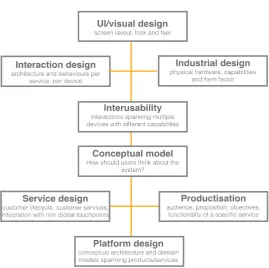
IoT encompasses a broad spectrum of design specialties. Figure 1-17 sets out the ‘big picture’ of different types of design involved in creating an IoT service.
7 New edition: Jesse James Garrett, 2010: ‘The Elements of User Experience: User-Centered
Figure 1-17: The ‘design stack’ for IoT
This isn’t a set of discrete activities required in your project plan. It says nothing of user research, for example. Nor is it a set of job roles you need on your project. You might, for example, need data analytics, and you’ll certainly need engineers!
It’s aspects of the user experience that need to be considered. Some of these things will evolve in tandem. For example, UI, interaction design and interusability need to be thought about together. UX design at the platform layer will emerge as a need once you start adding multiple devices to a service.
A good overall product requires integrated thinking across all these layers. A stunning UI means nothing if your product concept makes no sense. A beautiful industrial design can’t mask terrible service.
Depending on the type and complexity of your service, layers will require more or less of your time. IoT services aspire to extend over more devices and become more complex over time, and the parts you need less now may become more relevant to you in future.
UI/visual design
See chapter 9, Interface and interaction design, for more details on designing UIs for embedded devices.
Interaction design
Interaction design is the design of device behaviors. Interaction designers shape the sequences of actions between the user and the device needed to achieve particular goals or activity. They also determine how to organize the user-facing functions of the device. For example, a heating controller might have several modes (such as schedule on/off or frost protection) and some hierarchical functions, such as schedule setting. The organization of these functions defines how easy or otherwise it may be for users to find their way around them.
Interaction design is closely aligned to UI design in the sense that the two are usually done in tandem and often by the same people. But interaction design is primarily concerned with behaviors and actions, whereas UI/visual design is concerned with layout and aesthetics. (Just to confuse matters, some people use UI design as a shorthand term to include both interaction design and visual design). Typical outputs for interaction design might include user flows, low-medium fidelity interactive prototypes and, for a visual UI, screen wireframes (figure 1-19).
Figure 1-19: interaction design deliverables
You sometimes hear the term ‘information architecture’ used to describe
organization schemes for functionality, but technically this refers to the equivalent activity for content-driven systems, such as content-based web sites.
See Chapter 9, Interface and interaction design.
Interusability
Interusability is a relatively new term. It refers to the additional considerations of designing interactions that span multiple devices. The goal is to make the overall experience feel like a coherent service, even when the devices involved may have quite different form factors and input/output capabilities.
Interusability isn’t a separate set of design activities. It’s an extra set of
considerations to be addressed in tandem with interaction and UI design. The key differences to a single device UX design process would typically be:
Industrial design refers to the aesthetic and functional design of the physical hardware in the service: the choice of form, materials, and capabilities it may have (see figure 1-20). Connected devices contain electronic circuitry and radio antennae, which impose particular requirements on the industrial design. Devices can also have input and output capabilities, which require collaboration between industrial
designers and UI/interaction design/interusability.
See chapter 8, Embedded device design.
Figure 1-20: industrial design process artefacts
Service design
A connected device is rarely a one-off purchase. It comes with the expectation of an ongoing service, at the very least the provision of the internet service that keeps it running, and customer support. All of this forms part of the user’s overall experience with the product.
Service design is an emerging discipline which addresses this holistic view of user experience. It looks at the whole lifespan of a user’s experience with a service, provides a view of all the components of the user experience, and specifies how these function together as a coherent whole (see figure 1-21).
As well as device interactions it might include: • Customer support interactions • Instructional guides
• Marketing or sales materials • In-store experiences
• Email communications and notifications
• The UX of software updates and rolling out new functionality
See chapter 7, Designing the service.
Figure 1-21: service design process artefacts
Conceptual model
See chapter 6, Translating research into product definitions
Productization
Productization is the activity of defining a compelling product proposition. It addresses the audience, proposition, objectives and overall functionality of service (and often its business model). Does your product solve a real problem for a real audience? Is it presented so that they understand that? Does it appeal to them? This isn’t always the domain of the UX designer on a project but it’s the underpinnings of good UX. All the front-end design in the world won’t make a killer product unless it does something of value for people, in a way that appeals to them and makes sense.
See chapter 4, Product/service definition and strategy
Platform design
A platform is a software framework. It takes care of low-level details to help developers build applications more easily. IoT platforms, such as Xively or Thingworx, make it easy to put data from connected devices onto the internet and enable devices to interoperate with each other.
A software platform will aim to solve many technical issues, many of which may not directly have an impact on UX. For example, they may provide a way of collating device data in one place. But some platform functionality is very much to do with UX.
For example, a platform may provide standard ways to:
• Discover new devices and applications
• Add them onto the system
• Manage devices and users, and
• Manage how devices share data
These are basic building blocks for the UX. If they don't work well for your users, your UI and interaction design will be full of awkward workarounds.
A more complex platform might also provide ways of organizing and coordinating multiple devices. For example, a user adds a light to an existing home system. They might reasonably expect the system to know that it should control it along with their other lights and/or offer it as part of the security system. It's not important to make it talk to the toaster. That may be common sense to a human. But the system won’t know that unless this kind of logic is encoded in the platform.
There is no commonly understood set of activities for this yet. Chapter 14, 'Designing complex interconnected products and services', discusses what these challenges may look like and some of the approaches we might take to solving them.
Chapter summary
UX for connected devices is not just about UI and interaction design. It also requires designers to think about: interusability, industrial design, service design, conceptual models, productization and platform design.
In summary, it differs from ‘conventional’ UX in the following ways:
Embedded devices often
although we expect physical things to respond immediately and reliably,
users have to engage with the system model to predict how it will work if parts are offline
Devices are distributed in the real world
which means...
social and physical context of use is complex and varied
designers need to consider not just usability but interusability equally or more important than the single device UX
Interface and interaction design
In this chapter we will look at interface and interaction design for connected products. Many connected products involve web and smartphone interfaces. But there are many good resources available on these platforms already. This chapter will focus on the possibilities beyond point-and-click or touchscreen interfaces. This has two reasons:
First, point-and-click and touchscreen interfaces dominate the majority of UX design work. But both interface types are less likely to be used on embedded devices like smart thermostats and or smart plugs.
Second, the Internet of Things provides an opportunity to redefine how we interact with digital devices.
This second point is brilliantly argued by designer Bret Victor in his "Brief rant about the future of interaction design”. Victor discusses the diverse and intricate ways we use our hands on a daily basis. He critiques the many concept explorations that, although looking into the future, still revolve around touch screens. The aim of this chapter is to inspire designers to experiment with new ways of interacting with products.
This chapter introduces:
- The benefits and drawbacks of different interface types and interaction paradigms.
- Design recommendations and best-practice examples of interface and interaction design
- Specific interface design challenges for embedded devices.
This chapter addresses the following issues:
- Why a screen isn't necessarily better than no screen.
- What strategic decisions designers face about the interactivity of a device.
- How devices can receive complex input through simple interfaces.
Our bodies and abilities define how we can ‘talk’ to devices (input). Our sensory system defines how we can ‘listen’ to devices (output).
Yet, the way we interact with devices has so far been very limited. Tom Igoe and Dan O’Sullivan illustrated this in their book ‘Physical Computing’. Figure 8-1 shows their illustration of ‘how the computer sees us’. One eye instead of two because we only look at two-dimensional screens. One finger only, as we input through sequential tapping, which might as well be the same single finger. Two small ears to hear stereo audio output from laptop speakers and the like.
Figure 8-1. ‘How the computer sees us’ from Physical Computing (Tom Igoe, Dan O’Sullivan)
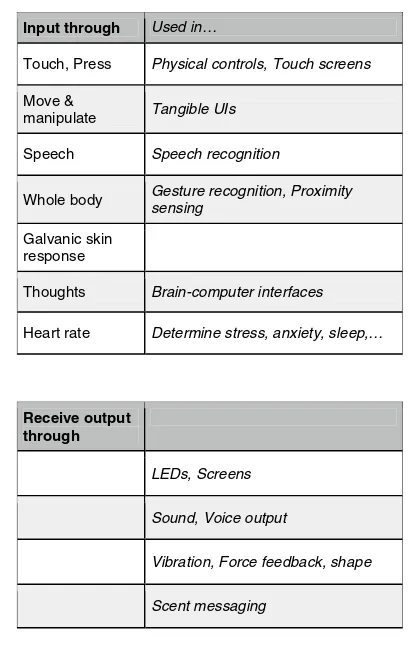
If the illustration were updated to include new interface technologies as they become available, it would gradually become more human-like. In the same spirit, this chapter aims to inspire you to think about different input and output possibilities. Think about some of the ways in which we could provide input, or receive output and how they might be used:
Input through Used in…
Touch, Press Physical controls, Touch screens
Move &
manipulate Tangible UIs
Speech Speech recognition
Whole body Gesture recognition, Proximity sensing
Galvanic skin response
Thoughts Brain-computer interfaces
Heart rate Determine stress, anxiety, sleep,…
Receive output through
LEDs, Screens
Sound, Voice output
Vibration, Force feedback, shape
combine them in different ways: A device might take voice input but output only through a screen. Or it might have physical controls, but only respond using a voice through a speaker.
In this chapter, we will discuss combinations of inputs and outputs that are particularly relevant for connected products.
Physical controls
Physical controls are everywhere. Push buttons that activate something. Switches that let us chose between two states. Sliders and rotary knobs that let us set a value on a range or select between multiple settings. Figure 8-2 shows a few different kinds.
Figure 8-2. A few physical controls from around a house (Photos from the author)
Physical controls aren’t just input, sometimes they show a current setting. An electrical outlet switch controls the outlet, but also tells you if it’s on or off. The tactile nature even allows you to feel the switch in the dark and use it without seeing it. In electronic devices, this can make things complicated. When users can change a setting from more than one place, controls might need to be motorized (like HIFI systems where the volume knob rotates even when the remote is used). Or a combination of physical control and display is required.
In addition to the type of control (button, switch, dial,…) designers also need to think about the tactile aspects. The haptic and tactile characteristics of a control influence the experience of a physical device. From the outside, they might be invisible.
To enable designers to work with the nuances that exist, the specifications for controls include operating force graphs. Figure 8-3 shows such graphs for different versions of what (from the outside) looks like the same button. Note the differences in both stroke (the distance the button travels when pressed) and operating force (the force at which the button ‘activates’).
Figure 8-3. Operating force specifications for different models of an identical looking button component.
move, but [has] a heavy feel. The rotation can only be described as creamy.”
Physical controls can become an identifying feature that makes a product stand out. Think of the click wheel control of the iPod. Another example is the Aether Cone (see figure 8-4): a connected speaker that uses physical controls as part of its minimalistic interface. The device combines voice input with physical controls. It learns about personal preferences and automatically curates a playlist.
Rotating the front speaker grille slightly skips the current song. Rotating it further changes the entire musical genre. Pressing in the center of the speaker activates the voice input feature that lets users request specific songs. This interface is intriguing and makes the product stand out from its competition.
Figure 8-4. Some of Aether Cone’s less obvious controls: Rotating the speaker grille and pushing in the centre of the speaker.
Using unconventional physical controls that are integrated with the device design can have drawbacks. Discovering the controls can be hard when they are non-obvious. Users need to learn where the controls are and how they work. Good usability can also be a challenge. Controls defined by the form factor, instead of interaction requirements, might be suboptimal for the interactions required. Keeping controls to the bare minimum is often part of what makes a product simple and elegant. But too few controls can negatively influence the usability and value. A single control might need to do different things at different times. This means users have to switch modes or accept less functionality. If you’re using unconventional controls on your device, consider helping users with discovery and learning. To do this, you can utilize marketing and advertising to educate people about how they can use your product. The early TV adverts for Apple’s iPhone took this approach. The short clips demonstrated how features worked by stepping viewers through the interaction. This has no doubt helped early customers know how to use the device before they even bought it. Once a customer has purchased the product, the out-of-box experience (the moment where the product is taken out of its packaging) can help, too. Printed instructions that users reveal as they unbox the device or removable labels affixed to the product can convey essential information about its controls.
Visual & screen interfaces
Light output
Light can also be the main interface of a device. The Ambient Orb (see figure 8-6) is a ball shaped device that glows in different colors. It can be configured to display data such as current energy prices or stock prices. Creator David Rose describes it as a “single-pixel browser [that] glows a color to reflect online information”. Light here isn't a secondary signal, it’s key for the primary purpose of the device: Conveying information in a glanceable, ambient way, requiring less attention and providing less distraction.
Figure 8-6. The Ambient Orb uses different colored light to display information, for example current energy prices.
The Ambient Umbrella (see figure 8-7) uses light in a similar way. Its handle glows when it is going to rain to remind the owner to take it out.
Figure 8-7. The Ambient Umbrella has a light integrated in its handle that lights up when rain is forecasted.
Visual input
Users can also give device input through light or other visual means. A device can use a camera to interpret a graphical pattern like a barcode or a QR code. Devices can also use light sensors to react to ambient lighting conditions or receive input from other devices through LED blink patterns.
Because these kinds of interactions and interfaces aren’t often referred to as ‘visual input’, we’ll discuss them in a separate section below called “Computer vision, barcodes & devices ‘seeing’”.
Screens and displays
Sometimes you need more than some lights. When a device needs to display complex information or users need to provide more sophisticated input, screens are more appropriate. As a UX designer you'll be familiar with screen-based user interfaces of smartphones or personal computers. But there is a range of (simpler) display types that require different design approaches UX designers are less likely to be familiar with.
Custom segment displays
Custom segment displays are what many cheap electronic devices use. Like the water filter system shown in figure 8-8. The underlying technology is often LCD (liquid crystal display). This means transparent segments become visible when an electric charge is applied.
part of the segmentation layout. They cannot be in the same place.
Segment displays are low cost and use little power. But they are unable to display dynamic alphanumeric information. To do that, you can use a character set display.
Character set displays
Many will have seen a simple character set display in an electronic calculator. Typically a 7-segment display was used (see figure 8-9).
Figure 8-9. A 7-segment display used in a calculator.
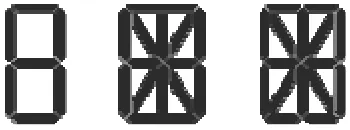
Character set displays work through systems of 7, 14 or sometimes 16 segments (see figure 8-10) that are switched on in combination to create numbers. 14 and 16-segment displays can also display basic alphabetic characters.
Figure 8-10. The segment layout of 7, 14 and 16-segment displays. (Illustration from the author)
Displays like this are cheap, but have a limited character set. A 7-segment system is only usable for displaying numbers. Other types such as 14- or 16-segment systems can display letters, but with limitations. See figure 8-11 for an example of the character set of a 14-segment display.
Figure 8-11. The character set of a 14-segment display.
By combining character set and custom segment displays, you can display both dynamic alphanumeric data and illustrations or graphical elements. Figure 8-12 shows such a combination used in a heating controller. A custom segment display that shows boiler and radiator illustrations is combined with a character set display for dynamic messages.
Figure 8-12. Note the ‘Message display’ area using a 14-segment display.
Dynamic displays
Displays with the fewest limitations have a matrix of pixels each of which can be turned on or off individually. In principle, displays like this are the kind we’re all used to from smartphones or computer monitors. A notable distinction is between monochrome and color displays.
Monochrome displays tend to be cheaper, but (as their name suggests) unable to display colors or shades. The Fitbit activity tracker uses such a monochrome OLED matrix display. It shows both alphanumeric information and simple graphics (see figure 8-14).
Figure 8-14. The Fitbit activity tracker uses a monochrome matrix display.
UX designers will be familiar with color pixel matrix displays from smartphones, laptops and tablet devices. Touch screens are essentially pixel matrix displays combined with a transparent touch sensitive layer.
Electronic ink displays
A more unusual display technology with unique advantages and disadvantages is electronic ink.
Made popular through eBook readers like Amazon Kindle, the technology is used in more and more devices like connected watches or smartphones. Electronic ink displays resemble the appearance of paper and are easy to read in direct sunlight. Unlike the other technologies described above, they only require electricity to change the state, not to hold it. This means the device uses less power.
This opens up new possibilities for designers, too. For example, an electronic ink display can show something when a device is off. To greet and guide users, a display could already show information when the user unpacks the product and hasn't even switched on.
There are also some disadvantages that constrain the design. Electronic ink displays have a very low refresh rate. They also suffer from an effect called ‘ghosting’, where shadows from a previous display state can still be seen. This rules out interactions like scrolling, the use of mouse pointers or animations in the UI.
Is a screen better than no screen?
You might think it’s good to put a screen on a device where possible, but this isn’t necessarily the case. Screens and physical controls increase the cost of a device. They mean extra components and add design and development effort.
if this product didn’t have a screen? Could it still work? You might just discover an opportunity for a beautifully simple and easy-to-use connected product.
Audio & voice interfaces
Audio output
Audio can be a useful output method. Users don’t have to look at the device directly and don’t even have to be in near it. At the same time, anyone who has experienced the persistent beeping of a washing machine that has finished a cycle or a smoke alarm indicating its low battery knows how annoying audio output can be.
Audio is pervasive. Unlike lights, audio is almost never subtle. Sounds immediately trump visual indications. They are hard to ignore. Audio also has a bigger emotional character. This is obvious for speech: Tone and accent can be perceived as sympathetic and friendly, or the opposite. It’s also the case for other sounds: Pitch and quality immediately carry emotions. A sound can convey urgency like an ear-piercing high-pitch beep. Or it can convey a sense of satisfaction like a fulfilling swoosh sound when an email is sent.
Voice interfaces
Voice as output
Instead of sound effects, audio output can also be used for computer-generated speech. This is a powerful method for providing a wide range of information.
For example, the Nest Protect smoke alarm uses its speaker to play warning sounds. But it also gives more information using speech: A voice tells the user in which room smoke was detected.
And we’ve all used car navigation systems that use speech. The advantage is twofold: We can keep our eyes on the road, and something that can be hard to convey visually is much easier explained in speech. An illustration can become confusing when it doesn’t match the real layout of the roundabout ahead, or when the junction involves a complex road layout that is quite straightforward when explained verbally.
Voice as input
Speech recognition has become an ordinary feature of smartphones. When it works it can be a quick way to give complex commands. Setting an alarm using a touch screen, for example, requires a series of steps. A voice command is quicker and often easier.
Voice input can remove the need for many other controls. The Amazon Dash (see figure 8-15), a device that lets users add items to a shopping list, only has two buttons: One to activate voice input, one for a barcode scanner. Voice input replaces an entire keyboard in this case.
correct recognition. This can be done using a screen, but might defeat the purpose of not having to look at something. Confirmation can also be done through speech output. This quickly becomes a frustrating loop going back and forth.
Another challenge is to know what commands are possible in the first place. Users must recall (instead of recognize) what ‘functions’ are available, or how they need to phrase commands. Devices with screens often display a list of possible commands to help users with this problem.
Devices need to know when to listen for a command. One approach is to press a button, but this means the overall interaction isn’t hands free. Another approach is activation phrases like ‘Ok, Google’ that indicate that a command follows. The downside of this approach is that users agonize over the idea that a device is constantly listening to everything that is being said. It also makes false positive detection a problem - when you say something that sounds similar to ‘Ok, Google’.
A prank exploiting this is to play Xbox online multiplayer games using the gamer name “Xbox sign out”. Other players will eventually say the name out loud, perhaps to vent their confusion about it in the game’s audio channel. If those players have the voice control features enabled, they will soon disappear from the game server.
Tangible & tactile interaction
Tangible user interfaces
Tangible interfaces let users give input to a device or system through moving or placing physical objects or touching objects together.
In 1992 designer Durrell Bishop created one of the earliest explorations of this idea. Bishop envisioned an answering machine that made messages tangible through marbles that represent messages. (See figure 8-16)
Figure 8-16. Still from the concept video: The user places a marble into the message playback position.
Colored marbles represent recorded messages. The machine releases them into a groove for the user to pick up. To play a message, the user places a marble into a depression on the surface of the machine. Playback stops as soon as the user removes the marble from that spot. Users can either keep messages by holding on to the marbles, or delete them by putting the marbles back into the answering machine through a hole.
A more recent exploration of tangible interaction is the ‘Spotify Box’ designer Jordi Parra created as a student project. (See figure 8-17)
Figure 8-17. Jordi Parra’s Spotify Box with a playlist token attached to the ‘play’ spot.
This changes the nature of interaction with a digital system, turning it into something more direct and immediate.
Tangible interfaces offer a way to simplify the control of a device. The direct and physical nature of manipulation can be easier to learn and understand than abstracted menu structures or conceptual mappings of controls.
A great example of this are Sifteo cubes (see figure 8-18). They are matchbox-sized cubes with a screen that sense when they are next to each other. Through tilting, placing or rearranging them, kids can play educational and entertainment games across the cubes.
Figure 8-18. Sifteo Cubes sense when they are next to each other to enable games played by manipulating and placing the cubes.
A simpler example is the Muji ‘Multi Clock’ alarm clock. It’s a cubic device with labels for its four functions placed along each side of its display. Users select a function by orienting the clock with the corresponding label on the top. Figure 8-19 below shows the ‘calendar’ function activated.
Figure 8-19. The Muji Multi Clock with the calendar function activated.
A promising application of tangible user interfaces is in musical instruments. The Reactable (see figure 8-20) is such a musical instrument with a tangible user interface. Musicians manipulate and create sounds using physical objects placed and moved on the table’s surface. The tangible nature means the musician can create and control many different sounds and keep the overview during a live performance.
Figure 8-20. A Reactable in use making music.
Experimenting with tangible user interfaces is thought provoking and inspiring. But interfaces involving many small physical tokens to manipulate or represent data have an obvious impracticality: If you lose parts the interface breaks.
Imagine not being able to listen to messages because your cat or a child has made off with the marbles. So you need to think carefully about the application of tangible interfaces.
Tactile output: Vibration, force feedback and shape shifting
We’ve all experienced vibration alerts of our mobile phones. It’s a useful feature when it’s noisy or when sounds would cause disturbance. But it requires body contact, which few devices have reliably.
A much more sophisticated form of tactile output are force feedback mechanisms. These use motors to push back on the user in specific directions. Gaming joysticks use this to great effect to let players feel the g-forces involved in flying a plane for example.
A more serious device using force feedback is the Geomagic Touch (see figure 8-21). This is a device that makes virtual objects tangible.
Figure 8-21. The Geomagic Touch uses force feedback to make virtual objects tangible.
The central feature is a pen-like device mounted on multiple motorized axes. Users can give input in three dimensions using the pen, but the device can also ‘push back’ in all three dimensions, too. The applications are specific, such as 3D CAD modeling or surgery robots. An advantage is that users can physically feel virtual boundaries.
As with tangible interfaces, it's intriguing and inspiring to explore how tactile interfaces can change everyday interactions. The ‘Proverbial Wallets’ project from MIT explores this with financial data. The researchers created three prototype wallets, each using a different kind of tactile output for different kinds of data.
The first wallet is ‘Bumblebee’. It uses vibration to notify the owner of every transaction that is happening with their bank account. The second is ‘Mother Bear’ (see figure 8-22). It uses its force feedback hinge mechanism to make it harder (or easier) to open the wallet depending on the current budget. The last is ‘Peacock’. It's a wallet that swells and shrinks, reflecting the balance in the owner’s account.
Figure 8-22. One of the three prototype wallets from the ‘Proverbial Wallets’ project.
Researcher Fabian Hemmert has explored the possibilities of tactile output in mobile phones. His prototypes include devices that shift their center of gravity and devices that shift their shape (see figure 8-23).
Figure 8-23. Fabian Hemmert’s prototypes for shape- and centre of gravity shifting devices.
As with the Proverbial Wallets, it is intriguing to think about the ambient representation of data. Instead of displaying it in concrete terms, users feel it while interacting with the device. Hemmert gives the example of representing progress through a playlist and the current song at the same time using the center of gravity. Or giving non-visual directions in navigation applications.
Gestural interaction
Figure 8-24. The film Minority Report made gestural control popular although it is an interface method with many flaws.
The film has had major influence on the development of gestural interfaces. But research has since shown that gestural interfaces might not be appropriate for real world applications. Holding out your arms in front of your body, gesturing or doing precise motions for extended periods of time causes aching muscles and stiffness. This condition has been dubbed ‘Gorilla Arm’. Rumor has it that Tom Cruise had to take breaks from even just acting the scenes for the movie.
Yet, industries like gaming have adopted gestural interfaces with great success. The Microsoft Kinect lets gamers control Xbox games or navigate menus without any further device or controller. Users wave hands or move their body to control what they want to do.
Simpler forms of gesture interaction have also been integrated into more mundane products. The original Nest Protect smoke alarm had a featured called ‘Wave to hush’. The feature was meant to solve the problem of alarms going off because of burnt toast or smoky frying. Users could stand underneath the device and wave their hands at it to silence it for a short period of time. (See Nest’s illustration in figure 8-25)
Figure 8-25. The now disabled ‘wave to hush’ feature let users silence the smoke alarm by waving their hand at it.
But, the possibility of users unintentionally activating it (perhaps waving their hands during a real fire) could delay an alarm. In April 2014 Nest had halted sales and disabled the feature on already installed units to investigate potential problems with the feature. So, gesture interaction can be an elegant solution to interacting with a device that is hard to reach (like a smoke alarm). Yet, designers need to think carefully about the context and risk of false positives.
Context-sensitive interaction
Context-sensitive interaction is similar to gesture interaction, in that it revolves around the body. The difference is that context-sensitive interaction is user input in a less attentive manner. For example, instead of gesturing to make a command, simply being (or not being) in a certain room can provide input to a system, too. Context can also mean whether you're at home or standing at a bus stop, this can inform and tailor the user experience. Simpler still, being close by or further away from a product can be useful information to tailor an interface.
David Rose, founder of Ambient Devices, demonstrated a product that works in such a way at the LIFT’09 conference. Rose showed a connected weather forecasting device with a screen and a proximity sensor.
person in front of it. (Illustration from Alfred Lui)
When a user is standing across the room, the screen displays only essential information. The current outside temperature fills up the screen in large digits and the background gives clues to the weather (e.g. rain drops around the temperature).
When the user is closer to the device, the screen shows more information using smaller fonts. It now includes a forecast for the next 24 hours. Finally, when users tap the device, it shows even more information. The interface is sensitive to proximity, which acts as a proxy to the user context. The device uses this context in two ways. It enlarges text to make it easier to read from across the room. It also reduces the amount of information given to reduce the cognitive load on the user. Instead of having to 'study' the weather forecast, users see the most essential information at a glance.
The Aether Cone (figure 8-27) connected speaker is also context-sensitive. It's a mobile device that learns about the user’s musical preference in different rooms of the house. It uses this to automatically adjust what it plays based on what room the user places it in.
Figure 8-27. The Aether Cone connected speaker remembers what music the owner prefers to listen to in different rooms.
Like tactile interfaces, context-sensitive interfaces demand less of the user’s attention. This approach promises to make interacting with connected products less overbearing. In a way, less like operating a computer.
Designing interfaces like this requires a good understanding of human behavior. Designers can only ever assume the user's context through a proxy that a device can sense, like location or proximity. It's the designer that needs to do the interpretation. He or she needs the human insight that people listen to different kinds of music in different rooms of the house. Careful user experience design then needs to ensure that the device works well, whether this is true for its particular user or not.
Computer vision, barcodes & devices ‘seeing’
In this section, we'll talk about interfaces that involve devices seeing or responding to physical artifacts around them. By this we mean interactions such as face, object or pattern recognition, as well as simpler ways a device can receive input from a physical artifact.
To clarify, computer vision isn't an interface type, it's an enabler. The gestural interactions we discussed above rely on computer vision. Simpler forms such as face recognition can enable useful features such as smartphones that can unlock using the owner's face. Face detection (instead of recognition) can enable smart cameras that automatically follow a person’s face.
Figure 8-28. Amazon’s Fire Phone can recognise objects and present relevant shortcut functions.
In connected products, designers can use these kinds of interfaces to tailor the experience. For example by recognizing who is in front of a device. A challenge here is not to create a patronizing experience.
The smart drinks vending machines installed in some train stations in Tokyo are a real-world example that caused some debate due to their Orwellian characteristics. Instead of a glass through which available drinks can be seen, this machine displays its selection using a large screen on its front. The machine also uses a camera to determine the age and gender of whoever is standing in front of it. Based on this information the machine displays a targeted selection of drinks. For example, it is said to suggest a slightly sweeter beverage to a woman in her 20s.1 The device also captures the data and the actual choice the customer made for marketing analytics. The sensitivity to features like this is different in different cultures. Allegedly the Japanese customers don't share the views and concerns some bloggers and commentators expressed.2
Marketing applications aside, there are also practical uses of such interfaces. A well-known example is QR codes. It's a useful way for users to input complex information with a minimal interface. Instead of manually entering Wifi credentials, for example, users could present them using a QR code for a device to decode.
Scanning a QR code requires a camera and the ability to interpret the image presented. This means the device to scan needs to be relatively complex. But the principle of encoding and transmitting information optically can be utilized simpler. The Electric Imp, a platform to connected device to Wifi, uses a light sensor (instead of a camera) to receive input. Users enter the Wifi credentials on a smartphone that then turns them into a flashing sequence performed by the screen.
Electric Imp calls this process ‘BlinkUp’. The light sensor recognizes the sequence and the device decodes the information contained.
The ‘Toymail’ connected kids toys use this platform to connect. See figure 8-29 for the key steps in the process.
Figure 8-29. Wifi credentials are entered on a smartphone, the device is placed on the smartphone screen with its feet, the screen flashes on and off for a short period, an LED in one of the feet lights up green
when the process succeeded.
1
http://www.telegraph.co.uk/news/worldnews/asia/japan/8136743/Japanese-vending-machine-tells-you-what-you-should-drink.html
the effort required to scan a code in the first place. An Internet joke mocking this reality is a Tumblr blog that has been setup to collect pictures of people scanning QR codes. The irony is, since its creation in early 2012 no pictures have been posted to it. (See figure 8-30).
Figure 8-30. http://picturesofpeoplescanningqrcodes.tumblr.com/
But, when the scanning logic isn’t for the user to worry about, QR codes are a perfect means to input complex data quickly. Great examples are airplane boarding passes or event tickets stored on mobile phones. For connected products they can be a great method, too. A connected lock might use its door camera to validate a temporary key presented using a QR code.
Multi-modal interaction & interface combinations
When we talk to another person, we communicate using multiple channels at the same time. Speech, gestures, facial expression and body language work together. In a similar way, interaction with a connected device can combine different types of interfaces into one. This is called multi-modal interaction.
A great example of this is the ‘Room-E’ project Jared Ficklin did at frog design (see figure 8-31). By combining gesture and voice interaction, Ficklin demonstrates how users can provide input similar to the way they would talk to another person. In his demo, Ficklin points at a specific light in the room (gesture input) and says “Computer, turn off this light” (voice input). The computer combines both inputs into a single command. It is able to understand that Ficklin specifies which light he means to switch off using the gesture.
Figure 8-31. Jared Ficklin is demonstrating Room-E. A gesture (pointing at a lamp) is combined with voice input (“Computer, turn off
this light”) to control the room.
Although ‘Room-E’ is a prototype, it shows the potential of multi-modal interaction. By combining interface types, designers can create interactions that feel more like human-to-human interaction.
IoT specific challenges and opportunities
Deciding on the level of interactivity of a connected device.
However, simple devices with little features have other disadvantages. They often rely on other devices for full-feature interaction. This makes them dependent on things outside of the designer's control, such as a working Internet connection or a compatible browser. Imagine you couldn't change the temperature in your house because of problems with your Internet service provider.
An example of this approach is the Tado thermostat (figure 8-33). Users control it using a website and smartphone app. But the product offers a minimal degree of control on the device, too. A single physical button lets users switch the heating on or off as a fallback option.
Figure 8-33. The Tado thermostat relies on smartphone apps and a website for control - but the box offers a minimal degree of control: A
button on the side lets users switch the heating on.
Only having few controls on a device is especially advantageous if you know your product will change and develop. In this case a supporting a physical interface quickly becomes a burden.
There are ways to balance the benefits and drawbacks of physical controls. An example is BERG’s connected washing machine prototype ‘Cloudwash’ (see figure 8-34). The physical device has some controls that only cover selected functions. Full control is delivered through a smartphone app. But, users can perform the everyday tasks without needing the smartphone app. Also, the device uses a combination of physical controls with displays. This keeps the physical interface flexible within reason.
Figure 8-34. BERG’s Cloudwash prototype uses displays to dynamically label physical controls.
From BERG’s website:
“The legends for these washes are in e-ink so they can be updated but still feel like part of the legends one would expect to find on a washing machine. They can be far more descriptive than the descriptions on a traditional dial, since there’s no need for generalisations like 'cottons.' We like human-readable descriptions like ‘Joe’s sports kit’ or ‘really really quick’ or ‘use this for baby stuff’.”
Glanceable and ambient interfaces
We’ve already touched on how designers can create interactions that require less attention. Considering the ever-increasing amount of information around us, this will become ever more important. We'll soon all crave a less distracting environment.
share certain characteristics. David Rose, founder of Ambient Devices, has created a list of these characteristics that designers can use.
Pre-attentive Glance-able, no cognitive load required.
Calm Non-intrusive, seamless with environment. Evergreen. Friendly.
Universal No language, characters or numbers.
Open Able to represent multiple types of data, coded, private.
We highly recommend exploring how you could bring some of these characteristics into the products you’re working on. Even if it's just a thought experiment.
Working with limited input and output capabilities
A particular challenge in connected devices is to work around limited input and output capabilities. Many connected devices only require complex input rarely and a simple interface is sufficient most of the time. So how can designers handle these rare, but complex interactions without having to bloat the interface with capabilities that aren't needed most of the time?
The Withings Smart Body Analyser provides a great example. The smart body scale supports multiple users each with their own accounts. It automatically identifies which user is standing on it by comparing the reading with its historic data. If the new reading is within a realistic extrapolation of only one account, it can only be that person.
This doesn’t always work. When a reading is within range of more than one account, the device cannot reliably decide which user it is. In this case, the device needs user input. But instead of having specific controls for this situation, the designers found a solution that keeps the interface simple. They work with the capabilities available. In this case, the display shows a selection between the likely accounts. Users then lift either their left or the right foot to make a selection. (See figure 8-38)
Figure 8-35. The Smart Body Analyser displays a choice between two users when it is unsure who the current reading belongs to. By standing
only on the right or left side of the scale, the user can make a selection.
Another strategy is to support devices with more capabilities. Navigating and controlling Apple TV with the minimalistic remote is sufficient for most of the time. When it comes to entering search terms or login credentials, using the remote becomes tedious. By supporting an iPhone as an alternative input device, users can switch to the more capable device when required. (See figure 8-39)
Figure 8-36. Apple TV Remote, Remote App and TV interface.