Licensed to [email protected]
Summary of Contents
Preface . . . xvii
1. Falling in Love with jQuery . . . 1
2. Selecting, Decorating, and Enhancing . . . 17
3. Animating, Scrolling, and Resizing . . . 51
4. Images and Slideshows . . . 91
5. Menus, Tabs, Tooltips, and Panels . . . 135
6. Construction, Ajax, and Interactivity . . . 181
7. Forms, Controls, and Dialogs . . . 231
8. Lists, Trees, and Tables . . . 291
9. Plugins, Themes, and Advanced Topics . . . 333
A. Reference Material . . . 373
B. JavaScript Tidbits . . . 381
C. Plugin Helpers . . . 387
Licensed to [email protected]
jQuery: Novice to Ninja
by Earle Castledine and Craig Sharkie
Copyright ©2010 SitePoint Pty. Ltd.
Program Director: Andrew Tetlaw Indexer: Fred Brown
Technical Editor: Louis Simoneau Editor: Kelly Steele
Chief Technical Officer: Kevin Yank Cover Design: Alex Walker
Printing History:
First Edition: February 2010
Notice of Rights
All rights reserved. No part of this book may be reproduced, stored in a retrieval system or transmitted in any form or by any means, without the prior written permission of the publisher, except in the case of brief quotations embodied in critical articles or reviews.
Notice of Liability
The author and publisher have made every effort to ensure the accuracy of the information herein. However, the information contained in this book is sold without warranty, either express or implied. Neither the authors and SitePoint Pty. Ltd., nor its dealers or distributors, will be held liable for any damages to be caused either directly or indirectly by the instructions contained in this book, or by the software or hardware products described herein.
Trademark Notice
Rather than indicating every occurrence of a trademarked name as such, this book uses the names only in an editorial fashion and to the benefit of the trademark owner with no intention of infringement of the trademark.
Published by SitePoint Pty. Ltd.
48 Cambridge Street Collingwood VIC Australia 3066 Web: www.sitepoint.com Email: [email protected]
ISBN 978-0-9805768-5-6
Licensed to [email protected]
About Earle Castledine
Sporting a Masters in Information Technology and a lifetime of experience on the Web of Hard Knocks, Earle Castledine (aka Mr Speaker) holds an interest in everything computery. Raised in the wild by various 8-bit home computers, he settled in the Internet during the mid-nineties and has been living and working there ever since.
A Senior Systems Analyst and JavaScript flâneur, he is equally happy in the muddy pits of .NET code, the dense foliage of mobile apps and games, and the fluffy clouds of client-side interaction development.
As co-creator of the client-side opus TurnTubelist,1as well as countless web-based experi-ments, Earle recognizes the Internet not as a lubricant for social change but as a vehicle for unleashing frivolous ECMAScript gadgets and interesting time-wasting technologies.
About Craig Sharkie
A degree in Fine Art is a strange entrance to a career with a passion for programming, but that’s where Craig started. A right-brain approach to code and problem solving has seen him plying his craft for many of the big names of the Web—AOL, Microsoft, Yahoo!, Ziff-Davis, and now Atlassian.
That passion, and a fondness for serial commas and the like, have led him on a path from journalism, through development, on to conferences, and now into print. Taking up JavaScript in 1995, he was an evangelist for the “good parts”before Crockford coined the term, and now has brought that keenness to jQuery.
About the Technical Editor
Louis Simoneau joined SitePoint in 2009, after traveling from his native Montréal to Calgary, Taipei, and finally Melbourne. He now gets to spend his days learning about cool web tech-nologies, an activity that had previously been relegated to nights and weekends. He enjoys hip-hop, spicy food, and all things geeky.
About the Chief Technical Officer
As Chief Technical Officer for SitePoint, Kevin Yank keeps abreast of all that is new and exciting in web technology. Best known for his book, BuildYourOwnDatabaseDrivenWeb SiteUsingPHP&MySQL, he also co-authored SimplyJavaScriptwith Cameron Adams and
1
Licensed to [email protected]
EverythingYouKnowAboutCSSIsWrong!with Rachel Andrew. In addition, Kevin hoststhe SitePointPodcastand co-writes the SitePointTechTimes, a free email newsletter that goes out to over 240,000 subscribers worldwide.
Kevin lives in Melbourne, Australia and enjoys speaking at conferences, as well as visiting friends and family in Canada. He’s also passionate about performing improvised comedy theater with Impro Melbourne (http://www.impromelbourne.com.au/) and flying light aircraft. Kevin’s personal blog is Yes,I’mCanadian(http://yesimcanadian.com/).
About SitePoint
Licensed to [email protected]
ForAmelia.
Iwantedtohaveapicturehereof
meholdingaboomboxabovemy
head,buttheywouldn’tletme.
Willyoumarryme?
—Earle
ForJennifer:
Peoplewho’vemetme
OnlysinceI’veknownyou
Neverunderstandthe
Goodyou’veleadmeto
Always
Licensed to [email protected]
Table of Contents
Preface
. . . xvii
Where to Find Help . . . xx
The SitePoint Forums . . . xxi
The Book’s Web Site . . . xxi
The SitePoint Newsletters . . . xxi
The SitePoint Podcast . . . xxii
Your Feedback . . . xxii
Acknowledgments . . . xxii
Earle Castledine . . . xxii
Craig Sharkie . . . xxii
Conventions Used in This Book . . . xxiii
Code Samples . . . xxiii
Tips, Notes, and Warnings . . . xxiv
Who Should Read This Book . . . xviii
What’s in This Book . . . xviii
Chapter 1
Falling in Love with jQuery
. . . 1
What’s so good about jQuery? . . . 2
Cross-browser Compatibility . . . 2
CSS3 Selectors . . . 3
Helpful Utilities . . . 3
jQuery UI . . . 3
Plugins . . . 5
Keeping Markup Clean . . . 5
Widespread Adoption . . . 6
What’s the downside? . . . 7
Licensed to [email protected]
Downloading jQuery . . . 8
The Google CDN . . . 9
Nightlies and Subversion . . . 10
Uncompressed or compressed? . . . 11
Anatomy of a jQuery Script . . . 11
The jQuery Alias . . . 11
Dissecting a jQuery Statement . . . 12
Bits of HTML—aka “The DOM” . . . 13
If You Choose to Accept It … . . . 15
Chapter 2
Selecting, Decorating, and
Enhancing
. . . 17
Making Sure the Page Is Ready . . . 18
Selecting: The Core of jQuery . . . 19
Simple Selecting . . . 20
Narrowing Down Our Selection . . . 22
Testing Our Selection . . . 22
Filters . . . 23
Selecting Multiple Elements . . . 24
Becoming a Good Selector . . . 24
Decorating: CSS with jQuery . . . 25
Reading CSS Properties . . . 25
Setting CSS Properties . . . 26
Classes . . . 29
Enhancing: Adding Effects with jQuery . . . 31
Hiding and Revealing Elements . . . 32
Progressive Enhancement . . . 36
Adding New Elements . . . 37
Removing Existing Elements . . . 40
Licensed to [email protected]
Basic Animation: Hiding and Revealing with Flair . . . 42
Callback Functions . . . 44
A Few Tricks . . . 45
Highlighting When Hovering . . . 45
Spoiler Revealer . . . 47
Before We Move On . . . 49
Chapter 3
Animating, Scrolling, and
Resizing
. . . 51
Animating . . . 51
Animating CSS Properties . . . 52
Color Animation . . . 53
Easing . . . 54
Advanced Easing . . . 56
Bouncy Content Panes . . . 58
The Animation Queue . . . 61
Chaining Actions . . . 62
Pausing the Chain . . . 63
Animated Navigation . . . 64
Animated Navigation, Take 2 . . . 67
The jQuery User Interface Library . . . 69
Get Animated! . . . 72
Scrolling . . . 72
The
scrollEvent . . . 72
Floating Navigation . . . 73
Scrolling the Document . . . 75
Custom Scroll Bars . . . 77
Resizing . . . 79
The
resizeEvent . . . 79
Licensed to [email protected]
That’s How We Scroll. And Animate. . . 90
Chapter 4
Images and Slideshows
. . . 91
Lightboxes . . . 92
Custom Lightbox . . . 92
Troubleshooting with
console.log. . . 96
ColorBox: A Lightbox Plugin . . . 98
Cropping Images with Jcrop . . . 101
Slideshows . . . 104
Cross-fading Slideshows . . . 104
Scrolling Slideshows . . . 119
iPhoto-like Slideshow widget . . . 126
Image-ine That! . . . 134
Chapter 5
Menus, Tabs, Tooltips, and
Panels
. . . 135
Menus . . . 136
Expandable/Collapsible Menus . . . 136
Open/Closed Indicators . . . 141
Menu Expand on Hover . . . 143
Drop-down Menus . . . 144
Accordion Menus . . . 148
A Simple Accordion . . . 149
Multiple-level Accordions . . . 153
jQuery UI Accordion . . . 154
Tabs . . . 156
Basic Tabs . . . 156
jQuery UI Tabs . . . 158
Licensed to [email protected]
Slide-down Login Form . . . 162
Sliding Overlay . . . 164
Tooltips . . . 168
Simple Tooltips . . . 168
Advanced Tooltips . . . 172
Order off the Menu . . . 180
Chapter 6
Construction, Ajax, and
Interactivity
. . . 181
Construction and Best Practices . . . 182
Cleaner jQuery . . . 182
Client-side Templating . . . 188
Browser Sniffing (… Is Bad!) . . . 191
Ajax Crash Course . . . 193
What Is Ajax? . . . 193
Loading Remote HTML . . . 194
Enhancing Hyperlinks with Hijax . . . 194
Picking HTML with Selectors . . . 196
Advanced
loading . . . 198
Prepare for the Future:
liveand
die. . . 198
Fetching Data with
$.getJSON. . . 200
A Client-side Twitter Searcher . . . 201
The jQuery Ajax Workhorse . . . 202
Common Ajax Settings . . . 203
Loading External Scripts with
$.getScript. . . 204
GET
and
POSTRequests . . . 205
jQuery Ajax Events . . . 206
Interactivity: Using Ajax . . . 207
Ajax Image Gallery . . . 207
Licensed to [email protected]
Ajax Ninjas? Check! . . . 229
Chapter 7
Forms, Controls, and Dialogs
. . . 231
Forms . . . 232
Simple Form Validation . . . 232
Form Validation with the Validation Plugin . . . 236
Maximum Length Indicator . . . 239
Form Hints . . . 240
Check All Checkboxes . . . 242
Inline Editing . . . 244
Autocomplete . . . 248
Star Rating Control . . . 250
Controls . . . 257
Date Picker . . . 257
Sliders . . . 260
Drag and Drop . . . 264
jQuery UI
sortable. . . 271
Progress Bar . . . 274
Dialogs and Notifications . . . 276
Simple Modal Dialog . . . 277
jQuery UI Dialog . . . 280
Growl-style Notifications . . . 284
1-up Notification . . . 287
We’re in Good Form . . . 290
Chapter 8
Lists, Trees, and Tables
. . . 291
Lists . . . 292
jQuery UI Selectables . . . 292
Sorting Lists . . . 298
Licensed to [email protected]
Trees . . . 305
Expandable Tree . . . 306
Event Delegation . . . 309
Tables . . . 312
Fixed Table Headers . . . 312
Repeating Header . . . 316
Data Grids . . . 319
Selecting Rows with Checkboxes . . . 329
We’ve Made the A-list! . . . 332
Chapter 9
Plugins, Themes, and Advanced
Topics
. . . 333
Plugins . . . 333
Creating a Plugin . . . 334
Advanced Topics . . . 343
Extending jQuery . . . 343
Events . . . 349
A jQuery Ninja’s Miscellany . . . 362
Avoiding Conflicts . . . 362
Queuing and Dequeuing Animations . . . 363
Treating JavaScript Objects as jQuery Objects . . . 366
Theme Rolling . . . 367
Using Gallery Themes . . . 368
Rolling Your Own . . . 368
Making Your Components Themeable . . . 369
StarTrackr!: Epilogue . . . 372
Appendix A
Reference Material
. . . 373
Licensed to [email protected]
Flags . . . 373
Settings . . . 374
Callbacks and Functions . . . 376
$.support
Options . . . 376
Events . . . 379
Event Properties . . . 379
Event Methods . . . 380
DIY Event Objects . . . 380
Appendix B
JavaScript Tidbits
. . . 381
Type Coercion . . . 381
Equality Operators . . . 382
Truthiness and Falsiness . . . 383
Appendix C
Plugin Helpers
. . . 387
Selector and Context . . . 387
The jQuery Stack . . . 388
Minification . . . 389
Licensed to [email protected]
Preface
No matter what kind of ninja you are—a cooking ninja, a corporate lawyer ninja, or an actual ninjaninja—virtuosity lies in first mastering the basic tools of the trade. Once conquered, it’s then up to the full-fledged ninja to apply that knowledge in creative and inventive ways.
In recent times, jQuery has proven itself to be a simple but powerful tool for taming and transforming web pages, bending even the most stubborn and aging browsers to our will. jQuery is a library with two principal purposes: manipulating elements on a web page, and helping out with Ajax requests. Sure, there are quite a few commands available to do this—but they’re all consistent and easy to learn. Once you’ve chained together your first few actions, you’ll be addicted to the jQuery building blocks, and your friends and family will wish you’d never discovered it!
On top of the core jQuery library is jQuery UI: a set of fine-looking controls and widgets (such as accordions, tabs, and dialogs), combined with a collection of full-featured behaviors for implementing controls of your own. jQuery UI lets you quickly throw together awesome interfaces with little effort, and serves as a great example of what you can achieve with a little jQuery know-how.
At its core, jQuery is a tool to help us improve the usability of our sites and create a better user experience. Usability refers to the study of the principles behind an object’s perceivedefficiencyorelegance. Far from being merely flashy, trendy design, jQuery lets us speedily and enjoyably sculpt our pages in ways both subtle and ex-treme: from finessing a simple sliding panel to implementing a brand-new user in-teraction you invented in your sleep.
Licensed to [email protected]
Who Should Read This Book
If you’re a front-end web designer looking to add a dash of cool interactivity to your sites, and you’ve heard all the buzz about jQuery and want to find out what the fuss is about, this book will put you on the right track. If you’ve dabbled with JavaScript, but been frustrated by the complexity of many seemingly simple tasks, we’ll show you how jQuery can help you. Even if you’re familiar with the basics of jQuery, but you want to take your skills to the next level, you’ll find a wealth of good coding advice and in-depth knowledge.
You should already have intermediate to advanced HTML and CSS skills, as jQuery uses CSS-style selectors to zero in on page elements. Some rudimentary programming knowledge will be helpful to have, as jQuery—despite its clever abstractions—is still based on JavaScript. That said, we’ve tried to explain any JavaScript concepts as we use them, so with a little willingness to learn you’ll do fine.
What’s in This Book
By the end of this book, you’ll be able to take your static HTML and CSS web pages and bring them to life with a bit of jQuery magic. You’ll learn how to select elements on the page, move them around, remove them entirely, add new ones with Ajax, animate them …in short, you’ll be able to bend HTML and CSS to your will! We also cover the powerful functionality of the jQuery UI library.
This book comprises the following nine chapters. Read them in order from beginning to end to gain a complete understanding of the subject, or skip around if you only need a refresher on a particular topic.
Chapter 1: FallinginLovewithjQuery
Before we dive into learning all the ins and outs of jQuery, we’ll have a quick look at why you’d want to use it in the first place: why it’s better than writing your own JavaScript, and why it’s better than the other JavaScript libraries out there. We’ll brush up on some CSS concepts that are key to understanding jQuery, and briefly touch on the basic syntax required to call jQuery into action.
Chapter 2: Selecting,Decorating,andEnhancing
Licensed to [email protected]
this chapter by teaching you how to use jQuery’s selectors to zero in on your target elements, and then we’ll look at how you can use jQuery to alter those elements’CSS properties.
Chapter 3: Animating,Scrolling,andResizing
jQuery excels at animation: whether you’d like to gently slide open a menu, or send a dialog whizzing across the screen, jQuery can help you out. In this chapter, we’ll explore jQuery’s wide range of animation helpers, and put them into practice by enhancing a few simple user interface components. We’ll also have a quick look at some animation-like helpers for scrolling the page and making elements resizable.
Chapter 4: Images,Slideshows,andCross-fading
With the basics well and truly under our belts, we’ll turn to building some of the most common jQuery widgets out there: image galleries and slideshows. We’ll learn how to build lightbox displays, scrolling thumbnail galleries, cross-fading galleries, and even take a stab at an iPhoto-style flip-book.
Chapter 5: Menus,Tabs,Tooltips,andPanels
Now that we’re comfortable with building cool UI widgets with jQuery, we’ll dive into some slightly more sophisticated controls: drop-down and accordion-style menus, tabbed interfaces, tooltips, and various types of content panels. We’re really on a roll now: our sites are looking less and less like the brochure-style pages of the nineties, and more and more like the Rich Internet Applications of the twenty-first century!
Chapter 6: Construction,Ajax,andInteractivity
Licensed to [email protected]
Chapter 7: Forms,Controls,andDialogs
The bane of every designer, forms are nonetheless a pivotal cornerstone of any web application. In this chapter, we’ll learn what jQuery has to offer us in terms of simplifying our form-related scripting. We’ll learn how to validate forms on the fly, offer assistance to our users, and manipulate checkboxes, radio buttons, and select lists with ease. Then we’ll have a look at some less conventional ways of allowing a site’s users to interact with it: a variety of advanced controls like date pickers, sliders, and drag and drop. We’ll round it off with a look at modal dialogs in the post-popup world, as well as a few original nonmodal notification styles. What a chapter!
Chapter 8: Lists,Trees,andTables
No matter how “Web 2.0”your application may be, chances are you’ll still need to fall back on the everyday list, the humdrum tree, or even the oft-derided table to present information to your users. This chapter shows how jQuery can make even the boring stuff fun, as we’ll learn how to turn lists into dynamic, sortable data, and transform tables into data grids with sophisticated functionality.
Chapter 9: Plugins,Themes,andAdvancedTopics
jQuery is more than just cool DOM manipulation, easy Ajax requests, and funky UI components. It has a wealth of functionality aimed at the more ninja-level
developer: a fantastic plugin architecture, a highly extensible and flexible core, customizable events, and a whole lot more. In this chapter, we’ll also cover the jQuery UI theme system, which lets you easily tailor the appearance of jQuery UI widgets to suit your site, and even make your own plugins skinnable with themes.
Where to Find Help
Licensed to [email protected]
The SitePoint Forums
The SitePoint Forums1are discussion forums where you can ask questions about anything related to web development. You may, of course, answer questions too. That’s how a discussion forum site works—some people ask, some people answer, and most people do a bit of both. Sharing your knowledge benefits others and strengthens the community. A lot of interesting and experienced web designers and developers hang out there. It’s a good way to learn new stuff, have questions answered in a hurry, and have a blast.
The JavaScript Forum2is where you’ll want to head to ask any questions about jQuery.
The Book’s Web Site
Located at http://www.sitepoint.com/books/jquery1/, the web site that supports this book will give you access to the following facilities:
The Code Archive
As you progress through this book, you’ll note a number of references to the code archive. This is a downloadable ZIP archive that contains each and every line of example source code that’s printed in this book. If you want to cheat (or save yourself from carpal tunnel syndrome), go ahead and download the archive.3
Updates and Errata
No book is perfect, and we expect that watchful readers will be able to spot at least one or two mistakes before the end of this one. The Errata page4on the book’s web site will always have the latest information about known typographical and code errors.
The SitePoint Newsletters
In addition to books like this one, SitePoint publishes free email newsletters, such as the SitePointTechTimes, SitePointTribune, and SitePointDesignView, to name
1
http://www.sitepoint.com/forums/ 2
http://www.sitepoint.com/forums/forumdisplay.php?f=15 3
http://www.sitepoint.com/books/jquery1/code.php 4
Licensed to [email protected]
a few. In them, you’ll read about the latest news, product releases, trends, tips, and techniques for all aspects of web development. Sign up to one or more SitePoint newsletters at http://www.sitepoint.com/newsletter/.
The SitePoint Podcast
Join the SitePoint Podcast team for news, interviews, opinion, and fresh thinking for web developers and designers. We discuss the latest web industry topics, present guest speakers, and interview some of the best minds in the industry. You can catch up on the latest and previous podcasts at http://www.sitepoint.com/podcast/, or subscribe via iTunes.
Your Feedback
If you’re unable to find an answer through the forums, or if you wish to contact us for any other reason, the best place to write is [email protected]. We have a well-staffed email support system set up to track your inquiries, and if our support team members are unable to answer your question, they’ll send it straight to us. Suggestions for improvements, as well as notices of any mistakes you may find, are especially welcome.
Acknowledgments
Earle Castledine
I’d like to thank the good folks at Agency Rainford for running Jelly (and getting me out of the house), Stuart Horton-Stephens for teaching me how to do Bézier Curves (and puppet shows), Andrew Tetlaw, Louis Simoneau, and Kelly Steele from Site-Point for turning pages of rambling nonsense into English, the Sydney web com-munity (who do truly rock), the jQuery team (and related fellows) for being a JavaScript-fueled inspiration to us all, and finally, my awesome Mum and Dad for getting me a Spectravideo 318 instead of a Commodore 64—thus forcing me to read the manuals instead of playing games, all those years ago.
Craig Sharkie
Licensed to [email protected]
with them professionally has been a real eye-opener. I’d also like to thank my wonderful wife Jennifer for understanding when I typed into the wee small hours, and my parents for letting me read into the wee small hours when I was only wee small. Lastly, I’d like to thank the web community that have inspired me—some have inspired me to reach their standard, some have inspired me to help them reach a higher standard.
Conventions Used in This Book
You’ll notice that we’ve used certain typographic and layout styles throughout the book to signify different types of information. Look out for the following items.
Code Samples
Code in this book will be displayed using a fixed-width font, like so:
<h1>A Perfect Summer's Day</h1>
<p>It was a lovely day for a walk in the park. The birds were singing and the kids were all back at school.</p>
If the code is to be found in the book’s code archive, the name of the file will appear at the top of the program listing, like this:
example.css
.footer {
background-color: #CCC; border-top: 1px solid #333; }
If only part of the file is displayed, this is indicated by the word excerpt:
example.css (excerpt)
border-top: 1px solid #333;
Licensed to [email protected]
function animate() {
new_variable = "Hello";
}
Also, where existing code is required for context, rather than repeat all the code, a vertical ellipsis will be displayed:
function animate() {
⋮
return new_variable;
}
Some lines of code are intended to be entered on one line, but we’ve had to wrap them because of page constraints. A ➥indicates a line break that exists for formatting purposes only, and should be ignored:
URL.open("http://www.sitepoint.com/blogs/2007/05/28/user-style-she
➥ets-come-of-age/");
Tips, Notes, and Warnings
Hey, You!
Tips will give you helpful little pointers.
Ahem, Excuse Me …
Notes are useful asides that are related—but not critical—to the topic at hand. Think of them as extra tidbits of information.
Make Sure You Always …
…pay attention to these important points.
Watch Out!
Licensed to [email protected]
Chapter
1
Falling in Love with jQuery
So you have the coding chops to write lean, semantic HTML—and you can back it up with masterful CSS to transform your design ideas into gorgeous web sites that enthrall your visitors. But these days, you realize, inspiring designs and impeccable HTML alone fall short when you’re trying to create the next Facebook or Twitter. So, what’s the missing piece of the front-end puzzle?
It’s JavaScript. That rascally scripting language, cast as the black sheep of the web development family for so many years. JavaScript is how you add complex behaviors, sophisticated interactions, and extra pizazz to your site. To conquer the sleeping giant that is JavaScript, you just need to buckle down and spend the next few years learning about programming languages: functions, classes, design patterns, proto-types, closures ...
Licensed to [email protected]
In the following chapter we’ll have a look at what makes jQuery so good, and how it complements HTML and CSS in a more natural way than our old friend and bitter enemy: plain old JavaScript. We’ll also look at what’s required to get jQuery up and running, and working with our current sites.
What’s so good about jQuery?
You’ve read that jQuery makes it easy to play with the DOM, add effects, and execute Ajax requests, but what makes it better than, say, writing your own library, or using one of the other (also excellent) JavaScript libraries out there?
First off, did we mention that jQuery makes it easy to play with the DOM, add effects, and execute Ajax requests? In fact, it makes it so easy that it’s downright good, nerdy fun—and you’ll often need to pull back from some craziness you just invented, put on your web designer hat, and exercise a little bit of restraint (ah, the cool things we could create if good taste were not a barrier!). But there are a multitude of notable factors you should consider if you’re going to invest your valuable time in learning a JavaScript library.
Cross-browser Compatibility
Aside from being a joy to use, one of the biggest benefits of jQuery is that it handles a lot of infuriating cross-browser issues for you. Anyone who has written serious JavaScript in the past can attest that cross-browser inconsistencies will drive you mad. For example, a design that renders perfectly in Mozilla Firefox and Internet Explorer 8 just falls apart in Internet Explorer 7, or an interface component you’ve spent days handcrafting works beautifully in all major browsers except Opera on Linux. And the client just happens to use Opera on Linux. These types of issues are never easy to track down, and even harder to completely eradicate.
Even when cross-browser problems are relatively simple to handle, you always need to maintain a mental knowledge bank of them. When it’s 11:00 p.m. the night before a major project launch, you can only hope you recall why there’s a weird padding bug on a browser you forgot to test!
Licensed to [email protected]
will run exactly the same on all the major browsers, including everybody’s favorite little troublemaker: Internet Explorer 6.
This feature alone will save the average developer a lifetime of headaches. Of course, you should always aim to keep up to date with the latest developments and best practices in our industry—but leaving the task of hunting down obscure browser bugs to the jQuery Team (and they fix more and more with each new version) allows you more time to implement your ideas.
CSS3 Selectors
Making today’s technologies cross-browser compliant is all well and good, but jQuery also fully supports the upcoming CSS3 selector specification. Yes, even in Internet Explorer 6.0! You can gain a head start on the future by learning and using CSS3 selectors right now in your production code. Selecting elements you want to change lies at the heart of jQuery’s power, and CSS3 selectors give you even more tools to work with.
Helpful Utilities
Also included is an assortment of utility functions that implement common functions useful for writing jQuery (or are missing from JavaScript!): string trimming, the ability to easily extend objects, and more. These functions by themselves are partic-ularly handy, but they help promote a seamless integration between jQuery and JavaScript which results in code that’s easier to write and maintain.
One noteworthy utility is the supportsfunction, which tests to find certain features are available on the current user’s browser. Traditionally, developers have resorted to browser sniffing—determining which web browser the end user is using, based on information provided by the browser itself—to work around known issues. This has always been an unsatisfying and error-prone practice. Using the jQuery supports utility function, you can test to see if a certain feature is available to the user, and easily build applications that degrade gracefully on older browsers, or those not standards-compliant.
jQuery UI
Licensed to [email protected]
However, the jQuery team wisely decided that in order to keep the core library fo-cused, they’d separate out higher-level constructs and package them into a neat library that sits on top of jQuery.
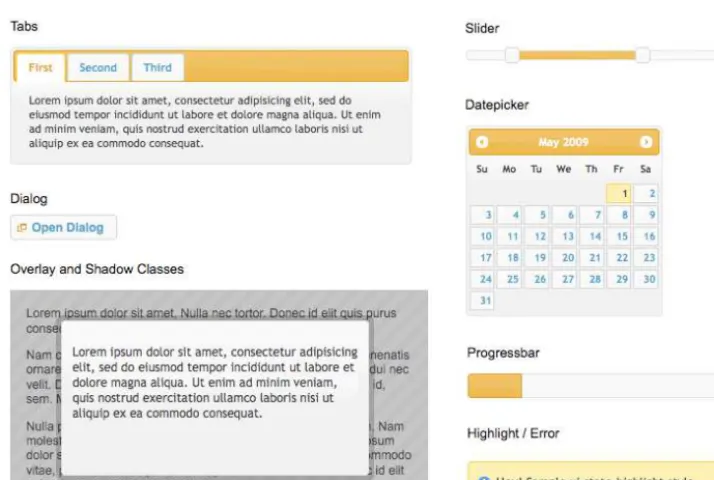
That library is called jQuery User Interface (generally abbreviated to just jQuery UI), and it comprises a menagerie of useful effects and advanced widgets that are accessible and highly customizable through the use of themes. Some of these features are illustrated in Figure 1.1.
Figure 1.1. A few jQuery UI widgets
Accordions, sliders, dialog boxes, date pickers, and more—all ready to be used right now! You could spend a bunch of time creating them yourself in jQuery (as these have been) but the jQuery UI controls are configurable and sophisticated enough that your time would be better spent elsewhere—namely implementing your unique project requirements rather than ensuring your custom date picker appears correctly across different browsers!
Licensed to [email protected]
Plugins
The jQuery team has taken great care in making the jQuery library extensible. By including only a core set of features while providing a framework for extending the library, they’ve made it easy to create plugins that you can reuse in all your jQuery projects, as well as share with other developers. A lot of fairly common functionality has been omitted from the jQuery core library, and relegated to the realm of the plugin. Don’t worry, this is a feature, not a flaw. Any additional required function-ality can be included easily on a page-by-page basis to keep bandwidth and code bloat to a minimum.
Thankfully, a lot of people have taken advantage of jQuery’s extensibility, so there are already hundreds of excellent, downloadable plugins available from the jQuery plugin repository, with new ones added all the time. A portion of this can be seen in Figure 1.2.
Figure 1.2. The jQuery plugin repository
Whenever you’re presented with a task or problem, it’s worth checking first to see if there’s a plugin that might suit your needs. That’s because almost any functionality you might require has likely already been turned into a plugin, and is available and ready for you to start using. Even if it turns out that you need to do some work yourself, the plugin repository is often the best place to steer you in the right direc-tion.
Keeping Markup Clean
Licensed to [email protected]
cinch to completely rid your markup of inline scripting, thanks to its ability to easily hook elements on the page and attach code to them in a natural, CSS-like manner. jQuery lacks a mechanism for adding inline code, so this separation of concerns leads to leaner, cleaner, and more maintainable code. Hence, it’s easy to do things the right way, and almost impossible to do them the wrong way!
And jQuery isn’t limited to meddling with a page’s existing HTML—it can also add new page elements and document fragments via a collection of handy functions. There are functions to insert, append, and prepend new chunks of HTML anywhere on the page. You can even replace, remove, or clone existing elements—all functions that help you to progressively enhance your sites, thus providing a fully featured experience to users whose browsers allow it, and an acceptable experience to everyone else.
Widespread Adoption
If you care to put every JavaScript library you can think of into Google Trends,1 you’ll witness jQuery’s exponential rise to superstardom. It’s good to be in the in crowd when it comes to libraries, as popularity equates to more active code devel-opment and plenty of interesting third-party goodies.
Countless big players on the Web are jumping on the jQuery bandwagon: IBM, Netflix, Google (which both uses and hosts the jQuery library), and even Microsoft, which now includes jQuery with its MVC framework. With such a vast range of large companies on side, it’s a safe bet that jQuery will be around for some time to come—so the time and effort you invest in learning it will be well worth your while!
jQuery’s popularity has also spawned a large and generous community that’s sur-prisingly helpful. No matter what your level of skill, you’ll find other developers patient enough to help you out and work through any issues you have. This caring and sharing spirit has also spread out to the wider Internet, blossoming into an en-cyclopedia of high quality tutorials, blog posts, and documentation.
1
http://www.google.com/trends/
Licensed to [email protected]
What’s the downside?
There barely is a downside! The main arguments against using any JavaScript library have always been speed and size: some say that using a library adds too much download bloat to pages, while others claim that libraries perform poorly compared with leaner custom code. Though these arguments are worth considering, their relevance is quickly fading.
First, as far as size is concerned, jQuery is lightweight. The core jQuery library has always had a fairly small footprint—about 19KB for the basics, less than your average JPG image. Any extras your project needs (such as plugins or components from the jQuery UI library) can be added in a modular fashion—so you can easily count your bandwidth calories.
Speed (like size) is becoming a decreasing concern as computer hardware specific-ations rise and browsers’JavaScript engines grow faster and faster. Of course, this is far from implying that jQuery is slow—the jQuery team seem to be obsessed with speed! Every new release is faster than the last, so any benefit you might derive from rolling your own JavaScript is shrinking every day.
When it comes to competing JavaScript libraries (and there are more than a handful out there), jQuery is the best at doing what jQuery does: manipulating the DOM, adding effects, and making Ajax requests. Still, many of the libraries out there are of excellent quality and excel in other areas, such as complex class-based program-ming. It’s always worth looking at the alternatives, but if the reasons we’ve outlined appeal to you, jQuery is probably the way to go.
But enough talk: time for jQuery to put its money where its mouth is!
Downloading and Including jQuery
Licensed to [email protected]
It’s Just JavaScript!
Never forget that jQuery is just JavaScript! It may look and act superficially differ-ent—but underneath it’s written in JavaScript, and consequently it’s unable to do anything that plain old JavaScript can’t. This means we’ll include it in our pages the same way we would any other JavaScript file.
Downloading jQuery
This is the most common method of acquiring the jQuery library—just download it! The latest version is always available from the jQuery web site.2The big shiny download button will lead us to the Google code repository, where we can grab the latest “production compression level”version.
Click the download link and save the JavaScript file to a new working folder, ready for playing with. You’ll need to put it where our HTML files can see it: commonly in a scripts or javascript directory beneath your site’s document root. For the following example, we’ll keep it very simple and put the library in the same directory as the HTML file.
To make it all work, we need to tell our HTML file to include the jQuery library. This is done by using a script tag inside the head section of the HTML document. The head element of a very basic HTML file including jQuery would look a little like this:
<head>
<title>Hello jQuery world!</title>
<script type='text/javascript' src='jquery-1.4-min.js'></script> <script type='text/javascript' src='script.js'></script>
</head>
The first script tag on the page loads the jQuery library, and the second script tag points to a script.js file, which is where we’ll run our own jQuery code. And that’s it: you’re ready to start using jQuery.
We said earlier that downloading the jQuery file is the most common approach—but there are a few other options available to you, so let’s have a quick look at them
2
Licensed to [email protected]
before we move on. If you just want to start playing with jQuery, you can safely skip the rest of this section.
The Google CDN
An alternative method for including the jQuery library that’s worth considering is via the Google Content Delivery Network (CDN). A CDN is a network of computers that are specifically designed to serve content to users in a fast and scalable manner. These servers are often distributed geographically, with each request being served by the nearest server in the network.
Google hosts several popular, open-source libraries on their CDN, including jQuery (and jQuery UI—which we’ll visit shortly). So, instead of hosting the jQuery files on your own web server as we did above, you have the option of letting Google pick up part of your bandwidth bill. You benefit from the speed and reliability of Google’s vast infrastructure, with the added bonus of the option to always use the latest version of jQuery.
Another benefit of using the Google CDN is that many users will already have downloaded jQuery from Google when visiting another site. As a result, it will be loaded from cache when they visit your site (since the URL to the JavaScript file will be the same), leading to significantly faster load times. You can also include the more hefty jQuery UI library via the same method, which makes the Google CDN well worth thinking about for your projects: it’s going to save you money and increase performance when your latest work goes viral!
There are a few different ways of including jQuery from the Google CDN. We’re going to use the simpler (though slightly less flexible) path-based method:
<head>
<title>Hello jQuery world!</title>
<script type="text/javascript" src="http://ajax.googleapis.com/
➥ajax/libs/jquery/1.4.0/jquery.min.js"></script>
<script type='text/javascript' src='script.js'></script> </head>
Licensed to [email protected]
Obtaining the Latest Version with Google CDN
If you look closely at the URL pointing to Google’s servers, you’ll see that the version of jQuery is specified by one of the path elements (the 1.4.0 in our ex-ample). If you like using the latest and greatest, however, you can remove a number from the end of the version string (for example, 1.4) and it will return the latest release available in the 1.4 series (1.4.1, 1.4.2, and so on). You can even take it up to the whole number (1), in which case Google will give you the latest version even when jQuery 1.5 and beyond are released!
Be careful though: there’ll be no need to update your HTML files when a new version of jQuery is released, but it will be necessary to look out for any library changes that might affect your existing functionality.
If you’d like to examine the slightly more complex “Google loader”method of in-cluding libraries, there’s plenty to read about the Google CDN on its web site.3
Nightlies and Subversion
Still more advanced options for obtaining jQuery are listed on the official Down-loading jQuery documentation page.4The first of these options is the nightly builds. Nightlies are automated builds of the jQuery library that include all new code added or modified during the course of the day. Every night the very latest development versions are made available for download, and can be included in the same manner as the regular, stable library.
And if every single night is stilltoo infrequent for you, you can use the Subversion repository to retrieve the latest up-to-the-minute source code. Subversion is an open-source version control system that the jQuery team uses. Every time a developer submits a change to jQuery, you can download it instantly.
Beware, however: both the nightly and Subversion jQuery libraries are often untested. They can (and will) contain bugs, and are subject to frequent changes. Unless you’re looking to work on the jQuery library itself, it’s probably best to skip these options.
3
http://code.google.com/apis/ajaxlibs/documentation/ 4
Licensed to [email protected]
Uncompressed or compressed?
If you had a poke around on the jQuery download page, you might have also spied a couple of different download format options: compressed (also called minified), and uncompressed (also called “development”).
Typically, you’ll want to use the minified version for your production code, where the jQuery source code is compressed: spaces and line breaks have been removed and variable names are shortened. The result is exactly the same jQuery library, but contained in a JavaScript file that’s much smaller than the original. This is great for reducing bandwidth costs for you, and speeding up page requests for the end user.
The downside of the compressed file is readability. If you examine the minified jQuery file in your text editor (go on!), you’ll see that it’s practically illegible: a single line of garbled-looking JavaScript. The readability of the library is incon-sequential most of the time, but if you’re interested in how jQuery is actually working, the uncompressed development version is a commented, readable, and quite beautiful example of JavaScript.
Anatomy of a jQuery Script
Now that we’ve included jQuery in our web page, let’s have a look at what this baby can do. The jQuery syntax may look a little bit odd the first time you see it, but it’s really quite straightforward, and best of all, it’s highly consistent. After writing your first few commands, the style and syntax will be stuck in your head and will leave you wanting to write more.
The jQuery Alias
Including jQuery in your page gives you access to a single magical function called (strangely enough) jQuery. Just one function? It’s through this one function that jQuery exposes hundreds of powerful tools to help add another dimension to your web pages.
Licensed to [email protected]
hide in your own code, one of the functions would be overwritten, leading to unanticipated events and errors.
We say that the jQuery library is contained in the jQuery namespace. Namespacing is an excellent approach for playing nicely with other code on a page, but if we’re going to use a lot of jQuery (and we are), it will quickly become annoying to have to type the full jQuery function name for every command we use. To combat this issue, jQuery provides a shorter alias for accessing the library. Simply, it’s $.
The dollar sign is a short, valid, and cool-looking JavaScript variable name. It might seem a bit lazy (after all, you’re only saving five keystrokes by using the alias), but a full page of jQuery will contain scores of library calls, and using the alias will make the code much more readable and maintainable.
Using Multiple Libraries
The main reason you might want to use the full jQuerycall rather than the alias is when you have multiple JavaScript libraries on the same page, all fighting for control of the dollar sign function name. The dollar sign is a common function name in several libraries, often used for selecting elements. If you’re having issues with multiple libraries, check out Appendix A: Dealing with Conflicts.
Dissecting a jQuery Statement
We know that jQuery commands begin with a call to the jQuery function, or its alias. Let’s now take out our scalpels and examine the remaining component parts of a jQuery statement. Figure 1.3 shows both variants of the same jQuery statement (using the full function name or the $ alias).
Figure 1.3. A typical jQuery statement
Licensed to [email protected]
elements on the web page. Next, we choose an action to be applied to each element we’ve selected. We’ll see more and more actions as we implement effects throughout the book. And finally, we specify some parameters to tell jQuery how exactly we want to apply the chosen action. Whenever you see jQuery code, try to break it up into these component parts. It will make it a lot easier to comprehend when you’re just starting out.
In our example above, we’ve asked the selector to select all the paragraph tags (the HTML <p>tags) on the page. Next, we’ve chosen jQuery’s cssaction, which is used to modify a CSS property of the paragraph elements that were initially selected. Finally, we’ve passed in some parameters to set the CSS colorproperty to the value blue. The end result? All our paragraphs are now blue! We’ll delve deeper into se-lectors and the css action in Chapter 2.
Our example passed two parameters (color and blue) to the css action, but the number of parameters passed to an action can vary. Some require zero parameters, some accept multiple sets of parameters (for changing a whole bunch of properties at once), and some require that we specify another JavaScript function for running code when an event (like an element being clicked) happens. But all commands follow this basic anatomy.
Bits of HTML—aka “The DOM”
jQuery has been designed to integrate seamlessly with HTML and CSS. If you’re well-versed in CSS selectors and know, for example, that div#headingwould refer to a div element with an idof heading, you might want to skip this section. Other-wise, a short crash course in CSS selectors and the Document Object Model (DOM) is in order.
The DOM doesn’t pertain specifically to jQuery; it’s a standard way of representing objects in HTML that all browser makers agreed to follow. A good working knowledge of the DOM will ensure a smooth transition to jQuery ninja-hood.
Licensed to [email protected]
your HTML source file. When the browser reads an HTML page and constructs the DOM, it displays it as a web page comprising objects that can either sit there looking pretty (as a static page) or, more interestingly, be manipulated by our code.
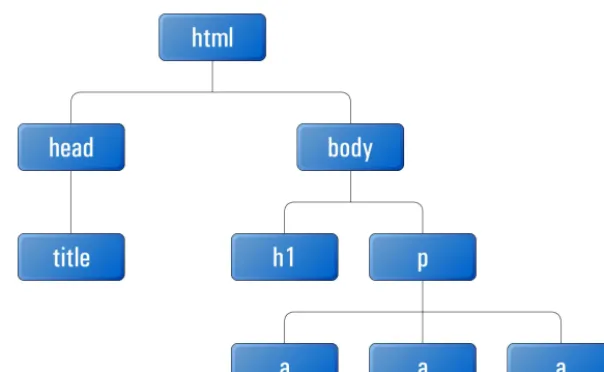
A sample DOM fragment is illustrated in Figure 1.4. As you can see, body has two child elements: an h1 and a p. These two elements, by virtue of being contained in the same parent element, are referred to as siblings.
Figure 1.4. An example of a DOM fragment
An element’s id uniquely identifies the element on the page:
<div id="footer">Come back and visit us soon!</div>
The div has been assigned an id of footer. It uses an id because it’s unique: there should be one, and only one, on the page. The DOM also lets us assign the same name to multiple page elements via the class attribute. This is usually done on elements that share a characteristic:
<p class="warning">Sorry, this field must be filled in!</p> <span class="warning">Please try again</span>
Licensed to [email protected]
When you write your CSS, you can hook elements by id with a hash symbol, or by class with a period:
#footer { border: 2px solid black } .warning { color: red }
These CSS rules will give a black border to the element with an id of footer, and ensure that all elements with a class of warning will be displayed in red text.
When it comes time to write some jQuery, you will find that knowing about CSS selectors and the DOM is important: jQuery uses the same syntax as CSS for selecting elements on the page to manipulate. And once you’ve mastered selecting, the rest is easy—thanks to jQuery!
If You Choose to Accept It …
jQuery is a stable and mature product that’s ready for use on web sites of any size, demonstrated by its adoption by some of the veritable giants of the Internet. Despite this, it’s still a dynamic project under constant development and improvement, with each new version offering up performance boosts and clever additional func-tionality. There’s no better time than now to start learning and using jQuery!
As we work through the book you’ll see that there’s a lot of truth in the jQuery motto, “write less, do more.”It’s an easy and fun library with a gentle learning curve that lets you do a lot of cool stuff with very little code. And as you progress down the path to jQuery ninja-hood, we hope you’ll also acquire a bit of respect for and understanding of JavaScript itself.
Licensed to [email protected]
Chapter
2
Selecting, Decorating, and Enhancing
“In phase two, we are going to want to harness the social and enable Web 2.0 com-munity-based, crowd-sourced, Ajax, um, interactions,”says our new client. “But for now we just need some basic stuff changed on our site.”
Our client is launching a startup called StarTrackr! It uses GPS and RFID technology to track popular celebrities’exact physical location—then sells that information to fans. It’s been going great guns operating out of a friend’s local store, but now they’re taking the venture online.
“Can you do it? Here’s a list that needs to be live by Friday, close of business.”
You survey the list. By amazing coincidence you notice that all of the requests can be implemented using jQuery. You look at your calendar. It’s Friday morning. Let’s get started!
Licensed to [email protected]
Sure, we could use plain old JavaScript to do it, but we know that using jQuery will make our lives a lot easier—plus we can learn a new technology as we go along! We already saw the anatomy of a jQuery statement in Chapter 1; now let’s look at the steps required to put jQuery into action: we wait until the page is ready, select our target, and then change it.
You may have probably guessed that jQuery can be more complicated than this—but only a little! Even advanced effects will rely on this basic formula, with multiple iterations of the last two steps, and perhaps a bit of JavaScript know-how. For now, let’s start nice and easy.
Making Sure the Page Is Ready
Before we can interact with HTML elements on a page, those elements need to have been loaded: we can only change them once they’re already there. In the old days of JavaScript, the only reliable way to do this was to wait for the entire page (includ-ing images) to finish load(includ-ing before we ran any scripts.
Fortunately for us, jQuery has a very cool built-in event that executes our magic as soon as possible. Because of this, our pages and applications appear to load much faster to the end user:
chapter_02/01_document_ready/script.js
$(document).ready(function() {
alert('Welcome to StarTrackr! Now no longer under police …');
});
Licensed to [email protected]
You’ll Be Seeing
$(document).ready()a Lot!
Almost everything you do in jQuery will need to be done afterthe document is ready—so we’ll be using this action a lot. It will be referred to as the document-ready event from now on. Every example that follows in this book, unless otherwise stated, needs to be run from inside the document-ready event. You should only need to declare it once per page though.
The document-ready idiom is so common, in fact, that there’s a shortcut version of it:
$(function() { alert('Ready to do your bidding!'); });
If you’d like to use the shortcut method, go ahead! The expanded version is arguably a better example of self-documenting code; it’s much easier to see at a glance exactly what’s going on—especially if it’s buried in a page of another developer’s JavaScript!
At a cursory glance, the document-ready event looks much removed from the structure we encountered back in our jQuery anatomy class, but on closer inspection we can see that the requisite parts are all accounted for: the selector is document; the action is ready; and the parameter is a function that runs some code (our alert).
Selecting: The Core of jQuery
Time is ticking, and deadlines wait for no one. The client has noted that people have been having quoting incorrect celebrity IDs from the web site. This is because the celebrities’names are all laid out in one big table and it’s difficult for users to line up a celebrity with the correct reference ID. Our client tells us that he wants every other row to be a light gray color so the users can easily find their favorite celebrity.
We have jQuery ready to do our bidding—it just needs us to choose a target for it. Selecting the elements you want to modify on the page is really the art of jQuery. One of the biggest differences between being a novice and ninja is the amount of time it takes you to grab the elements you want to play with!
Licensed to [email protected]
jQuery(<selectors go here>)
Or the alias:
$(<selectors go here>)
We’ll be using the shortcut alias for the remainder of the book—it’s much more convenient. As we mentioned earlier, there’s no real reason to use the full jQuery name unless you’re having conflict issues with other libraries (see the section called “Avoiding Conflicts”in Chapter 9).
Simple Selecting
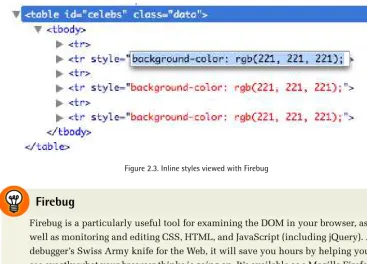
Our task is to select alternate table rows on the celebrity table. How do we do this? When selecting with jQuery, your goal should be to be only as specific as required: you want to find out the most concise selector that returns exactly what you want to change. Let’s start by taking a look at the markup of the Celebrities table, shown in Figure 2.1.
Figure 2.1. class and id attributes in the HTML page
We could start by selecting every table row element on the entire page. To select by element type, you simply pass the element’s HTML name as a string parameter to the $ function. To select all table row elements (which are marked up with the <tr> tag), you would simply write:
Licensed to [email protected]
Nothing Happens!
If you run this command, nothing will happen on the page. This is expected—after all, we’re just selecting elements. But there’s no need to worry; soon enough we’ll be modifying our selections in all sorts of weird and wonderful ways.
Similarly, if we wanted to select every paragraph, divelement, h1heading, or input box on the page, we would use these selectors accordingly:
$('p') $('div') $('h1') $('input')
But we don’t want to change everytable row on the celebrity page: just the rows in the table that have the celebrity data. We need to be a bit more specific, and select first the containing element that holds the list of celebrities. If you have a look at the HTML and at Figure 2.1, you can see that the div that contains our celebrity tablehas an idof celebs, while the tableitself has a classof data. We could use either of these to select the table.
jQuery borrows the conventions from CSS for referring to id and class names. To select by id, use the hash symbol (#) followed by the element’s id, and pass this as a string to the jQuery function:
$('#celebs')
You should note that the string we pass to the jQuery function is exactly the same format as a CSS id selector. Because ids should be unique, we expect this to only return one element. jQuery now holds a reference to this element.
Similarly, we can use a CSS class selector to select by class. We pass a string consisting of a period (.) followed by the element’s class name to the jQuery function:
$('.data')
Licensed to [email protected]
will happily select as many elements as we point it to. If there were multiple tables (or any other elements for that matter) that also had the class data, they’d all be selected. For that reason, we’ll stick to using the id for this one!
Can You Be More Specific?
Just like with CSS, we can select either $('.data') or the more specific
$('table.data'). By specifying an element type in addition to the class, the selector will only return table elements with the class data—rather than all
elements with the class data. Also, like CSS, you can add parent container select-ors to narrow your selection even further.
Narrowing Down Our Selection
We’ve selected the table successfully, though the table itself is of no interest to us—we want everyotherrowinside it. We’ve selected the containing element, and from that containing element we want to pick out all the descendants that are table rows: that is, we want to specify all table rows insidethe containing table. To do this, we put a space between the ancestor and the descendant:
$('#celebs tr')
You can use this construct to drill down to the elements that you’re looking for, but for clarity’s sake try to keep your selectors as succinct as possible.
Let’s take this idea a step further. Say we wanted to select all span elements inside of p elements, which are themselves inside div elements—but only if those divs happen to have a class of fancy. We would use the selector:
$('div.fancy p span')
If you can follow this, you’re ready to select just about anything!
Testing Our Selection
Licensed to [email protected]
of elements currently matched by the selector. We can combine this with the good ol’trusty alert statement to ensure that our elements have been selected:
chapter_02/02_selecting/script.js
$(document).ready(function() {
alert($('#celebs tr').length + ' elements!'); });
This will alert the length of the selection—7 elements—for the celebrity table. This result might be different from what you’d expect, as there are only six celebrities in the table! If you have a look at the HTML, you’ll see where our problem lies: the table header is also a tr, so there are seven rows in total. A quick fix involves narrowing down our selector to find only table rows that lie inside the tbodyelement:
chapter_02/03_narrowing_selection/script.js
$(document).ready(function() {
alert($('#celebs tbody tr').length + ' elements!'); });
This will alert the correct length of 6 elements—the jQuery object is now holding our six celebrity table row elements.
If the alert shows 0, you’ll know there’s a mistake in your selector. A good way to troubleshoot this sort of issue is to reduce your selector to the smallest, simplest one possible.
In our example, we could simply write $('#celebs'), which would select just the table element and alert a length of 1. From here you can make your selectors more specific, and check that you’re selecting the correct number of elements as you go.
Filters
Licensed to [email protected]
chapter_02/04_filters/script.js$(document).ready(function() {
alert($('#celebs tbody tr:even').length + ' elements!'); });
Filters are attached to the item you want to filter (in this case, the table rows) and are defined by a colon, followed by the filter name. The :evenfilter used here keeps every even-indexed element in the selection and removes the rest, which is what we want. When we alert the selection length now, we see 3, as expected. All of our odd-numbered rows have been filtered out of the selection. There is a wide array of jQuery selector filters available to us: :odd(as you might expect), :first, :last, :eq() (for selecting, for example, the third element), and more. We’ll look at each of these in more detail as we need them throughout the book.
Selecting Multiple Elements
One last trick for basic selecting is the ability to select multiple elements in a single statement. This is very useful, as we’ll often want to apply the same action to several elements in unrelated parts of the page. Separating the selector strings with commas allows you to do this. For example, if we wanted to select every paragraph, div element, h1 heading, and input box on the page, we’d use this selector:
$('p,div,h1,input')
Learning how to use all these different selectors together to access exactly the page elements you want is a big part of mastering jQuery. It’s also one of the most satis-fying parts of using jQuery, since you can pack some fairly complex selection logic into a single short line of code!
Becoming a Good Selector
Licensed to [email protected]
When moving around the DOM from a given element, the situation becomes a little trickier. jQuery provides a myriad of selectors and actions for traversing the DOM. Traversing means traveling up and down the page hierarchy, through parent and child elements. You can add and remove elements as you go, applying different actions at each step—which lets you perform some mind-bogglingly complex actions in a single jQuery statement!
If you’re a wiz at CSS, you’ll already be familiar with a lot of the statements; they’re mostly borrowed directly from the CSS specification. But there are probably a few that you’re unfamiliar with, especially if you’ve yet to spend much time learning CSS3 selectors. Of course, we’ll be covering and learning advanced selection tech-niques as we implement them in our examples and demos. For this reason, any time you want to find out more about all the jQuery selectors available, you can just head over to the online documentation1and browse away!
Decorating: CSS with jQuery
Selecting elements in jQuery is the hard part. Everything else is both easy and fun. After we have selected our targets, we are able to manipulate them to build effects or interfaces. In this section we will cover a series of jQuery actions relating to CSS: adding and removing styles, classes, and more. The actions we execute will be ap-plied individually to every element we’ve selected, letting us bend the page to our will!
Reading CSS Properties
Before we try changing CSS properties, let’s look first into how we can simply access them. jQuery lets us do this with the css function. Try this:
chapter_02/05_reading_css_properties/script.js
$(document).ready(function() {
var fontSize = $('#celebs tbody tr:first').css('font-size'); alert(fontSize);
});
1