1
Introduction
This tutorial presents an introduction to the Quartus®II CAD system. It gives a general overview of a typical CAD flow for designing circuits that are implemented by using FPGA devices, and shows how this flow is realized in the Quartus II software. The design process is illustrated by giving step-by-step instructions for using the Quartus II software to implement a very simple circuit in an Altera FPGA device.
The Quartus II system includes full support for all of the popular methods of entering a description of the desired circuit into a CAD system. This tutorial makes use of the schematic design entry method, in which the user draws a graphical diagram of the circuit. Two other versions of this tutorial are also available, which use the Verilog and VHDL hardware description languages, respectively.
The last step in the design process involves configuring the designed circuit in an actual FPGA device. To show how this is done, it is assumed that the user has access to the Altera DE-series Development and Education board connected to a computer that has Quartus II software installed. A reader who does not have access to the DE-series board will still find the tutorial useful to learn how the FPGA programming and configuration task is performed.
The screen captures in the tutorial were obtained using the Quartus II version 10.1; if other versions of the software are used, some of the images may be slightly different.
Contents:
• Typical CAD Flow
• Getting Started
QUARTUSII INTRODUCTIONUSINGSCHEMATICDESIGNS
2
Background
Computer Aided Design (CAD) software makes it easy to implement a desired logic circuit by using a programmable logic device, such as a field-programmable gate array (FPGA) chip. A typical FPGA CAD flow is illustrated in Figure1.
Figure 1. Typical CAD flow.
The CAD flow involves the following steps:
• Design Entry– the desired circuit is specified either by means of a schematic diagram, or by using a hardware description language, such as Verilog or VHDL
• Synthesis– the entered design is synthesized into a circuit that consists of the logic elements (LEs) provided in the FPGA chip
• Fitting– the CAD Fitter tool determines the placement of the LEs defined in the netlist into the LEs in an actual FPGA chip; it also chooses routing wires in the chip to make the required connections between specific LEs
• Timing Analysis– propagation delays along the various paths in the fitted circuit are analyzed to provide an indication of the expected performance of the circuit
• Timing Simulation– the fitted circuit is tested to verify both its functional correctness and timing
• Programming and Configuration– the designed circuit is implemented in a physical FPGA chip by pro-gramming the configuration switches that configure the LEs and establish the required wiring connections
This tutorial introduces the basic features of the Quartus II software. It shows how the software can be used to design and implement a circuit specified by means of a schematic diagram. It makes use of the graphical user interface to invoke the Quartus II commands. Doing this tutorial, the reader will learn about:
• Creating a project
• Entering a schematic diagram
• Synthesizing a circuit from the schematic diagram
• Fitting a synthesized circuit into an Altera FPGA
• Assigning the circuit inputs and outputs to specific pins on the FPGA
• Simulating the designed circuit
• Programming and configuring the FPGA chip on Altera’s DE-series board
3
Getting Started
QUARTUSII INTRODUCTIONUSINGSCHEMATICDESIGNS
Figure 2. The main Quartus II display.
For some commands it is necessary to access two or more menus in sequence. We use the convention Menu1> Menu2> Itemto indicate that to select the desired command the user should first click the left mouse button on Menu1, then within this menu click onMenu2, and then withinMenu2click onItem. For example,File >Exit
uses the mouse to exit from the system. Many commands can be invoked by clicking on an icon displayed in one of the toolbars. To see the command associated with an icon, position the mouse over the icon and a tooltip will appear that displays the command name.
3.1 Quartus II Online Help
Quartus II software provides comprehensive online documentation that answers many of the questions that may arise when using the software. The documentation is accessed from the Helpmenu. To get some idea of the extent of documentation provided, it is worthwhile for the reader to browse through theHelpmenu.
The user can quickly search through the Help topics by selectingHelp>Search, which opens a dialog box into
which keywords can be entered. Another method, context-sensitive help, is provided for quickly finding documen-tation for specific topics. While using most applications, pressing theF1function key on the keyboard opens a Help display that shows the commands available for the application.
4
Starting a New Project
To start working on a new design we first have to define a new design project. Quartus II software makes the designer’s task easy by providing support in the form of awizard. Create a new project as follows:
1. Select File>New Project Wizardto reach the window in Figure4, which asks for the name and directory
of the project.
QUARTUSII INTRODUCTIONUSINGSCHEMATICDESIGNS
Figure 4. Creation of a new project.
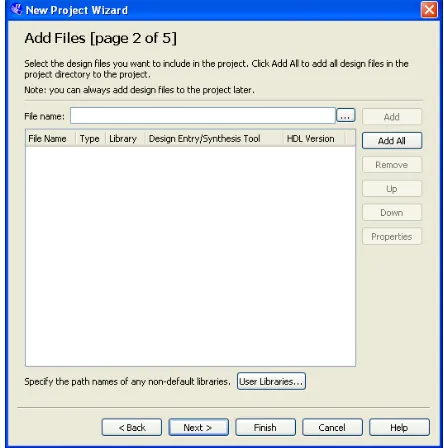
Figure 6. The wizard can include user-specified design files.
QUARTUSII INTRODUCTIONUSINGSCHEMATICDESIGNS
4. We have to specify the type of device in which the designed circuit will be implemented. Choose the Cyclone-series device family for your DE-Cyclone-series board. We can let Quartus II software select a specific device in the family, or we can choose the device explicitly. We will take the latter approach. From the list of available devices, choose the appropriate device name for your DE-series board. A list of devices names on DE-series boards can be found in Table1. PressNext, which opens the window in Figure8.
Board Device Name
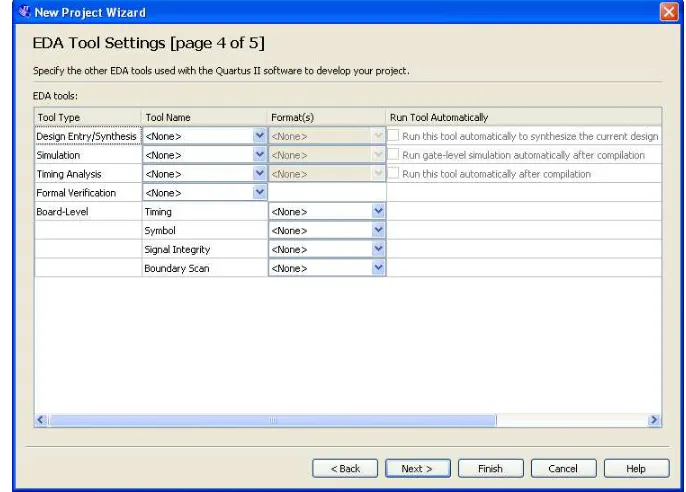
Figure 8. Other EDA tools can be specified.
5. The user can specify any third-party tools that should be used. A commonly used term for CAD software for electronic circuits isEDA tools, where the acronym stands for Electronic Design Automation. This term is used in Quartus II messages that refer to third-party tools, which are the tools developed and marketed by companies other than Altera. Since we will rely solely on Quartus II tools, we will not choose any other tools. PressNext.
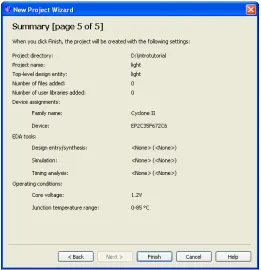
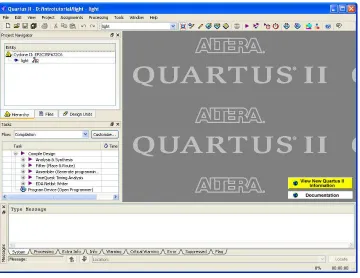
main Quartus II window, but withlightspecified as the new project, in the display title bar, as indicated in Figure10.
QUARTUSII INTRODUCTIONUSINGSCHEMATICDESIGNS
Figure 10. The Quartus II display for a created project.
5
Design Entry Using the Graphic Editor
As a design example, we will use the two-way light controller circuit shown in Figure11. The circuit can be used to control a single light from either of the two switches,x1andx2, where a closed switch corresponds to the logic value 1. The truth table for the circuit is also given in the figure. Note that this is just the Exclusive-OR function of the inputsx1andx2, but we will implement it using the gates shown.
Figure 11. The light controller circuit.
The Quartus II Graphic Editor can be used to specify a circuit in the form of a block diagram. SelectFile>Newto
window. The first step is to specify a name for the file that will be created. SelectFile>Save Asto open the pop-up
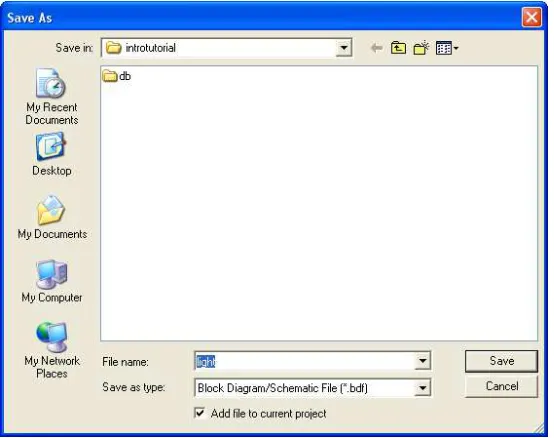
box depicted in Figure13. In the box labeledSave as typechooseBlock Diagram/Schematic File (*.bdf). In the box labeledFile nametypelight, to match the name given in Figure4, which was specified when the project was created. Put a checkmark in the boxAdd file to current project. ClickSave, which puts the file into the directory
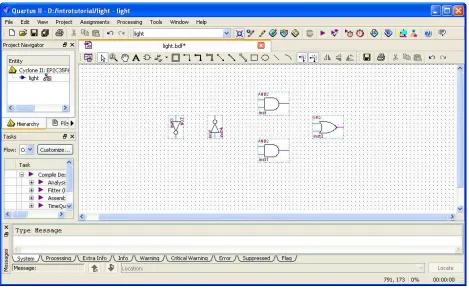
introtutorialand leads to the Graphic Editor window displayed in Figure14.
QUARTUSII INTRODUCTIONUSINGSCHEMATICDESIGNS
Figure 13. Name the file.
5.1 Importing Logic-Gate Symbols
The Graphic Editor provides a number of libraries which include circuit elements that can be imported into a schematic. Double-click on the blank space in the Graphic Editor window, or click on the icon in the tool-bar that looks like an AND gate. A pop-up box in Figure15will appear. Expand the hierarchy in the Libraries box as shown in the figure. First expandlibraries, then expand the libraryprimitives, followed by expanding the library
logicwhich comprises the logic gates. Selectand2, which is a two-input AND gate, and clickOK. Now, the AND
gate symbol will appear in the Graphic Editor window. Using the mouse, move the symbol to a desirable location and click to place it there. Import the second AND gate by simply moving the mouse pointer to a new position and clicking to place another AND gate symbol there. A symbol in the Graphic Editor window can be moved by clicking the icon in the toolbar that looks like a mouse cursor, then clicking the symbol you want to move and dragging it to a new location with the mouse button pressed. Next, selector2from the library and import the OR gate into the diagram. Then, selectnotand import two instances of the NOT gate. Rotate the NOT gates into proper position by using the “Rotate left 90" icon . Arrange the gates as shown in Figure16.
QUARTUSII INTRODUCTIONUSINGSCHEMATICDESIGNS
Figure 16. Import the gate symbols into the Graphic Editor window.
5.2 Importing Input and Output Symbols
Having entered the logic-gate symbols, it is now necessary to enter the symbols that represent the input and output ports of the circuit. Use the same procedure as for importing the gates, but choose the port symbols from the library
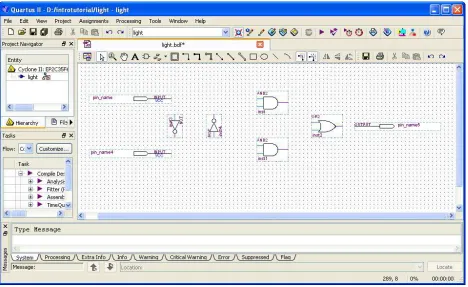
primitives/pin. Import two instances of the input port and one instance of the output port, to obtain the image in
Figure 17. Import the input and output pins.
Assign names to the input and output symbols as follows. Make sure nothing is selected by clicking on an empty spot in the Graphic Editor window. Point to the top input symbol and double-click the mouse. The dialog box in Figure18will appear. Type the pin name, x1, and clickOK. Similarly, assign the namex2to the other input and
QUARTUSII INTRODUCTIONUSINGSCHEMATICDESIGNS
Figure 18. Naming of a pin.
5.3 Connecting Nodes with Wires
The symbols in the diagram have to be connected by drawing lines (wires). Click on the icon in the toolbar to activate the Orthogonal Node Tool. Position the mouse pointer over the right edge of the x1input pin. Click and
hold the mouse button and drag the mouse to the right until the drawn line reaches the pinstub on the top input of the AND gate. Release the mouse button, which leaves the line connecting the two pinstubs. Next, draw a wire from the input pinstub of the leftmost NOT gate to touch the wire that was drawn above it. Note that a dot will appear indicating a connection between the two wires.
Figure 19. The completed schematic diagram.
6
Compiling the Designed Circuit
The entered schematic diagram file,light.bdf, is processed by several Quartus II tools that analyze the file, synthesize the circuit, and generate an implementation of it for the target chip. These tools are controlled by the application program called theCompiler.
Run the Compiler by selectingProcessing>Start Compilation, or by clicking on the toolbar icon that looks
QUARTUSII INTRODUCTIONUSINGSCHEMATICDESIGNS
Figure 20. Display after a successful compilation.
6.1 Errors
Quartus II software displays messages produced during compilation in the Messages window. If the block diagram design file is correct, one of the messages will state that the compilation was successful and that there are no errors.
If the Compiler does not report zero errors, then there is at least one mistake in the schematic entry. In this case a message corresponding to each error found will be displayed in the Messages window. Double-clicking on an error message will highlight the offending part of the circuit in the Graphic Editor window. Similarly, the Compiler may display some warning messages. Their details can be explored in the same way as in the case of error messages. The user can obtain more information about a specific error or warning message by selecting the message and pressing theF1function key.
To see the effect of an error, open the filelight.bdf. Remove the wire connecting the output of the top AND gate to the OR gate. To do this, click on the icon, click the mouse on the wire to be removed (to select it) and press Delete. Compile the erroneous design by clicking on the icon. A pop-up box will ask if the changes made to
thelight.bdffile should be saved; clickYes. After trying to compile the circuit, Quartus II software will display a
report summary, given in Figure21, now confirms the failed result. Expand theAnalysis & Synthesispart of the report and then selectMessagesto have the messages displayed as shown in Figure22. The Compilation Report can be dispayed as a separate window as in Figure22by right-clicking its tab and selectingDetach Window, and can be reattached by clickingWindow > Attatch Window. Double-click on the first error message, which states that one of the nodes is missing a source. Quartus II software responds by displaying thelight.bdfschematic and highlighting the OR gate which is affected by the error, as shown in Figure23. Correct the error and recompile the design.
QUARTUSII INTRODUCTIONUSINGSCHEMATICDESIGNS
Figure 22. Error messages.
Figure 23. Identifying the location of the error.
7
Pin Assignment
the output f to the green light-emitting diode labeledLE DG0. Its FPGA pin assignment can also be found in Table
2.
Component DE0 DE1 DE2 DE2-70 DE2-115
SW0 PIN_J6 PIN_L22 PIN_N25 PIN_AA23 PIN_AB28
SW1 PIN_H5 PIN_L21 PIN_N26 PIN_AB26 PIN_AC28
LE DG0 PIN_J1 PIN_U22 PIN_AE22 PIN_W27 PIN_E21
Table 2. DE-Series Pin Assignments
Figure 24. The Assignment Editor window.
Pin assignments are made by using the Assignment Editor. SelectAssignments>Assignment Editorto reach the
window in Figure24(shown here as a detached window). In theCategorydrop-down menu selectAll. Click on the<<new>>button located near the top left corner to make a new item appear in the table. Double click the box
under the column labeled To so that the Node Finder button appears. Click on the button (not the drop down arrow) to reach the window in Figure25. In theFilterdrop-down menu selectPins: all. Then click theListbutton to display the input and output pins to be assigned: f,x1, andx2. Click on x1as the first pin to be assigned and
click the>button; this will enterx1in the Selected Nodes box. ClickOK.x1will now appear in the box under the
QUARTUSII INTRODUCTIONUSINGSCHEMATICDESIGNS
Figure 25. The Node Finder displays the input and output names.
Figure 26. The available assignment names for a DE-series board.
The DE-series board has fixed pin assignments. Having finished one design, the user will want to use the same pin assignment for subsequent designs. Going through the procedure described above becomes tedious if there are many pins used in the design. A useful Quartus II feature allows the user to both export and import the pin assignments from a special file format, rather than creating them manually using the Assignment Editor. A simple file format that can be used for this purpose is theQuartus II Settings File (QSF)format. The format for the file for our simple project (on a DE2 board) is
set_location_assignment PIN_N25 -to x1 set_location_assignment PIN_N26 -to x2 set_location_assignment PIN_AE22 -to f
By adding lines to the file, any number of pin assignments can be created. Suchqsffiles can be imported into any design project.
QUARTUSII INTRODUCTIONUSINGSCHEMATICDESIGNS
Figure 29. Importing the pin assignment.
For convenience when using large designs, all relevant pin assignments for the DE-series board are given in individ-ual files. For example, the DE2 pin assignments can be found in theDE2_pin_assignments.qsffile, in the directory
tutorials\design_files, which is included on the CD-ROM that accompanies the DE-series board and can also be
found on Altera’s DE-series web pages. This file uses the names found in theDE2 User Manual. If we wanted to make the pin assignments for our example circuit by importing this file, then we would have to use the same names in our Block Diagram/Schematic design file; namely, SW[0],SW[1]and LEDG[0]forx1, x2 andf, respectively. Since these signals are specified in theDE2_pin_assignments.qsffile as elements of vectorsSWandLEDG, we must refer to them in the same way in our design file. For example, in theDE2_pin_assignments.qsffile the 18 toggle switches are calledSW[17]toSW[0]. In a design file they can also be referred to as a vectorSW[17..0].
8
Simulating the Designed Circuit
Before implementing the designed circuit in the FPGA chip on the DE-series board, it is prudent to simulate it to ascertain its correctness. The QSim tools can be used to simulate the behavior of a designed circuit. Before the circuit can be simulated, it is necessary to create the desired waveforms, calledtest vectors, to represent the input signals. It is also necessary to specify which outputs, as well as possible internal points in the circuit, the designer wishes to observe. The simulator applies the test vectors to a model of the implemented circuit and determines the expected response. We will use the Quartus II Waveform Editor to draw the test vectors, as follows:
1. SelectStart > All Programs > Altera > University Program > Simulation Tools > QSimto open the QSim tools, which will display the window in Figure30.
2. SelectFile>Open Projectto display a popup window in which you can browse your directories and choose
a project file (.qpffile). Select the project you wish to simulate and clickOK.
3. Generate the node finder files by selectingProcessing > Generate Node Finder Files
Figure 30. The QSim Window.
5. The Waveform Editor window is depicted in Figure31. Save the file under the namelight.vwf; note that this changes the name in the displayed window. Set the desired simulation to run from 0 to 200 ns by selecting
Edit>Set End Timeand entering 200 ns in the dialog box that pops up. SelectingView>Fit in Window
QUARTUSII INTRODUCTIONUSINGSCHEMATICDESIGNS
Figure 32. The augmented Waveform Editor window.
6. Next, we want to include the input and output nodes of the circuit to be simulated. Click Edit > Insert> Insert Node or Busto open the window in Figure33. It is possible to type the name of a signal (pin) into the Name box, or use the Node Finder to search your project for the signals. Click on the button labeledNode Finderto open the window in Figure34. The Node Finder utility has a filter used to indicate what type of nodes are to be found. Since we are interested in input and output pins, set the filter toPins: all. Click the
Listbutton to find the input and output nodes as indicated on the left side of the figure.
Figure 34. Selecting nodes to insert into the Waveform Editor.
Click on thex1signal in the Nodes Found box in Figure34, and then click the>sign to add it to the Selected
QUARTUSII INTRODUCTIONUSINGSCHEMATICDESIGNS
To simulate the behavior of a large circuit, it is necessary to apply a sufficient number of input valuations and observe the expected values of the outputs. In a large circuit the number of possible input valuations may be huge, so in practice we choose a relatively small (but representative) sample of these input valuations. However, for our tiny circuit we can simulate all four input valuations given in Figure11. We will use four 50-ns time intervals to apply the four test vectors.
We can generate the desired input waveforms as follows. Click on the waveform name for the x1 node. Once a waveform is selected, the editing commands in the Waveform Editor can be used to draw the desired waveforms. Commands are available for setting a selected signal to 0, 1, arbitrary value, inverting its existing value (INV), or defining a clock waveform. Each command can be activated by using the Edit > Value
command, or via the toolbar for the Waveform Editor. The Edit menu can also be opened by right-clicking on a waveform name.
Setx1 to 0 in the time interval 0 to 100 ns, which is probably already set by default. Next, setx1to 1 in the time interval 100 to 200 ns. Do this by pressing the mouse at the start of the interval and dragging it to its end, which highlights the selected interval, and choosing the logic value 1 in the toolbar. Makex2= 1 from 50 to 100 ns and also from 150 to 200 ns, which corresponds to the truth table in Figure11. This should produce the image in Figure36. Observe that the output f is displayed as having an unknown value at this time, which is indicated by a hashed pattern; its value will be determined during simulation. Save the file.
Figure 36. Setting of test values.
8.1 Performing the Simulation
A designed circuit can be simulated in two ways. The simplest way is to assume that logic elements and intercon-nection wires in the FPGA are perfect, thus causing no delay in propagation of signals through the circuit. This is calledfunctional simulation. A more complex alternative is to take all propagation delays into account, which leads
is being designed. This takes much less time, because the simulation can be performed simply by using the logic expressions that define the circuit.
8.1.1 Functional Simulation
To perform the functional simulation, return to the QSim Window and select Assignments > Simulation Set-tings... to open the Simulation Settings window in Figure37. Click theBrowsebutton and select thelight.vwffile you created. ChooseFunctionalas the simulation type, and clickOK. Before running the functional simulation it is necessary to create the required netlist, which is done by selectingProcessing>Generate Functional Simulation Netlist. A simulation run is started byProcessing>Start Simulation, or by using the icon . At the end of the
simulation, Quartus II software indicates its successful completion and displays a Simulation Report illustrated in Figure38. If your report window does not show the entire simulation time range, click on the report window to select it and chooseView>Fit in Window. Observe that the output f is as specified in the truth table of Figure11.
QUARTUSII INTRODUCTIONUSINGSCHEMATICDESIGNS
8.1.2 Timing Simulation
Having ascertained that the designed circuit is functionally correct, we should now perform the timing simulation to see how it will behave when it is actually implemented in the chosen FPGA device. Select Assignments > Simulation Settings... to get to the window in Figure37, choose Timingas the simulation type, and click OK. Run the simulator, which should produce the waveforms in Figure39. Observe that there is a delay of about 6 ns in producing a change in the signal f from the time when the input signals,x1andx2, change their values. This delay is due to the propagation delays in the logic element and the wires in the FPGA device.
Figure 39. The result of timing simulation.
9
Programming and Configuring the FPGA Device
The FPGA device must be programmed and configured to implement the designed circuit. The required config-uration file is generated by the Quartus II Compiler’s Assembler module. Altera’s DE-series board allows the configuration to be done in two different ways, known as JTAG and AS modes. The configuration data is transferred from the host computer (which runs the Quartus II software) to the board by means of a cable that connects a USB port on the host computer to the leftmost USB connector on the board. To use this connection, it is necessary to have the USB-Blaster driver installed. If this driver is not already installed, consult the tutorialGetting Started with
Altera’s DE-Series Boardsfor information about installing the driver. Before using the board, make sure that the
USB cable is properly connected and turn on the power supply switch on the board.
is used to store the configuration data. Quartus II software places the configuration data into the configuration device on the DE-series board. Then, this data is loaded into the FPGA upon power-up or reconfiguration. Thus, the FPGA need not be configured by the Quartus II software if the power is turned off and on. The choice between the two modes is made by the RUN/PROG switch on the DE-series board. The RUN position selects the JTAG mode, while the PROG position selects the AS mode.
9.1 JTAG Programming
The programming and configuration task is performed as follows. Flip the RUN/PROG switch into the RUN position. SelectTools >Programmerto reach the window in Figure40. Here it is necessary to specify the programming
hardware and the mode that should be used. If not already chosen by default, select JTAG in the Mode box. Also, if the USB-Blaster is not chosen by default, press theHardware Setup... button and select the USB-Blaster in the window that pops up, as shown in Figure41.
QUARTUSII INTRODUCTIONUSINGSCHEMATICDESIGNS
Figure 41. The Hardware Setup window.
Figure 42. The updated Programmer window.
9.2 Active Serial Mode Programming
In this case, the configuration data has to be loaded into the configuration device on the DE-series board. Refer to Table3for a list of configuration devices on DE-series boards. To specify the required configuration device select
Assignments>Device, which leads to the window in Figure43. Click on theDevice and Pin Optionsbutton
to reach the window in Figure44. Now, click onConfiguration in the menu on the left to obtain the window in Figure45. In the Configuration device box (which may be set to Auto) choose the correct configuration device name and clickOK. Upon returning to the window in Figure43, clickOK. Recompile the designed circuit.
QUARTUSII INTRODUCTIONUSINGSCHEMATICDESIGNS
Figure 44. The Options window.
The rest of the procedure is similar to the one described above for the JTAG mode. SelectTools>Programmer
to reach the window in Figure40. In the Mode box selectActive Serial Programming. If you are changing the mode from the previously used JTAG mode, the pop-up box in Figure46will appear, asking if you want to clear all devices. ClickYes. Now, the Programmer window shown in Figure47will appear. Make sure that the Hardware Setup indicates the USB-Blaster. If the configuration file is not already listed in the window, pressAdd File. The pop-up box in Figure 48will appear. Select the file light.pofin the directory introtutorialand clickOpen. As a result, the configuration filelight.pofwill be listed in the window. This is a binary file produced by the Compiler’s Assembler module, which contains the data to be loaded into the configuration device on the DE-series board. The extension.pof stands for Programmer Object File. Upon returning to the Programmer window, click on the
Program/Configurecheck box, as shown in Figure49.
QUARTUSII INTRODUCTIONUSINGSCHEMATICDESIGNS
Figure 48. Choose the configuration file.
Figure 49. The updated Programmer window.
Figure 50. The Programmer window upon completion of programming.
10
Testing the Designed Circuit
Having downloaded the configuration data into the FPGA device, you can now test the implemented circuit. Flip the RUN/PROG switch to RUN position. Try all four valuations of the input variables x1 and x2, by setting the corresponding states of the switchesSW1andSW0. Verify that the circuit implements the truth table in Figure11.
QUARTUSII INTRODUCTIONUSINGSCHEMATICDESIGNS
Copyright ©1991-2011 Altera Corporation. All rights reserved. Altera, The Programmable Solutions Company, the stylized Altera logo, specific device designations, and all other words and logos that are identified as trademarks and/or service marks are, unless noted otherwise, the trademarks and service marks of Altera Corporation in the U.S. and other countries. All other product or service names are the property of their respective holders. Altera products are protected under numerous U.S. and foreign patents and pending applications, mask work rights, and copyrights. Altera warrants performance of its semiconductor products to current specifications in accordance with Altera’s standard warranty, but reserves the right to make changes to any products and services at any time without notice. Altera assumes no responsibility or liability arising out of the application or use of any information, product, or service described herein except as expressly agreed to in writing by Altera Corporation. Altera customers are advised to obtain the latest version of device specifications before relying on any published information and before placing orders for products or services.