Java
™
Application Development
Java
™
Application Development
on Linux
®
Carl Albing
Michael Schwarz
aware of a trademark claim, the designations have been printed with initial capital letters or in all capitals.
The authors and publisher have taken care in the preparation of this book, but make no expressed or implied warranty of any kind and assume no responsibility for errors or omissions. No liability is assumed for incidental or consequential damages in connection with or arising out of the use of the information or programs contained herein.
The publisher offers excellent discounts on this book when ordered in quantity for bulk purchases or special sales, which may include electronic versions and/or custom covers and content particular to your business, training goals, marketing focus, and branding interests. For more information, please contact:
U. S. Corporate and Government Sales (800) 382-3419
[email protected] For sales outside the U. S., please contact:
International Sales
[email protected] Visit us on the Web: www.phptr.com
Library of Congress Cataloging-in-Publication Data:
CIP data on file.
© 2005 Pearson Education, Inc. ISBN 0–13–143697-X
To my mother, for her love of words.
—Michael
xxi An Embarrassment of Riches: The Linux Environment ... Chapter 1
3 What You Will Learn ... 1.1
4 The Command Line: What’s the Big Deal? ... 1.2
20 The tar and zipCommands ... 1.3.11 What You Still Don’t Know ... 1.5
30 Resources ... 1.6
33 An Embarrassment of Riches: Editors ... Chapter 2
33 What You Will Learn ... 2.1 The Joy of Regular Expressions ... 2.2.3
44 Starting Off Right: .exrc ... 2.2.4
45 Editors Galore ... 2.3
47 Editing Your Pipes (sed, the Stream EDitor) ... 2.3.1 What You Still Don’t Know ... 2.5
49 Resources ... 2.6
51 An Experienced Programmer’s Introduction to Java ... Chapter 3
51 What You Will Learn ... 3.1 Error Handling, Java Style ... 3.2.4
78 print(), println(), printf() ... 3.2.5
82 Using (and Making) Java APIs ... 3.3
82 The package Statement ... 3.3.1
84 The import Statement ... 3.3.2
91 Polymorphism ... 3.4.3
93 O, Templates! Where Art Thou? ... 3.5
94 Virtually Final ... 3.6
95 A Useful Simple Application ... 3.7
95 Review ... 3.8
97 What You Still Don’t Know ... 3.9 Where Am I? Execution Context ... Chapter 4
100 What You Will Learn ... 4.1 Unit Testing Made Easy ... 4.2.2
102 The System Class ... 4.3
102 Java and Standard I/O ... 4.3.1
104 Environment Variables ... 4.3.2
105 Java and Environment Variables ... 4.3.3
109 The Properties Class ... 4.4 What You Still Don’t Know ... 4.7
114 Resources ... 4.8
115 The Sun Microsystems Java Software Development Kit ... Chapter 5
116 What You Will Learn ... 5.1
116 All You Need, and Not One Thing More ... 5.2
117 The Java Compiler ... 5.3
117 Compiler Behavior, Defaults, and Environment Variables ... 5.3.1
119 javacOptions ... 5.3.2
121 The Java Runtime Engine ... 5.4 Complete, Up-to-Date Program Documentation Made Easy ... 5.5
123 A Brief Introduction to RMI ... 5.8.1 Setting Up Servers and Clients ... 5.8.4 Return to the Source: The Java Decompiler ... 5.10
157 Bundling a Java Program: Put It in a JAR ... 5.11 The Rest of the Toolkit ... 5.12
166 Review ... 5.13
166 What You Still Don’t Know ... 5.14
166 Resources ... 5.15
167 The IBM Developer Kit for Linux, Java 2 Technology Edition ... Chapter 6
167 What You Will Learn ... 6.1
168 Use Linux Features to Make Multiple Java SDKs Play Nicely
Together ... Switching Java Versions by Symlink ... 6.2.2
174 How the IBM JDK Differs from the Sun JDK ... 6.3
175 Performance ... 6.3.1
175 Differences in the Commands ... 6.3.2
175 IBM Classes ... 6.3.3
176 What Are All These “_g” Versions? ... 6.4
176 Review ... 6.5
177 What You Still Don’t Know ... 6.6
179 The GNU Compiler for Java (gcj) ... Chapter 7
179 What You Will Learn ... 7.1
179 A Brand GNU Way ... 7.2
180 The GNU Compiler Collection ... 7.3
181 Compiling Our Simple Application with gcj ... 7.4
182 Compiling FetchURL with gcj ... 7.4.1
184 Compiling a Multiclass Program ... 7.4.2
185 Options and Switches ... 7.5
186 Reasons to Use gcj ... 7.6
187 Reasons Not to Use gcj ... 7.7
187 Review ... 7.8
187 What You Still Don’t Know ... 7.9
188 Resources ... 7.10
189 Know What You Have: CVS ... Chapter 8
190 What You Will Learn ... 8.1
215 Ant: An Introduction ... Chapter 9
215 What You Will Learn ... 9.1
216 The Need for a Different Build Tool ... 9.2
217 Obtaining and Installing Ant ... 9.3
217 Installing a Binary Tarball ... 9.3.1
219 Installing a Source Tarball ... 9.3.2
220 A Sample Ant Buildfile ... 9.4
220 XML for the Uninitiated ... 9.4.1
222 The Buildfile Tags ... 9.4.2
229 A Real, Live Buildfile ... 9.4.3
232 Review ... 9.5
232 What You Still Don’t Know ... 9.6 What You Will Learn ... 10.1
236 NetBeans: The Open Source IDE ... 10.2
236 A Brief History of NetBeans ... 10.2.1
237 Installing NetBeans ... 10.2.2
241 Getting Around in NetBeans ... 10.2.3 SunONE Studio Community Edition ... 10.3
251 Eclipse: The Source of SWT ... 10.4
251 Selecting and Installing Eclipse ... 10.4.1
254 Using Eclipse for a New Project ... 10.4.2
256 Using Eclipse for an Existing Project ... 10.4.3 What You Still Don’t Know ... 10.6
261 Developing Business Logic ... PART II
263 Balancing Acts: An Imaginary Scenario ... Chapter 11
263 What You Will Learn ... 11.1
264 Statement of the Need ... 11.2
264 How to Develop Software ... 11.3
267 What Makes a Good Requirement ... 11.4
268 Whom to Ask for Requirements ... 11.5
269 Requirements for the Budget Application ... 11.6 Documenting, Prototyping, and Stakeholder Buy-In ... 11.7 What You Still Don’t Know ... 11.9 Analysis and Design: Seeking the Objects ... Chapter 12
279 What You Will Learn ... 12.1
295 JUnit: Automating Unit Testing ... Chapter 13
295 What You Will Learn ... 13.1
296 JUnit: Why All the Fuss? ... 13.2
296 Design Then Test Then Code ... 13.3
297 Installing and Running JUnit ... 13.4 Running a Test Case ... 13.5.2 What You Still Don’t Know ... 13.8 What You Will Learn ... 14.1 Thinking of the Future, or Painting in Corners ... 14.4 Persistence Is Not the Whole Story ... 14.8
322 Setting Up PostgreSQL for BudgetPro ... 14.9
322 Installing PostgreSQL ... 14.9.1
326 What You Still Don’t Know ... 14.11 Accessing the Data: An Introduction to JDBC ... Chapter 15
327 What You Will Learn ... 15.1 Downloading JDBC for MySQL ... 15.3.1 What You Still Don’t Know ... 15.8 Developing Graphical User Interfaces ... PART III
341 Getting in the Swing of Things: Designing a GUI for
BudgetPro ... Chapter 16
341 What You Will Learn ... 16.1
342 A Simple Swing Program ... 16.2
343 Stompin’ at the Savoy, or The Swing Paradigm ... 16.3
345 Slow, Slow, Quick-Quick, Slow: The Basic Swing Objects ... 16.4
347 Layout Managers ... 16.5
348 Beyond Arthur Murray: Actions, Listeners, Events ... 16.6
377 Other Ways: Alternatives to Swing ... Chapter 17
377 What You Will Learn ... 17.1
378 The IBM SWT Toolkit ... 17.2
378 Another GUI Toolkit. Why? ... 17.2.1
379 Duplicated Effort. Why Cover It? ... 17.2.2
380 Portability: Better andWorse ... 17.2.3
380 The Rest of the Chapter ... 17.2.4
380 SWT: Close to the Metal ... 17.2.5
381 “Hello, world” SWT Style ... 17.2.6
384 Porting BudgetPro to SWT ... 17.3
387 Step 1: Convert the Class Members ... 17.3.1
389 Step 2: Converting the main()Method ... 17.3.2
391 Step 3: Converting the GUI build() and init()
Methods ... 17.3.3
394 Completing the Conversion of the BudgetProClass ... 17.3.4
395 Completing the Conversion of the Application ... 17.3.5 What You Still Don’t Know ... 17.6 Servlets: Java Pressed into Service ... Chapter 18
403 What You Will Learn ... 18.1
404 Servlets: Program-Centric Server-Side Documents ... 18.2
405 Perspective ... 18.3
407 How to Write a Servlet ... 18.4
411 Input, Output ... 18.5
413 Matters of State: Cookies, Hidden Variables, and the Dreaded
416 What You Still Don’t Know ... 18.9 JSP: Servlets Turned Inside Out ... Chapter 19
424 What You Will Learn ... 19.1
424 Servlets Turned Inside Out: JSP ... 19.2
426 How to Write a JSP Application ... 19.3 Using JSP with BudgetPro ... 19.4
439 Review ... 19.5
440 What You Still Don’t Know ... 19.6 Open Source Web Application Servers ... Chapter 20
443 What You Will Learn ... 20.1
444 Downloading JBoss ... 20.2
444 Be an Enabler, or “Let’s Be Codependent!” ... 20.3 Things That Make It Go ... 20.5
464 Running the Geronimo Server ... 20.9
468 Review ... 20.10
469 What You Still Don’t Know ... 20.11
469 Resources ... 20.12
471 Developing Enterprise Scale Software ... PART V
473 Introduction to Enterprise JavaBeans ... Chapter 21
473 What You Will Learn ... 21.1 What’s in a Name? An Introduction to JNDI ... 21.3
482 Naming and Directory System Concepts ... 21.3.1 Using JNDI with JBoss ... 21.3.4
491 Review ... 21.4
492 What You Still Don’t Know ... 21.5 What You Will Learn ... 22.1
502 What You Still Don’t Know ... 22.4 What You Will Learn ... 23.1
506 Lend Me Your EAR: Enterprise Packaging and Deployment ... 23.2
508 What’s in an EJB-JAR File ... 23.2.1 Maintaining a Distributed Application ... 23.4 What You Still Don’t Know ... 23.7 The Future’s So Bright, I Squint and Look Confused ... 24.1 What You Still Don’t Know ... 24.4 A Java Swing GUI for BudgetPro ... Appendix B
539 GNU General Public License ... Appendix C
549 Index ...
JAVA AND LINUX
Why another book on Java? Why a book on Java and Linux? Isn’t Java a plat-form-independent system? Aren’t there enough books on Java? Can’t I learn everything I need to know from the Web?
No doubt, there are a host of Java books on the market. We didn’t wake up one morning and say, “You know what the world really needs? Another book about Java!” No. What we realized was that there are a couple of “holes” in the Java book market.
First, Linux as a development platform and deployment platform for Java applications has been largely ignored. This is despite the fact that the *nix platform (meaning all UNIX and UNIX-like systems, Linux included) has long been recognized as one of the most programmer-friendly platforms in existence. Those few resources for Java on Linux that exist emphasize tools to the exclu-sion of the Java language and APIs.
Second, books on the Java language and APIs have focused on pedagogical examples that serve to illustrate the details of the language and its libraries, but very few of these examples are in themselves practically useful, and they tend
Preface
to deal only with the issues of writing programs, and not at all with deploying and maintaining them. Anyone who has worked on a major software project, especially a software project that is developed and deployed in a business for a business, knows that designing and coding are only about half of the work in-volved. Yes, writing Java code is only slightly affected by the development and the deployment platform, but the process of releasing and maintaining such applications is significantly different between platforms.
To address these missing pieces, we decided to cover development and deployment of a Java application that has command-line, GUI, servlet, and enterprise components on a Linux platform. We’re writing the guide book we wish we had had when we started writing and deploying Java applications on Linux. We’re going to show you a simplistic enterprise application, “from cradle to grave,” but along the way cover issues of design process, production environ-ment, setup, administration, and maintenance that few books bother to cover.1
If you are considering buying this book and you are wondering if there is any information in here that you can’t get for free on the Web, then, no. There is not. In fact, there is little information in any Java or Linux book that is not available for free on the Internet. In fact, in each of our chapters we will tell you where on the Web to find virtually all of the information we present, and then some. And yet books continue to sell, and we have the chutzpah to ask you to buy the book. The reason is that Web information is scattered, unorga-nized, and of highly variable quality. We will be trying to bring all the relevant information together in this book, in a clearly organized manner (and, we would like to believe, at an acceptably high level of quality). We think that has value.
Also, this book is part of the Bruce Perens’ Open Source Series. This book is part of the Web literature. And you may freely read it and use it on the Web. We hope this book will be one of those you use on the Web and buy on paper. We don’t know about you, but we like to use Web books for reference, but for reading, we like books. We own at least three books that are available for free on the Web: Thinking in C++, Thinking in Java, and O’Reilly’s Docbook: The Definitive Guide. We hope that open publishing will be the new model.
FREE SOFTWARE AND JAVA
GNU/Linux2 is Free Software. It is Open Source. I don’t even want to start
the debate on what each term means and which one is “right.” One of the two authors of this book is a Free Software advocate, and the other is of a purely laissez-faire attitude towards the question (we won’t tell you which, although we invite you to guess). But even with a deliberate decision to cease-fire, the question remains: Is Java Open Source or Free Software?
The answer is mixed. Neither Sun’s nor IBM’s Java implementations are Open Source or Free Software. You may download and use them for free, but you do not have the source code to them, nor do you have the right to make modifications to them.3 This book will cover the GNU Compiler for Java,
which compiles Java source code to native machine code. The GNU Compiler for Java (gcj) is both Open Source and Free Software. It is, however, supporting differing levels of the Java APIs (some packages are current, some are back at 1.1.x levels) and does not fully support the AWT or Swing GUIs.
However, none of this means that you cannot write your own Java pro-grams and release them under a Free Software or Open Source license. So you can certainly develop Free Software in Java. Staunch Free Software partisans (such as Richard Stallman and the Free Software Foundation) would question the wisdom of doing so. Their argument would be that a Free Software product that depends on non-Free tools isn’t really Free Software, since to compile, use, or modify it, you need to make use of a proprietary tool.
There is more than one effort to produce a Free Software Java runtime implementation. None of them is “ready for prime time.” It would, in our opinion, be a very good thing for Sun to release their SDK and Java Virtual Machine as Free Software. But so far, they have steadily resisted calls to do so.
2. This is the only time we will refer to it as “GNU/Linux.” See Section 7.3 for the story of why GNU/Linux is the preferred name of some. We understand Stallman and the FSF’s posi-tion, but “Linux” is much easier on the eyes and ears than “GNU/Linux.” And that, not prin-ciple, is how names and words go into the language. For better or for worse, “Linux” is the name of the operating system.
3. As we write this, a very public discussion is taking place between Sun, IBM, and Eric Ray-mond, founder of the Open Source Initiative, about opening Java under some sort of open source license. At this time, no one knows how this will turn out, but it is possible that Java will be Free Software in the future.
The fact, however, that two distinct vendors (Sun and IBM) produce ef-fectively interchangeable development and runtime environments reduces some of the risk that you face when you select a platform available only from a single vendor who does not provide source code.
So, to put the case firmly: Java is free for use, but it is certainly not Free Software as defined in The GNU Manifesto4 or the GNU General Public
Li-cense.5 This is a political and philosophical issue of interest only to those
aforementioned Free Software partisans. For the rest of us, this has no bearing on Java’s technical or business merits. As for us, obviously we like the language or we wouldn’t be writing about it.
YOU CAN HELP!
This book is part of the Bruce Perens’ Open Source Series. Shortly after this book is published in dead-tree form, it will be on the Web,6 free for use,
redis-tribution, and modification in compliance with the terms of the Open Publica-tion License,7 with no options taken. You can immediately create your own
version as permitted in that license.
Naturally enough, we plan to maintain our “official” version of the online book, so we encourage you to send suggestions, corrections, extensions, com-ments, and ideas to us. Please send any such to [email protected]
and we will try to keep our little tome up-to-date so it continues to serve the needs of the Java and Linux development communities.
ACKNOWLEDGMENTS
First off, we naturally wish to thank Mark L. Taub, our acquisitions editor at Prentice Hall PTR, for believing in the book and in open publishing as the way to put it out there. We also want to thank Bruce Perens for lending his name and powers of persuasion to open-content publishing through the Prentice Hall PTR Bruce Peren’s Open Source Series. Thanks, too, to Patrick Cash-Peterson
4.http://www.gnu.org/gnu/manifesto.html
5.http://www.gnu.org/copyleft/gpl.html
6.http://www.javalinuxbook.com/
and Tyrrell Albaugh, who worked as our in-house production contacts, for all the behind-the-scenes work they did, including overseeing the cover.
In more direct terms of content, we owe major thanks to Kirk Vogen of IBM Consulting in Minneapolis for his article on using SWT with gcj, and for his kind help in allowing us to use the ideas he first presented in his IBM developerWorks articles. In more direct terms of content, we owe major thanks to: Kirk Vogen of IBM Consulting in Minneapolis for his article on using SWT with gcj, and for his kind help in allowing us to use ideas he first presented in his IBM developerWorks articles; and to Deepak Kumar8 for graciously
allow-ing us to base our build.xml file for EJBs off of a version that he wrote.
Thanks, too, to Andrew Albing for his help in drawing some of our dia-grams, and to George Logajan and to Andy Miller for sharing their insights on the more intricate details of Swing.
We also wish to express our great indebtedness to our technical reviewers, especially Andrew Hayes, Steve Huseth, and Dan Moore. A very large thank-you is also due to Alina Kirsanova whose eye for detail, endless patience, and tenacity, and overall talent with proofing, layout, and more added so much refinement and improvement to the book. We are greatful for all their contri-butions. Any errors or omissions in this text are our fault and certainly not theirs. The book is much stronger for all their efforts.
There are likely many more people we ought to thank, especially those at Prentice Hall PTR, whose names and contributions we may never know, but we do know that this was an effort of many more people than just the authors, and we are grateful to them all.
8.http://www.roseindia.net/
This book has the unfortunate burden of serving a diverse set of audiences. We realize that this book might appeal to both experienced Java programmers who are new to Linux, and to experienced Linux programmers who are new to Java, with all possible shadings in between.
In addition to balancing these two poles, we are also trying to strike a bal-ance between the size of the book and the range of our topic. Fortunately, there is today quite a range of both book and Web publishing on both Java and Linux, so we are able to do our best within the limits of a book a normal person may lift, and we can make recourse to a number of outside references you might wish to use to supplement our efforts.
WHO SHOULD BUYTHIS BOOK
If you are an experienced Java programmer, but quite new to Linux, and you have been looking for information on the tools available to develop and deploy Java applications on Linux systems, this book will provide a lot of useful information.
Introduction
If you are an experienced Linux user or developer, and you are interested in using the Java language on that platform, this book will guide you through some advanced Java development topics and will present, we hope, some novel uses for familiar Linux and GNU tools.
If you are a rank beginner to either Linux or Java, we still think this book has value, but we would recommend that you use it in conjunction with more introductory books. For a basic introduction to Java and object-oriented pro-gramming, we recommend Bruce Eckel’s excellent book, Thinking in Java
(ISBN 0-13-100287-2). For an introduction to Linux and its tools, we can recommend The Linux Book by David Elboth (ISBN 0-13-032765-4)1 as an
all-around title. We also list several other books in sections titled Resources throughout this book. Many books we recommend are not actually Linux-specific. Since Linux duplicates (in most respects) a UNIX platform, we do occasionally recommend books that are general to all *nix systems.
If you are a developer, contractor, or MIS development manager with more projects than budget, our book will introduce you to many solid tools that are free of license fees for the development and deployment of production Java applications. We are all being asked to do more with less all the time. In many (but certainly not all) cases, Free and Open Source software is an excellent way to do that.
WHO SHOULD NOT BUYTHIS BOOK
Those looking for complete documentation on Java APIs and Linux-based Java application servers will be disappointed. Complete reference material on Free Software and Open Source Software may be found in book form, but it is most certainly out-of-date. And while this is an open-content book, we know full well that we will only be updating it as our “day jobs” permit. In other words, those seeking complete and current reference material should go to the Web.
Those who have a multimillion-dollar budget for applications development will probably be well served by commercial application server products. While we very much believe that Linux and Java on Linux are fully capable of support-ing production environments, we recognize that products such as BEAWeblogic and IBM’s WebSphere have large support organizations behind them, and
(at least for now) a larger base of developers and contracting organizations with staff (variably) experienced in writing and supporting applications in these en-vironments. Please note that you can run these products on Linux systems, and that they are part of the Linux-Java world. Our book does not cover them, however, both because they are well-covered elsewhere, and because we have chosen to emphasize the Free and Open Source tools merely to keep the book small enough to lift, while still covering those tools most in need of well-written supporting documentation.
HOW TO USETHIS BOOK
There are many approaches to a book. Some people like to start with the last chapter to see how it all turns out in the end; others like to start at the front and master each topic before moving on; some read through quickly, then reread for detail; still others prefer to skip around, “cherry picking” topics as whim and fancy strike. We hope this book will work for you, whatever your style.
Each chapter is not really free-standing, nor is it intricately tied to the previous chapters. If we were writing in depth on a single topic we might be able to build chapter by chapter. Instead, we’ve tackled an immense amount of information in hopes of condensing it down to give a good overview, to give you a glimpse of the possibilities, and to whet your appetite for more. Some chapters will be strongly related to previous chapters; others you may be able to read without having read any of the preceding chapters—it will depend on the topic.
Many Paths
What we’re describing below are a few possible paths that you might take through the book, depending on what you bring to the task—your experience and skills, your patience and persistence. We have tried to pack a lot of useful and practical information into these few chapters, distilling down the most important topics for each subject area. We hope that, even for the most experi-enced of our readers, we still offer, if not some new facts, at least some fresh explanations that might give you new insight into familiar topics.
The Linux Newbie Path
If you are new to Linux, then you’ll want to start with the first two chapters. If you are already experienced in Java, feel free to skip Chapter 3, but you may want at least to skim Chapters 4 and 5. You will definitely want to check out Chapter 7 as we are almost sure that it is something you didn’t know about.
Chapter 8 is another topic you may not have encountered outside of Linux, although CVS is not limited to Linux environments. Beyond that, it will depend on what else you already know. See what other categories, below, might fit your situation.
The Java Newbie Path
If you are new to Java, then be sure to read Chapters 3 and 4, but if you are not already an experienced programmer you should probably bring along another, more introductory text.
Chapters 5 and 10 will give you some good background for choosing your Java development tools. So many Java projects these days are tied to Ant that you should also cover Chapter 9 if you don’t already know the tool.
With your experience in other languages you may have done a lot of unit testing; read about the approach most popular with Java developers in Chapter 13.
The Client-Side Path
Depending on what type of Java development that you hope to do, you may want to concentrate on certain parts of the latter half of the book. Those most interested in the front end or client side should focus on the middle chapters. Of most interest to you will be Chapters 16 and 17. Your client-side emphasis should also include Chapters 18 and 19.
The Server-Side Path
For those with an emphasis on the middle and third tier, or those with a general server emphasis, all of Part IV will be helpful. This is in addition to a solid grounding in the previous chapters in Parts I and II.
The Enterprise Path
For those working at this level, the projects are usually large enough to be staffed with a variety of roles. Even if your role doesn’t include the deployment of the software, we encourage you to read these chapters (20 and 24) so as to get some understanding of what is needed and how it fits together.
Now, let’s get to work, and discover some of the amazing capabilities available to you when you combine two of the most powerful software trends in the history of computing—Java and Linux.
Part I
The reader is introduced to the vast possibilities of the Linux command line, and excuses are made for its eclecticism.
WHATYOUWILL LEARN 1.1
Some basic shell commands are described in this chapter, especially those relat-ed to some common programming tasks. Usrelat-ed as a toolkit, they can be a handy collection of tools for everyday use.
Linux provides an incredible array of such tools, useful for any ment effort, Java or otherwise. They will be important not only for the develop-ment of your Java code, but for all the hundreds of related housekeeping tasks associated with programming and with managing your development environ-ment. A few tools are described briefly in this chapter, to hint at what can be done and to whet your appetite for more.
We will also describe a command which will help you learn about other commands. Even so, it may be quite worth your while to have another book about UNIX/Linux handy. If there is something you, as a programmer, need
Chapter 1
An Embarrassment of Riches:
The Linux Environment
to do on a Linux system, chances are there is already a command (or a sequence of commands) which will do it.
Finally, we will discuss the extent of our remaining ignorance upon finishing the chapter.
Let us take a moment to explain that last comment. As readers of comput-er books ourselves, we are often frustrated when we discovcomput-er how lightly a topic has been covered, but particularly so when other parts of the same book are found to fully explore their topics. When only some parts of a book are thor-ough, you often don’t know that you don’t know it all. We will introduce some basic shell concepts and commands here, and we may expand on some of these in later chapters, but each of our chapters covers topics that could each fill its own book. Therefore we need to leave out lots of material. We will also let you know when we have left things out because they are off-topic, or because we don’t have room. We’ll also try to tell you where to look for the rest of the knowledge. We try to sum this up in a final section of each chapter entitled What You Still Don’t Know. But we do have a lot of information to impart, so let’s get going.
THE COMMAND LINE: WHAT’S THE BIG DEAL? 1.2
One of the revolutionary things that UNIX (and thus Linux) did was to sepa-rate operating system commands from the operating system itself. The com-mands to display files, show the contents of directories, set permissions, and so on were, in the “olden days,” an integral part of an operating system. UNIX removed all that from the operating system proper, leaving only a small “kernel” of necessary functionality in the operating system. The rest became executables that lived outside of the operating system and could be changed, enhanced, or even replaced individually by (advanced) users without modifying the operating system. The most significant of these standalone pieces was the command processor itself, called the shell.
still swear by csh, a.k.a. the C-shell, though most of its best features have been incorporated into bash.
TIP
There are actually quite a few shells to choose from, and several editors for entering text. Our recommendation: If you learn only one shell, learn bash. If you learn only one editor, learn vi. Some basic shell scripting will go a long way to eliminating mundane, repetitive tasks. Some basic vi editing will let you do things so much faster than what GUI editors support. (More on editing in Chapter 2.)
Since commands could be developed and deployed apart from the operat-ing system, UNIX and Linux have, over the years, had a wide variety of tools and commands developed for them. In fact, much of what is called Linux is really the set of GNU tools which began development as Open Source long before Linux even existed. These tools, while not technically part of the operat-ing system, are written to work atop any UNIX-like operatoperat-ing system and pro-grammers have come to expect them on any Linux system that they use. Some commands and utilities have changed over the years, some are much the same as they first were in the early days of UNIX.
Developers, encouraged by the openness of Open Source (and perhaps having too much free time on their hands) have continued to create new utili-ties to help them get their job done better/faster/cheaper. That Linux supports such a model has helped it to grow and spread. Thus Linux presents the first time user with a mind-boggling array of commands to try to learn. We will describe a few essential tools and help you learn about more.
BASIC LINUX CONCEPTS AND COMMANDS 1.3
There are some basic Linux commands and concepts that you should know in order to be able to move around comfortably in a Linux filesystem. Check your knowledge of these commands, and if need be, brush up on them. At the end of the chapter, we list some good resources for learning more about these and other commands. Remember, these are commands that you type, not icons for clicking, though the windowing systems will let you set up icons to represent those commands, once you know what syntax to use.
So let’s get started. Once you’ve logged in to your Linux system, regardless of which windowing system you are using—KDE, Gnome, Window Maker, and so on, start up an xterm window by running xterm (or even konsole) and you’ll be ready to type these commands.1
Redirecting I/O 1.3.1
The second great accomplishment of UNIX,2 carried on into its Linux descen-dants, was the concept of redirecting input and output (I/O). It was based on the concept of a standardized way in which I/O would be done, called standard I/O.
Standard I/O 1.3.1.1
A familiar concept to Linux developers is the notion of standard I/O. Virtually every Linux process begins its life with three open file descriptors—standard in, standard out, and standard error. Standard in is the source of input for the process; standard out is the destination of the process’ output; and standard error is the destination for error messages. For “old fashioned” command-line applications, these correspond to keyboard input for standard in and the output window or screen for both standard out and error.
A feature of Linux that makes it so adaptable is its ability to redirect its I/O. Programs can be written generically to read from standard in and write to standard out, but then when the user runs the program, he or she can change (or redirect) the source (in) or destination (out) of the I/O. This allows a program to be used in different ways without changing its code.
Redirecting I/O is accomplished on the Linux shell command line by the “<” and “>” characters. Consider the ls program which lists the contents of a directory. Here is a sample run of ls:
$ ls
afile more.data zz.top $
1. If you’re not using a windowing system, these commands are typed at the shell prompt that you get after you log in. But if you’re not using a windowing system, either you’re not a begin-ner (and don’t need this introduction) or you can’t get your windowing system to work, in which case you may need more help that we can give you here.
We can redirect its output to another location, a file, with the “>” character:
$ ls > my.files $
The output from the ls command no longer appears on the screen (the default location of standard out); it has been redirected to the file my.files.
What makes this so powerful a construct (albeit for a very simple example) is the fact that not only was no change to the program required, but the pro-grammer who wrote the ls program also did nothing special for I/O. He simply built the program to write to standard out. The shell did the work of redirecting the output. This means that any program invoked by the shell can have its output similarly redirected.
Standard error is another location for output, but it was meant as the des-tination for error messages. For example, if you try to list the contents of a nonexistent directory, you get an error message:
$ ls bogus
ls: bogus: No such file or directory $
If you redirect standard out, nothing changes:
$ ls bogus > save.out
ls: bogus: No such file or directory $
That’s because the programmer wrote the program to send the message to standard error, not standard out. In the shell (bash) we can redirect standard error by preceding the redirect symbol with the number 2, as follows:3
$ ls bogus 2> save.out $
3. The use of the number 2 comes from an implementation detail: All the I/O descriptors for a UNIX process were kept in an array. The first three elements of the array, numbered 0, 1, and 2, were defined to be the standard in, out, and err, in that order. Thus in the shell you can also redirect standard out by using “1>” as well as the shorter “>”.
Note there is no output visible from ls. The error message, ls: bogus: No such file or directory, has been written to the file save.out.
In a similar way standard input (stdin) can be redirected from its default source, the keyboard.
As an example, we’ll run the sort program. Unless you tell it otherwise, sort will read from stdin—that is, the keyboard. We type a short list of phrases and then type a ^D (a Control-D) which won’t really echo to the screen as we have shown but will tell Linux that it has reached the end of the input. The lines of text are then printed back out, now sorted by the first character of each line. (This is just the tip of the iceberg of what sort can do.)
$ sort
once upon a time a small creature came to live in the forest. ^D
a small creature came to live in once upon a time the forest.
Now let’s assume that we already have our text inside a file called story.txt. We can use that file as input to the sort program by redirecting the input with the “<” character. The sort doesn’t know the difference. Our output is the same:
$ sort < story.txt a small creature came to live in once upon a time the forest.
Pipes 1.3.1.2
The output from one command can also be sent directly to the input of another command. Such a connection is called a pipe. Linux command-line users also use “pipe” as a verb, describing a sequence of commands as piping the output of one command into another. Some examples:
$ ls | wc > wc.fields
The first example runs ls, then pipes its output to the input of the wc program. The output of the wc command is redirected to the file wc.fields. The second example runs java, giving it a class file named MyCommand. Any input that this command would normally read from keyboard input will be read this time from the file data.file. The output from this will be piped into grep, and the output from grep will be put into out.put.
Don’t worry about what these commands really do. The point of the ex-ample is to show how they connect. This has wonderful implications for devel-opers. You can write your program to read from the keyboard and write to a window, but then, without any change to the program, it can be instructed to read from files and write to files, or be interconnected with other programs.
This leads to a modularization of functions into small, reusable units. Each command can do a simple task, but it can be interconnected with other com-mands to do more, with each pipeline tailored by the user to do just what is needed. Take wc for example. Its job is to count words, lines, and characters in a file. Other commands don’t have to provide an option to do this; any time you want to count the lines in your output, just pipe it into wc.
The ls Command 1.3.2
The ls command is so basic, showing the names of files in a directory. Be sure that you know how to use these options:
• ls lists the files in a directory.
• ls -l is the long form, showing permissions, ownership, and size. • ls -ld doesn’t look inside the directory, so you can see the directory’s
permissions.
• ls -lrt shows the most recently modified files last, so you can see what you’ve just changed.
Filenames 1.3.3
Filenames in Linux can be quite long and composed of virtually any character. Practically speaking, however, you’re much better off if you limit the length to something reasonable, and keep to the alphanumeric characters, period, and the underscore (“_”). That’s because almost all the other punctuation characters have a special meaning to the shell, so if you want to type them, you need to escape their special meaning, or suffer the results of unintended actions.
Filenames are case sensitive—upper- and lowercase names are different. The files ReadMe.txt and readme.txt could both be in the same directory; they are distinct files.
Avoid using spaces in filenames, as the shell uses whitespace to delineate between arguments on a command line. You can put a blank in a name, but then you always have to put the name in quotes to refer to it in the shell.
To give a filename more visual clues, use a period or an underscore. You can combine several in one filename, too. The filenames read_me_before_you_begin or test.data.for_my_program may be annoyingly long to type, but they are legal filenames.
NOTE
The period, or “dot,” in Linux filenames has no special meaning. If you come from the MS-DOS world, you may think of the period as separating the filename from the extension, as in myprogrm.bas where the filename is limited to eight characters and the extension to three characters. Not so in Linux. There is no “extension,” it’s all just part of the filename.
You will still see names like delim.c or Account.java, but the .c or .java are simply the last two characters or the last five characters, respective-ly, of the filenames. That said, certain programs will insist on those endings for their files. The Java compiler will insist that its source files end in .java and will produce files that end in .class—but there is no special part of the file-name to hold this. This will prove to be very handy, both when you file-name your files and when you use patterns to search for files (see below).
Permissions 1.3.4
Permissions in Linux are divided into three categories: the owner of a file (usually the user who created it), the group (a collection of users), and others, meaning everyone who is not the owner and not in the group. Any file belongs to a single owner and, simultaneously, to a single group. It has separate read/write/execute permissions for its owner, its group, and all others. If you are the owner of a file, but also a member of the group that owns the file, then the owner permissions are what counts. If you’re not the owner, but a member of the group, then the group permissions will control your access to the file. All others get the “other” permissions.
permission, and the least significant bit is execute permission. If you think of the three categories, user/group/others, as three digits, then you can express the permissions of a file as three octal digits, for example “750”. The earliest ver-sions of this command required you to set file permisver-sions this way, by specify-ing the octal number. Now, although there is a fancier syntax (for example, g+a), you can still use the octal numbers in the chmod command. See the example below.
The fancier, or more user-friendly, syntax uses letters to represent the var-ious categories and permissions. The three categories of user, group, and other are represented by their first letters: u, g, and o. The permissions are similarly represented by r, w, and x. (OK, we know “x” is not the first letter, but it is a reasonable choice.) For both categories and permissions, the letter a stands for “all.” Then, to add permissions, use the plus sign (+); to remove permissions, use the minus sign (-). So g+a means “add all permissions to the group catego-ry,” and a+r means “add read permissions to all categories.”
Be sure that you know these commands for manipulating permissions:
• chmod changes the mode of a file, where mode refers to the read/write/execute permissions.
• chown changes the owner of a file.4 • chgrp changes the group owner of a file.
Table 1.1 shows some common uses of these commands.
Table 1.1 Changing permissions
Explanation Command
Gives everyone read permission. chmod a+r file
Takes away write permission from group, others. chmod go-w file
Sets up a shell script so you can execute it like a command. chmod u+x file
Sets permission to read and write for the owner but no permissions for anyone else.
chmod 600 file
4. On Linux the use of this command is restricted to the superuser, or “root.”
File Copying 1.3.5
Do you know these commands?
• mv • cp • ln
The mv command (short for “move”) lets you move a file from one place in the hierarchy of files to another—that is, from one directory to another. When you move the file, you can give it a new name. If you move it without putting it in a different directory, well, that’s just renaming the file.
• mv Classy.java Nouveau.java • mv Classy.java /tmp/outamy.way • mv Classx.java Classz.java .. • mv /usr/oldproject/*.java .
The first example moves Classy.java to a new name, Nouveau.java, while leaving the file in the same directory.
The second example moves the file named Classy.java from the current directory over to the /tmp directory and renames it outamy.way—unless the file outamy.way is an already existing directory. In that case, the file Classy.java will end up (still named Classy.java) inside the directory outamy.way.
The next example just moves the two Java source files up one level, to the parent directory. The “..” is a feature of every Linux directory. Whenever you create a directory, it gets created with two links already built in: “..” points to its parent (the directory that contains it), and “.” points to the directory itself. A common question at this point is, “Why does a directory need a refer-ence to itself?” Whatever other reasons there may be, it certainly is a handy shorthand to refer to the current directory. If you need to move a whole lot of files from one directory to another, you can use the “.” as your destination. That’s the fourth example.
The cp command is much like the mv command, but the original file is left right where it is. In other words, it copies files instead of moving them. So:
will make a copy of Classy.java named Nouveau.java, and:
cp Classy.java /tmp
will make a copy of Classy.java in the /tmp directory, and:
cp *.java /tmp
will put the copies of all the Java sources in the current directory to the /tmp directory.
If you run this command,
ln Classy.java /tmp
you might think that ln copies files, too. You will see Classy.java in your present working directory and you will see what appears to be a copy of the file in the /tmp directory. But if you edit your local copy of Classy.java and then look at the “copy” that you made in the /tmp directory, you will see the changes that you made to your local file now also appear in the file in the /tmp directory.
That’s because ln doesn’t make a copy. It makes a link. A link is just an-other name for the same contents. We will discuss linking in detail later in the book (see Section 6.2.1).
Seeing Stars 1.3.6
We need to describe shell pattern matching for those new to it. It’s one of the more powerful things that the shell (the command processor) does for the user—and it makes all the other commands seem that much more powerful.
When you type a command like we did previously:
mv /usr/oldproject/*.java .
the asterisk character (called a “star” for short) is a shorthand to match any characters, which in combination with the .java will then match any file in the /usr/oldproject directory whose name ends with .java.
There are two significant things to remember about this feature. First, the star and the other shell pattern matching characters (described below) do not mean the same as the regular expressions in vi or other programs or languages. Shell pattern matching is similar in concept, but quite different in specifics.
Second, the pattern matching is done by the shell, the command inter-preter, before the arguments are handed off to the specific command. Any text with these special characters is replaced, by the shell, with one or more filenames that match the pattern. This means that all the other Linux commands (mv, cp, ls, and so on) never see the special characters—they don’t do the pattern matching, the shell does. The shell just hands them a list of filenames.
The significance here is that this functionality is available to any and every command, including shell scripts and Java programs that you write, with no extra effort on your part. It also means that the syntax for specifying multiple files doesn’t change between commands—since the commands don’t implement that syntax; it’s all taken care of in the shell before they ever see it. Any com-mand that can handle multiple filenames on a comcom-mand line can benefit from this shell feature.
If you’re familiar with MS-DOS commands, consider the way pattern matching works (or doesn’t work) there. The limited pattern matching you have available for a dir command in MS-DOS doesn’t work with other com-mands—unless the programmer who wrote that command also implemented the same pattern matching feature.
What are the other special characters for pattern matching with filenames? Two other constructs worth knowing are the question mark and the square brackets. The “?” will match any single character.
The [...] construct is a bit more complicated. In its simplest form, it matches any of the characters inside; for example, [abc] matches any of a or b or c. So Version[123].java would match a file called Version2.java but not those called Version12.java or VersionC.java. The pattern Version*.java would match all of those. The pattern Version?.java would match all except Version12.java, since it has two characters where the ? matches only one.
The brackets can also match a range of characters, as in [a-z] or [0-9]. If the first character inside the brackets is a “^” or a “!”, then (think “not”) the meaning is reversed, and it will match anything but those characters. So Version[^0-9].java will match VersionC.java but not Version1.java. How would you match a “-”, without it being taken to mean a range? Put it first inside the brackets. How would you match a “^” or “!” without it being understood as the “not”? Don’t put it first.
sequences is [:name:] where name is one of: alnum, alpha, ascii, blank, cntrl, digit, graph, lower, print, punct, space, upper, xdigit. The phrase [:alpha:] matches any alphabetic character. The phrase [:punct:] matches any punctuation character. We think you got the idea.
Escape at Last 1.3.6.1
Of course there are always times when you want the special character to be just that character, without its special meaning to the shell. In that case you need to escape the special meaning, either by preceding it with a backslash or by en-closing the expression in single quotes. The commands rm Account\$1.class or rm 'Account$1.class' would remove the file even though it has a dollar sign in its name (which would normally be interpreted by the shell as a vari-able). Any character sequence in single quotes is left alone by the shell; no spe-cial substitutions are done. Double quotes still do some substitutions inside them, such as shell variable substitution, so if you want literal values, use the single quotes.
TIP
As a general rule, if you are typing a filename which contains something other than alphanumeric characters, underscores, or periods, you probably want to enclose it in single quotes, to avoid any special shell meaning.
File Contents 1.3.7
Let’s look at a directory of files. How do you know what’s there? We can start with an ls to list the names:
$ ls
ReadMe.txt Shift.java dispColrs moresrc Shift.class anIcon.gif jam.jar moresrc.zip $
That lists them alphabetically, top to bottom, then left to right, arranged so as to make the most use of the space while keeping the list in columns. (There are options for other orderings, single column, and so on.)
is a compiled class file). The long listing ls -l will tell us more: permissions, links, owner, group, size (in bytes), and the date of last modification.
$ ls -l total 2414
-rw-r--r-- 1 albing users 132 Jan 22 07:53 ReadMe.txt -rw-r--r-- 1 albing users 637 Jan 22 07:52 Shift.class -rw-r--r-- 1 albing users 336 Jan 22 07:55 Shift.java -rw-r--r-- 1 albing users 1374 Jan 22 07:58 anIcon.gif -rw-r--r-- 1 albing users 8564 Jan 22 07:59 dispColrs -rw-r--r-- 1 albing users 1943 Jan 22 08:02 jam.jar drwxr-xr-x 2 albing users 48 Jan 22 07:52 moresrc -rw-r--r-- 1 albing users 2435522 Jan 22 07:56 moresrc.zip $
While ls is only looking at the “outside” of files,5 there is a command that looks at the “inside,” the data itself, and based on that, tries to tell you what kind of file it found. The command is called file, and it takes as arguments a list of files, so you can give it the name of a single file or you can give it a whole long list of files.
NOTE
Remember what was said about pattern matching in the shell: we can let the shell construct that list of files for us. We can give file the list of all the files in our current directory by using the “*” on the command line so that the shell does the work of expanding it to the names of all the files in our directory (since any filename will match the star pattern).
$ file *
ReadMe.txt: ASCII text
Shift.class: compiled Java class data, version 45.3 Shift.java: ASCII Java program text
anIcon.gif: GIF image data, version 89a, 26 x 26,
dispColrs: PNG image data, 565 x 465, 8-bit/color RGB, non-interlaced jam.jar: Zip archive data, at least v2.0 to extract
moresrc: directory
moresrc.zip: Zip archive data, at least v1.0 to extract $
The file looks at the first several hundred bytes of the file and does a statis-tical analysis of the types of characters that it finds there, along with other spe-cial information it uses about the formats of certain files.
Three things to note with this output from file. First, notice that dispColrs was (correctly) identified as a PNG file, even without the .png suffix that it would normally have. That was done deliberately to show you that the type of file is based not just on the name but on the actual contents of the file.
Second, notice that the .jar file is identified as a ZIP archive. They really do use a identical internal format.
Thirdly, file is not foolproof. It’s possible to have perfectly valid, compil-able Java files that file thinks are C++ source, or even just English text. Still, it’s a great first guess when you need to figure out what’s in a directory.
Now let’s look at a file. This simplest way to display its contents is to use cat.
$ cat Shift.java import java.io.*; import java.net.*; /**
* The Shift object */
public class Shift
{
private int val;
public Shift() { }
// ... and so on
} // class Shift
When a file is longer than a few lines you may want to use more or less to look at the file.6 These programs provide a screen’s worth of data, then pause
for your input. You can press the space bar to get the next screen’s worth of output. You can type a slash, then a string, and it will search forward for that string. If you have gone farther forward in the file than you wanted, press “b” to go backwards.
To find out more about the many, many commands available, press ? (the question mark) while it’s running.
Typical uses for these commands are:
• To view one or more files, for example more *.java, where you can type :n to skip to the next file.
• To page through long output from a previous pipe of commands, for ex-ample, $ grep Account *.java | more, which will search (see more on grep below) for the string Account in all of the files whose names end in .java and print out each line that is found—and that output will be paginated by more.
If you need only to check the top few lines of a file, use head. You can choose how many lines from the front of the file to see with a simple parameter. The command head -7 will write out the first seven lines, then exit.
If your interest is the last few lines of a file, use tail. You can choose how many lines from the end of the file to see; the command tail -7 will write out the last seven lines of the file. But tail has another interesting parameter, -f. Though tail normally prints its lines and then, having reached the end of file, it quits, the -f option tells tail to wait after it prints the last few lines and then try again.7 If some other program is writing to this file, then tail will, on its next read, find more data and print it out. It’s a great way to watch a log file, for example, tail -f /tmp/server.log.
In this mode, tail won’t end when it reaches the end of file, so when you want it to stop you’ll have to manually interrupt it with a ^C (Control-C— i.e., hold down the Control key and press the C key).
disclosure, there is also a paging program called pg, the precursor to more, but we’ll say no more about that.
The grep Command 1.3.8
No discussion of Linux commands would be complete without mentioning grep. Grep, an acronym for “generalized regular expression processor,” is a tool for searching through the contents of a file. It searches not just for fixed sequences of characters, but can also handle regular expressions.
In its simplest form, grep myClass *.java will search for and display all lines from the specified files that contain the string myClass. (Recall that the *.java expansion is done by the shell, listing all the files that end with .java.)
The first parameter to grep, myClass in the example above, is the string that you want to search for. But the first nonoption parameter to grepis con-sidered a regular expression meaning that it can contain special characters for pattern matching to make for more powerful searches (see Section 2.2.3). Some of the most common option parameters for grepare listed in Table 1.2.
Here’s a quick example:
grep println *.java | grep -v System.out
It will look for every occurrence of println but then exclude those that contain System.out. Be aware that while it will exclude lines like
System.out.println(msg);
it will also exclude lines like this:
file.println(msg); // I'm not using System.out
It is, after all, just doing string searches.
Table 1.2 Options for grep
Explanation Option
Ignore upper/lower case differences in its matching. -i
Only list the filename, not the actual line that matched. -l
Show the line number where the match was found. -n
Reverses the meaning of the search—shows every line that does not match the pattern.
-v
The find Command 1.3.9
If someone compiled a list of the top 10 most useful Linux utilities, find would most likely be near the top of the list. But it would also make the top 10 most confusing. Its syntax is very unlike other Linux utilities. It consists of predicates—logical expressions that cause actions and have true/false values that determine if the rest of the expression is executed. Confused? If you haven’t used find before you probably are. We’ll try to shed a little light by showing a few examples.
find . -name '*frag*' -print
This command looks for a file whose name contains frag. It starts looking in the current directory and descends into all subdirectories in its search.
find /over/there . /tmp/here -name '*frag*.java' -print
This command looks for a file that has frag in its name and ends with .java. It searches for this file starting in three different directories—the current directory (“.”), /over/there, and /tmp/here.
find . -name 'My[A-Z]*.java' -exec ls -l '{}' \;
Starting in the current directory, this command searches for a file whose name begins with My followed by an uppercase alphabetic character followed by anything else, ending with .java. When it finds such a file, it will execute a command—in this case, the ls command with the -l option. The braces are replaced with the name of the file that is found; the “\;” indicates to find the end of the command.
The -name is called a predicate; it takes a regular expression as an argu-ment. Any file that matches that regular expression pattern is considered true, so control passes on to the next predicate—which in the first example is simply -print that prints the filename (to standard out) and is always true (but since no other predicate follows it in this example, it doesn’t matter). Since only the names that match the regular expression cause the -name predicate to be true, only those names will get printed.
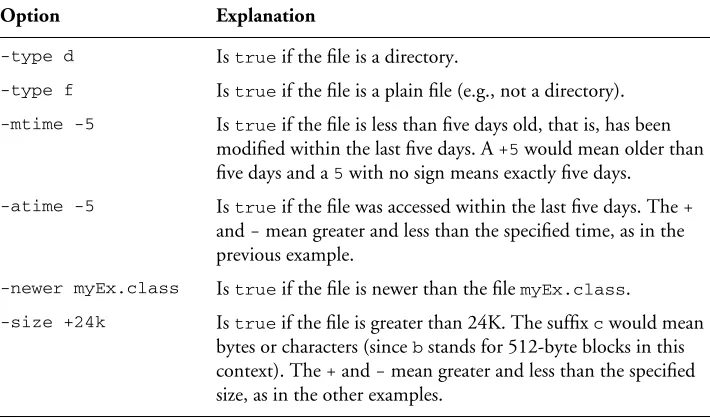
There are other predicates besides -name. You can get an entire list by typing man findat a command prompt, but Table 1.3 lists a few gems, to give you a taste of what find can do.
Table 1.3 Some find predicates
Explanation Option
Is true if the file is a directory. -type d
Is true if the file is a plain file (e.g., not a directory). -type f
Is true if the file is less than five days old, that is, has been modified within the last five days. A +5 would mean older than five days and a 5 with no sign means exactly five days.
-mtime -5
Is true if the file was accessed within the last five days. The + and - mean greater and less than the specified time, as in the previous example.
-atime -5
Is true if the file is newer than the file myEx.class. -newer myEx.class
Is true if the file is greater than 24K. The suffix c would mean bytes or characters (since b stands for 512-byte blocks in this context). The + and - mean greater and less than the specified size, as in the other examples.
-size +24k
$ find . -name '*.java' -mtime +90 -atime +30 -print ./MyExample.java
./old/sample/MyPrev.java $
This command printed out the names of two files that end with .java found beneath the current directory. These files hadn’t been modified in the last 90 days nor accessed within the last 30 days. The next thing you might want to do is to run this command again adding something at the end to remove these old files.
$ find . -name '*.java' -mtime +90 -atime +30 -print -exec rm '{}' \; ./MyExample.java
./old/sample/MyPrev.java $
The Shell Revisited 1.3.10
Most Linux shells—the command interpreters—can be considered program-ming languages in their own right. That is, they have variables and control structures—if statements, for loops, and so on. While the syntax can be subtly different between shells, the basic constructs are all there.
Entire books can be—and have been—written on shell programming. (It’s one of our favorite subjects to teach.) Programs written in the shell lan-guage are often called shell scripts. Such scripts can be powerful yet easy to write (once you are familiar with the syntax) and can make you very productive in dealing with all those little housekeeping tasks that accompany program development. All you need to do (dangerous words, no?) is to put commands in a text file and give the file execute permissions. But that’s a subject for another day.
Some elements of shell scripting, however, are useful even if you never create a single shell script. Of these, perhaps the most important to know (especially for Java programmers) is how to deal with shell variables.
NOTE
We’ll be describing the syntax for bash, the default shell on most Linux distributions. The syntax will differ for other shells, but the concepts are largely the same.
Any string of alphanumeric or underscore characters can be used as the name of a variable. By convention shell variables typically use uppercase names—but that is only convention (although it will hold true for most if not all of our examples, too). Since commands in Linux are almost always lowercase, the use of uppercase for shell variables helps them to stand out.
Set the value of a shell variable with the familiar method—the equal sign:
$ FILE=/tmp/abc.out $
This has assigned the variable FILE the value /tmp/abc.out. But to make use of the value that is now in FILE, the shell uses syntax that might not be familiar to you: The name must be preceded with a “$”.
Shell variables can be passed on to other environments if they are exported, but they can never be passed back up. To set a shell variable for use by your current shell and every subsequent subshell, export the variable:
You can combine the assignment of a value with the exporting into one step. Since repeating the export doesn’t hurt, you will often see shell scripts use the export command every time they do an assignment, as if it were part of the assignment syntax—but you know better.
$ export FILE="/tmp/way.out" $
NOTE
The shell uses the dollar sign to distinguish between the variable name and just text of the same letters. Consider the following example:
$ echo first > FILE $ echo second > TEXT $ FILE=TEXT
$ cat FILE first $
The cat command will dump the contents of the file named FILE to the screen—and you should see first. But how would you tell the shell that you want to see the contents of the file whose name you have put in the shell variableFILE? For that you need the “$”:
$ cat $FILE second $
This is a contrived example, but the point is that shell syntax supports ar-bitrary strings of characters in the command line—some of them are filenames, others are just characters that you want to pass to a program. It needs a way to distinguish those from shell variables. It doesn’t have that problem on the assignment because the “=” provides the needed clue. To say it in computer science terms, the “$” syntax provides the R-value of the variable. (Not the insulation R-value, but what you expect when a variable is used on the Right-hand-side of an assignment operator, as opposed to the L-value used on the Left-hand-side of an assignment operator.)
There are several shell variables that are already exported because they are used by the shell and other programs. You may need or want to set them to customize your environment. Since they are already exported, you won’t need to use the export command and can just assign a value, but it doesn’t hurt.
The most important shell variable to know is PATH. It defines the directo-ries in the filesystem where the shell will look for programs to execute. When you type a command like ls or javac the shell will look in all of the directories specified in the PATH variable, in the order specified, until it finds the executable.
$ echo $PATH
/usr/local/bin:/usr/bin:/usr/X11R6/bin:/bin:. $
The PATH shown in the example has five directories, separated by colons (“:”). (Note the fifth one, the “.”; it says to look in the current directory.) Where do you suppose it will find cat? You can look for it yourself by search-ing in each directory specified in PATH. Or you can use the which command:
$ which cat /bin/cat $
Some commands (like exit) don’t show up, since they are built into the shell. Others may be aliases—but that opens a whole other topic that we aren’t covering here. Just remember that each directory in the PATH variable is exam-ined for the executable you want to run. If you get a command not found error, the command may be there, it just may not be on your PATH.
To look at it the other way around: If you want to install a command so that you can execute it from the command line, you can either always type its full pathname, or (a more user-friendly choice) you can set your PATH variable to include the location of the new command’s executable.
So where and how do you set PATH? Whenever a shell is started up, it reads some initialization files. These are shell scripts that are read and executed as if they were typed by the user—that is, not in a subshell. Among other actions, they often set values for variables like PATH. If you are using bash, look at .bashrc in your home directory.
Shell scripts are just shell commands stored in a file so that you don’t need to type the same commands and options over and over. There are two ways to run a shell script. The easiest, often used when testing the script, is