The following guide is based WEKA version 3.4.1 Additional resources on WEKA, including sample data sets can be found from the official WEKA Web site.
This example illustrates some of the basic data preprocessing operations that can be performed using WEKA. The sample data set used for this example, unless otherwise indicated, is the "bank data" available in comma-separated format (bank-data.csv ).
The data contains the following fields
id a unique identification number
age age of customer in years (numeric)
sex MALE / FEMALE
region inner_city/rural/suburban/town
income income of customer (numeric)
married is the customer married (YES/NO)
children number of children (numeric)
car does the customer own a car (YES/NO)
save_acct does the customer have a saving account (YES/NO)
current_acct does the customer have a current account (YES/NO)
mortgage does the customer have a mortgage (YES/NO)
pep did the customer buy a PEP (Personal Equity Plan) after the last mailing
(YES/NO)
Loading the Data
In addition to the native ARFF data file format, WEKA has the capability to read in ".csv" format files. This is fortunate since many databases or spreadsheet
applications can save or export data into flat files in this format. As can be seen in the sample data file, the first row contains the attribute names (separated by
commas) followed by each data row with attribute values listed in the same order (also separated by commas). In fact, once loaded into WEKA, the data set can be saved into ARFF format. If, however, you are interested in conveting a ".csv" file into WEKA's native ARFF using the commandline, this can be accomplished using the following command:
using WEKA's attribute and discretization filters, and then perform association rule mining on the resulting data set. While all of these operations can be performed from the command line, we use the GUI interface for WEKA Explorer.
Initially (in the Preprocess tab) click "open" and navigate to the directory
containing the data file (.csv or .arff). In this case we will open the above data file. This is shown in Figure p1.
Figure p1
Note that the visualization in the right bottom panel is a form of cross-tabulation across two attributes. For example, in Figure p6 above, the default visualization panel cross-tabulates "married" with the "pep" attribute (by default the second attribute is the last column of the data file). You can select another attribute using the drop down list.
Selecting or Filtering Attributes
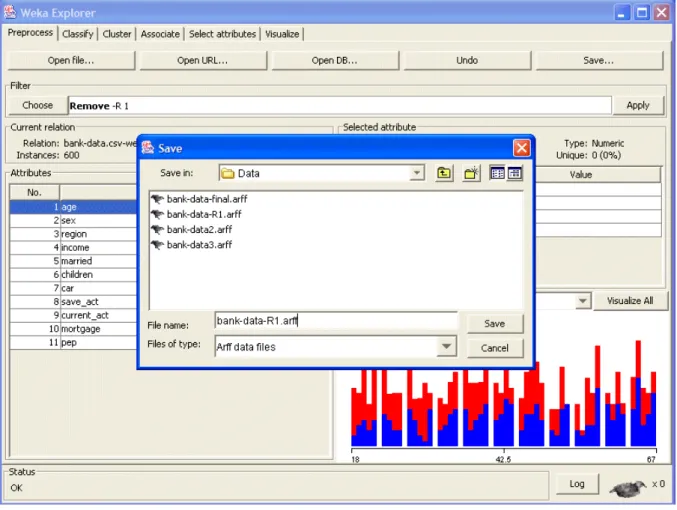
Note that in the new data set, the "id" attribute and all the corresponding values in the records have been removed. Also, note that Weka has automatically determined the correct types and values associated with the attributes, as listed in the
Attributes section of the ARFF file.
Discretization
Some techniques, such as association rule mining, can only be performed on categorical data. This requires performing discretization on numeric or continuous attributes. There are 3 such attributes in this data set: "age", "income", and
the type for the "children" attribute in the ARFF file, and replacing it with the set of discrete values values. We do this directly in our text editor as seen in Figure p13. In this case, we have saved the resulting relation in a separate file "bank-data2.arff".
Figure p13
We will rely on WEKA to perform discretization on the "age" and "income" attributes. In this example, we divide each of these into 3 bins (intervals). The WEKA discretization filter, can divide the ranges blindly, or used various
statistical techniques to automatically determine the best way of partitioning the data. In this case, we will perform simple binning.
Next, to change the defaults for this filter, click on the box immediately to the right of the "Choose" button. This will open the Discretize Filter dialog box. We enter the index for the the attributes to be discretized. In this case we enter 1
Let us now examine the new data set using our text editor (in this case, TextPad). The top portion of the data is shown in Figure p19. You can observe that WEKA has assigned its own labels to each of the value ranges for the discretized attribute. For example, the lower range in the "age" attribute is labeled "(-inf-34.333333]" (enclosed in single quotes and escape characters), while the middle range is labeled "(34.333333-50.666667]", and so on. These labels now also appear in the data records where the original age value was in the corresponding range.
Next, we apply the same process to discretize the "income" attribute into 3 bins. Again, Weka automatically performs the binning and replaces the values in the "income" column with the appropriate automatically generated labels. We save the new file into "bank-data3.arff", replacing the older version.
allows us to do this efficiently. Figure p20 shows the TextPad search/replace dialog box for replacing the age label "(-inf-34.333333]" with the label "0_34". Note that the "regular expression" option is selected. In the "Find what" box we have entered the full label '\'(-inf-34.333333]\'' (including the back-slashes and single quotes). Furthermore, back-slashes are escaped with another back-slash so that in the regular expression patterns matching they are treated as literals
(resulting in: '\\'(-inf-34.333333]\\''. In the "Replace with" box we enter "0_34".
Figure p20