Python
STARTING OUT WITH
®
Python
Addison-Wesley
Boston Columbus Indianapolis New York San Francisco Upper Saddle River Amsterdam Cape Town Dubai London Madrid Milan Munich Paris Montreal Toronto
Delhi Mexico City São Paulo Sydney Hong Kong Seoul Singapore Taipei Tokyo
S e c o n d E d i t i o n
Tony Gaddis
Haywood Community College
Python
STARTING OUT WITH
ISBN 10: 0-13-257637-6 ISBN 13: 978-0-13-257637-6 Editor-in-Chief: Michael Hirsch
Editorial Assistant: Stephanie Sellinger Vice President, Marketing: Patrice Jones
Marketing Manager: Yezan Alayan Marketing Coordinator: Kathryn Ferranti Vice President, Production: Vince O’Brien
Managing Editor: Jeff Holcomb Production Project Manager: Kayla Smith-Tarbox
Manufacturing Buyer: Lisa McDowell Art Director: Linda Knowles
Cover Designer: Joyce Cosentino Wells/JWells Design Cover Image: © Digital Vision
Media Editor: Dan Sandin/Wanda Rockwell Project Management: Sherill Redd, Aptara®, Inc. Composition and Illustration: Aptara®, Inc.
Printer/Binder: Edwards Brothers
Cover Printer: LeHigh-Phoenix Color/Hagerstown
Credits and acknowledgments borrowed from other sources and reproduced, with permission, appear on the Credits page in the endmatter of this textbook.
Copyright © 2012, 2009 Pearson Education, Inc., publishing as Addison-Wesley. All rights reserved. Manufactured in the United States of America. This publication is protected by Copyright, and permission should be obtained from the publisher prior to any prohibited reproduction, storage in a retrieval system, or transmission in any form or by any means, electronic, mechanical, photocopying, recording, or likewise. To obtain permission(s) to use material from this work, please submit a written request to Pearson Education, Inc., Permissions Department, 501 Boylston Street, Suite 900, Boston, Massachusetts 02116.
Many of the designations by manufacturers and sellers to distinguish their products are claimed as trade-marks. Where those designations appear in this book, and the publisher was aware of a trademark claim, the designations have been printed in initial caps or all caps and appear on the Trademark Information page in the endmatter of this textbook.
Library of Congress Cataloging-in-Publication Data Gaddis, Tony.
Starting out with Python / Tony Gaddis.—2nd ed. p. cm.
Includes index.
ISBN-13: 978-0-13-257637-6 ISBN-10: 0-13-257637-6
1. Python (Computer program language) I. Title. QA76.73.P98G34 2012
005.13'3—dc22
2011002923
Preface xi
Chapter 1 Introduction to Computers and Programming 1
Chapter 2 Input, Processing, and Output 31
Chapter 3 Simple Functions 81
Chapter 4 Decision Structures and Boolean Logic 117
Chapter 5 Repetition Structures 157
Chapter 6 Value-Returning Functions and Modules 203
Chapter 7 Files and Exceptions 239
Chapter 8 Lists and Tuples 295
Chapter 9 More About Strings 341
Chapter 10 Dictionaries and Sets 371
Chapter 11 Classes and Object-Oriented Programming 421
Chapter 12 Inheritance 483
Chapter 13 Recursion 509
Chapter 14 GUI Programming 529
Appendix A Installing Python 567
Appendix B Introduction to IDLE 569
Appendix C The ASCII Character Set 577
Appendix D Answers to Checkpoints 579
Index 595
Contents at a Glance
Preface xi
Chapter 1 Introduction to Computers and Programming 1
1.1 Introduction 1
1.2 Hardware and Software 2
1.3 How Computers Store Data 8
1.4 How a Program Works 13
1.5 Using Python 20
Chapter 2 Input, Processing, and Output 31
2.1 Designing a Program 31
2.2 Input, Processing, and Output 35
2.3 Displaying Output with the printFunction 36
2.4 Comments 39
2.5 Variables 40
2.6 Reading Input from the Keyboard 49
2.7 Performing Calculations 53
2.8 More About Data Output 65
Chapter 3 Simple Functions 81
3.1 Introduction to Functions 81
3.2 Defining and Calling a Function 83
3.3 Designing a Program to Use Functions 89
3.4 Local Variables 95
3.5 Passing Arguments to Functions 97
3.6 Global Variables and Global Constants 107
Chapter 4 Decision Structures and Boolean Logic 117
4.1 The ifStatement 117
4.2 The if-elseStatement 125
4.3 Comparing Strings 130
4.4 Nested Decision Structures and theif-elif-elseStatement 134
4.5 Logical Operators 142
4.6 Boolean Variables 149
Contents
Chapter 5 Repetition Structures 157
5.1 Introduction to Repetition Structures 157
5.2 The whileLoop: a Condition-Controlled Loop 158
5.3 The forLoop: a Count-Controlled Loop 167
5.4 Calculating a Running Total 179
5.5 Sentinels 182
5.6 Input Validation Loops 185
5.7 Nested Loops 190
Chapter 6 Value-Returning Functions and Modules 203 6.1 Introduction to Value-Returning Functions:
Generating Random Numbers 203
6.2 Writing Your Own Value-Returning Functions 214
6.3 The mathModule 225
6.4 Storing Functions in Modules 228
Chapter 7 Files and Exceptions 239
7.1 Introduction to File Input and Output 239
7.2 Using Loops to Process Files 256
7.3 Processing Records 263
7.4 Exceptions 276
Chapter 8 Lists and Tuples 295
8.1 Sequences 295
8.2 Introduction to Lists 295
8.3 List Slicing 303
8.4 Finding Items in Lists with the inOperator 306 8.5 List Methods and Useful Built-in Functions 307
8.6 Copying Lists 314
8.7 Processing Lists 316
8.8 Two-Dimensional Lists 328
8.9 Tuples 332
Chapter 9 More About Strings 341
9.1 Basic String Operations 341
9.2 String Slicing 349
9.3 Testing, Searching, and Manipulating Strings 353
Chapter 10 Dictionaries and Sets 371
10.1 Dictionaries 371
10.2 Sets 394
10.3 Serializing Objects 406
Chapter 11 Classes and Object-Oriented Programming 421 11.1 Procedural and Object-Oriented Programming 421
11.2 Classes 425
11.3 Working with Instances 442
Contents ix
Chapter 12 Inheritance 483
12.1 Introduction to Inheritance 483
12.2 Polymorphism 498
Chapter 13 Recursion 509
13.1 Introduction to Recursion 509
13.2 Problem Solving with Recursion 512
13.3 Examples of Recursive Algorithms 516
Chapter 14 GUI Programming 529
14.1 Graphical User Interfaces 529
14.2 Using the tkinterModule 531
14.3 Display Text with LabelWidgets 534
14.4 Organizing Widgets with Frames 537
14.5 ButtonWidgets and Info Dialog Boxes 540
14.6 Getting Input with the EntryWidget 543
14.7 Using Labels as Output Fields 546
14.8 Radio Buttons and Check Buttons 554
Appendix A Installing Python 567
Appendix B Introduction to IDLE 569
Appendix C The ASCII Character Set 577
Appendix D Answers to Checkpoints 579
Welcome to Starting Out with Python, Second Edition. This book uses the Python language to teach programming concepts and problem-solving skills, without assuming any previous programming experience. With easy-to-understand examples, pseudocode, flowcharts, and other tools, the student learns how to design the logic of programs and then implement those programs using Python. This book is ideal for an introductory programming course or a programming logic and design course using Python as the language.
As with all the books in the Starting Out Withseries, the hallmark of this text is its clear, friendly, and easy-to-understand writing. In addition, it is rich in example programs that are concise and practical. The programs in this book include short examples that highlight specific programming topics, as well as more involved examples that focus on problem solving. Each chapter provides one or more case studies that provide step-by-step analysis of a specific problem and shows the student how to solve it.
Control Structures First, Then Classes
Python is a fully object-oriented programming language, but students do not have to understand object-oriented concepts to start programming in Python. This text first introduces the student to the fundamentals of data storage, input and output, control structures, functions, sequences and lists, file I/O, and objects that are created from standard library classes. Then the student learns to write classes, explores the topics of inheritance and polymorphism, and learns to write recursive functions. Finally, the student learns to develop simple event-driven GUI applications.
Changes in the Second Edition
This book’s pedagogy, organization, and clear writing style remain the same as in the pre-vious edition. However, many improvements have been made, which are summarized here:
• This edition is based on Python 3
• A series of online VideoNotes has been developed to accompany this book.
• Many examples of exploring topics with the interactive mode interpreter have been added throughout the book.
• The section covering nested loops in Chapter 5 has been enhanced with additional examples and an additional In the Spotlight section.
Preface
• The chapter on lists and strings has been split into two chapters, and the material on these topics has been enhanced. In this edition, Chapter 8 is Lists and Tuples, and Chapter 9 is More About Strings.
• Multidimensional lists are covered in this edition.
• A new chapter on dictionaries and sets has been added to this edition. • Object serialization (pickling) is now covered.
• The material on exception handling in Chapter 7 has been expanded.
• Chapter 11, Classes and Object-Oriented Programming, has expanded material on passing objects as arguments, storing objects in dictionaries, and serializing (pickling) objects.
Brief Overview of Each Chapter
Chapter 1: Introduction to Computers and Programming
This chapter begins by giving a very concrete and easy-to-understand explanation of how computers work, how data is stored and manipulated, and why we write programs in high-level languages. An introduction to Python, interactive mode, script mode, and the IDLE environment is also given.
Chapter 2: Input, Processing, and Output
This chapter introduces the program development cycle, variables, data types, and simple programs that are written as sequence structures. The student learns to write simple programs that read input from the keyboard, perform mathematical operations, and produce screen output. Pseudocode and flowcharts are also introduced as tools for designing programs.
Chapter 3: Simple Functions
This chapter shows the benefits of modularizing programs and using the top-down design approach. The student learns to define and call simple functions (functions that do not return values), pass arguments to functions, and use local variables. Hierarchy charts are introduced as a design tool.
Chapter 4: Decision Structures and Boolean Logic
In this chapter the student learns about relational operators and Boolean expressions and is shown how to control the flow of a program with decision structures. The if, if-else, and if-elif-else statements are covered. Nested decision structures and logical opera-tors are also discussed.
Chapter 5: Repetition Structures
Preface xiii
Chapter 6: Value-Returning Functions and Modules
This chapter begins by discussing common library functions, such as those for generating random numbers. After learning how to call library functions and use their return value, the student learns to define and call his or her own functions. Then the student learns how to use modules to organize functions.
Chapter 7: Files and Exceptions
This chapter introduces sequential file input and output. The student learns to read and write large sets of data and store data as fields and records. The chapter concludes by dis-cussing exceptions and shows the student how to write exception-handling code.
Chapter 8: Lists and Tuples
This chapter introduces the student to the concept of a sequence in Python and explores the use of two common Python sequences: lists and tuples. The student learns to use lists for arraylike operations, such as storing objects in a list, iterating over a list, searching for items in a list, and calculating the sum and average of items in a list. The chapter discusses slic-ing and many of the list methods. One- and two-dimensional lists are covered.
Chapter 9: More About Strings
In this chapter the student learns to process strings at a detailed level. String slicing and algorithms that step through the individual characters in a string are discussed, and several built-in functions and string methods for character and text processing are introduced.
Chapter 10: Dictionaries and Sets
This chapter introduces the dictionary and set data structures. The student learns to store data as key-value pairs in dictionaries, search for values, change existing values, add new key-value pairs, and delete key-value pairs. The student learns to store values as unique ele-ments in sets and perform common set operations such as union, intersection, difference, and symmetric difference. The chapter concludes with a discussion of object serialization and introduces the student to the Python picklemodule.
Chapter 11: Classes and Object-Oriented Programming
This chapter compares procedural and object-oriented programming practices. It covers the fundamental concepts of classes and objects. Attributes, methods, encapsulation and data hiding, _ _ init _ _ functions (which are similar to constructors), accessors, and mutators are discussed. The student learns how to model classes with UML and how to find the classes in a particular problem.
Chapter 12: Inheritance
Chapter 13: Recursion
This chapter discusses recursion and its use in problem solving. A visual trace of recursive calls is provided and recursive applications are discussed. Recursive algorithms for many tasks are presented, such as finding factorials, finding a greatest common denominator (GCD), and summing a range of values in a list, and the classic Towers of Hanoi example are presented.
Chapter 14: GUI Programming
This chapter discusses the basic aspects of designing a GUI application using the tkinter module in Python. Fundamental widgets, such as labels, button, entry fields, radio buttons, check buttons, and dialog boxes, are covered. The student also learns how events work in a GUI application and how to write callback functions to handle events.
Appendix A: Installing Python
This appendix explains how to download and install the Python 3 interpreter.
Appendix B: Introduction to IDLE
This appendix gives an overview of the IDLE integrated development environment that comes with Python.
Appendix C: The ASCII Character Set
As a reference, this appendix lists the ASCII character set.
Appendix D: Answers to Checkpoints
This appendix gives the answers to the Checkpoint questions that appear throughout the text.
Organization of the Text
Features of the Text
Concept Each major section of the text starts with a concept statement.
Statements This statement concisely summarizes the main point of the section.
Example Programs Each chapter has an abundant number of complete and partial example programs, each designed to highlight the current topic.
In the Spotlight Each chapter has one or more In the Spotlight case studies that
Case Studies provide detailed, step-by-step analysis of problems and show the student how to solve them.
VideoNotes Online videos developed specifically for this book are available for viewing at www.pearsonhighered.com/gaddis/videonotes. Icons appear throughout the text alerting the student to videos about specific topics.
Notes Notes appear at several places throughout the text. They are short explanations of interesting or often misunderstood points relevant to the topic at hand.
Tips Tips advise the student on the best techniques for approaching different programming problems.
Warnings Warnings caution students about programming techniques or practices that can lead to malfunctioning programs or lost data.
Preface xv
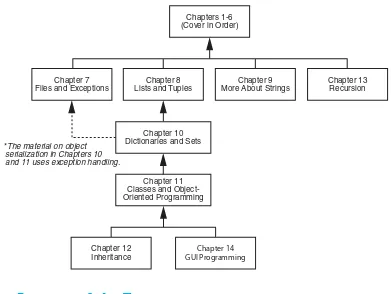
Chapters 1-6 (Cover in Order)
Chapter 8 Lists and Tuples Chapter 7
Files and Exceptions
Chapter 13 Recursion
Chapter 12
Inheritance GUI ProgrammingChapter 14 Chapter 9 More About Strings
Chapter 10 Dictionaries and Sets
Chapter 11 Classes and Object-Oriented Programming *The material on object
serialization in Chapters 10 and 11 uses exception handling.
Checkpoints Checkpoints are questions placed at intervals throughout each chapter. They are designed to query the student’s knowledge quickly after learning a new topic.
Review Questions Each chapter presents a thorough and diverse set of review questions and exercises. They include Multiple Choice, True/False, Algorithm Workbench, and Short Answer.
Programming Each chapter offers a pool of programming exercises designed to
Exercises solidify the student’s knowledge of the topics currently being studied.
Supplements
Student Online Resources
Many student resources are available for this book from the publisher. The following items are available on the Gaddis Series resource page atwww.pearsonhighered.com/gaddis:
• The source code for each example program in the book • Access to the book’s companion VideoNotes
Instructor Resources
The following supplements are available to qualified instructors only: • Answers to all of the Review Questions
• Solutions for the exercises
• PowerPoint presentation slides for each chapter • Test bank
Visit the Addison-Wesley Instructor Resource Center (www.pearsonhighered.com/irc) or send an email to [email protected] information on how to access them.
Acknowledgments
I would like to thank the following faculty reviewers for their insight, expertise, and thoughtful recommendations:
Desmond K. H. Chun Chabot Community College
Bob Husson
Craven Community College
Shyamal Mitra
University of Texas at Austin
Ken Robol
Beaufort Community College
Eric Shaffer
University of Illinois at Urbana-Champaign
Ann Ford Tyson Florida State University
Linda F. Wilson
I would like to thank my family for their love and support in all my many projects. I would also like to thank Christopher Rich for his assistance in this revision. I am extremely fortu-nate to have Michael Hirsch as my editor and Stephanie Sellinger as editorial assistant. Michael’s support and encouragement makes it a pleasure to write chapters and meet dead-lines. I am also fortunate to have Yez Alayan as marketing manager and Kathryn Ferranti as marketing coordinator. They do a great job getting my books out to the academic com-munity. I had a great production team led by Jeff Holcomb, Managing Editor, and Kayla Smith-Tarbox, Production Project Manager. Thanks to you all!
About the Author
Tony Gaddis is the principal author of the Starting Out Withseries of textbooks. Tony has nearly two decades of experience teaching computer science courses, primarily at Haywood Community College. He is a highly acclaimed instructor who was previously selected as the North Carolina Community College “Teacher of the Year” and has received the Teaching Excellence award from the National Institute for Staff and Organizational Development. The Starting Out Withseries includes introductory books covering C++, Java™, Microsoft® Visual Basic®, Microsoft® C#®, Python®, Programming Logic and Design, and Alice, all published by Addison-Wesley. More information about all these books can be found at www.pearsonhighered.com/gaddisbooks.
1
1.1
Introduction
Think about some of the different ways that people use computers. In school, students use computers for tasks such as writing papers, searching for articles, sending email, and partici-pating in online classes. At work, people use computers to analyze data, make presentations, conduct business transactions, communicate with customers and coworkers, control ma-chines in manufacturing facilities, and do many other things. At home, people use comput-ers for tasks such as paying bills, shopping online, communicating with friends and family, and playing computer games. And don’t forget that cell phones, iPods®, smart phones, car navigation systems, and many other devices are computers too. The uses of computers are almost limitless in our everyday lives.
Computers can do such a wide variety of things because they can be programmed. This means that computers are not designed to do just one job, but to do any job that their programs tell them to do. A programis a set of instructions that a computer follows to perform a task. For example, Figure 1-1 shows screens using Microsoft Word and PowerPoint, two commonly used programs.
Programs are commonly referred to as software. Software is essential to a computer because it controls everything the computer does. All of the software that we use to make our com-puters useful is created by individuals working as programmers or software developers. A programmer, or software developer, is a person with the training and skills necessary to design, create, and test computer programs. Computer programming is an exciting and rewarding career. Today, you will find programmers’ work used in business, medicine, gov-ernment, law enforcement, agriculture, academics, entertainment, and many other fields. This book introduces you to the fundamental concepts of computer programming using the Python language. The Python language is a good choice for beginners because it is easy to learn
Introduction to Computers
and Programming
1
TOPICS
1.1 Introduction
1.2 Hardware and Software 1.3 How Computers Store Data
1.4 How a Program Works 1.5 Using Python
and programs can be written quickly using it. Python is also a powerful language, popular with professional software developers. In fact, it is has been reported that Python is used by Google, NASA, YouTube, various game companies, the New York Stock Exchange, and many others. Before we begin exploring the concepts of programming, you need to understand a few basic things about computers and how they work. This chapter will build a solid founda-tion of knowledge that you will continually rely on as you study computer science. First, we will discuss the physical components that computers are commonly made of. Next, we will look at how computers store data and execute programs. Finally, we will get a quick introduction to the software that you will use to write Python programs.
1.2
Hardware and Software
CONCEPT: The physical devices that a computer is made of are referred to as the computer’s hardware. The programs that run on a computer are referred to as software.
Hardware
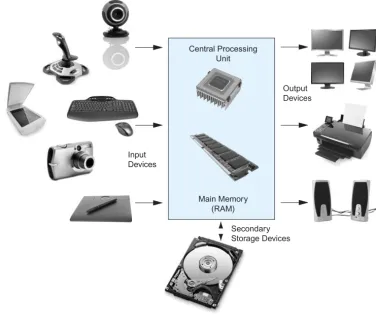
The term hardwarerefers to all of the physical devices, or components,that a computer is made of. A computer is not one single device, but a system of devices that all work together. Like the different instruments in a symphony orchestra, each device in a computer plays its own part. If you have ever shopped for a computer, you’ve probably seen sales literature listing com-ponents such as microprocessors, memory, disk drives, video displays, graphics cards, and so on. Unless you already know a lot about computers, or at least have a friend that does, understanding what these different components do might be challenging. As shown in Figure 1-2, a typical computer system consists of the following major components:
• The central processing unit (CPU) • Main memory
• Secondary storage devices
1.2 Hardware and Software 3
• Input devices • Output devices
Let’s take a closer look at each of these components.
The CPU
When a computer is performing the tasks that a program tells it to do, we say that the com-puter is runningor executingthe program. The central processing unit,or CPU, is the part of a computer that actually runs programs. The CPU is the most important component in a computer because without it, the computer could not run software.
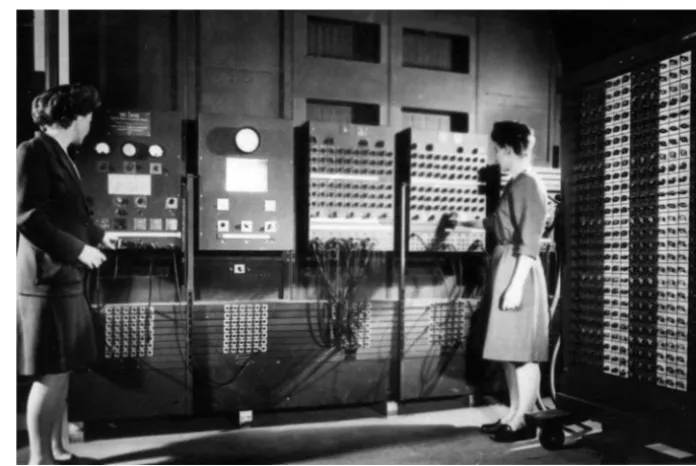
In the earliest computers, CPUs were huge devices made of electrical and mechanical com-ponents such as vacuum tubes and switches. Figure 1-3 shows such a device. The two women in the photo are working with the historic ENIAC computer. The ENIAC,which is considered by many to be the world’s first programmable electronic computer, was built in 1945 to calculate artillery ballistic tables for the U.S. Army. This machine, which was primarily one big CPU, was 8 feet tall, 100 feet long, and weighed 30 tons.
Today, CPUs are small chips known as microprocessors. Figure 1-4 shows a photo of a lab technician holding a modern microprocessor. In addition to being much smaller than the old electromechanical CPUs in early computers, microprocessors are also much more powerful.
Figure 1-2 Typical components of a computer system
Input Devices
Output Devices
Secondary Storage Devices Central Processing
Unit
Figure 1-3 The ENIAC computer (courtesy of U.S. Army Historic Computer Images)
1.2 Hardware and Software 5
Main Memory
You can think of main memoryas the computer’s work area. This is where the computer stores a program while the program is running, as well as the data that the program is working with. For example, suppose you are using a word processing program to write an essay for one of your classes. While you do this, both the word processing program and the essay are stored in main memory.
Main memory is commonly known as random-access memory,or RAM. It is called this because the CPU is able to quickly access data stored at any random location in RAM. RAM is usually a volatiletype of memory that is used only for temporary storage while a program is running. When the computer is turned off, the contents of RAM are erased. Inside your computer, RAM is stored in chips, similar to the ones shown in Figure 1-5.
Figure 1-5 Memory chips (Garsya/Shutterstock)
Secondary Storage Devices
Secondary storageis a type of memory that can hold data for long periods of time, even when there is no power to the computer. Programs are normally stored in secondary memory and loaded into main memory as needed. Important data, such as word pro-cessing documents, payroll data, and inventory records, is saved to secondary storage as well.
The most common type of secondary storage device is the disk drive. A disk drivestores data by magnetically encoding it onto a circular disk. Most computers have a disk drive mounted inside their case. External disk drives, which connect to one of the computer’s communication ports, are also available. External disk drives can be used to create backup copies of important data or to move data to another computer.
appear to the system as a disk drive. These drives do not actually contain a disk, however. They store data in a special type of memory known as flash memory. USB drives, which are also known as memory sticksand flash drives,are inexpensive, reliable, and small enough to be carried in your pocket.
Optical devices such as the CD(compact disc) and the DVD(digital versatile disc) are also popular for data storage. Data is not recorded magnetically on an optical disc, but is encoded as a series of pits on the disc surface. CD and DVD drives use a laser to detect the pits and thus read the encoded data. Optical discs hold large amounts of data, and because recordable CD and DVD drives are now commonplace, they are good mediums for creating backup copies of data.
Input Devices
Inputis any data the computer collects from people and from other devices. The compo-nent that collects the data and sends it to the computer is called an input device. Common input devices are the keyboard, mouse, scanner, microphone, and digital camera. Disk drives and optical drives can also be considered input devices because programs and data are retrieved from them and loaded into the computer’s memory.
Output Devices
Output is any data the computer produces for people or for other devices. It might be a sales report, a list of names, or a graphic image. The data is sent to an output device,which formats and presents it. Common output devices are video displays and printers. Disk drives and CD recorders can also be considered output devices because the system sends data to them in order to be saved.
Software
If a computer is to function, software is not optional. Everything that a computer does, from the time you turn the power switch on until you shut the system down, is under the control of software. There are two general categories of software: system software and application software. Most computer programs clearly fit into one of these two categories. Let’s take a closer look at each.
System Software
The programs that control and manage the basic operations of a computer are generally referred to as system software. System software typically includes the following types of programs:
1.2 Hardware and Software 7
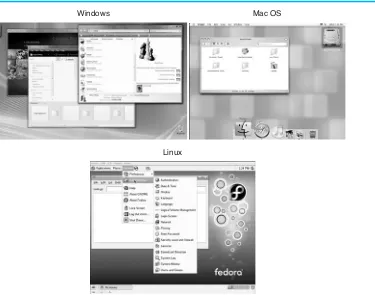
Figure 1-6 Screens from the Windows, Mac OS, and Linux operating systems
Windows Mac OS
Linux
Utility Programs A utility programperforms a specialized task that enhances the com-puter’s operation or safeguards data. Examples of utility programs are virus scanners, file compression programs, and data backup programs.
Software Development Tools Software development tools are the programs that pro-grammers use to create, modify, and test software. Assemblers, compilers, and inter-preters are examples of programs that fall into this category.
Application Software
Programs that make a computer useful for everyday tasks are known as application software. These are the programs that people normally spend most of their time running on their com-puters. Figure 1-1, at the beginning of this chapter, shows screens from two commonly used applications: Microsoft Word, a word processing program, and PowerPoint, a presentation program. Some other examples of application software are spreadsheet programs, email pro-grams, web browsers, and game programs.
Checkpoint
1.1 What is a program? 1.2 What is hardware?
1.5 What part of the computer serves as a work area to store a program and its data while the program is running?
1.6 What part of the computer holds data for long periods of time, even when there is no power to the computer?
1.7 What part of the computer collects data from people and from other devices? 1.8 What part of the computer formats and presents data for people or other
devices?
1.9 What fundamental set of programs control the internal operations of the computer’s hardware?
1.10 What do you call a program that performs a specialized task, such as a virus scanner, a file compression program, or a data backup program?
1.11 Word processing programs, spreadsheet programs, email programs, web browsers, and game programs belong to what category of software?
1.3
How Computers Store Data
CONCEPT: All data that is stored in a computer is converted to sequences of 0s and 1s.
A computer’s memory is divided into tiny storage locations known as bytes. One byte is only enough memory to store a letter of the alphabet or a small number. In order to do any-thing meaningful, a computer has to have lots of bytes. Most computers today have mil-lions, or even bilmil-lions, of bytes of memory.
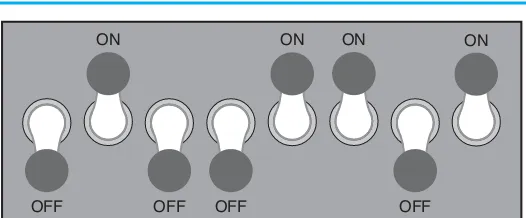
Each byte is divided into eight smaller storage locations known as bits. The term bitstands for binary digit. Computer scientists usually think of bits as tiny switches that can be either on or off. Bits aren’t actual “switches,” however, at least not in the conventional sense. In most computer systems, bits are tiny electrical components that can hold either a positive or a negative charge. Computer scientists think of a positive charge as a switch in the on position, and a negative charge as a switch in the offposition. Figure 1-7 shows the way that a computer scientist might think of a byte of memory: as a collection of switches that are each flipped to either the on or off position.
Figure 1-7 Think of a byte as eight switches
OFF ON
OFF OFF OFF
1.3 How Computers Store Data 9
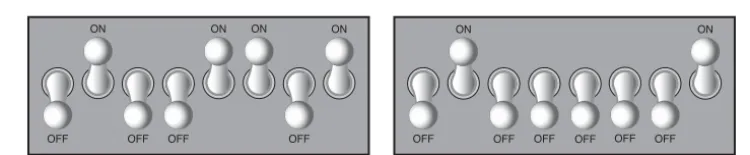
When a piece of data is stored in a byte, the computer sets the eight bits to an on/off pat-tern that represents the data. For example, the patpat-tern on the left in Figure 1-8 shows how the number 77 would be stored in a byte, and the pattern on the right shows how the letter A would be stored in a byte. We explain below how these patterns are determined.
Figure 1-8 Bit patterns for the number 77 and the letter A
The number 77 stored in a byte. The letter A stored in a byte. OFF
ON
OFF OFF OFF
ON ON ON
OFF ON
OFF OFF OFF OFF OFF ON
1 0 0 1 1 1 0 1
20 21 22 23 24 25 26 27 Figure 1-9 The values of binary digits as powers of 2
Storing Numbers
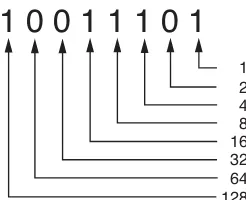
A bit can be used in a very limited way to represent numbers. Depending on whether the bit is turned on or off, it can represent one of two different values. In computer systems, a bit that is turned off represents the number 0 and a bit that is turned on represents the num-ber 1. This corresponds perfectly to the binary numbering system. In the binary numbering system (or binary, as it is usually called) all numeric values are written as sequences of 0s and 1s. Here is an example of a number that is written in binary:
10011101
128 + 16 + 8 + 4 + 1 = 157 1
128 64 32 16 8 4 2 1
Position values
1
0
1
1 1 1
0 0
Figure 1-12 The bit pattern for 157
1 0 0 1 1 1 0 1
1 2 4 8 16 32 64 128
Figure 1-10 The values of binary digits
1
0
0
1 1 1
0
1
1
4 8 16
128
1 + 4 + 8 + 16 + 128 = 157
Figure 1-11 Determining the value of 10011101
To determine the value of a binary number you simply add up the position values of all the 1s. For example, in the binary number 10011101, the position values of the 1s are 1, 4, 8, 16, and 128. This is shown in Figure 1-11. The sum of all of these position values is 157. So, the value of the binary number 10011101 is 157.
1.3 How Computers Store Data 11
When all of the bits in a byte are set to 0 (turned off), then the value of the byte is 0. When all of the bits in a byte are set to 1 (turned on), then the byte holds the largest value that can be stored in it. The largest value that can be stored in a byte is 1 ⫹2 ⫹4 ⫹8 ⫹16 ⫹
32 ⫹64 ⫹128 ⫽255. This limit exists because there are only eight bits in a byte.
What if you need to store a number larger than 255? The answer is simple: use more than one byte. For example, suppose we put two bytes together. That gives us 16 bits. The posi-tion values of those 16 bits would be 20, 21, 22, 23, and so forth, up through 215. As shown in Figure 1-13, the maximum value that can be stored in two bytes is 65,535. If you need to store a number larger than this, then more bytes are necessary.
32768 + 16384 + 8192 + 4096 + 2048 + 1024 + 512 + 256 + 128 + 64 + 32 + 16 + 8 + 4 + 2 + 1 = 65535
128 64 32 16 8 4 2 1
16384 8192 4096 2048 1024 512 256
32768
Position values
1 1 1 1 1 1 1 1 1 1 1 1 1 1 1 1
Figure 1-13 Two bytes used for a large number
T I P : In case you’re feeling overwhelmed by all this, relax! You will not have to actu-ally convert numbers to binary while programming. Knowing that this process is tak-ing place inside the computer will help you as you learn, and in the long term this knowledge will make you a better programmer.
Storing Characters
Any piece of data that is stored in a computer’s memory must be stored as a binary num-ber. That includes characters, such as letters and punctuation marks. When a character is stored in memory, it is first converted to a numeric code. The numeric code is then stored in memory as a binary number.
Over the years, different coding schemes have been developed to represent characters in computer memory. Historically, the most important of these coding schemes is ASCII, which stands for the American Standard Code for Information Interchange. ASCII is a set of 128 numeric codes that represent the English letters, various punctuation marks, and other characters. For example, the ASCII code for the uppercase letter A is 65. When you type an uppercase A on your computer keyboard, the number 65 is stored in memory (as a binary number, of course). This is shown in Figure 1-14.
65
A
0 01
0 1
0 0 0
1001010111010
0
01
0101101
Figure 1-15 A digital image is stored in binary format T I P : The acronym ASCII is pronounced “askee.”
In case you are curious, the ASCII code for uppercase B is 66, for uppercase C is 67, and so forth. Appendix C shows all of the ASCII codes and the characters they represent. The ASCII character set was developed in the early 1960s, and was eventually adopted by most all computer manufacturers. ASCII is limited however, because it defines codes for only 128 characters. To remedy this, the Unicode character set was developed in the early 1990s. Unicodeis an extensive encoding scheme that is compatible with ASCII, but can also represent characters for many of the languages in the world. Today, Unicode is quickly becoming the standard character set used in the computer industry.
Advanced Number Storage
Earlier you read about numbers and how they are stored in memory. While reading that section, perhaps it occurred to you that the binary numbering system can be used to repre-sent only integer numbers, beginning with 0. Negative numbers and real numbers (such as 3.14159) cannot be represented using the simple binary numbering technique we discussed. Computers are able to store negative numbers and real numbers in memory, but to do so they use encoding schemes along with the binary numbering system. Negative numbers are encoded using a technique known as two’s complement,and real numbers are encoded in floating-point notation. You don’t need to know how these encoding schemes work, only that they are used to convert negative numbers and real numbers to binary format.
Other Types of Data
Computers are often referred to as digital devices. The term digitalcan be used to describe anything that uses binary numbers. Digital datais data that is stored in binary, and a digital device is any device that works with binary data. In this section we have discussed how numbers and characters are stored in binary, but computers also work with many other types of digital data.
The music that you play on your CD player, iPod, or MP3 player is also digital. A digital song is broken into small pieces known as samples. Each sample is converted to a binary number, which can be stored in memory. The more samples that a song is divided into, the more it sounds like the original music when it is played back. A CD quality song is divided into more than 44,000 samples per second!
Checkpoint
1.12 What amount of memory is enough to store a letter of the alphabet or a small number? 1.13 What do you call a tiny “switch” that can be set to either on or off?
1.14 In what numbering system are all numeric values written as sequences of 0s and 1s? 1.15 What is the purpose of ASCII?
1.16 What encoding scheme is extensive enough to represent the characters of many of the languages in the world?
1.17 What do the terms “digital data” and “digital device” mean?
1.4
How a Program Works
CONCEPT: A computer’s CPU can only understand instructions that are written in machine language. Because people find it very difficult to write entire programs in machine language, other programming languages have been invented.
Earlier, we stated that the CPU is the most important component in a computer because it is the part of the computer that runs programs. Sometimes the CPU is called the “computer’s brain,” and is described as being “smart.” Although these are common metaphors, you should understand that the CPU is not a brain, and it is not smart. The CPU is an electronic device that is designed to do specific things. In particular, the CPU is designed to perform operations such as the following:
• Reading a piece of data from main memory • Adding two numbers
• Subtracting one number from another number • Multiplying two numbers
• Dividing one number by another number
• Moving a piece of data from one memory location to another • Determining whether one value is equal to another value
As you can see from this list, the CPU performs simple operations on pieces of data. The CPU does nothing on its own, however. It has to be told what to do, and that’s the purpose of a program. A program is nothing more than a list of instructions that cause the CPU to perform operations.
Each instruction in a program is a command that tells the CPU to perform a specific oper-ation. Here’s an example of an instruction that might appear in a program:
10110000
To you and me, this is only a series of 0s and 1s. To a CPU, however, this is an instruction to perform an operation.1It is written in 0s and 1s because CPUs only understand instruc-tions that are written in machine language,and machine language instructions always have an underlying binary structure.
A machine language instruction exists for each operation that a CPU is capable of perform-ing. For example, there is an instruction for adding numbers, there is an instruction for sub-tracting one number from another, and so forth. The entire set of instructions that a CPU can execute is known as the CPU’s instruction set.
1The example shown is an actual instruction for an Intel microprocessor. It tells the microprocessor to move a
value into the CPU.
N O T E : There are several microprocessor companies today that manufacture CPUs. Some of the more well-known microprocessor companies are Intel, AMD, and Motorola. If you look carefully at your computer, you might find a tag showing a logo for its microprocessor.
Each brand of microprocessor has its own unique instruction set, which is typically understood only by microprocessors of the same brand. For example, Intel micro-processors understand the same instructions, but they do not understand instructions for Motorola microprocessors.
The machine language instruction that was previously shown is an example of only one instruction. It takes a lot more than one instruction, however, for the computer to do anything meaningful. Because the operations that a CPU knows how to perform are so basic in nature, a meaningful task can be accomplished only if the CPU performs many operations. For example, if you want your computer to calculate the amount of inter-est that you will earn from your savings account this year, the CPU will have to perform a large number of instructions, carried out in the proper sequence. It is not unusual for a program to contain thousands or even millions of machine language instructions.
Programs are usually stored on a secondary storage device such as a disk drive. When you install a program on your computer, the program is typically copied to your computer’s disk drive from a CD-ROM, or perhaps downloaded from a website.
1.4 How a Program Works 15
When a CPU executes the instructions in a program, it is engaged in a process that is known as the fetch-decode-execute cycle. This cycle, which consists of three steps, is repeated for each instruction in the program. The steps are:
1. Fetch A program is a long sequence of machine language instructions. The first step of the cycle is to fetch, or read, the next instruction from memory into the CPU.
2. Decode A machine language instruction is a binary number that represents a com-mand that tells the CPU to perform an operation. In this step the CPU decodes the instruction that was just fetched from memory, to determine which operation it should perform.
3. ExecuteThe last step in the cycle is to execute, or perform, the operation. Figure 1-17 illustrates these steps.
Main memory (RAM)
Disk drive CPU
The program is copied from secondary storage
to main memory.
The CPU executes the program in main memory.
Figure 1-16 A program is copied into main memory and then executed
CPU
Main memory (RAM) 10111000 10100001
10011110 00011010 11011100 and so forth...
10100001
1 Fetch the next instruction in the program.
Decode the instruction to determine which operation to perform.
3 Execute the instruction (perform the operation). 2
Figure 1-17 The fetch-decode-execute cycle
From Machine Language to Assembly Language
Assembly language programs cannot be executed by the CPU, however. The CPU only understands machine language, so a special program known as an assembler is used to translate an assembly language program to a machine language program. This process is shown in Figure 1-18. The machine language program that is created by the assembler can then be executed by the CPU.
Although a computer’s CPU only understands machine language, it is impractical for people to write programs in machine language. For this reason, assembly languagewas created in the early days of computing2as an alternative to machine language. Instead of using binary num-bers for instructions, assembly language uses short words that are known as mnemonics. For example, in assembly language, the mnemonic addtypically means to add numbers, mul typ-ically means to multiply numbers, and movtypically means to move a value to a location in memory. When a programmer uses assembly language to write a program, he or she can write short mnemonics instead of binary numbers.
2The first assembly language was most likely that developed in the 1940s at Cambridge University for use with
a historic computer known as the EDSAC.
mov eax, Z add eax, 2 mov Y, eax
and so forth...
Assembler 10111000
10100001
10011110 and so forth... Assembly language
program
Machine language program
Figure 1-18 An assembler translates an assembly language program to a machine language program
N O T E : There are many different versions of assembly language. It was mentioned earlier that each brand of CPU has its own machine language instruction set. Each brand of CPU typically has its own assembly language as well.
High-Level Languages
Although assembly language makes it unnecessary to write binary machine language instructions, it is not without difficulties. Assembly language is primarily a direct substitute for machine language, and like machine language, it requires that you know a lot about the CPU. Assembly language also requires that you write a large number of instructions for even the simplest program. Because assembly language is so close in nature to machine lan-guage, it is referred to as a low-level language.
1.4 How a Program Works 17
languages created in the 1950s), he or she would write the following instruction to display the message Hello worldon the computer screen:
DISPLAY "Hello world"
Python is a modern, high-level programming language that we will use in this book. In Python you would display the message Hello worldwith the following instruction:
print('Hello world')
Doing the same thing in assembly language would require several instructions, and an intimate knowledge of how the CPU interacts with the computer’s output device. As you can see from this example, high-level languages allow programmers to concentrate on the tasks they want to per-form with their programs rather than the details of how the CPU will execute those programs. Since the 1950s, thousands of high-level languages have been created. Table 1-1 lists several of the more well-known languages.
Table 1-1 Programming languages
Language Description
Ada Ada was created in the 1970s, primarily for applications used by the U.S. Department of Defense. The language is named in honor of Countess Ada Lovelace, an influential and historic figure in the field of computing.
BASIC Beginners All-purpose Symbolic Instruction Code is a general-purpose language that was originally designed in the early 1960s to be simple enough for begin-ners to learn. Today, there are many different versions of BASIC.
FORTRAN FORmula TRANslator was the first high-level programming language. It was designed in the 1950s for performing complex mathematical calculations. COBOL Common Business-Oriented Language was created in the 1950s, and was
designed for business applications.
Pascal Pascal was created in 1970, and was originally designed for teaching program-ming. The language was named in honor of the mathematician, physicist, and philosopher Blaise Pascal.
C and C++ C and C++ (pronounced “c plus plus”) are powerful, general-purpose lan-guages developed at Bell Laboratories. The C language was created in 1972 and the C++ language was created in 1983.
C# Pronounced “c sharp.” This language was created by Microsoft around the year 2000 for developing applications based on the Microsoft .NET platform. Java Java was created by Sun Microsystems in the early 1990s. It can be used to develop
programs that run on a single computer or over the Internet from a web server. JavaScript JavaScript, created in the 1990s, can be used in web pages. Despite its name,
JavaScript is not related to Java.
Python Python, the language we use in this book, is a general-purpose language created in the early 1990s. It has become popular in business and academic applications. Ruby Ruby is a general-purpose language that was created in the 1990s. It is
increas-ingly becoming a popular language for programs that run on web servers. Visual Basic Visual Basic (commonly known as VB) is a Microsoft programming language and
Key Words, Operators, and Syntax: an Overview
Each high-level language has its own set of predefined words that the programmer must use to write a program. The words that make up a high-level programming language are known as key wordsor reserved words. Each key word has a specific meaning, and cannot be used for any other purpose. Table 1-2 shows all of the Python key words.
In addition to key words, programming languages have operators that perform various operations on data. For example, all programming languages have math operators that per-form arithmetic. In Python, as well as most other languages, the ⫹sign is an operator that
adds two numbers. The following adds 12 and 75: 12 + 75
There are numerous other operators in the Python language, many of which you will learn about as you progress through this text.
In addition to key words and operators, each language also has its own syntax,which is a set of rules that must be strictly followed when writing a program. The syntax rules dictate how key words, operators, and various punctuation characters must be used in a program. When you are learning a programming language, you must learn the syntax rules for that particular language.
The individual instructions that you use to write a program in a high-level programming language are called statements. A programming statement can consist of key words, oper-ators, punctuation, and other allowable programming elements, arranged in the proper sequence to perform an operation.
Compilers and Interpreters
Because the CPU understands only machine language instructions, programs that are writ-ten in a high-level language must be translated into machine language. Depending on the language that a program has been written in, the programmer will use either a compiler or an interpreter to make the translation.
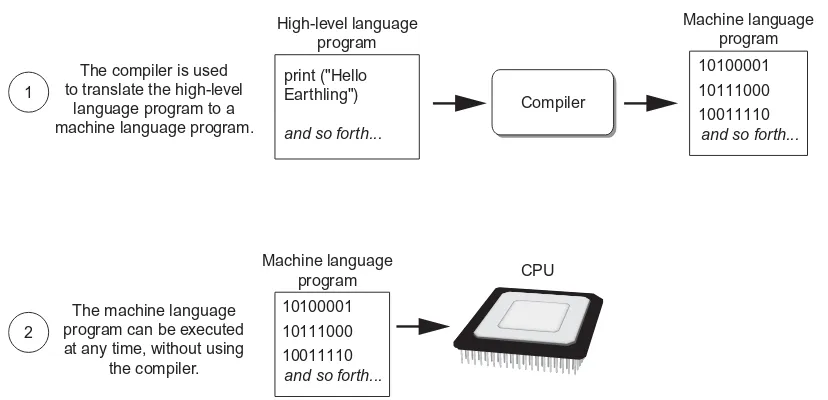
A compiler is a program that translates a high-level language program into a separate machine language program. The machine language program can then be executed any time it is needed. This is shown in Figure 1-19. As shown in the figure, compiling and executing are two different processes.
Table 1-2 The Python key words
and del from None True
as elif global nonlocal try
assert else if not while
break except import or with
class False in pass yield
continue finally is raise
1.4 How a Program Works 19
The compiler is used to translate the high-level
language program to a machine language program. 1
The machine language program can be executed at any time, without using
the compiler. 2
Figure 1-19 Compiling a high-level program and executing it
The Python language uses an interpreter,which is a program that both translates and exe-cutes the instructions in a high-level language program. As the interpreter reads each indi-vidual instruction in the program, it converts it to machine language instructions and then immediately executes them. This process repeats for every instruction in the program. This process is illustrated in Figure 1-20. Because interpreters combine translation and execu-tion, they typically do not create separate machine language programs.
The interpreter translates each high-level instruction to its equivalent machine language instructions and
immediately executes them.
This process is repeated for each high-level instruction. print ("Hello
Figure 1-20 Executing a high-level program with an interpreter
NOTE: Human languages also have syntax rules. Do you remember when you took your first English class, and you learned all those rules about commas, apostrophes, capitalization, and so forth? You were learning the syntax of the English language. Although people commonly violate the syntax rules of their native language when speaking and writing, other people usually understand what they mean. Unfortunately, compilers and interpreters do not have this ability. If even a single syntax error appears in a program, the program cannot be compiled or executed. When an interpreter encounters a syntax error, it stops executing the program.
Checkpoint
1.18 A CPU understands instructions that are written only in what language?
1.19 A program has to be copied into what type of memory each time the CPU executes it? 1.20 When a CPU executes the instructions in a program, it is engaged in what process? 1.21 What is assembly language?
1.22 What type of programming language allows you to create powerful and complex programs without knowing how the CPU works?
1.23 Each language has a set of rules that must be strictly followed when writing a program. What is this set of rules called?
1.24 What do you call a program that translates a high-level language program into a separate machine language program?
1.25 What do you call a program that both translates and executes the instructions in a high-level language program?
1.26 What type of mistake is usually caused by a misspelled key word, a missing punctuation character, or the incorrect use of an operator?
1.5
Using Python
CONCEPT: The Python interpreter can run Python programs that are saved in files, or interactively execute Python statements that are typed at the keyboard. Python comes with a program named IDLE that simplifies the process of writing, executing, and testing programs.
Installing Python
1.5 Using Python 21
The Python Interpreter
You learned earlier that Python is an interpreted language. When you install the Python lan-guage on your computer, one of the items that is installed is the Python interpreter. The Python interpreteris a program that can read Python programming statements and execute them. (Sometimes we will refer to the Python interpreter simply as the interpreter.)
You can use the interpreter in two modes: interactive mode and script mode. In interactive mode,the interpreter waits for you to type Python statements on the keyboard. Once you type a statement, the interpreter executes it and then waits for you to type another statement. In script mode,the interpreter reads the contents of a file that contains Python statements. Such a file is known as a Python programor a Python script. The interpreter executes each statement in the Python program as it reads it.
Interactive Mode
Once Python has been installed and set up on your system, you start the interpreter in interac-tive mode by going to the operating system’s command line and typing the following command:
python
If you are using Windows, you can alternatively click the Startbutton, then All Programs. You should see a program group named something like Python 3.1. (The “3.1” is the sion of Python that is installed. At the time this is being written, Python 3.1 is the latest ver-sion.) Inside this program group you should see an item named Python (command line). Clicking this menu item will start the Python interpreter in interactive mode.
When the Python interpreter starts in interactive mode, you will see something like the fol-lowing displayed in a console window:
Python 3.1.2 (r312:79149, Mar 20 2010, 22:55:39) [MSC v.1500 64 bit (AMD64)] on win32
Type "help", "copyright", "credits" or "license" for more information.
⬎⬎⬎
The ⬎⬎⬎that you see is a prompt that indicates the interpreter is waiting for you to type a
Python statement. Let’s try it out. One of the simplest things that you can do in Python is print a message on the screen. For example, the following statement prints the message Python programming is fun!on the screen:
print('Python programming is fun!')
You can think of this as a command that you are sending to the Python interpreter. If you type the statement exactly as it is shown, the messagePython programming is fun!is printed on the screen. Here is an example of how you type this statement at the interpreter’s prompt:
>>> print('Python programming is fun!') e
After typing the statement, you press the Enter key and the Python interpreter executes the statement, as shown here:
⬎⬎⬎ print('Python programming is fun!') e
Python programming is fun!
After the message is displayed, the >>> prompt appears again, indicating that the inter-preter is waiting for you to enter another statement. Let’s look at another example. In the following sample session, we have entered two statements:
⬎⬎⬎ print('To be or not to be') e
To be or not to be
⬎⬎⬎ print('That is the question.') e
That is the question.
⬎⬎⬎
If you incorrectly type a statement in interactive mode, the interpreter will display an error message. This will make interactive mode useful to you while you learn Python. As you learn new parts of the Python language, you can try them out in interactive mode and get immediate feedback from the interpreter.
To quit the Python interpreter in interactive mode on a Windows computer, press Ctrl-Z (pressing both keys together) followed by Enter. On a Mac, Linux, or UNIX computer, press Ctrl-D.
N O T E : In Chapter 2 we discuss the details of statements like the ones previously shown. If you want to try them now in interactive mode, make sure you type them exactly as shown.
Writing Python Programs and Running
Them in Script Mode
Although interactive mode is useful for testing code, the statements that you enter in inter-active mode are not saved as a program. They are simply executed and their results dis-played on the screen. If you want to save a set of Python statements as a program, you save those statements in a file. Then, to execute the program, you use the Python interpreter in script mode.
For example, suppose you want to write a Python program that displays the following three lines of text:
Nudge nudge Wink wink
Know what I mean?
To write the program you would use a simple text editor like Notepad (which is installed on all Windows computers) to create a file containing the following statements:
print('Nudge nudge') print('Wink wink')
1.5 Using Python 23
When you save a Python program, you give it a name that ends with the .pyextension, which identifies it as a Python program. For example, you might save the program previously shown with the name test.py.To run the program you would go to the directory in which the file is saved and type the following command at the operating system command line:
python test.py
This starts the Python interpreter in script mode and causes it to execute the statements in the file test.py.When the program finishes executing, the Python interpreter exits.
The IDLE Programming Environment
The previous sections described how the Python interpreter can be started in interactive mode or script mode at the operating system command line. As an alternative, you can use anintegrated development environment,which is a single program that gives you all of the tools you need to write, execute, and test a program.
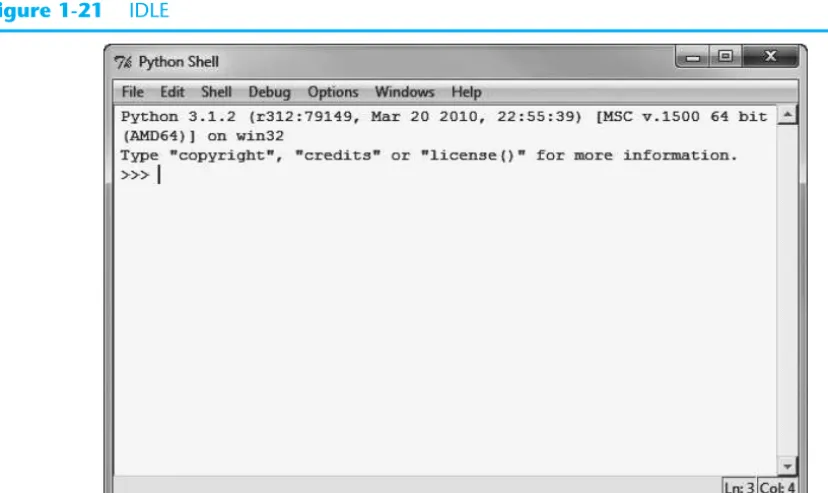
Recent versions of Python include a program named IDLE, which is automatically installed when the Python language is installed. (IDLE stands for IntegratedDeveLopmentEnvironment.) When you run IDLE, the window shown in Figure 1-21 appears. Notice that the ⬎⬎⬎prompt
appears in the IDLE window, indicating that the interpreter is running in interactive mode. You can type Python statements at this prompt and see them executed in the IDLE window. IDLE also has a built-in text editor with features specifically designed to help you write Python programs. For example, the IDLE editor “colorizes” code so that key words and
Figure 1-21 IDLE
N O T E : Although IDLE is installed with Python, there are several other Python IDEs available. Your instructor might prefer that you use a specific one in class.
other parts of a program are displayed in their own distinct colors. This helps make programs easier to read. In IDLE you can write programs, save them to disk, and execute them. Appendix B provides a quick introduction to IDLE, and leads you through the process of creating, saving, and executing a Python program.
Review Questions
Multiple Choice
1. A(n) __________ is a set of instructions that a computer follows to perform a task. a. compiler
b. program c. interpreter
d. programming language
2. The physical devices that a computer is made of are referred to as __________. a. hardware
b. software
c. the operating system d. tools
3. The part of a computer that runs programs is called __________. a. RAM
b. secondary storage c. main memory d. the CPU
4. Today, CPUs are small chips known as __________. a. ENIACs
b. microprocessors c. memory chips d. operating systems
5. The computer stores a program while the program is running, as well as the data that the program is working with, in __________.
a. secondary storage b. the CPU
c. main memory d. the microprocessor
6. This is a volatile type of memory that is used only for temporary storage while a pro-gram is running.
a. RAM
Review Questions 25
7. A type of memory that can hold data for long periods of time, even when there is no power to the computer, is called __________.
a. RAM
b. main memory c. secondary storage d. CPU storage
8. A component that collects data from people or other devices and sends it to the com-puter is called __________.
a. an output device b. an input device
c. a secondary storage device d. main memory
9. A video display is a(n) __________ device. a. output device
b. input device
c. secondary storage device d. main memory
10. A __________ is enough memory to store a letter of the alphabet or a small number. a. byte
b. bit c. switch d. transistor
11. A byte is made up of eight __________. a. CPUs
b. instructions c. variables d. bits
12. In the __________ numbering system, all numeric values are written as sequences of 0s and 1s.
a. hexadecimal b. binary c. octal d. decimal
13. A bit that is turned off represents the following value: __________. a. 1
b. –1 c. 0 d. “no”
14. A set of 128 numeric codes that represent the English letters, various punctuation marks, and other characters is __________.
a. binary numbering b. ASCII
15. An extensive encoding scheme that can represent characters for many languages in the world is __________.
a. binary numbering b. ASCII
c. Unicode d. ENIAC
16. Negative numbers are encoded using the __________ technique. a. two’s complement
b. floating point c. ASCII d. Unicode
17. Real numbers are encoded using the __________ technique. a. two’s complement
b. floating point c. ASCII d. Unicode
18. The tiny dots of color that digital images are composed of are called __________. a. bits
b. bytes
c. color packets d. pixels
19. If you were to look at a machine language program, you would see __________. a. Python code
b. a stream of binary numbers c. English words
d. circuits
20. In the __________ part of the fetch-decode-execute cycle, the CPU determines which operation it should perform.
a. fetch b. decode c. execute
d. immediately after the instruction is executed
21. Computers can only execute programs that are written in __________. a. Java
b. assembly language c. machine language d. Python
22. The __________ translates an assembly language program to a machine language program.
Review Questions 27
23. The words that make up a high-level programming language are called __________. a. binary instructions
b. mnemonics c. commands d. key words
24. The rules that must be followed when writing a program are called __________. a. syntax
b. punctuation c. key words d. operators
25. A(n) __________ program translates a high-level language program into a separate machine language program.
a. assembler b. compiler c. translator d. utility
True or False
1. Today, CPUs are huge devices made of electrical and mechanical components such as vacuum tubes and switches.
2. Main memory is also known as RAM.
3. Any piece of data that is stored in a computer’s memory must be stored as a binary number.
4. Images, like the ones you make with your digital camera, cannot be stored as binary numbers.
5. Machine language is the only language that a CPU understands. 6. Assembly language is considered a high-level language.
7. An interpreter is a program that both translates and executes the instructions in a high-level language program.
8. A syntax error does not prevent a program from being compiled and executed. 9. Windows Vista, Linux, UNIX, and Mac OSX are all examples of application software. 10. Word processing programs, spreadsheet programs, email programs, web browsers, and
games are all examples of utility programs.
Short Answer
1. Why is the CPU the most important component in a computer?
2. What number does a bit that is turned on represent? What number does a bit that is turned off represent?
3. What would you call a device that works with binary data?
4. What are the words that make up a high-level programming language called? 5. What are the short words that are used in assembly language called?
6. What is the difference between a compiler and an interpreter?