Wei-Meng Lee
Beginning
iPhone
®
SDK
Programming with Objective-C
®iPhone
SDK
Get more out of
wrox.com
Interact
Take an active role online by participating in our
P2P forums @ p2p.wrox.com
Wrox Online Library
Hundreds of our books are available online
through Books24x7.com
Wrox Blox
Download short informational pieces and code
to keep you up to date and out of trouble!
Join the Community
Sign up for our free monthly newsletter at
newsletter.wrox.com
Browse
Ready for more Wrox? We have books and
e-books available on .NET, SQL Server, Java,
XML, Visual Basic, C#/ C++, and much more!
Contact Us.
We always like to get feedback from our readers. Have a book idea?
INTRODUCTION . . . xxi
PART I
GETTING STARTED
CHAPTER 1 Getting Started with iPhone Programming . . . 3CHAPTER 2 Write Your First Hello World! Application . . . 23
CHAPTER 3 Outlets, Actions, and View Controllers . . . 43
CHAPTER 4 Exploring the Views . . . 77
CHAPTER 5 Keyboard Inputs . . . 117
CHAPTER 6 Screen Rotations . . . 143
PART II
BUILDING DIFFERENT TYPES OF IPHONE APPLICATIONS
CHAPTER 7 View Controllers . . . 161CHAPTER 8 Tab Bar and Navigation Applications . . . 183
CHAPTER 9 Utility Applications . . . 211
PART III
DISPLAYING AND PERSISTING DATA
CHAPTER 10 Using the Table View. . . 229CHAPTER 11 Application Preferences . . . 263
CHAPTER 12 Database Storage Using SQLite3 . . . 287
CHAPTER 13 File Handling . . . 301
PART IV ADVANCED IPHONE PROGRAMMING TECHNIQUES
CHAPTER 14 Programming Multi-touch Applications . . . 317CHAPTER 15 Simple Animations . . . 339
CHAPTER 16 Accessing Built-in Applications . . . 355
CHAPTER 17 Accessing the Hardware . . . 379
⊲
⊲
⊲
APPENDIX C Getting Around in Interface Builder . . . 441
APPENDIX D Crash Course in Objective-C . . . 455
APPENDIX E Testing on an Actual iPhone or iPod Touch . . . 483
iPhone® SDK Programming
with Objective-C®
Indianapolis, IN 46256 www.wiley.com
Copyright © 2010 by Wiley Publishing, Inc., Indianapolis, Indiana Published simultaneously in Canada
ISBN: 978-0-470-50097-2
Manufactured in the United States of America 10 9 8 7 6 5 4 3 2 1
No part of this publication may be reproduced, stored in a retrieval system or transmitted in any form or by any means, electronic, mechanical, photocopying, recording, scanning or otherwise, except as permitted under Sections 107 or 108 of the 1976 United States Copyright Act, without either the prior written permission of the Publisher, or authorization through payment of the appropriate per-copy fee to the Copyright Clearance Center, 222 Rosewood Drive, Danvers, MA 01923, (978) 750-8400, fax (978) 646-8600. Requests to the Publisher for permission should be addressed to the Permissions Department, John Wiley & Sons, Inc., 111 River Street, Hoboken, NJ 07030, (201) 748-6011, fax (201) 748-6008, or online at http://www.wiley.com/go/permissions.
Limit of Liability/Disclaimer of Warranty: The publisher and the author make no representations or warranties with respect to the accuracy or completeness of the contents of this work and specifi cally disclaim all warranties, including without limitation warranties of fi tness for a particular purpose. No warranty may be created or extended by sales or pro-motional materials. The advice and strategies contained herein may not be suitable for every situation. This work is sold with the understanding that the publisher is not engaged in rendering legal, accounting, or other professional services. If professional assistance is required, the services of a competent professional person should be sought. Neither the pub-lisher nor the author shall be liable for damages arising herefrom. The fact that an organization or Web site is referred to in this work as a citation and/or a potential source of further information does not mean that the author or the publisher endorses the information the organization or Web site may provide or recommendations it may make. Further, readers should be aware that Internet Web sites listed in this work may have changed or disappeared between when this work was written and when it is read.
For general information on our other products and services please contact our Customer Care Department within the United States at (877) 762-2974, outside the United States at (317) 572-3993 or fax (317) 572-4002.
Wiley also publishes its books in a variety of electronic formats. Some content that appears in print may not be available in electronic books.
Library of Congress Control Number: 2009940280
WEI-MENG LEE is a technologist and founder of Developer Learning Solutions
(www.learn2develop.net), a technology company specializing in hands-on training for the latest Microsoft and Mac OS X technologies. He is also an established author with Wrox and O’Reilly.
Wei-Meng fi rst started the iPhone programming course in Singapore and it has since received much positive feedback. His hands-on approach to iPhone programming makes understanding the subject much easier than reading books, tutorials, and documentation from Apple.
ACQUISITIONS EDITOR Mary Beth Wakefi eld
MARKETING MANAGER Ashley Zurcher
PRODUCTION MANAGER Tim Tate
VICE PRESIDENT AND EXECUTIVE GROUP PUBLISHER
Richard Swadley
WRITING A BOOK IS A HUGE COMMITMENT, and writing a book on iPhone programming is an even larger commitment. Now that this book is fi nally done, I would like to take this chance to thank the many people who made this a reality.
First, I want to thank Scott Meyers, who had faith in me when he signed me up for this book. I hope I have not disappointed him. Thank you, Scott!
Next, a huge thanks to Ami Sullivan, my editor, who is the real hero who got this book done. During the writing process, I was very involved in running iPhone courses and when I was off course in the writing road, Ami pulled me up and gently gave me a nudge. She was fi rm in having me adhere to the strict deadlines, but was very understanding when things slipped. I deeply appre-ciate her patience with me, for without her, this book would not be in your hands now. For that, please accept my sincere thanks, Ami!
INTRODUCTION XXI
PART I: GETTING STARTED
CHAPTER 1: GETTING STARTED WITH IPHONE PROGRAMMING 3
Obtaining the iPhone SDK
4
Components of the iPhone SDK
5
Xcode 6
iPhone Simulator 8
Interface Builder 12
Instruments 13
Architecture of the iPhone OS
14
Some Useful Information Before You Get Started
17
Versions of iPhone OS 18
Testing on Real Devices 19
Screen Resolution 19
Single-Window Applications 19
No Background Applications 19
Restrictions on Calling Third-Party Applications 20
Summary
20
CHAPTER 2: WRITE YOUR FIRST HELLO WORLD! APPLICATION 23
Getting Started with Xcode
23
Using Interface Builder 28
Changing Screen Orientations 31
Views Repositioning 33
Writing Some Code 35
Customizing Your Application Icon
38
Summary
40
CHAPTER 3: OUTLETS, ACTIONS, AND VIEW CONTROLLERS 43
Basic Code and UI Interactions
43
Editing XIB Files 46
View Controllers
67
Adding a View Controller 68
Customizing the View 71
Summary
74
CHAPTER 4: EXPLORING THE VIEWS 77
Using the Views
78
Using the Alert View 79
Using the Action Sheet 82
Page Control and Image View 84
Grouping Views Using the Segmented Control 92
Using the Web View 96
Adding Views Dynamically Using Code
98
Understanding View Hierarchy
101
Switching Views
102
Animating the Transitions 109
Passing Data Between Views 110
Summary
114
CHAPTER 5: KEYBOARD INPUTS 117
Using the Keyboard
118
Customizing the Type of Inputs
119
Making the Keyboard Go Away 121
Set the Keyboard to Number Pad 123
Automatically Displaying The Keyboard When The View Is Loaded 129
Detecting the Presence of the Keyboard
129
Summary
140
CHAPTER 6: SCREEN ROTATIONS 143
Responding to Device Rotations
143
Diff erent Types of Screen Orientations 147
Handling Rotations 148
Programmatically Rotating the Screen
155
Rotating During Runtime 155
Displaying the View in a Specifi c Orientation When Loading 155
XVII
PART II: BUILDING DIFFERENT TYPES OF IPHONE APPLICATIONS
CHAPTER 7: VIEW CONTROLLERS 161
Creating a Window-based Application
162
Adding a View Controller Programmatically 170
Creating and Connecting Actions 173
Switching to Another View
175
Animating the Switching of Views
178
Summary
180
CHAPTER 8: TAB BAR AND NAVIGATION APPLICATIONS 183
Tab Bar Applications
184
Adding Tab Bar Items 190
Navigation-Based Applications
198
Navigating to Another View 204
Summary
209
CHAPTER 9: UTILITY APPLICATIONS 211
Creating Utility Applications
212
Transitioning Styles
217
Adding Another View to the Utility Application
218
Summary
224
PART III: DISPLAYING AND PERSISTING DATA
CHAPTER 10: USING THE TABLE VIEW 229
A Simple Table View
230
Adding a Header and Footer 235
Adding an Image 235
Displaying the Item Selected 236
Indenting 239
Displaying Sections
239
Adding Indexing 248
Adding Search Capability 249
Disclosures and Check Marks 258
CHAPTER 11: APPLICATION PREFERENCES 263
Creating Application Preferences
264
Programmatically Accessing the Settings Values
273
Loading the Settings Values 280
Resetting the Preference Settings Values 281
Saving the Settings Values 282
Summary
284
CHAPTER 12: DATABASE STORAGE USING SQLITE3 287
Using SQLite3
287
Creating and Opening a Database
289
Examining the Database Created 291
Creating a Table 291
Inserting Records 293
Bind Variables 295
Summary
299
CHAPTER 13: FILE HANDLING 301
Understanding the Application Folders
301
Using the Documents and Library Folders 303
Storing Files in the Temporary Folder 307
Using Property Lists
307
Summary
314
PART IV: ADVANCED IPHONE PROGRAMMING TECHNIQUES
CHAPTER 14: PROGRAMMING MULTI-TOUCH APPLICATIONS 317
Detecting Touches
319
Detecting Multi-touches
325
Implementing the Pinch Gesture 329
Implementing the Drag Gesture 334
XIX
CHAPTER 15: SIMPLE ANIMATIONS 339
Using the NSTimer Class
339
Transforming Views
346
Translation 347
Rotation 348
Scaling 350
Animating a Series of Images
350
Summary
353
CHAPTER 16: ACCESSING BUILT-IN APPLICATIONS 355
Sending Emails
355
Invoking Safari 359
Invoking the Phone 359
Invoking SMS 359
Accessing the Camera and the Photo Library
360
Accessing the Photo Library 360
Accessing the Camera 365
Accessing the Contacts Application
369
Adding a Contact 374
Removing a Contact 375
Summary
376
CHAPTER 17: ACCESSING THE HARDWARE 379
Using the Accelerometer
379
Detecting Shakes in iPhone OS2 and Earlier
384
Using Shake API to Detect Shakes in OS 3.0
385
Performing an Action When the Device is Shaken
391
Location-Based Services
392
Displaying Maps 396
PART V: APPENDICES
Appendix A: Answers to Exercises
405
Appendix B: Getting Around in Xcode
423
Appendix C: Getting Around in Interface Builder
441
Appendix D: Crash Course in Objective-C
455
Appendix E: Testing on an Actual iPhone or iPod Touch
483
The iPhone SDK was offi cially announced by Apple on March 6, 2008, at an Apple Town Hall meeting. In the early days of the SDK, iPhone development was shrouded in secrecy because Apple has imposed a Non - Disclosure Agreement (NDA) on developers who downloaded the SDK. No one was allowed to publicly discuss the SDK and the various APIs shipped with it. Apple had presumably done this to ensure the stability of the SDK. This move caused an uproar from developers because it prevented them from posting questions on public forums and getting help quickly. Nor could books be written about it or training courses developed. The adoption of Objective - C as the programming language for the iPhone SDK did not help. In fact, that language has a steep learning curve for developers, who for the most part are coming from more mainstream languages such as Java, C++, C#, and VB.NET.
With pressure from the public, Apple fi nally lifted the NDA in late 2008. This was welcome news to developers, albeit a little late. Overnight, discussion forums appeared and Web sites dedicated to iPhone development mushroomed.
Although Web sites and discussion forums talking about iPhone development are numerous, one obstacle remains — the learning curve for getting started is simply too great. Many developers are struggling to get started with Xcode and Interface Builder. At the same time, they have to grapple with the arcane syntax of Objective - C and to constantly remember which objects to free up and which ones not to.
This book was written to bridge the gap.
When I fi rst started learning about iPhone development, I went through the same journey that most iPhone developers go through: Write a Hello World application, mess with Interface Builder, try to understand what the code is doing, and repeat that process. I was also overwhelmed by the concept of a View Controller and wondered why it is needed if I simply want to display a view. My background in developing for Windows Mobile and Android did not help much, and I had to start working with this concept from scratch.
This book is written to make the life of a beginning iPhone developer as easy as possible. It covers the various topics in such a manner that you will progressively learn without being overwhelmed by the details. I adopt the philosophy that the best way to learn is by doing, hence the numerous Try It Out sections in all the chapters, which fi rst show you how to build something and then explain how things work.
WHO THIS BOOK IS FOR
This book is for the beginning iPhone developer who wants to start developing iPhone applications using the Apple iPhone SDK. To truly benefi t from this book, you should have some background in programming and at least be familiar with object - oriented programming concepts. If you are totally new to the Objective - C language, you might want to jump straight to Appendix D, which provides an overview of the language. Alternatively, you can use Appendix D as a quick reference while you tackle the various chapters, checking out the syntax as you try the exercises. Depending on your learning pattern, one of those approaches may work best for you.
WHAT THIS BOOK COVERS
This book covers the fundamentals of iPhone programming using the iPhone SDK. It is divided into 17 chapters and fi ve appendices.
Chapter 1: Getting Started with iPhone Programming covers the various tools found in the iPhone SDK and explains their uses in iPhone development.
Chapter 2: Write Your First Hello World! Application gets you started with Xcode and Interface Builder to build a Hello World application. The focus is on getting your hands dirty, and more details on the various parts and components are covered in subsequent chapters.
Chapter 3: Outlets, Actions, and View Controllers covers the fundamental concepts of iPhone programming: outlets and actions. You learn how outlets and actions allow your code to interact with the visual elements in Interface Builder and why they are an integral part of every iPhone application.
Chapter 4: Exploring the Views describes the use of the various views that make up the user interface (UI) of your iPhone applications. You learn the techniques to manipulate the UI of your application, as well as how views are stored internally.
Chapter 5: Keyboard Inputs shows you how to deal with the virtual keyboard in your iPhone. You see how to hide the keyboard on demand and how to ensure that your views are not blocked by the keyboard when it is displayed.
Chapter 6: Screen Rotations demonstrates how you can reorient your application ’ s UI when the device is rotated. You learn about the various events that are fi red when the device is rotated. You also learn how to force your application to display in a certain display orientation.
Chapter 7: View Controllers shows how you can create an application with multiple views. You learn how to build an iPhone application using the Window - based Application template.
Chapter 8: Tab Bar and Navigation Applications shows you how to build Tab Bar applications and Navigation applications using the templates provided by the SDK. Using these two application templates, you can create sophisticated multiview applications.
xxiii Chapter 10: Using the Table View explores one of the most powerful views in the iPhone SDK — the Table view. The Table view is commonly used to display rows of data. In this chapter, you also learn how to implement search capabilities in your Table view.
Chapter 11: Application Preferences discusses the use of application settings to persist application preferences. Using application settings, you can access preferences related to your application through the Settings application available on the iPhone and iPod Touch.
Chapter 12: Database Storage Using SQLLite3 covers the use of the embedded SQLite3 database library to store your data.
Chapter 13: File Handling shows how you can persist your application data by saving the data to fi les in your application ’ s sandbox directory. You also learn how to access the various folders available in your application sandbox.
Chapter 14: Programming Multi - touch Applications shows how you can implement multi - touch capability in your iPhone application. You learn how to implement gestures such as the famous “ pinching ” gesture.
Chapter 15: Simple Animations provides an overview of the various techniques you can use to implement simple animations on the iPhone. You also learn about the various affi ne transformations supported by the iPhone SDK.
Chapter 16: Accessing Built - in Applications describes the various ways you can access the iPhone ’ s built - in applications, such as the Photo Library, Contacts, and others. You also learn how you can invoke built - in applications such as Mail and Safari from within your applications.
Chapter 17: Accessing the Hardware shows you how you can access the hardware of your iPhone, such as the accelerometer, as well as how to obtain your geographical information through Core Location.
Appendix A: Answers to Exercises contains the solutions to the end of chapter exercises found in every chapter except Chapter 1.
Appendix B: Getting around in Xcode provides a quick run - through of the many features in Xcode.
Appendix C: Getting around in Interface Builder provides an overview of the many features of Interface Builder.
Appendix D: Crash Course in Objective - C provides a crash course in Objective - C. Readers who are new to this language should read this chapter before getting started.
HOW THIS BOOK IS STRUCTURED
This book breaks down the task of learning iPhone programming into several smaller chunks, allowing you to digest each topic before delving into another more advanced topic. In addition, there are a few chapters that cover topics already discussed in the previous chapter. This is because there is usually more than one way of doing things in Xcode and Interface Builder, and hence this approach allows you to learn the different techniques in developing iPhone applications.
If you are a total beginner to iPhone programming, it would be motivational for you to start with Chapters 1 and 2. Once you have gotten things moving, head on to the Appendices to read more about the tools and language you are using. Once you are ready, you can now continue with Chapter 3 and gradually move into more advanced topics.
A feature of this book is that all the code samples in each chapter are independent of those discussed in previous chapters. That way, you have the fl exibility to dive into the topics that interest you and start working on the Try It Out labs.
WHAT YOU NEED TO USE THIS BOOK
Most of the examples in this book run on the iPhone Simulator (which comes as part of the iPhone SDK). For exercises that access the hardware (such as the camera and accelerometer), you need a real iPhone or iPod Touch. Appendix E shows how you can test your application on a real device. For applications that access the phone function, you need an actual iPhone (the iPod Touch has no built - in phone).
In general, to get the most out of this book, having a real iPhone or iPod Touch is not necessary (although it is defi nitely required for testing if you plan to deploy your application on the AppStore).
CONVENTIONS
To help you get the most from the text and keep track of what ’ s happening, we ’ ve used a number of conventions throughout the book.
TRY IT OUT
These Are Exercises or Examples For You to Follow
The Try It Out exercises appear once or more per chapter as exercises to work through as you follow the text in the book.
1.
They usually consist of a set of numbered steps.2.
Follow the steps through with your copy of project fi les.How It Works
xxv WARNING Boxes like this one hold important, not - to - be forgotten information
that is directly relevant to the surrounding text.
NOTE Notes, tips, hints, tricks, and asides to the current discussion look like this.
As for other conventions in the text:
New terms and important words are highlighted in italics when fi rst introduced. Keyboard combinations are treated like this: Control - R.
Filenames, URLs, and code within the text are treated like so: persistence.properties . Code is presented in two different ways:
We use a monofont type with no highlighting for most code examples. We use bolding to emphasize code that is of particular importance in the present context.
SOURCE CODE
As you work through the examples in this book, you may choose either to type in all the code manually or to use the source code fi les that accompany the book. All the source code used in this book is available for download at www.wrox.com . When at the site, simply locate the book ’ s title (use the Search box or one of the title lists) and click the Download Code link on the book ’ s detail page to obtain all the source code for the book. Code that is included on the Web site is highlighted by the following icon.
Listings include the fi lename in the title. If it is just a code snippet, you ’ ll fi nd the fi lename in a code note such as this.
NOTE Because many books have similar titles, you may fi nd it easiest to search by ISBN; this book ’ s ISBN is 978 - 0 - 470 - 50097 - 2.
After you download the code, just decompress it with your favorite compression tool. Alternatively, go to the main Wrox code download page at www.wrox.com/dynamic/books/download.aspx to see the code available for this book and all other Wrox books.
ERRATA
We make every effort to ensure that there are no errors in the text or in the code. However, no one is perfect, and mistakes do occur. If you fi nd an error in one of our books, such as a spelling mistake or faulty piece of code, we would be very grateful for your feedback. By sending in errata, you may save another reader hours of frustration and at the same time help us provide even higher -quality information.
To fi nd the errata page for this book, go to www.wrox.com and locate the title using the Search box or one of the title lists. Then, on the book details page, click the Book Errata link. On this page, you can view all errata that has been submitted for this book and posted by Wrox editors. A complete book list including links to each book ’ s errata is also available at www.wrox.com/misc-pages/ booklist.shtml .
If you don ’ t spot “ your ” error on the Book Errata page, go to www.wrox.com/contact/
techsupport.shtml and complete the form there to send us the error you have found. We ’ ll check the information and, if appropriate, post a message to the book ’ s errata page and fi x the problem in subsequent editions of the book.
P2P.WROX.COM
For author and peer discussion, join the P2P forums at p2p.wrox.com . The forums are a Web - based system for you to post messages relating to Wrox books and related technologies and interact with other readers and technology users. The forums offer a subscription feature to e - mail you topics of interest of your choosing when new posts are made to the forums. Wrox authors, editors, other industry experts, and your fellow readers are present on these forums.
At http://p2p.wrox.com , you will fi nd a number of different forums that will help you not only as you read this book but also as you develop your own applications. To join the forums, just follow these steps:
1.
Go to p2p.wrox.com and click the Register link.2.
Read the terms of use and click Agree.3.
Complete the required information to join as well as any optional information you want to provide and click Submit.4.
You will receive an e - mail with information describing how to verify your account and com-plete the joining process.xxvii After you join, you can post new messages and respond to messages that other users post. You can read messages at any time on the Web. If you want to have new messages from a particular forum e - mailed to you, click the Subscribe to This Forum icon by the forum name in the forum listing.
Getting Started
CHAPTER 1:
Getting Started with iPhone Programming
CHAPTER 2:
Write Your First Hello World! Application
CHAPTER 3:
Outlets, Actions, and View Controllers
CHAPTER 4:
Exploring the Views
CHAPTER 5:
Keyboard Inputs
CHAPTER 6:
Screen Rotations
⊲
⊲
⊲
⊲
⊲
1
Getting Started with
iPhone Programming
WHAT YOU WILL LEARN IN THIS CHAPTER
How to obtain the iPhone SDK
The components included in the iPhone SDK
The Features of the development tools — Xcode, Interface Builder, iPhone Simulator
The Capabilities of the iPhone Simulator
The Architecture of the iPhone OS
The Frameworks of the iPhone SDK
The Limitations and characteristics of the iPhone
Welcome to the world of iPhone programming! That you are now holding this book shows that you are fascinated with the idea of developing your iPhone applications and want to join the ranks of those tens of thousands of developers whose applications are already deployed in the AppStore.
As the old Chinese adage says, “ To accomplish your mission, fi rst sharpen your tools. ” Successful programming requires you fi rst of all to know your tools well. Indeed, this couldn ’ t be more true for iPhone programming — you need to know quite a few tools before you can even get started. Hence, the goal of this chapter is to show you the various relevant tools and information you need to jump on the iPhone development bandwagon.
Without further ado, it ’ s time to get down to work. ➤
➤
➤
➤
➤
➤
OBTAINING THE IPHONE SDK
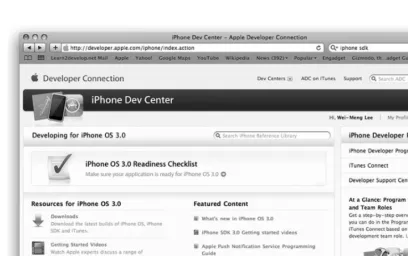
To develop for the iPhone or iPod Touch, you fi rst need to sign up as a Registered iPhone Developer at http://developer.apple.com/iphone/program/start/register/ . The registration is free and provides you with access to the iPhone SDK and other resources that are useful for getting started. After signing up, you can download the iPhone SDK (see Figure 1 - 1).
FIGURE 1-1
Before you install the iPhone SDK, make sure you satisfy the following system requirements: Only Intel Macs are supported, so if you have another processor type (such as the older G4 or G5 Macs), you ’ re out of luck.
You have updated your system with the latest Mac OS X release.
An iPhone/iPod Touch device is highly recommended, though not strictly necessary. To test your application, you can use the included iPhone Simulator. However, if you want to test certain hardware features like the camera, accelerometer, and such, you would need to use a real device. When the SDK is downloaded, proceed with installing it (see Figure 1 - 2). You will be asked to accept a few licensing agreements and then select the destination folder in which to install the SDK.
➤
If you have selected the default settings during the installation phase, after the installation you should be able to fi nd the various tools installed in the /Developer/Applications folder (see Figure 1 - 3). FIGURE 1-2
FIGURE 1-3
COMPONENTS OF THE IPHONE SDK
The iPhone SDK includes a suite of development tools to help you develop applications for your iPhone and iPod Touch. It includes:
Xcode — the Integrated Development Environment (IDE) that allows you to manage, edit, and debug your projects .
Dashcode — the Integrated Development Environment (IDE) that allows you to develop web - based iPhone applications and Dashboard Widgets. Dashcode is beyond the scope of this book.
➤
iPhone Simulator — provides a software simulator to simulate an iPhone on your Mac . Interface Builder — provides a visual editor for designing your user interfaces for your iPhone applications.
Instruments — analysis tool to help you optimize your application in real - time . The following sections discuss each tool in more detail.
Xcode
As mentioned, all the tools in the iPhone SDK are installed in the /Developer/Applications folder (when using the default settings). One of those tools is Xcode.
To launch Xcode, double - click the Xcode icon (refer to Figure 1 - 3). Alternatively, go the quicker route and use Spotlight: Simply type Xcode into the search box and Xcode should be in the Top Hit position.
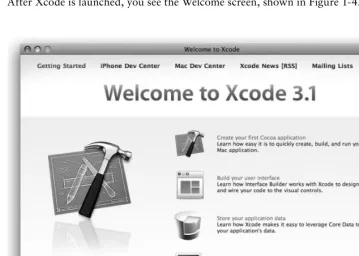
After Xcode is launched, you see the Welcome screen, shown in Figure 1 - 4. ➤
➤
➤
Using Xcode, you can develop different types of iPhone and Mac OS X applications (see Figure 1 - 5).
FIGURE 1-5
NOTE For a more comprehensive description of some of the most commonly used features in Xcode, refer to Appendix B.
iPhone Simulator
The iPhone Simulator (see Figure 1 - 7) is a very useful tool included in the iPhone SDK that you can use to test your application without using your actual iPhone/iPod Touch. The iPhone Simulator is located in the /Developer/iPhone OS < version > /Platforms/
iPhoneSimulator.platform/Developer/Applications/ folder. Most of the time, you don ’ t need to launch the iPhone Simulator directly — running (or debugging) your application in Xcode automatically brings up the iPhone Simulator. Xcode installs the application on the iPhone Simulator automatically.
The iPhone Simulator can simulate different versions of the iPhone OS (see Figure 1 - 8). This capability is very useful if you need to support older versions of the platform as well as testing and debugging errors reported in the application on specifi c versions of the OS.
THE IPHONE SIMULATOR IS NOT AN EMULATOR
The iPhone Simulator is a simulator, not an emulator. So what is the difference? Well, a simulator tries to mimic the behavior of a real device. In the case of the iPhone Simulator, it simulates the real behavior of an actual iPhone device. However, the simulator itself uses the various libraries installed on the Mac (such as QuickTime) to perform its rendering so that the effect looks the same as an actual iPhone. Also, applications tested on the simulator are compiled into x86 code, which is the byte-code understood by the simulator.
In contrast, an emulator emulates the working of a real device. Applications tested on an emulator are compiled into the actual byte-code used by the real device. The emulator executes the application by translating the byte-code into a form that can be executed by the host computer running the emulator.
A good way to understand the subtle difference between simulation and emula-tion is this: Imagine you are trying to convince a child that playing with knives is dangerous. To simulate this, you pretend to cut yourself with a knife and groan in pain. To emulate this, you hold a knife and actually cut yourself.
FIGURE 1-7
Features of the iPhone Simulator
The iPhone Simulator simulates various features of a real iPhone or iPod touch device. Features you can test on the iPhone Simulator include:
Screen rotation — left, top, and right Support for gestures:
Tap
Low - memory warning simulations
However, the iPhone Simulator, being a software simulator for the real device, does have its limitations. Features not available on the iPhone Simulator include:
Obtaining location data — it returns only a fi xed coordinate, such as Latitude 37.3317 North and Longitude 122.0307 West
Making phone calls
Accessing the Accelerometer Sending and receiving SMS messages Installing applications from the App Store Camera
Microphone
Several features of OpenGL ES
It is worth noting that the speed of the iPhone Simulator is more tightly coupled to the
performance of your Mac, as opposed to how the actual device performs. Hence, it is important that you test your application on a real device rather than rely exclusively on the iPhone Simulator for testing.
Although you have limitations with the iPhone Simulator, it is defi nitely a useful tool to get your applications tested. That said, testing your application on a real iPhone or iPod touch device is imperative before you deploy it on the AppStore.
NOTE For a more detailed look at how you can test your application on a real device, refer to Appendix E.
Uninstalling Applications from the iPhone Simulator
The user domain of the iPhone OS fi le system for the iPhone Simulator is stored in the ~/Library/ Application Support/iPhone Simulator/User/ folder.
NOTE The ~/Library/Application Support/iPhone Simulator/User/ folder is also known as the < iPhoneUserDomain > .
All third - party applications are stored in the < iPhoneUserDomain > /Applications/ folder. When an application is deployed onto the iPhone Simulator, an icon is created on the Home screen (shown on the left in Figure 1 - 9) and a fi le and a folder are created within the Applications folder (shown on the right in Figure 1 - 9).
FIGURE 1-9
To uninstall (delete) an application, execute the following steps:
1.
Click and hold the icon of the application in the Homescreen until all the icons start wriggling. Observe that all the icons now have an “ x ” button displayed on their top left corners.
2.
Click the x button (see Figure 1 - 10) next to the icon of the application you want to uninstall.3.
An alert window appears asking if you are sure you want toWARNING When the application is uninstalled, the corresponding fi le and folder in the Applications folder are deleted automatically.
To reset the iPhone Simulator to its original state, the easiest way is to select the iPhone Simulator ➪ Reset Content and Settings menu item.
Interface Builder
Interface Builder is a visual tool that allows you to design your user interfaces for your iPhone applications. Using Interface Builder, you drag and drop views on windows and then connect the various views with outlets and actions so that they can programmatically interact with your code.
NOTE Outlets and actions are discussed in more detail in Chapter 3.
Figure 1 - 11 shows the various windows in Interface Builder.
Instruments
The Instruments (see Figure 1 - 12) application allows you to dynamically trace and profi le the performance of your Mac OS X and iPhone applications.
FIGURE 1-12
Using Instruments, you can : Stress test your applications
Trace your applications for memory leaks
Gain a deep understanding of the executing behavior of your applications Track diffi cult - to - reproduce problems in your applications
➤
➤
➤
NOTE Covering the Instruments application is beyond the scope of this book. For more information, refer to Apple ’ s documentation.
ARCHITECTURE OF THE
IPHONE OS
Although this book doesn ’ t explore the innards of the iPhone OS, understanding some of the important points of the iPhone OS is useful. Figure 1 - 13 shows the different abstraction layers that make up the Mac OS X and the iPhone OS.
NOTE The iPhone OS is architecturally very similar to the Mac OS X except that the topmost layer is the Cocoa Touch for iPhone instead of the Cocoa Framework.
The bottom layer is the Core OS, which is the foundation of the operating system. It is in charge of memory management, the fi le system, networking, and other OS tasks, and it interacts directly with the hardware. The Core OS layer consists of components such as :
The Core Services layer provides fundamental access to iPhone OS services. It provides an
abstraction over the services provided in the Core OS layer. The Core Services layer consists of the following components:
The Media layer provides multimedia services that you can use in your iPhone applications. The Media layer consists of the following components:
Core Audio
The Cocoa Touch layer provides an abstraction layer to expose the various libraries for programming the iPhone and iPod Touch, such as :
Alerts Web Views People Picker Image Picker Controllers
The iPhone SDK consists of the following frameworks shown in Table 1 - 1, grouped by functionalities.
NOTE A framework is a software library that provides specifi c functionalities. ➤
AddressBook.framework Provides access to the centralized database for storing a user’s contacts.
AddressBookUI.framework Provides the UI to display the contacts stored in the Address Book database.
AudioToolbox.framework Provides low-level C APIs for audio recording and playback, as well as managing the audio hardware.
AudioUnit.framework Provides the interface for iPhone OS-supplied audio processing plug-ins in your application.
AVFoundation.framework Provides low-level C APIs for audio recording and playback, as well as for managing the audio hardware.
CFNetwork.framework Provides access to network services and confi gurations, such as HTTP, FTP, and Bonjour services.
CoreAudio.framework Declares data types and constants used by other Core Audio interfaces.
CoreData.framework Provides a generalized solution for object graph management in your application.
CoreFoundation.framework Provides abstraction for common data types, Unicode strings, XML, URL resource, and so on.
CoreGraphics.framework Provides C-based APIs for 2D rendering; based on the Quartz drawing engine.
SOME USEFUL INFORMATION BEFORE YOU GET STARTED
You now have a very good idea of the tools involved in iPhone application development. Before you go ahead and take the plunge, the following sections discuss some useful information that can make your journey a more pleasant one.
FRAMEWORK NAME DESCRIPTION
CoreLocation.framework Provides location-based information using a combination of GPS, cell ID, and Wi-Fi networks.
ExternalAccessory.framework Provides a way to communicate with accessories.
Foundation.framework Provides the foundation classes for Objective C, such as
NSObject, basic data types, operating system services, and so on.
GameKit.framework Provides networking capabilities to games; commonly used for peer-to-peer connectivity and in-game voice feature.
IOKit.framework Provides capabilities for driver development.
MapKit.framework Provides an embedded map interface for your application.
MediaPlayer.framework Provides facilities for playing movies and audio fi les.
MessageUI.framework Provides a view-controller–based interface for composing e-mail messages.
MobileCoreServices.framework Provides access to standard types and constants.
OpenAL.framework Provides an implementation of the OpenAL specifi cation.
OpenGLES.framework Provides a compact and effi cient subset of the OpenGL API for 2D and 3D drawing.
QuartzCore.framework Provides ability to confi gure animations and eff ects and then render those eff ects in hardware.
Security.framework Provides the ability to secure your data and control access to software.
StoreKit.framework Provides in-app purchase support for applications.
SystemConfi guration. framework
Provides the ability to determine network availability and state on device.
Versions of iPhone OS
At the time of writing, the iPhone OS is in its third revision — that is, version 3.0. The iPhone OS has gone through several revisions, and the major versions are as follows:
1.0 — initial release of iPhone
For a detailed description of the features in each release, check out http://en.wikipedia .org/wiki/IPhone_OS_version_history .
WHAT’S NEW IN IPHONE OS 3.0
In June 2009, Apple released the third major revision of the iPhone OS with an updated device — the iPhone 3GS. The S stands for speed: The new device has a faster processor (600 MHz), and the reoptimized OS makes the iPhone run faster in all aspects.
Some of the important new features of iPhone OS 3.0 include: Voice activation.
Improved camera (3 megapixel and autofocus) and support for video capturing.
Ability to locate your iPhone through the Find My iPhone feature (requires a subscription to a MobileMe account).
Support for MMS and tethering (requires provider support). Cut, Copy and Paste support.
New developer APIs:
Push notifi cations for third-party applications. Bluetooth services: A2DP, LDAP, P2P, and Bonjour. Mapping of the API.
Testing on Real Devices
One of the most common complaints that beginning iPhone programmers made was about the inability to test iPhone applications they have developed on their actual devices. It seems odd that as the owner of the device, they can ’ t even test their applications on it. Turns out that for security reasons, Apple requires all applications to be signed with a valid certifi cate, and for testing purposes, a developer certifi cate is required.
To test your applications on a device, you must sign up for the iPhone Developer program and request that a developer certifi cate be installed onto your device. This is a lengthy process, but I give you detailed help with it in Appendix E.
Screen Resolution
The iPhone is a beautiful device with a high - resolution screen. At 3.5 inches (diagonally), the iPhone screen supports multitouch operation and allows a pixel resolution of 480 x 320 at 163 ppi (see Figure 1 - 14). When designing your application, note that despite the 480 x 320 resolution, most of the time you ’ re limited to 460 x 320 pixels because of the status bar. Of course, you can turn off the status bar programmatically and gain access to the full 480 x 320 resolution.
Also, be mindful that users may rotate the device to display your application in Landscape mode. In that case, you have to make provisions to your user interface so that the applications can still work properly in Landscape mode should you decide to support the new orientation.
NOTE Chapter 6 discusses how to handle screen rotations.
Single - Window Applications
If you are new to mobile programming, you need to be aware that the limited screen real estate means that most mobile platforms support only single - window applications — that is, your application window occupies the entire screen. The iPhone is no exception to this platform limitation. Overlapping windows that are so common in desktop operating systems (such as Mac OS X and Windows) are not supported on the iPhone.
No Background Applications
One of the major challenges in programming mobile devices is power management. A badly written application can be a resource hog and will drain the battery of the device very quickly. Apple acknowledges this issue, and from reviewing experiences obtained from other platforms,
decided that major culprits in hurting battery life and performance are background applications. On other platforms (such as Windows Mobile), when an application goes out of view (because of an incoming call, for example), the application remains in memory, and each background application retained in memory continues to takes its toll on the device ’ s performance and battery life.
Apple ’ s solution to this problem is simple: Disallow applications to run in the background. Although this is an effective solution, it has irked a lot of developers. Many useful applications require background operation to function correctly. For example, a chatting application needs to be running to receive messages from other users. To overcome this limitation, Apple has developed its Push Notifi cation Service, which feeds applications with data even when they are not running. This service was released with iPhone 3.0. Using push technology, a device is constantly connected to Apple ’ s server through an IP connection. When a device needs attention, a notifi cation is sent from Apple ’ s server to the device, thereby alerting the specifi c application that needs to service that notifi cation.
NOTE Push notifi cation is beyond the scope of this book. For more information, visit Apple ’ s iPhone Dev Center at http://developer.apple.com/iphone/ index.action .
Restrictions on Calling Third - Party Applications
Another restriction that Apple places on iPhone developers is that you are not allowed to call third - party applications from within your application. In addition, you can ’ t run interpreted code from within your application. A good example involves writing a Web browser application for the iPhone. Because Web applications typically use JavaScript for client - side interactivity, this restriction by Apple means that you can ’ t run JavaScript code from within your
application.
SUMMARY
WHAT YOU HAVE LEARNED IN THIS CHAPTER
TOPIC KEY CONCEPTS
Obtaining the iPhone SDK Register as an iPhone Developer at http://developer.apple. com fi rst and download the free SDK.
iPhone Simulator Most of the testing can be done on the iPhone Simulator. However, it is strongly recommended that you have a real device for actual testing.
Limitations of the iPhone Simulator Access to hardware is generally not supported by the simulator. For example, the camera, accelerometer, voice recording, and so on are not supported.
Frameworks in the iPhone SDK The iPhone SDK provides several frameworks that perform specifi c functionalities on the iPhone. You program your iPhone applications using all these frameworks.
Background applications The iPhone does not support third-party background applications.
Screen resolution 480 x 320 pixels (with status bar hidden). 460 x 320 pixels (with status bar visible).
Single window applications All iPhone applications are single-windowed — that is, all windows fi ll the entire screen and overlapping windows are not allowed.
Write Your First Hello
World! Application
WHAT YOU WILL LEARN IN THIS CHAPTER
Create a new iPhone project
Build your fi rst iPhone application using Xcode
Design the user interface (UI) of your iPhone application using Interface Builder
Write some simple code to allow the application to rotate its content based on the orientation of the device.
Add an icon to your iPhone application
Now that you have set up all the tools and SDK, you are ready to start developing for the iPhone and iPod Touch! For programming books, it is customary to start the chapter by showing you how to develop a “ Hello World! ” application. This approach allows you to use the various tools very quickly without getting bogged down in the details. It also provides you with instant gratifi cation: You see for yourself that things really work, which can be a morale booster that inspires you to learn more.
GETTING STARTED WITH XCODE
Power up Xcode and you should see the Welcome screen, as shown in Figure 2 - 1.
➤
➤
➤
➤
NOTE The easiest way to start Xcode is to type Xcode in Spotlight and then press the Enter key to launch it.
FIGURE 2-1
Although there are quite a few types of iPhone applications you can create, for this chapter, select the View - Based Application template and click the Choose button.
NOTE Subsequent chapters show you how to develop some of the other types of iPhone applications, such as Utility Application, Tab Bar Application, and Navigation Application.
Select the View - Based Application template and click Choose. Name the project HelloWorld and
click Save. Xcode then proceeds to create the project for the template you have selected. Figure 2 - 3 shows the various fi les and folders in your project.
The left panel of Xcode shows the groupings in the project. You can expand on each group to reveal the fi les contained in each group (and folders). The right panel of Xcode shows the fi les contained within the group (or folder) you have selected on the left panel. To edit a particular fi le, select that fi le, and the editor at the bottom of the right panel opens the fi le for editing. If you want a separate window for editing, simply double - click a fi le to edit it in a new window.
In the following Try It Out, you will learn how to customize the Xcode toolbar area to add commonly used items.
TRY IT OUT
Customizing the Xcode Toolbar Area
Codefi le [HelloWorld.zip] is available for download from Wrox.com
The top part of Xcode is the toolbar area. This area contains all the toolbar menu items that are commonly used in the development process. You can customize the toolbar area to add such items.
1.
Give this a try by choosing View ➪ Customize Toolbar. A drop-down window appears (see Figure 2-4).2.
To add an item to the toolbar, simply drag and drop the item onto the toolbar. Figure 2-5 shows the Active SDK item added to the toolbar.FIGURE 2-4
3.
The Active SDK item allows you to select whether to deploy your application to a real device or the iPhone Simulator (see Figure 2-6).How It Works
By adding commonly used items to the Xcode toolbar area,
you can improve the effi ciency of your development process. In this case, you have added the Active SDK toolbar item to the toolbar area so that you can quickly switch between testing your application on the iPhone Simulator and on a real device simply by selecting the active SDK on the toolbar.
Using Interface Builder
Until now, this project has had no UI. To prove this fact, simply press Command - R (or select Run ➪ Run), and your application is deployed to the included iPhone Simulator. Figure 2 - 7 shows the blank screen displayed on the iPhone Simulator. It ’ s good to see this now, because as you go through the chapter you will see what changes occur based on your actions.
Obviously, a blank screen is not very useful. So, it ’ s time to try adding some controls to the UI of your application. If you examine the list of fi les in your project, you notice two fi les with the .xib
extension — MainWindow.xib and HelloWorldViewController. xib . Files with .xib extensions are basically XML fi les containing the UI defi nitions of an application. You can edit .xib fi les by either modifying their XML content, or more easily (and more sanely), edit them using Interface Builder.
Interface Builder comes as part of the iPhone SDK and allows you to build the UI of an iPhone (and Mac) applications by using drag - and - drop.
Double - click the HelloWorldViewController.xib fi le to launch Interface Builder. Figure 2 - 8 shows Interface Builder displaying the content of HelloWorldViewController.xib (which is really
empty at this moment). As you can see, the Library window shows all the various controls that you can add to the UI of your iPhone application. The View window shows the graphical layout of your UI. You will see the use of the other windows shortly.
FIGURE 2-6
Now, scroll down to the Label control in the Library pane and drag and drop a Label view onto the View window. After the Label view is added, select the Label view and choose the Tools ➪ Attributes Inspector. Enter Hello World! in the Text fi eld. Also, next to Layout, click the center Alignment type (see Figure 2 - 9). FIGURE 2-8
Next, from the Library window drag and drop a Text Field view to the View window, followed by a Round Rect Button view. Modify the attribute of the Round Rect Button view by entering Click Me! in the Title fi eld (see Figure 2 - 10).
NOTE Rather than specify the Title property of a view to make the text display in the view (for example, the Label and the Round Rect Button views), you can also simply double - click the view itself and type the text directly. After you ’ ve done this, you can rearrange the controls and resize them to suit your needs. Note that Interface Builder provides you with alignment guidelines to help you arrange your controls in a visually pleasing layout.
Save the HelloWorldViewController.xib fi le by pressing
Command - S. Then, return to Xcode and run the application again by pressing Command - R . The iPhone Simulator now displays the
modifi ed UI (see Figure 2 - 11).
Tap the Text Field view and watch the keyboard automatically appear (see Figure 2 - 12).
If you press the Home button on the iPhone Simulator, you will notice that your application has been installed on the simulator (you need to fl ick to the next page on the right after the Home screen is displayed). To go back to the application, simply tap the HelloWorld icon again (see Figure 2 - 13).
NOTE Only one application can run on the iPhone at any time (except for some built - in applications by Apple). Hence, when you press the Home button on your iPhone, your application exits. Tapping an application icon starts the applica-tion all over again.
Changing Screen Orientations
The iPhone Simulator also supports changes in view orientation. To change the view to Landscape mode, press the Command - → key combination. Figure 2 - 14 shows how your application looks in
Landscape mode. Press Command -← to change back to Portrait mode.
FIGURE 2-12 FIGURE 2-13
Notice that your application does not respond to changes in view orientations. To make your application respond appropriately when the view orientation changes, you need to modify your code.
In Xcode, edit the HelloWorldViewController.m fi le and look for the following code segment (this
block of code is commented out by default):
- (BOOL)shouldAutorotateToInterfaceOrientation:(UIInterfaceOrientation) interfaceOrientation {
// Return YES for supported orientations
return (interfaceOrientation == UIInterfaceOrientationPortrait); }
NOTE At this juncture, do not worry about the other fi les such as
HelloWorldAppDelegate.h and HelloWorldAppDelegate.m. You learn more about them in later chapters.
Modify the preceding code to return YES , as shown in the following snippet:
- (BOOL)shouldAutorotateToInterfaceOrientation:(UIInterfaceOrientation) interfaceOrientation {
// Return YES for supported orientations
return YES;
}
Run the application again. This time, notice that your application rotates as the view orientation changes (see Figure 2 - 15).
Views Repositioning
In the previous section, you saw that as the orientation changes, the size and positioning of the views remain. In the real world, this scenario is not desirable because it doesn ’ t give the user a good experience while using your application. Ideally, you should reposition your views on the screen so that they change with the view orientation.
To reposition your views, go to the Interface Builder, select the Label view, and choose Tools ➪ Size Inspector. Modify the Autosizing attribute of the view as shown in Figure 2 - 16 (observe carefully
the various anchors that are set in the Autosizing section). This will cause the Label view to expand/ contract as the view orientation changes. At the same time, the view will anchor to the left, top, and right of the screen.
FIGURE 2-16
Likewise, modify the Autosizing attribute of the Text Field view as shown in Figure 2 - 17. Note the
FIGURE 2-18
Finally, modify the Autosizing attribute for the Round Rect Button control as shown in
Figure 2 - 18. This time, you are not resizing the view when the view orientation changes. Instead, you are only anchoring it to the top of the screen.
That ’ s it! Within Interface Builder, you can click the arrow located at the top - right corner
(see Figure 2 - 19) of the screen to rotate the screen so that you can view the effect of the changes you have made immediately.
Writing Some Code
So far, you have not written any code, because you should be comfortable with Xcode and Interface Builder before embarking on coding. Nevertheless, it ’ s now time to write some code to give you a fl avor of programming with iPhone.
Recall that in the section about the Interface Builder, earlier in this chapter, I show a window labeled HelloWorldViewController.xib . Within this window are three components: File ’ s Owner,
First Responder, and View.
Select File ’ s Owner and then choose Tools ➪ Identity Inspector from the menu.
In the Identity Inspector window, click the + (plus) button shown under Class Actions (see Figure 2 - 21). Enter btnClicked: in the action name fi eld. (Remember to include the colon because it is part of an action name.) Doing so creates an action (also known as an event handler) named btnClicked: .
FIGURE 2-20 FIGURE 2-19
Control - click the Round Rect Button view in the View window and drag it to the File ’ s Owner item in the HelloWorldViewController.xib window (see Figure 2 - 22). A small pop - up containing the
btnClicked: action appears. Select the btnClicked: action. Basically, what you are doing here is linking the Round Rect Button view with the action ( btnClicked: ) so that when the user clicks the button, the action is invoked.
In the HelloWorldViewController.h fi le, add a header declaration for the btnClicked: action:
// Copyright __MyCompanyName__ 2009. All rights reserved. //
#import < UIKit/UIKit.h >
@interface HelloWorldViewController : UIViewController {
}
//---declaration for the btnClicked: action----(IBAction) btnClicked:(id)sender;
@end
In the HelloWorldViewController.m fi le, add the code that provides the implementation for the btnClicked: action:
- (void)dealloc { [super dealloc]; }
//---implementation for the btnClicked: action----(IBAction) btnClicked:(id)sender {
//---display an alert
UIAlertView *alert = [[UIAlertView alloc]
initWithTitle:@"Hello World!" message: @"iPhone, here I come!" delegate:self
The preceding code displays an alert containing the sentence “ iPhone, here I come! ”
That ’ s it! Go back to Xcode and run the application again. This time, when you tap the button view, an alert view displays (see Figure 2 - 23).
CUSTOMIZING YOUR APPLICATION ICON
As you have observed earlier in Figure 2 - 13, the application installed on your iPhone Simulator uses a default white image as your application icon. It is possible, however, to customize this icon. When designing icons for your iPhone applications, bear the following in mind:
Design your icon to be 57 x 57 pixels. Larger size is all right because iPhone automatically sizes it for you. In fact, you should design your icons in a larger size in the event Apple releases new devices that are larger than the current size/form factor.
For distribution through the App Store, you need to prepare a 512 x 512 pixel image. Use square corners for your icon image, because iPhone will automatically round them and add a glossy surface (you can turn off this feature, though).
In the following Try It Out, you will learn how to add an icon to your application so that the iPhone Simulator will use it instead of the default white image.
TRY IT OUT
Adding an Icon to the Application
1.
To make your application more interesting, you should specify your own icon. Before you do so, note that icons for the iPhone come in two sizes: 57 x 57 pixels (for the main screen) and 29 x 29 pixels (as shown in the Settings application). Figure 2-24 shows the two possible sizes for the icon.➤
➤
➤
2.
To add an icon to your application, drag and drop an image onto the Resources folder of your project (see Figure 2-25). You will be asked if you want to make a copy of the image you are dropping. Check this option so that a copy of the image will now be stored in your project folder.FIGURE 2-25
3.
Select the Info.plist item (also located under the Resources folder). Select the Icon fi le item andset its value to the name of the icon (app-icon.png; see Figure 2-26). This specifi es the name of
Run the application and test it on the iPhone Simulator. Press the Home button to return to the main screen of the iPhone. You should now see the newly added icon (see Figure 2-27).
SUMMARY
This chapter was a whirlwind journey of developing your fi rst iPhone application. Although you may still have many questions, the aim of this chapter was to get you started. The next few chapters dive deeper into the fi ner details of iPhone programming, and the secret of all those mysterious items working in tandem are gradually revealed.
EXERCISES
1.
You tried to add an icon to your iPhone project in Xcode. What is the size of the image that you should provide?WHAT YOU HAVE LEARNED IN THIS CHAPTER
TOPIC KEY CONCEPTS
Xcode Create your iPhone application project and write code that manipulates your application.
Interface Builder Build your iPhone UI using the various views located in the Library.
Repositioning views Use the Autosizing feature in Interface Builder to ensure that the views resize even when there is an orientation change.
Adding application icon Add an image to the project and then specify the image name in Icon fi le property of the info.plist fi le.
Creating icons for your iPhone applications
Outlets, Actions, and
View Controllers
WHAT YOU WILL LEARN IN THIS CHAPTER
How to declare and defi ne outlets
How to declare and defi ne actions
How to connect outlets and actions to the views in your View window
How to add a new View Controller to your application
In the previous chapter, you built a simple Hello World! iPhone application without
understanding much of the underlying details of how things work together. In fact, one of the greatest hurdles in learning iPhone programming is the large number of details you need to learn before you can get an application up and running. This book aims to make the iPhone programming experience both fun and bearable. Hence, this chapter starts with the basics of creating an iPhone application. You learn about the various fi les that make up an iPhone application project, as well as how your code is connected with the graphical widgets you see on an iPhone application.
BASIC CODE AND UI INTERACTIONS
A View - based Application project is a good starting point for developing a single - view application and provides an excellent opportunity for you to understand some of the important concepts in iPhone programming, so that ’ s what you ’ ll work with in this section. You will need to download the code.
➤
➤
➤