• Table of Contents • Index
• Reviews
• Reader Reviews • Errata
Tomcat: The Definitive Guide
By
Jason Brittain
,Ian F. Darwin
Publisher : O'Reilly Pub Date : June 2003
ISBN : 0-59600-318-8 Pages : 336
Slots : 1
Tomcat: The Definitive Guide
offers
something for everyone who uses Tomcat.
System and network administrators will find
detailed instructions on installation,
configuration, and maintenance. For users, it
supplies insightful information on how to
deploy Tomcat. And seasoned enterprise Java
developers will have a complete reference to
setting up, running, and using this powerful
software. The book covers all major
and Mac OS X, contains details on Tomcat
• Table of Contents • Index
• Reviews
• Reader Reviews • Errata
Tomcat: The Definitive Guide
By
Jason Brittain
,Ian F. Darwin
Publisher : O'Reilly Pub Date : June 2003
ISBN : 0-59600-318-8 Pages : 336
Slots : 1
Copyright
Preface
What's This Book About?
Why an Entire Book on Tomcat?
Who This Book Is For
Conventions Used in This Book
How to Contact Us
Acknowledgments
Chapter 1. Getting Started with Tomcat
Section 1.1. Installing Tomcat
Section 1.2. Starting, Stopping, and Restarting Tomcat
Section 1.3. Automatic Startup
Section 1.4. Testing Your Tomcat Installation
Chapter 2. Configuring Tomcat
Section 2.1. Using the Apache Web Server
Section 2.2. Managing Realms, Roles, and Users
Section 2.4. Accessing JNDI and JDBC Resources
Section 2.5. Servlet Auto-Reloading
Section 2.6. Relocating the Web Applications Directory
Section 2.7. Customized User Directories
Section 2.8. Tomcat Example Applications
Section 2.9. Server-Side Includes
Section 2.10. Common Gateway Interface (CGI)
Section 2.11. The Tomcat Admin Application
Chapter 3. Deploying Servlet and JSP Web Applications in Tomcat
Section 3.1. Layout of a Web Application
Section 3.2. Manual Application Deployment
Section 3.3. Automatic Deployment
Section 3.4. The Manager Application
Section 3.5. Automation with Jakarta Ant
Chapter 4. Tomcat Performance Tuning
Section 4.1. Measuring Web Server Performance
Section 4.2. External Tuning
Section 4.3. Internal Tuning
Section 4.4. Capacity Planning
Section 4.5. Additional Resources
Chapter 5. Integration with Apache Web Server
Section 5.1. Introduction
Section 5.2. The Pros and Cons of Integration
Section 5.3. Installing Apache httpd
Section 5.4. Apache Integration with Tomcat
Section 5.5. Of Connectors and Configuration Files
Section 5.6. Summary
Chapter 6. Tomcat Security
Section 6.1. Introduction
Section 6.2. Securing the System
Section 6.3. Multiple Server Security Models
Section 6.4. Using the -security Option
Section 6.5. Setting Up a Tomcat chroot Jail
Section 6.6. Filtering Bad User Input
Section 6.7. Securing Tomcat with SSL
Chapter 7. Configuration Files and Their Elements
Section 7.1. server.xml
Section 7.2. web.xml
Section 7.4. catalina.policy
Chapter 8. Debugging and Troubleshooting
Section 8.1. Reading Log Files
Section 8.2. URLs and the HTTP Conversation
Section 8.3. Debugging with RequestDumperValve
Section 8.4. When Tomcat Won't Shut Down
Chapter 9. Building Tomcat from Source
Section 9.1. Installing Jakarta Ant
Section 9.2. Obtaining the Source
Section 9.3. Downloading Support Libraries
Section 9.4. Building Tomcat
Chapter 10. Tomcat Clustering
Section 10.1. Clustering Terms
Section 10.2. The Communication Sequence of an HTTP Request
Section 10.3. Additional Resources
Chapter 11. Final Words
Section 11.1. Supplemental Resources
Section 11.2. Community
Appendix A. Installing Java
Section A.1. Choosing a Java SDK
Appendix B. JSPs and Servlets
Section B.1. Why Both JSPs and Servlets?
Section B.2. Simplifying JSPs with JavaBeans:Reusable Components
Section B.3. Simplifying Your JSPs with Custom Tags
Section B.4. Extending Tomcat
Appendix C. jbchroot.c
Appendix D. BadInputFilterValve.java
Colophon
Copyright © 2003 O'Reilly & Associates, Inc.
Printed in the United States of America.
Published by O'Reilly & Associates, Inc., 1005 Gravenstein Highway North, Sebastopol, CA 95472.
O'Reilly & Associates books may be purchased for educational, business, or sales promotional use. Online editions are also available for most titles (http://safari.oreilly.com). For more information, contact our corporate/institutional sales
department: (800) 998-9938 or [email protected].
Nutshell Handbook, the Nutshell Handbook logo, and the
O'Reilly logo are registered trademarks of O'Reilly & Associates, Inc. Java and all Java-based trademarks and logos are
trademarks or registered trademarks of Sun Microsystems, Inc., in the United States and other countries. O'Reilly & Associates, Inc. is independent of Sun Microsystems. Many of the
designations used by manufacturers and sellers to distinguish their products are claimed as trademarks. Where those
designations appear in this book, and O'Reilly & Associates, Inc. was aware of a trademark claim, the designations have been printed in caps or initial caps. The association between the
image of a snow leopard and the topic of Tomcat is a trademark of O'Reilly & Associates, Inc.
Preface
What's This Book About?
Why an Entire Book on Tomcat?
Who This Book Is For
Conventions Used in This Book
How to Contact Us
What's This Book About?
Tomcat is a Java™ servlet container and web server from the Jakarta project of the Apache Software Foundation
(http://jakarta.apache.org). A web server is, of course, the program that dishes out web pages in response to requests from a user sitting at a web browser. But web servers aren't limited to serving up static HTML pages; they can also run programs in response to user requests and return the dynamic results to the user's browser. This is an aspect of the web that Apache's Tomcat is very good at because Tomcat provides both Java servlet and JavaServer Pages (JSP) technologies (in
addition to traditional static pages and external CGI
programming). The result is that Tomcat is a good choice for use as a web server for many applications. And it's a very good choice if you want a free, open source (http://opensource.org) servlet and JSP engine. It can be used standalone, but it is often used "behind" traditional web servers such as Apache
httpd, with the traditonal server serving static pages and Tomcat serving dynamic servlet and JSP requests.
This book is about how to use Tomcat itself. If you're looking for detailed information and tutorials about how to write web
Why an Entire Book on Tomcat?
Can't you just download and run Tomcat from the Apache Software Foundation's web site? Well, of course you can, and you'll need to, but there is a lot more to Tomcat than just getting it running. You'll get more out of Tomcat if you
understand how and why it was written. So, in Chapter 1, we explain that. To help you make informed decisions when
installing Tomcat, we spend the rest of the chapter on the installation and startup processes.
In Chapter 2, we show you all about configuring Tomcat. We talk about when you should use Tomcat as a standalone web server and servlet container, and when it's best to use Tomcat with the Apache httpd as its web server. Then, we show you how to configure realms, roles, users, servlet sessions, and JNDI resources, including JDBC DataSources. Next, we show how to turn on and off the auto-reloading of servlets, how to relocate the webapps directory, and how to map user home directories for access through Tomcat. Then, we go over how to enable and disable the example web applications, and how to enable server-side includes and common gateway interface scripting in Tomcat. Finally, we close out the chapter by
introducing you to the Tomcat administration web application, which will allow you to configure Tomcat through your web browser.
With Tomcat installed and configured just the way you like it, you're ready to learn more about servlet and JSP web
applications and how to deploy them into your Tomcat. In
Chapter 3, we show you the layout of a web application, how to deploy a web application, and how to deploy individual servlets and JSP pages. Next, we show you how to build web application archive files and how to deploy them. To make things less
manager web application, and by using the Jakarta Ant build tool.
Once you have Tomcat serving your web application, you may want to do some performance tuning. In Chapter 4, we show you how to measure and improve your Tomcat's performance. We go over adjusting the number of processor Threads, JVM and operating system performance issues as they relate to
Tomcat, turning off DNS lookups, and how to speed up JSPs. We round out the chapter by discussing how capacity planning can affect performance.
Tomcat works as a complete standalone web server. It supports static web pages, server-side includes, external CGI scripts, and many of the other paraphernalia associated with a web site. However, Tomcat's forte, its raison d'etre, is to be the best servlet and JSP engine on the block. These are the things it does best. So, for many applications you may want or need to use Tomcat in conjunction with other servers. Maybe you
already run Apache's web server and don't want to change everything all at once. So, Chapter 5, covers the use of Tomcat with an Apache frontend and talks about the several ways to make Tomcat thrive "behind" an Apache installation.
Whether you're providing e-commerce, putting up a mailing list, or running a personal site, when you're connected to the
Internet, your site is exposed to a lot of people, including a few weirdos who think it's okay to exploit the vulnerabilities in your server software for fun and profit. Because security is
important, we devote Chapter 6, to the topic of how to keep the online thugs at bay.
In Chapter 7, we talk about the Tomcat configuration files,
server.xml and web.xml, as well as tomcat-users.xml and
catalina.policy. Each can be modified to control how Tomcat works.
application, Chapter 8, shows you some ways to diagnose the problem. We show you what to look for in the log files, how the web browser interacts with Tomcat's web server during a
request, how to get verbose information about a particular request, and what to do when Tomcat just won't shut down when you tell it to.
Not everyone wants to run a prepackaged binary release of Tomcat, so in Chapter 9, we show you how to compile your own Tomcat. We show you step-by-step how to install the Jakarta Ant build tool, download all necessary support libraries, and build and install your Tomcat.
If you have more request traffic than a single Tomcat can
handle, or if you want your site to keep serving requests when one of your servers crashes, your site may need to run on more than one Tomcat server, more than one Apache, or a
combination of the two. Sometimes the only solution is more hardware. In Chapter 10, we show you some options for running two or more Tomcat servlet containers in parallel for higher scalability, and we discuss the pros and cons of various clustering approaches.
In Chapter 11, we have tried to bring together a solid listing of Tomcat resources that you can use in your further explorations of Tomcat. While this is hardly comprehensive, these are the resources we find ourselves most often pulling up in a browser or opening on our desks.
Depending on your operating system, installing Java may not be as straightforward as you think. To ensure that Tomcat runs well on your server computer, in Appendix A, we show you step-by-step how to install the JDK, as well as some Java issues to watch out for.
site, tools for letting your JSP send email, and even how you can generate a PDF document from a JSP, as well as other useful free programs.
Appendix C is the source code for jbchroot.c, a useful program to make the chroot jail operation described in Chapter 6
possible on any Unix-like platform.
Who This Book Is For
The book is written for anyone who wants to learn about the Tomcat servlet container. You do not have to be a programmer to use Tomcat or this book; all of the Java programming is, as mentioned earlier, tucked away inside servlets or other
components. You may be a system or network administrator who wants to run a small simple web site. You may be an
experienced Apache Web Server webmaster who now needs to run one or more servlets or JSPs as part of a larger site, or a programmer who is developing Java web components and wants to quickly get up to speed on using Tomcat as a web application development framework. Maybe you're running a J2EE server or Sun's Web Server Pack and want more
documentation on the Tomcat part of that software. For any of these and other readers, this book provides an excellent
Conventions Used in This Book
The following font conventions are used in this book:
Italic
Indicates filenames, pathnames, program names, URLs, and new terms where they are defined.
Constant width
Indicates command lines and options that should be typed verbatim, Java class names and attributes, and XML
element names and tags.
Constant width bold
In code examples, indicates user input or lines of particular note.
Constant width italic
Indicates text that should be replaced with user-supplied values.
Indicates a tip, suggestion, or general note
Indicates a warning or caution.
Additionally, the initials "SRV" with a dotted decimal number after them refers to the indicated section in the Servlet
"JSP" with a dotted number refers to the given section in the JSP specification. You can download the servlet and JSP
specifications from http://java.sun.com/products/servlet and
How to Contact Us
We have tested and verified the information in this book to the best of our ability, but you may find that features have changed (or even that we have made mistakes!). Please let us know
about any errors you find, as well as your suggestions for future editions, by writing to:
O'Reilly & Associates
1005 Gravenstein Highway North Sebastopol, CA 95472
+1 800-998-9938 (in the U.S.A. or Canada) +1 707-829-0515 (international or local) +1 707-829-0104 (FAX)
You can also send us messages electronically. To be put on the mailing list or request a catalog, send email to:
To ask technical questions or comment on the book, send email to:
There is a web site for the book, where we'll list examples, errata, and any plans for future editions. You can access this page at:
http://www.oreilly.com/catalog/tomcat
For more information about this book and the complete line of O'Reilly books, conferences, news sites, and so forth, see the O'Reilly web site:
There are also web sites for this book that are maintained by its authors:
Acknowledgments
Thanks to James Duncan Davidson and Sun Microsystems for giving us Tomcat in the first place. James worked above and beyond the call of duty to write it and to work out the details of how it could become open source software. Sun Microsystems supported his pioneering work and has strongly supported the evolution of Tomcat since its donation to the Apache Software Foundation.
Thanks to (in no particular order) Craig McClanahan, Remy Maucherat, Pier Fumagalli, Costin Manolache, Henri Gomez, Ignacio J. Ortega, Jean-Frederic Clere, Glenn Neilsen, Bill Barker, Amy Roh, Hans Bergsten, Patrick Luby, Mladen Turk, Jeanfrancois Arcand, Jon Stevens, Filip Hanik, and others on the Tomcat mailing lists. Craig and Remy were the prime movers of the Tomcat 4 (Catalina) server. Many of us wonder how and when they sleep. Thank you, Craig, for Tomcat 4, for answers, and for your revolutionary code. Thank you, Remy, for the hard work; you've helped us so much through many great releases.
Open source projects are just not the same without a vibrant community surrounding them, and we believe that Tomcat could not have gone so far so fast without the stewardship of the
Apache Software Foundation and its members. Thanks, ASF, for your hard work, servers, and bandwidth.
Jason Hunter, author of O'Reilly's Java Servlet Programming, provided a very careful reading of the drafts and suggested many, many improvements. Special thanks to you, Jason.
Paula Ferguson saw the book through the early stages, then passed the torch to Brett McLaughlin. Brett made innumerable minor suggestions to improve the book, and also several times talked us into reorganizing scattered material into the
Brett!
Ian Darwin's Acknowledgments
Mike Loukides encouraged me to find an O'Reilly book to write, when a competing publisher tried to lure me away after the success of the Java Cookbook.
Kevin Bedell read the manuscript carefully cover to cover and suggested many improvements (as well as spotting several errors and omissions). Thanks, Kevin.
Over the years, I have learned a lot about JavaServer Pages from Chad Darby, author of Learning Tree's
(http://www.learningtree.com) course on servlets and JavaServer Pages. Chad also did a helpful review of the manuscript.
And, of course, to Betty, the woman of my life, and our children Benjamin, Andy, and Margaret. Thanks for your support and for the time away.
Jason Brittain's Acknowledgments
I couldn't have written my portion of this book without my wife, Carmina. She's always shown confidence in me over the years, and with her I'm happier than I've ever been. Cutie, from the bottom of my heart, I thank you for all of your help with this book!
Thanks to James Duncan Davidson and Jason Hunter, who together had a strong vision of excellence for this book and worked hard to make that vision a reality.
Tomcat, contributes to the Tomcat project, and kept me employed while I wrote my portion of this book.
Thanks to everyone at the (now defunct) Olliance Inc., who were patient while I carefully studied Tomcat and contributed to the project. The time I spent on Tomcat there will hopefully now be a great help to anyone who uses Tomcat.
Thanks to everyone I worked with at Leverage Information Systems, especially Ben Lai, David Smith, Thede Loder, Piyush Shah, Christine Etheredge, Alex Lisowski, Iain Lamb, and Chip Clofine, who got me into participating in open source servlet container projects in the first place. Each of you has been inspirational to me.
Thanks also goes to my good friends Lane Davis and Michaël Mattox, who have each helped me in numerous ways over the years, including helping me with this book.
I also want to thank Rodney Joffe, formerly of Genuity, for having lots of confidence in me early on in my career and for introducing me to the subjects of high availability, load
Chapter 1. Getting Started with Tomcat
The first Java servlet container was Sun Microsystems's Java Web Server (JWS). It was more affordable than mostcommercial server offerings, but it did not enjoy widespread commercial success. This was due largely to Java's novelty and the fact that servlets had only recently been introduced. One of JWS's main outgrowths, however, was the Java Servlet
Specification, a de facto standard that Sun documented and made available separately. One big success of JWS was that it put Java servlets in the limelight.
In 1996, a plethora of free Java servlet containers became popular. Apache's JServ and CERN/W3C's Jigsaw were two of the earliest open source Java servlet containers. They were quickly followed by several more, including Jetty
(http://www.jetty.org), the Locomotive Application Server (see the web archives at
http://web.archive.org/web/*/http://www.locomotive.org), Enhydra (http://www.enhydra.org), and many others. At the same time, commercial servlet containers became available as the industry embraced the Java servlet standard; some of these were WebLogic's Tengah, ATG's Dynamo, and LiveSoftware's JRun.
In 1997, Sun released their first version of the Java Servlet Development Kit (JSDK). The JSDK was a very small servlet container that supported JavaServer Pages (JSP) and had a built-in HTTP 1.0 web server. In an effort to provide a reference implementation for developing servlets, Sun made it available as a free download to anyone wanting to experiment with the new Java server-side standard. It also had success as a testing and development platform, in preparation for deployment to a commercial server.
specification, which built upon the Java Servlet API and allowed more rapid development of dynamic web application content. After the 2.1 release of the JSDK (now called the JSWDK to add "Web" to the name), James Duncan Davidson at Sun rewrote the core of the older JSDK server. At the heart of this new Java servlet engine reference implementation was a brand new
Why the Name Tomcat?
Tomcat was created when James Duncan Davidson (then an employee at Sun) wrote a new server based on the servlet and JSP idea, but without using any code from JWS.
As James put it when we asked him about this, "O'Reilly books have animals on the covers. So what animal would I want on the cover of the O'Reilly book covering the technology?
"Furthermore, I wanted the animal to be something that was self-sufficient. Able to take care of itself, even if neglected, etc. Tomcat came out of that thought."
He code-named it Tomcat, and the name was effectively obscured from view because it was the internal engine of the JSWDK, and not a product name. Until . . .
"At the 4th Java One, somebody asked about it in the audience, as they had decompiled the sources and wanted to know what com.sun.tomcat...* was."
As the servlet and JSP specifications' reference implementation had done, Tomcat evolved rapidly and grew. As the
specifications became rich with features, so did Tomcat, and with it the JSWDK. For various reasons, James and Sun wanted to open the code to the JSWDK. This was largely so developers everywhere could examine how servlets and JSP operated. Here's what Jason Hunter of the Apache Software Foundation says about what happened next:
Sun wanted to spread the adoption of the technology, especially JSP, and Apache was a good venue to enable that. From what James said at the time and since, they wouldn't have open sourced it on their own except if Apache (with majority web server marketshare) would take the code, well then! What's funny is Sun gave it for JSP, Apache took it for servlets.
since its donation to the Apache Software Foundation.
Since it is freely distributable, backed by both Sun and the Apache Software Foundation, is the reference implementation for the Java Servlet Specification, and is all-around "cool," Tomcat went on to redefine the very meaning of a Java server, let alone a servlet container. Today, it's one of the most widely used open source software packages and is a collaborative project bustling with activity every day of the year.
As of this writing, there are two production-ready versions of Tomcat in circulation: the widely used initial Release 3, based upon the Sun code; and the newer Release 4, a near-total rewrite code-named "Catalina." Tomcat 4.0 was released just after we began writing this book, a production-ready 4.1 has also been released, and Tomcat 5 is in early alpha, so this book primarily covers Release 4.x. If you are still running Tomcat 3, this book's concepts will apply, but the implementation details may be different. You may want to consider upgrading to
Tomcat 4 and using this book as your roadmap.
In the Preface, we mentioned that Tomcat lets you run Java-based servlets and JSP. Using servlets or JSP provides
performance benefits comparable to traditional CGI
programming[1] while still providing Java's many benefits and a
rich API. This performance gain is particularly noticeable with something called Just In Time translation, or JIT, which is part of all modern Java implementations.
[1] CGI, the Common Gateway Interface, was the web's first standard for allowing web servers access to backend programs for filling in forms. CGI is language-neutral; CGI programs were written as batch files or shell scripts, awk, Perl or Python scripts, and even C programs. The drawback in each case is that a relatively expensive operating system-level process was created each time a user clicked on a form, resulting in poor performance.
modules). But Tomcat is free, open source software, and many talented people are contributing to its growth.
Because Tomcat is written in Java, some people assume that you have to be a Java guru to use it. This is not so! While you need to know Java in order to modify the internals of Tomcat or write your own servlet programs, you do not need to know any Java to use Tomcat or write or maintain many JSPs. For
example, you can have JSPs that use JavaBeans™ or JSP
Custom Tags; in both of these cases, you are simply using Java components that a developer has set up for you.
1.1 Installing Tomcat
There are several paths to getting Tomcat up and running. The quickest way is to download and run the compiled binary.
Tomcat is written in Java, which means you must have a
modern Java runtime installed before you can build or test it. Read Appendix A to make sure you have Java installed properly.
One of the benefits of open source projects is that programmers find and fix bugs and make improvements to the software. If you're not a programmer, there is little to be gained from
recompiling the source, since you are not interested in this level of interaction. To get started quickly, download a binary
package for your system.
If you do want some hints on compiling from source, see Chapter 9.
There are two levels of packaging. The Apache Software
Foundation publishes binary packages in the form of releases and nightly builds. Other organizations repackage these into RPMs for Linux, packages for BSD, and so forth. The best way to install Tomcat, then, depends on your system. We'll explain this process on several systems: Linux, Solaris, Windows, Mac OS X, and OpenBSD.
Regardless of your platform, if you choose the Apache Jakarta Tomcat binary release, there are two editions to choose from. Here's how the Jakarta binary release download page describes each:
Standard
can be run on JDK 1.2+.
JDK 1.4 LE
This is a lightweight binary distribution of Tomcat 4,
designed for JDK 1.4. It does not include any of the optional binaries or the necessary XML parser (as these are included in JDK 1.4). All the components of this distribution are open source software.
LE-style releases do not contain JavaMail, Java Activation Framework, Xerces, Java Naming and Directory Interface (JNDI), or the JDBC Standard Extension.
1.1.1 Installing Tomcat on Linux
Tomcat is available in two different binary release formats for Linux users:
Multiplatform binary releases
You can download, install, and run any of the Tomcat binary releases from Apache's Jakarta web site, regardless of the Linux distribution you run. This allows you to install Tomcat into any directory you choose, and you can install it as any user ID in the system. However, because the installation is not tracked by any package manager, it will be more
difficult to upgrade or uninstall later.
RPMs
If you run RedHat Linux (or another Linux that uses the RedHat package manager) you can download a binary RPM package of Tomcat. This allows for easy uninstalls and
to this method of installation are that you cannot choose what directory Tomcat is installed into, and you must install the Tomcat RPM package as the root user.
1.1.1.1 Installing Tomcat from a Jakarta
multiplatform binary release
First, switch to the user that you'd like to run Tomcat as. This will ensure that all of Tomcat's files will start out with the
correct Unix file permissions. For security reasons, you should probably run Tomcat as the nobody user or create a new tomcat
user with similarly low privileges. We suggest setting that user's login shell to /bin/false and locking the user's password so that it can't be guessed.
Then, download a release archive from the Apache Jakarta
binary release page at http://jakarta.apache.org/builds/jakarta-tomcat-4.0/release/.
Even though that URL says tomcat-4.0, it also includes 4.1.x releases.
If you downloaded the jakarta-tomcat-4.1.24.tar.gz archive, for example, decompress it wherever you want Tomcat's files to reside (see Example 1-1).
Example 1-1. Linux binary release installation
jasonb$ cd $HOME
jasonb$ tar zxvf ~jasonb/jakarta-tomcat-4.1.24.tar.gz
computer boots up, see Section 1.3, later in this chapter.
1.1.1.2 Installing Tomcat from a Jakarta Linux
RPM
To download the Jakarta Tomcat RPMs, visit
http://jakarta.apache.org/builds/jakarta-tomcat-4.0/release/. Select the version you want to download, and then click on the
rpms directory to download the appropriate RPM package. Then, install the RPM as shown in Example 1-2.
Example 1-2. Linux RPM installation
# rpm -ivh tomcat4-4.1.24-full.1jpp.noarch.rpm
Preparing... ########################################### [100%]
1:tomcat4 ########################################### [100%]
Don't forget to setup vars in /etc/tomcat4/tomcat4.conf to
adapt the RPM to your configuration.
Also edit/create /etc/java.conf to define your default JDK
For security purposes, tomcat4 service is installed
but not activated by default.
ie: ntsysv
Don't worry about the security noticeit's standard on all
systems. By default, Tomcat won't run when the computer is rebooted; see Section 1.3, later in this chapter, for information on how to change this.
The Tomcat 4 RPM creates a user and group (both named tomcat4) and runs Tomcat with that user and group. The default shell of the tomcat4
user is /bin/bash. Don't try to change this, or Tomcat will stop running correctly.
To install Tomcat's sample web applications, download another RPM, as shown in Example 1-3.
Example 1-3. Linux RPM installation of sample
web applications
# rpm -ivh tomcat4-webapps-4.1.9-full.1jpp.noarch.rpm
Preparing... ########################################### [100%]
1:tomcat4-webapps ########################################### [100%]
You can choose not to install the webapps RPM, but Tomcat will log errors on startup. Tomcat will operate normally, but be aware that these errors indicate that Tomcat is looking for these sample applications.
Next, edit /etc/tomcat4/tomcat4.conf and add a line defining where JAVA_HOME is on your server computer:
# Where your java installation lives
# JAVA_HOME="/usr/java/jdk"
# JAVA_HOME="/opt/IBMJava2-131"
# This is our JAVA_HOME, but yours may be different
JAVA_HOME="/usr/local/jdk1.4"
You could also add the JAVA_HOME variable definition to
/etc/java.conf if you do not want to modify any files that are under RPM's control. If you do this, be sure that /etc/java.conf
has the proper owner, group, and permissions so that it is readable by the tomcat4 startup script.
To determine where the RPM put all of the files for Tomcat, run the following command:
$ rpm -ql tomcat4
If you are looking for more Java components to install, and you want to install them as RPMs, you can find many of them on the JPackage Project page (http://www.jpackage.org).
1.1.2 Installing Tomcat on Solaris
As of this writing, there are no Solaris SYSV packages of recent Tomcat releases, so you will need to install a binary release. These releases work just as well on Solaris as on other
Solaris 9 ships with an older version of Tomcat. This checks to see if it's installed:
jasonb$ pkginfo | grep -i tomcat
If this command outputs one or more packages, then a version of Tomcat is installed. To get more information about the package, use
pkginfo with the -l switch. For example, if the preinstalled Tomcat package name is SUNWtomcat:
jasonb$ pkginfo -l SUNWtomcat
Even if Tomcat is installed, it should not cause problems. To be safe, we suggest uninstalling an existing Tomcat package only if you're prepared to deal with any breakage that removal may cause. If you're sure the package is causing you problems, you can remove it as the root user:
# pkgrm SUNWtomcat
Switch to the user that you'd like to run Tomcat as. This will take care of your Unix file permissions. Then, download a
release archive from the Apache Jakarta binary release page at
http://jakarta.apache.org/builds/jakarta-tomcat-4.0/release/. Decompress this wherever you want Tomcat's files to reside (see Example 1-1 in Section 1.1.1, earlier in this chapter).
Once decompression is done, Tomcat is ready to run. To learn how to make Tomcat run when your server computer boots up, see Section 1.3, later in this chapter.
1.1.3 Installing Tomcat on Windows 2000
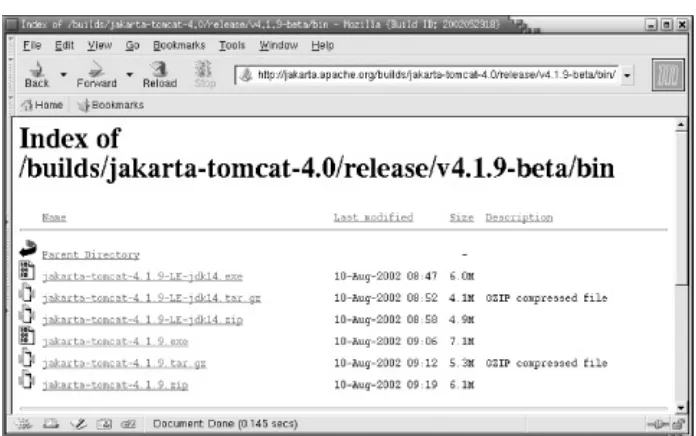
Figure 1-1. Download directory
When you download and run this installer program, it will first verify that it can find a JDK and JRE, and then prompt you with a license agreement. This license is the Apache Software
License, which allows you to do pretty much anything with the software as long as you give credit where it's due. Accept the license to get to the Installation Options screen shown in Figure 1-2.
If you want to have Tomcat started automatically and want the ability to control it from the Services Control Panel, check the box to install the NT Service software.
The Tomcat Source Code is optional; if you are into Java development or are just curious, feel free to select it. Then, specify where to install Tomcat. The default is in C:\Program Files\Apache Tomcat 4.0. Change it if you want, as shown in
Figure 1-3.
Figure 1-3. Installation Directory
While the installer is running, it quickly prints a list of all the files it installs and provides a gauge indicating its progress. Once the installation completes normally, you should see the message "Completed" at the end of this list, as shown in Figure 1-4.
If you explore the resulting folder, you will see the directory structure that was installed, as in Figure 1-5. You will also see a "Start Tomcat" icon on your desktop, as shown in Figure 1-6.
Figure 1-5. Exploring Apache Tomcat 4.0
You now need to start the server for initial testing, as described in Section 1.2, later in this chapter.
1.1.4 Installing Tomcat on Mac OS X
Thanks to the wonderful Unix underpinnings of Mac OS X, installing Tomcat on Mac OS X is almost identical to the Linux installation you have already seen. However, before starting your Tomcat installation, you should ensure that you have JDK 1.4 or greater on your system:
[aragorn:~] bmclaugh% java -version
java version "1.4.1_01"
Java(TM) 2 Runtime Environment, Standard Edition (build 1.4.1_01-39)
Java HotSpot(TM) Client VM (build 1.4.1_01-14, mixed mode)
If you do not have at least Version 1.4, you can download it from the Apple Developer Connection
1.4 saves you a lot of trouble when downloading and running Tomcat on Mac OS X.
Once you have your JDK in place, navigate to the Tomcat
downloads section of http://jakarta.apache.org, and select the latest full build in gzipped format. As of this writing, the proper file to download is tomcat-4.1.18.tar.gz. Expand this archive, and place the resulting directory where all administrative users of your system can find it. On my system, I chose /usr/local:
[aragorn:~] root# ls -l
total 24
-rw-r--r-- 1 root wheel 3 Feb 15 05:10 .CFUserTextEncoding
-r--r--r-- 1 root wheel 10 Jul 14 2002 .forward
-rw--- 1 root wheel 1720 Jan 8 22:38 .nsmbrc
drwx--- 4 root wheel 136 Feb 15 05:09 Library
drwxr-x--- 16 nobody nobody 544 Dec 19 07:51 jakarta-tomcat-4.1.18
Notice that Tomcat is owned by a low-level, low-permissioned user (nobody) and has very restrictive permissions for execution.
Tomcat should now be ready to run, but it will not restart on reboots. To see how to make Tomcat run when your server computer boots up, see Section 1.3, later in this chapter.
1.1.5 Installing Tomcat on OpenBSD
containing all the bits and pieces of a program, along with installation instructions. Reinhard J. Sammer (a Jakarta
contributor) has already done the work of fitting Tomcat into the OpenBSD directory tree, allowing you to focus on running Tomcat rather than installing it. Simply type this command if you have already downloaded the package file:
ian$ pkg_add jakarta-tomcat-4.0.1.tgz
If you need to obtain the package as well as install it, use the following command:
ian$ pkg_add $PACKAGE_LOCATION
$PACKAGE_LOCATION should be an FTP site such as
ftp://ftp.openbsd.org/pub/packages/i386/All/jakarta-tomcat-4.0.1.tgz.
This second operation does not save the installer file for later use, which saves disk space. As on Linux, these steps require root privilege, so use the su or sudo command to gain root privilege before attempting these package operations.
The package installs most of its files into /usr/local/jakarta-tomcat-4.1.0, with the expected subdirectories of bin, lib, and
conf. However, the files in conf should be treated as read-only. In keeping with OpenBSD's policy of putting all configuration files into the /etc directory, the package installation copies the configuration files into /etc/tomcat, which should be the only place you edit them. Example 1-4 shows the installation output.
Example 1-4. Installation under OpenBSD
ian$ sudo pkg_add jakarta-tomcat-4.0.1.tgz
+---| The existing jakarta-tomcat-4.0.1 configuration files in
| /etc/tomcat have NOT been changed. You may want to compare
| them to the current samples in
| /usr/local/jakarta-tomcat-4.0.1/conf, and update your
| configuration files as needed. The existing
| jakarta-tomcat-4.0.1 files in /var/tomcat
| have NOT been deleted.
+---For detailed instructions on how to run Tomcat see:
/usr/local/jakarta-tomcat-4.0.1/doc/uguide/tomcat_ug.html
For more information on application development with Tomcat, see
/usr/local/jakarta-tomcat-4.0.1/doc/appdev/index.html
Note that Tomcat may be started with the following command:
/usr/local/jakarta-tomcat-4.0.1/bin/startup.sh
'$CATALINA_BASE' is '/var/tomcat'.
ian$
While it may seem easier to copy the files directly from the Jakarta web site, this method of installation does customize the package as shown. This has the advantage that when you need to remove Tomcat and reinstall or upgrade to a later version, you can safely remove the package (see Example 1-5) without losing all of your configuration changes.
Example 1-5. Deinstallation under OpenBSD Unix
ian$ sudo pkg_delete jakarta-tomcat-4.0.1
+---| To completely deinstall the jakarta-tomcat-4.0.1 package
| you need to perform these steps as root:
|
| rm -rf /etc/tomcat
| rm -rf /var/tomcat
|
| Do not do this if you plan on re-installing
+---
1.2 Starting, Stopping, and Restarting Tomcat
Once you have the installation completed, you will probably be anxious to start Tomcat and see if it works. This section details how to start up and shut down Tomcat, including specific
information on each supported operating system. It also details common errors that you may encounter, enabling you to quickly identify and resolve any problems you run into.
1.2.1 Starting Up and Shutting Down
There are several scripts in the bin subdirectory that you will use for starting and stopping Tomcat. All the scripts you will need to invoke directly are provided both as shell script files for Unix (.sh) and batch files for Windows (.bat). Table 1-1 lists these scripts and describes each. When referring to these scripts, we have omitted the filename extension because
catalina.bat has the same meaning for MS-Windows users as
catalina.sh has for Unix users.[2] Therefore, the name in the
table appears simply as catalina. You can infer the appropriate file extension for your system.
[2] Unix users may object to the .sh extension for all of the Unix scripts. However, renaming these to your preferred conventions is only temporary, as the .sh versions will reappear on your next upgrade. You are better off getting used to typing catalina.sh.
Table 1-1. Tomcat invocation scripts
Script Purpose
catalina The main Tomcat script, which runs the startup and shutdown classes. java command to invoke the Tomcat
digest Makes a crypto digest of Tomcat passwords. Use it to generate encrypted passwords.
jasper The JavaServer Pages compiler script.
jspc Calls the JavaServer Pages compiler script with the passes through all other arguments. jspc argument, and
setclasspathUsed internally to set the Tomcat classpath environment variables.
shutdown Aliases to catalina stop, and shuts down Tomcat.
startup Aliases to catalina start, and starts up Tomcat.
tool-wrapper Used internally by the digest script.
The main script, catalina, is invoked with one of several
arguments; the most common are start, run, and stop. When invoked with start (as it is when called from startup), it starts up Tomcat with the standard output and error streams directed into the file $TOMCAT_HOME/logs/catalina.out. The run
argument causes Tomcat to leave the standard output and error streams where they currently are (such as the console window), which is useful when you are running it from a terminal and want to see the startup output. This output should look similar to Example 1-6.
Example 1-6. Output from catalina run
ian:389$ bin/catalina.sh run
Using CATALINA_BASE:
Using CATALINA_HOME:
/usr/home/ian/src/jakarta-tomcat-4.0/build
Using CATALINA_TMPDIR:
/usr/home/ian/src/jakarta-tomcat-4.0/build/temp
Using JAVA_HOME: /usr/local/java
[INFO] Registry - -Loading registry information
[INFO] Registry - -Creating new Registry instance
[INFO] Registry - -Creating MBeanServer
[INFO] Http11Protocol - -Initializing Coyote
HTTP/1.1 on port 8080
[INFO] JkMain - -Starting Jk2, base
dir= /usr/home/ian/src/jakarta-tomcat-4.0/build
4.0/build/conf/jk2.properties
XXX native so /opt/apache2/modules/mod_jk2.so
[INFO] JkMain - -APR not loaded, disabling
jni components: java.io.IOException:
no jkjni in java.library.path
[INFO] ChannelUn - -No file, disabling unix channel
[INFO] JkMain - -Jk running ID=0 ... init time=995 ms
Starting service Tomcat-Standalone
Apache Tomcat/4.1
[INFO] Http11Protocol - -Starting Coyote HTTP/1.1 on port 8080
If you use catalina with the start option or invoke the startup
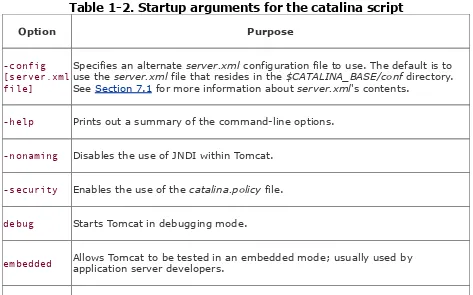
script instead of using the run argument, you see only the first few Using... lines on your console; the rest of the output is redirected into the catalina.out log file. The shutdown script invokes catalina with the stop argument, which causes Tomcat to connect to the default port specified in your Server element (discussed in Chapter 7) and send it a shutdown message. A complete list of startup options is listed in Table 1-2.
Table 1-2. Startup arguments for the catalina script
Option Purpose
-config [server.xml file]
Specifies an alternate server.xml configuration file to use. The default is to use the server.xml file that resides in the $CATALINA_BASE/conf directory. See Section 7.1 for more information about server.xml's contents.
-help Prints out a summary of the command-line options.
-nonaming Disables the use of JNDI within Tomcat.
-security Enables the use of the catalina.policy file.
debug Starts Tomcat in debugging mode.
jpda start Starts Tomcat in a Java Platform Debugger Architecture-compliant debugger. See Sun's JPDA documentation at http://java.sun.com/products/jpda.
run Starts up Tomcat without redirecting the standard output and errors.
start Starts up Tomcat, with standard output and errors going to the Tomcat logfiles.
stop Stops Tomcat.
1.2.1.1 Environment variables
To prevent runaway programs from damaging the operating system, Java runtime environments feature limits such as "maximum stack size." These limits were established when memory was more expensive; for J2SDK 1.3, for example, the default limit is only 32 megabytes. However, options supplied to the java command let you control these limits. The exact form depends upon the Java runtime, but if you are using the
standard Sun runtime (JDK 1.3 or 1.4), you can enter:
java -Xmx=64M MyProg
This will run a class file called MyProg with a maximum memory size of 64 MB.
These options become important when using Tomcat, as running servlets can take up a lot of memory in your Java environment. To pass this or any other option into the java
command that is used to start Tomcat, you can set the option in the environment variable CATALINA_OPTS before running one of the Tomcat startup scripts.
ian$ export CATALINA_OPTS="-Xmx44M" Korn and Bourne shell
C:\> set CATALINA_OPTS="-Xmx44M" MS-DOS
jb $ setenv CATALINA_OPTS "-Xmx44M" C-shell
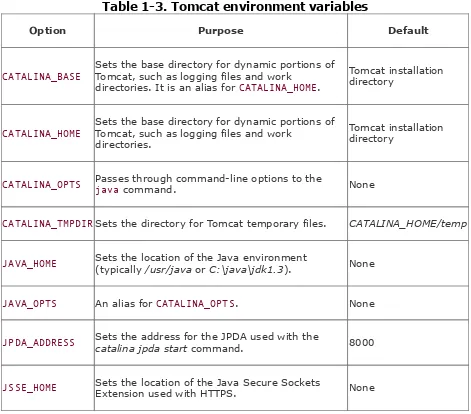
You may also wish to set the -server option (in JDK 1.4) to give Java a hint that you are running a server rather than a desktop program. Other Tomcat environment variables you can set are listed in Table 1-3.
Table 1-3. Tomcat environment variables
Option Purpose Default
CATALINA_BASE Sets the base directory for dynamic portions ofTomcat, such as logging files and work directories. It is an alias for CATALINA_HOME.
Tomcat installation directory
CATALINA_HOME Sets the base directory for dynamic portions ofTomcat, such as logging files and work directories.
Tomcat installation directory
CATALINA_OPTS Passes through command-line options to thejava command. None
CATALINA_TMPDIRSets the directory for Tomcat temporary files. CATALINA_HOME/temp
JAVA_HOME Sets the location of the Java environment(typically /usr/java or C:\java\jdk1.3). None
JAVA_OPTS An alias for CATALINA_OPTS. None
JPDA_ADDRESS Sets the address for the JPDA used with thecatalina jpda start command. 8000
1.2.1.2 Starting and stopping on Linux and Solaris
If you have installed Tomcat on Linux or Solaris via an Apache Jakarta binary release package, change into the directory where you installed Tomcat:
jasonb$ cd jakarta-tomcat-4.1.24
Echo your $JAVA_HOME environment variable, and make sure it's set to the absolute path of the directory for the Java installation you want Tomcat to use. If it's not, set it and export it now. It's okay if the java interpreter is not on your $PATH because
Tomcat's scripts are smart enough to find and use Java based on your setting of $JAVA_HOME.
Make sure you're not running a TCP server on port 8080 (the default Tomcat HTTP server socket port) or port 8005 (the
default Tomcat shutdown server socket port). Try running telnet localhost 8080 and telnet localhost 8005 to see if any existing server accepts a connection, just to be sure.
Start up Tomcat with its startup.sh script like this:
jasonb$ bin/startup.sh
Using CATALINA_BASE: /home/jasonb/jakarta-tomcat-4.1.24
Using CATALINA_HOME: /home/jasonb/jakarta-tomcat-4.1.24
Using CATALINA_TMPDIR: /home/jasonb/jakarta-tomcat-4.1.24/temp
Using JAVA_HOME: /usr/local/jdk1.3
Invoke the shutdown.sh script to shut down Tomcat:
jasonb$ bin/shutdown.sh
Using CATALINA_BASE: /home/jasonb/jakarta-tomcat-4.1.24
Using CATALINA_HOME: /home/jasonb/jakarta-tomcat-4.1.24
Using CATALINA_TMPDIR: /home/jasonb/jakarta-tomcat-4.1.24/temp
Using JAVA_HOME: /usr/local/jdk1.3
If you've installed Tomcat via the RPM package on Linux, you can test it out like this:
# /etc/rc.d/init.d/tomcat4 start
Starting tomcat4: [ OK ]
Then check to see if it's running:
# ps auwwx | grep catalina.startup.Bootstrap
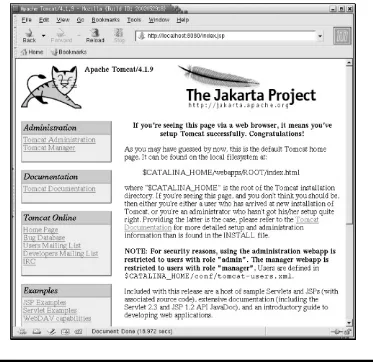
You should see several Java processes scroll by. Another way to check if Tomcat is running is to request a web page from the server over TCP port 8080 with a web browser.
If Tomcat fails to start up correctly, go back and make sure that the
/etc/tomcat4/tomcat4.conf file has all the right settings for your server computer. Also check out Section 1.2.2, later in this chapter.
To stop Tomcat, issue a stop command like this:
# /etc/rc.d/init.d/tomcat4 stop
On Microsoft Windows 2000, Tomcat can be started and stopped either as a Windows service or by running a batch file. If you arrange for automatic startup (detailed later in this chapter), you can manually start Tomcat in the Control Panel. If not, you can start Tomcat from the desktop icon shown in Figure 1-6.
If you have Tomcat running in a console window, you can
interrupt it (usually with Ctrl-C), and it will catch the signal and shut down:
Apache Tomcat/4.1
^C
Stopping service Tomcat-Standalone
C:\>
If the graceful shutdown does not work, you need to find the running process and terminate it. The Java Virtual Machine (JVM) running Tomcat will usually be identified as a Java process; be sure you get the correct one if other people or systems might be using Java. Use Ctrl-Alt-Delete to get to the task manager, select the correct Java process, and click on End Task.
1.2.1.4 Starting and stopping on Mac OS X
Starting and stopping Tomcat on Mac OS X systems is similar to the process used for other Unix-based systems, such as Linux. If you have Tomcat installed in /usr/local/jakarta-tomcat, you would use the following script to start up Tomcat:
[legolas:local/jakarta-tomcat/bin] bmclaugh% sh startup.sh
Using CATALINA_HOME: /usr/local/jakarta-tomcat
Using CATALING_TMPDIR: /usr/local/jakarta-tomcat/temp
Using JAVA_HOME: /System/Library/Frameworks/JavaVM.framework/Home
A similar script is provided for Tomcat shutdown:
[legolas:local/jakarta-tomcat/bin] bmclaugh% sh shutdown.sh
Using CATALINA_BASE: /usr/local/jakarta-tomcat
Using CATALINA_HOME: /usr/local/jakarta-tomcat
Using CATALING_TMPDIR: /usr/local/jakarta-tomcat/temp
Using JAVA_HOME: /System/Library/Frameworks/JavaVM.framework/Home
It's somewhat of a hassle to navigate to these directories each time you want to operate upon Tomcat, so you might want to add aliases to these scripts in your ~/.login file, as shown here:
# Java environment
setenv JAVA_HOME /System/Library/Frameworks/JavaVM.framework/Home
# Command aliases
alias start-tomcat /usr/local/jakarta-tomcat/bin/startup.sh
alias stop-tomcat /usr/local/jakarta-tomcat/bin/shutdown.sh
1.2.1.5 Starting and stopping on OpenBSD
To start up Tomcat on OpenBSD, first make sure that your
JAVA_HOME and CATALINA_HOME environment variables are set:
ian$ set JAVA_HOME=/usr/local/java
ian$ set CATALINA_HOME=/usr/local/jakarta-tomcat-4.0.1
ian$ export JAVA_HOME CATALINA_HOME
Then, start Tomcat like this:
ian$ su www ${CATALINA_HOME}/bin/startup.sh
Using CATALINA_HOME: /usr/local/jakarta-tomcat-4.0.1
Using CATALINA_TMPDIR: /usr/local/jakarta-tomcat4/build/temp
Using JAVA_HOME: /usr/local/java
[INFO] Registry - -Loading registry information
[INFO] Registry - -Creating new Registry instance
[INFO] Registry - -Creating MBeanServer
[INFO] Http11Protocol - -Initializing Coyote HTTP/1.1
on port 8080
Starting service Tomcat-Standalone
[INFO] Http11Protocol - -Starting Coyote HTTP/1.1 on port 8080
Stopping Tomcat is just as easy:
ian$ su www ${CATALINA_HOME}/bin/shutdown.sh
In both of these cases, the www user has been set to have access to Tomcat, and permissions on the Tomcat directories are assigned to that user. You may want or need to use a different user on your system, such as the tomcat4 user set up by Tomcat on Unix-based installations.
1.2.2 Common Errors
There are several common problems that can result when you try to start up Tomcat. While there are many more possible errors, these are the ones we most often encounter.
Another server is running on port 80 or 8080
Ensure that Tomcat is not already started. If it isn't, check to see if other programs, such as another Java application server or Apache web server, are running on these ports.
Another instance of Tomcat is running
Remember, not only must the HTTP port of different Tomcat instances be different, but every port number in the Server
and Connector elements in the server.xml files must also be different. For more information on these elements, consult Section 7.1.
Tomcat is missing a JAR file that it needs to run
1.2.3 Restarting Tomcat
There is no restart script included with the Tomcat 4
distribution. This is because it is tough to write a script that can make sure Tomcat shuts down properly before being started up again. The reasons outlined below for Tomcat shutdowns being unreliable are almost exclusively edge conditions, meaning they don't usually happen but can occur in unusual situations. Here are some reasons why shutdowns may be unreliable:
The Java Servlet Specification does not mandate any time limit for how long a Java servlet can take to perform its work. Writing a servlet that takes forever to perform its work does not break compliance with the Java Servlet Specification, but it does prevent Tomcat from shutting down.
The Java Servlet Specification also dictates that, on
shutdowns, servlet containers must wait for each servlet to finish serving all requests that are in progress or wait a container-specific timeout duration before taking servlets out of service. For Tomcat 4, that timeout duration is a maximum of a half-second per servlet. When a servlet misbehaves and takes too long to finish serving requests, it's up to Tomcat to figure out that the servlet has taken too long and to forcibly take it out of service so that Tomcat can shut down. This processing takes time, though, and slows Tomcat's own shutdown processing.
that is called on invocations of shutdown.sh will not always know how long to wait for Tomcat to shut down, nor can Tomcat always know it's taking too long to shut down. That means that shutdowns are not completely reliable when written in pure Java. In order to rely on an external
program that shuts down Tomcat, that external program would need to be written in some other programming language.
Since Tomcat is an embeddable servlet container, it never calls System.exit(0) when shutting down the server because it does not know what else may need to continue running in the same Java virtual machine. Instead, Tomcat shuts down all of its threads so that the VM can exit
gracefully if nothing else needs to run. Because of that, a servlet could spawn a thread that would keep the VM from exiting, even when all of Tomcat's threads are shut down.
The Java Servlet Specification allows servlets to create additional Java threads that perform work as long as any security manager allows it. Once a servlet spawns another thread, that thread can raise its own priority higher than Tomcat's threads' priorities (if the security manager allows), which could keep Tomcat from shutting down or from
running at all. Usually if this happens, it's not malicious code, but buggy code. Try not to do this!
To fix some of these problems, you may want to configure and use a security manager. See Section 6.4 for more information on how to place limits on servlets to guard against some of these problems.
1.2.3.1 Restarting Tomcat on Unix-based systems
Unix-based platforms.
1. Issue a shutdown via the shutdown.sh script:
jasonb$ bin/shutdown.sh
Decide how long you want to wait for Tomcat to shut down gracefully, and wait that period of time. Reasonable maximum shutdown durations depend on your web application, your server computer's hardware, and how busy your server
computer is, but in practice Tomcat often takes several seconds to completely shut down.
Use the ps command to look for any remaining Tomcat processes that are on your Tomcat's JVM:
jasonb$ ps auwwx | grep catalina.startup.Bootstrap
jasonb$ /usr/ucb/ps auwwx | grep catalina.startup.Bootstrap
If no Tomcat processes are running, skip to step 6.
Otherwise, since the Tomcat JVM is not shutting down in the time you've allowed, you may want to force it to exit. Send a
SIGTERM signal to the processes you find, telling the VM to perform a shutdown (ensuring you have the correct user permissions):
jasonb$ kill -SIGTERM <process-ID-list>
Do another ps like you did in step 3. If the Tomcat JVM processes remain, repeat step 4 until they're gone. If they persist, kill them like this instead:
Once you're sure that Tomcat's JVM is no longer running, start a new Tomcat process:
$ bin/startup.sh
Usually, the shutdown process goes smoothly and Tomcat JVMs shut quickly. But for situations when they don't, this procedure should always suffice.
1.2.3.2 Restarting the Tomcat Windows Service
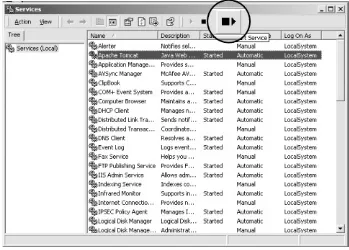
If you have Tomcat running as a Windows Service, you can restart it from the Control Panel. Either right-click on the
service and select Restart from the pop-up menu or, if it exists on your version of Windows, use the Restart button near the upper-right corner of the dialog (see Figure 1-7).
1.3 Automatic Startup
Once you have Tomcat installed and running, you can set it to start automatically when your system reboots. This will ensure that every time your system comes up, Tomcat will be running and handling requests. Unix users will make changes to their
init scripts, and Windows users will need to set Tomcat up as a service. Both approaches are outlined in this section.
1.3.1 Automatic Startup on Linux
If you've installed Tomcat via the RPM, getting it to run on a reboot is simply a matter of telling your system to run the
tomcat4 service when it enters the multiuser run level.
If you know how to use chkconfig, as the root user you can simply
chkconfig tomcat4 for the run levels of your choice.
You can use either tksysv or ntsysv to set Tomcat up to start on reboot. tksysv offers a graphical user interface for turning
services on and off, and ntsysv offers a text user interface to do the same. Try running tksysv as detailed in the following steps:
1. Enter tksysv at your command prompt. See Figure 1-8
for a screenshot of tksysv.
# tksysv &
Choose "tomcat4" from the list of available services on the left.
Click the Add button.
Check the "Start tomcat4" checkbox at the top.
Check the "run level 3" checkbox (or whichever run level you wish it to run in; see /etc/inittab for more information about your server computer's run levels).
Click the Done button.
A new dialog window will pop up; just click the Add button.
Close the tksysv window.
If tksysv isn't available but ntsysv is, do the following:
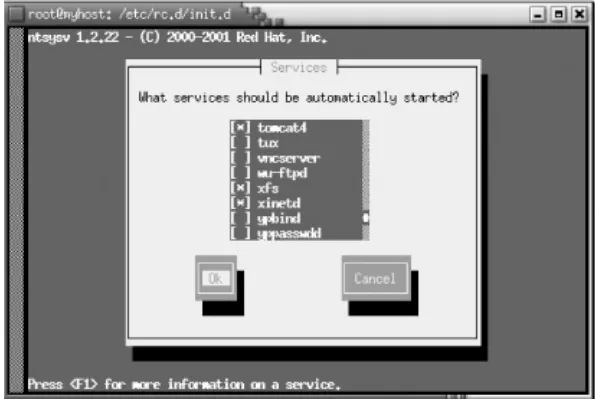
1. Run ntsysv. See Figure 1-9 for a screenshot of ntsysv.
# ntsysv
Figure 1-9. Adding the tomcat4 service in ntsysv
on Linux
Scroll down to the tomcat4 service.
If you don't see the tomcat4 service, you probably didn't install Tomcat as a Linux RPM. This procedure works for RPM-based installations only.
Press the spacebar to check the checkbox in front of the
tomcat4 listing (an asterisk will appear between the brackets to signify that it is selected).
Reboot and see if Tomcat starts up when the system comes back up.
If your machine has neither tksysv nor ntsysv, use the
chkconfig command to make the tomcat4 service start in the run level of your choice. Here's an example of how to make it start in run levels 3, 4, and 5:
# chkconfig --level 345 tomcat4 on
Query your configuration to make sure that startup is actually set:
# chkconfig --list tomcat4
tomcat4 0:off 1:off 2:off 3:on 4:on 5:on 6:off
Now reboot and see if Tomcat starts up when the system comes back up.
If you didn't use the RPM installer, you can still set Tomcat up to start on reboots. Tomcat does not come with a Linux init script, but it is simple to create one. Example 1-7 is a Tomcat init
script for Linux.
Example 1-7. A Tomcat init script for Linux
#!/bin/sh
# Tomcat init script for Linux.
#
# chkconfig: 345 63 37
JAVA_HOME=/usr/java/j2sdk1.4.1
CATALINA_HOME=/usr/local/jakarta-tomcat-4.1.24
export JAVA_HOME CATALINA_HOME
exec $CATALINA_HOME/bin/catalina.sh $*
Save this script in a file named tomcat4, change the file ownership and group to root, and then chmod it to 755:
# chown root.root tomcat4
# chmod 755 tomcat4
Copy the script to the /etc/rc.d/init.d directory after modifying the JAVA_HOME and CATALINA_HOME environment variables to fit your system. Then, set the new tomcat4 service to start and stop automatically by using tksysv, ntsysv, or chkconfig as shown earlier in this section.
1.3.2 Automatic Startup on Solaris
Tomcat does not come with a Solaris init script, but Example 1-8 provides a script that you can use.
Example 1-8. A Tomcat init script for Solaris
# Tomcat init script for Solaris.
JAVA_HOME=/usr/java
CATALINA_HOME=/usr/local/jakarta-tomcat-4.1.24
export JAVA_HOME CATALINA_HOME
exec $CATALINA_HOME/bin/catalina.sh $*
Save the script in a file named tomcat4 and update the file's permissions:
# chown root tomcat4
# chgrp root tomcat4
# chmod 755 tomcat4
Update the JAVA_HOME and CATALINA_HOME variables, and copy the file to the /etc/init.d directory. Then, set the new tomcat4
service to start and stop automatically by symbolically linking it into the /etc/rc3.d directory (as the root user):
# ln -s /etc/init.d/tomcat4 /etc/rc3.d/S63tomcat4
# ln -s /etc/init.d/tomcat4 /etc/rc3.d/K37tomcat4
for catalina.sh. The init program also invokes each script file named rc3.d/K* with the parameter stop when the system is being shut down.
1.3.3 Automatic Startup on Windows
Under Windows, Tomcat can be run as a Windows Service.
Although you can use this to start and stop the server, the most common reason for creating a Tomcat service is to ensure that it is started each time your machine boots up.
Your first task is to find the Services control panel. On a
standard Windows 2000 install, this requires accessing several menus: Start Menu Programs Administrative Tools
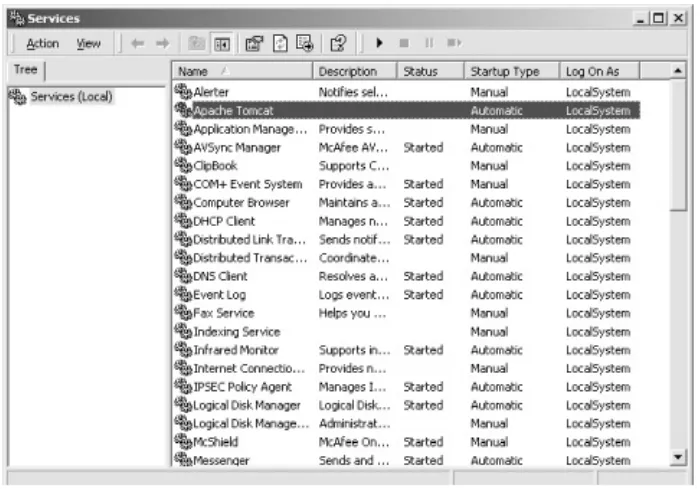
Services. Alternately, you can go Start Menu Settings Control Panel, double-click Administrative Tools, and then double-click Services. Once you have the Services control panel, locate the entry for Apache Tomcat 4 (the entries are normally in alphabetical order) and double-click it, as shown in
Figure 1-10.
In the Apache Tomcat Properties dialog, ensure that the startup type is set to Automatic rather than Manual. This will cause Tomcat to start up whenever your machine reboots.
Finally, if you want Tomcat to run with different permissions than Administrator, you can specify that in the Log On tab in the same dialog. It is generally considered a good idea to run large and complex software packages under a user with reduced privileges, so that in the event of security-related bugs in the server, the damage that an attacker can do to your system is minimized. Refer to Figure 1-11; see also Chapter 6.
1.3.4 Automatic Startup on Mac OS X
There are three steps involved in starting up items automatically on Mac OS X:
1. Create a folder in /Library/StartupItems specific to Tomcat.
Create a shell script that can start, stop, and restart Tomcat within this directory.
Create a Mac OS X property list file for Tomcat.
All of these steps require root-level access to your Mac OS X system.
[aragorn:~] bmclaugh% su
-Password:
[aragorn:~] root# cd /Library/StartupItems/
[aragorn:/Library/StartupItems] root# mkdir JakartaTomcat
[aragorn:/Library/StartupItems] root# ls -l
total 0
drwxr-xr-x 2 root staff 68 Apr 17 12:45 JakartaTomcat
drwxrwxrwx 5 bmclaugh staff 170 Feb 18 20:01 PACESupport
Now you need to create a script that Mac OS X can use to start, stop, and restart Tomcat. Example 1-9 shows a simple example, where Tomcat is installed in /usr/local/jakarta-tomcat.
Example 1-9. A Tomcat startup script
#!/bin/sh
# Source common setup options
. /etc/rc.common
StartService() {
if [ "${TOMCAT:=-NO-}" = "-YES-" ]; then
ConsoleMessage "Starting Jakarta Tomcat"
sh /usr/local/jakarta-tomcat/bin/startup.sh &
fi
}
StopService() {
ConsoleMessage "Stopping Tomcat"
sh /usr/local/jakarta-tomcat/bin/shutdown.sh
}
RestartService() {
if [ "${TOMCAT:=-NO-}" = "-YES-" ]; then
ConsoleMessage "Restarting Jakarta Tomcat"
StopService
StartService
else
StopService
}
RunService "$1"
The basic style of this script should look familiar to Unix and Linux veterans; for particulars, check out Mac OS X for Unix Geeks, by Brian Jepson and Ernest Rothman (O'Reilly), which covers this process in greater detail. Save this script as
JakartaTomcat in your new JakartaTomcat directory. You then need to make it root-executable:
[aragorn:/Library/StartupItems/JakartaTomcat] root# chmod 700 JakartaTomcat
[aragorn:/Library/StartupItems/JakartaTomcat] root# ls -l
total 8
-rwx--- 1 root staff 567 Apr 17 12:51 JakartaTomcat
You'll notice that the script will not start up Tomcat unless a specific directive is set; you handle this directive through Mac OS X's /etc/hostconfig file. Add the following line at the end of that file to enable Tomcat startup:
TOMCAT=-YES-Using the hostconfig file in this manner makes toggling Tomcat startup a breeze, especially if you need to pass on
administrative duties for your Mac OS X box to someone new.
for system-wide settings such as JAVA_HOME. Open
/etc/rc.common, and add the following line:
JAVA_HOME=/System/Library/Frameworks/JavaVM.framework/Home
export JAVA_HOME
Now you can test your startup script:
[aragorn:/Library/StartupItems/JakartaTomcat] root# /Library/StartupItems/
JakartaTomcat/JakartaTomcat start
Starting Jakarta Tomcat
[aragorn:/Library/StartupItems/JakartaTomcat] root# Using CATALINA_BASE:
/usr/local/jakarta-tomcat
Using CATALINA_HOME: /usr/local/jakarta-tomcat
Using CATALINA_TMPDIR: /usr/local/jakarta-tomcat/temp
Using JAVA_HOME: /System/Library/Frameworks/JavaVM.framework/Home
[aragorn:/Library/StartupItems/JakartaTomcat] root#
Assuming things behave properly, all that is left is the creation of a property list for the Mac OS X system. Example 1-10 shows a sample property list.