Socio-Demographic & Economic Survey 1
DATA ENTRY
Instructions for Data Entry Trainers (CSO) / IT Officers (UNFPA)
Day 1 (a day before Data Entry Training)
A. Check all computers that will be used for data entry. See to it that all external drive ports
have been disabled or temporarily sealed (using tapes). This is to minimize proliferation of Malwares (Malicious or unwanted softwares such as viruses, worms, trojan horses, dishonest adwares, etc.). Only external devices from authorized personnel (Data Entry Supervisors) will be allowed to access the computers.
Reconfigure screen resolution to 1024 x 768. This is the resolution most suited for data
entry though data entry will still work/run under lower or higher screen resolution. Higher screen resolution results to a slight but continuous movement of data entry rosters to the left of the data entry screen.
Install CSPro 4.1 and the data entry program in all computers that will be used in the
data entry. Details about the data entry program installation will be discussed in a separate section.
Make sure that the data entry program runs properly in each and every computer that
DATA ENTRY INSTRUCTIONS
Instructions and Pre-editing Activities. The R&C Clerk, the person responsible for assigning questionnaires for data entry and other data processing activities, should assign only those questionnaires that have undergone manual processing. Before accepting a bundle, check if all manual processing activities have been completed through the information provided in the bundle cover. Illustration 1 below is an example of a bundle cover that indicates completed manual processing activities.
Illustration 1
Second Screening
Socio-Demographic & Economic Survey 3
Illustration 2
Starting Data Entry Application
To invoke or start the data entry application, click this icon f o the o pute s desktop.
The screen below will appear.
All data encoders will be assigned a user ID with a corresponding password. They are required to keep their passwords a secret so that other data encoders will not be able to use the system thru their individual computer.
After entering the correct user ID and password, the following screen will appear.
The screen above show three buttons namely:
1. Data Entry – click this button to start data entry of SDES Form 4. The specific
instructions on how to run the data entry program of SDES Form 4 will be discussed extensively in the succeeding section.
2. Submit to Server – click this button only when the data entry of a particular bundle is
finished. You can start working on a new bundle only when the previous finished bundle has been submitted to server.
Socio-Demographic & Economic Survey 5
Data Entry Proper
The screen below will appear once the [Data Entry] button is clicked. This screen is similar to the bundle cover (SDES Form 27). The province code is already predefined so there is no need to enter this field. From the bundle cover, copy all other geographic codes and the number of questionnaires and households.
Sequence of Encoding
The sequence of encoding follows the Arabic sequence of writing which is from top to bottom, right to left. The following illustration shows this.
Predefined ID Fields
Province Code, District Code and Nahia Code are predefined ID fields. In CSPro, these type of
fields a e also alled Pe siste t fields. These fields ill ot e e oded du i g data e t ut
will automatically be captured in the data file. Refer to Illustration 4 below.
Illustration 4
IMPORTANT: Make sure that the values in the predefined ID fields are equal to the corresponding values written in the questionnaires. If the values are not equal, do not proceed with the data entry. Refer this matter to your machine processing supervisor.
Field Characteristics
The following are important field characteristics that the data entry operators and supervisors should be aware of:
Only numeric fields are used in the data entry application which implies that only the
numeric key pad at the right side of the keyboard will be regularly used.
Socio-Demographic & Economic Survey 7
All fields are set to zero-fill. This means that all leading spaces will be filled with zeroes
instead of blank during data entry.
For example: During data entry a field or item with a length 3 is encountered. A value of '92' was keyed. The value that will be stored in the data file and will be shown in the
s ee is 9 .
The data entry operator is not required to press the Enter key to advance to the next
field. The system will advance automatically when the field is filled with the correct
number of digits. However, the operator can still advance by pressing Enter if the digits
are not all filled.
Errors at Data Entry
Errors are introduced into the data through miskeying. A system called 'intelligent data entry' may be used to prevent invalid entries from ever getting into the system. An intelligent data entry system ensures that the value for each field or data item is within the permissible range of values for that item.
The system will produce a beeping sound and shows a message such as the one shown below (Illustration 5) every time the operator/keyer enters a value that is out of range according to the set of defined valid values.
Illustration 5
Manual or Operator-Controlled Skips
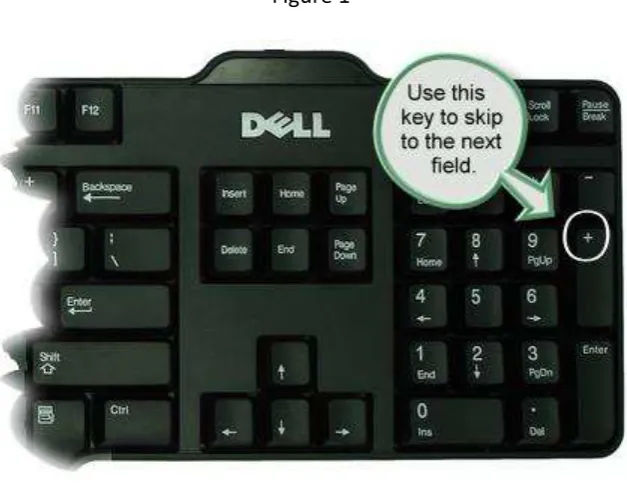
During data entry, there may be times when there is a need to skip over certain fields that do not apply to the current case. For example, in a Population record, the fertility fields do not apply to males or to underage females, nor do questions on economic activity apply to children
under a certain age. In this application (or in any CSPro data entry application), the + ke o
Screen #1 (Part I – Identification Particulars)
1. City code and Village code should not be left blank. If any of these fields is blank, enter
ze o o just p ess the E te ke . For these fields, the application is designed to pad
Socio-Demographic & Economic Survey 9
Screen #2 (Part II – Sections B, C and D)
1. Screen #2 covers pages 2 and 3 of the questionnaire or members information in columns
2 to 14. Column 1 which is the name of the member will not be encoded.
2. Line Number (col. 0) is a sequential number starting from 1 and is automatically
generated by the system. This serves as a guide for the encoder to prevent information from being mixed-up or jumbled among members of the household.
3. Mirror image of the geographic ID codes is shown at the bottom left corner of the
screen. This serves as a guide for the encoder to show what particular questionnaire is being encoded.
4. The member roster allows a maximum of 10 members to be encoded per questionnaire.
If the total number of members is less than 10, position your cursor in the 1st active field
of a non-member record then use the Ctrl+/ keys to jump out of the roster and move to
the next field outside the roster.
The above discussions are clarified by the following illustration.
Screen #3 (Sections E, F and G)
1. Screen #3 covers pages 4 and 5 of the questionnaire or members information in columns
15 to 28.
2. Line Number (column 0) automatically shows all members who are 5 years old and over
based on the responses in column 4 of Screen #1. This will serve as guide to the encoders by showing the record position of eligible members in this particular screen (5 years old and over).
There may be cases of questionnaires where there are entries in pages 4 and 5 despite the fact that the reported age is below 5. DO NOT TRY TO EDIT THE QUESTIONNAIRE or encode differently from what is written in the questionnaire. Encode based on what is written in the questionnaire.
3. At Column 15, click the ‘+ ke to o e di e tl to the e t e o d ithi the oste o
Ctrl+/ keys to jump out of the roster and move to the next field outside the roster.
Socio-Demographic & Economic Survey 11
Screen #4 (Section H - Fertility)
1. Screen #4 covers page 6 of the questionnaire or members information in columns 29 to
40.
2. Line Number (column 0) automatically shows all ever-married women regardless of age
based on the responses in columns 3 and 5 of Screen #1. This will serve as guide to the encoders by showing the record position of eligible members in this particular screen (female whose marital status is not single).
Just like in Screen #3, there may be cases of questionnaires where there are entries in page 6 for members who are not ever-married women. DO NOT TRY TO EDIT THE QUESTIONNAIRE or encode differently from what is written in the questionnaire. Encode based on what is written in the questionnaire.
3. Normally, a number of members are not eligible in this particular screen. Records can be
skipped by clicking the ‘+ ke to o e di e tl to the e t e o d ithi the oste . Note
that the cursor position should be at the first active field (or column) which is Column 29.
On the same column position, press Ctrl+/ keys to jump out of the roster and move to
the next screen.
Refer to Illustration 8 below for further clarification.
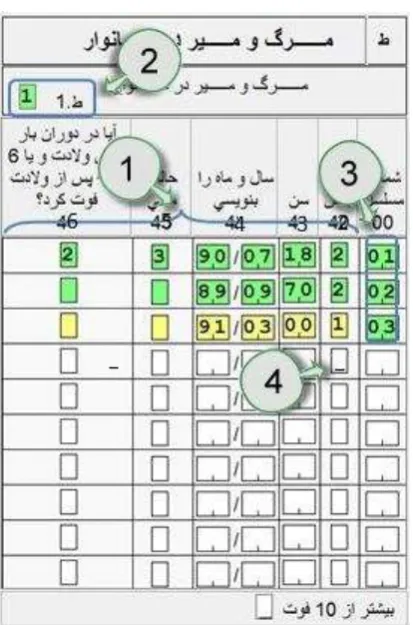
Screen #5 (Section I – Deaths in the Household)
1. Screen #5 covers page 7 of the questionnaire or information about members of the
household who died in the past 2 years. It covers columns 42 to 46 of the household questionnaire. The member records in this screen are not related to the member records in the previous screens.
2. There is a screening question I.1 at the upper left part of the screen. Make a quick
screening or validation of the response to this question. If the response to this question
is o No, ake su e that the e a e o e t ies i the oste of de eased e e s. If the e a e, ha ge the espo se i I. f o to o Yes. “i ila l , if the a s e to this
uestio is o Yes ut the e a e o e t ies i the oste , ha ge the response in I.1
f o to .
If the value entered in I.1 is 2, the system will automatically skip to the next data entry screen. Otherwise, it will proceed to Column 42 of the first record of the roster of deceased members.
3. Line Number (col. 0) is a sequential number starting from 1 and is automatically
generated by the system. This serves as a guide for the encoder to prevent information from being mixed-up.
4. The roster of deceased members allows a maximum of 10 members to be encoded per
questionnaire. If the total number of members is less than 10, position your cursor in
the 1st active field of a non-member record then use the Ctrl+/ keys to jump out of the
roster and move to the next field outside the roster.
Socio-Demographic & Economic Survey 13
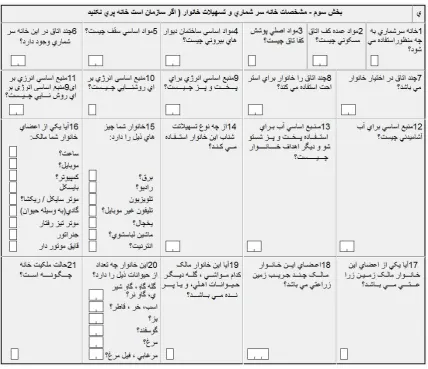
Screen #6 (Section J – Characteristics of Census House and Household Facilities)
1. Screen #6 covers the final page (page 8) of the questionnaire. Included in this screen are
21 questions about the characteristics of the census house and household facilities. Refer to Figure 2 below.
2. This particular section of the questionnaire is intended only for population in
households, that is, if the response in Question 1 – Type of Population (page 1 of the
questionnaire) is 1. Institutional population are not covered in this section, nevertheless, this part will not be automatically skipped during data entry. To end the data entry,
position the cursor in Q1 and press Ctrl+/ keys simultaneously. A A ept Fo dialog
box will appear.
For population in households, that is, if the response in Question 1 (page 1) is 2, this part
of the questionnaire is required. After encoding the last item in the screen, a A ept
Fo dialog o ill appea (Figure 3).
3. The A ept Fo dialog box is an indicator that the data entry for a particular
uestio ai e is fi ished. Cli k Yes to sa e all that has ee e te ed fo that pa ti ula ase, othe ise li k No .
Figure 3
Other Useful Keys for Data Entry Operators
1. PgUp – Previous screen
2. PgDn – Next Screen
3. / – End group occurrence
Socio-Demographic & Economic Survey 15
5. F12 – End level occurrence
6. Ctrl+F12 – End level
7. F6 – Go to