
CHAPTER 1
INTRODUCTION TO MATLAB
Matlab is short for Matrix Laboratory, which is a special-purpose computer program optimized to perform engineering and scientific calculations. It started life to perform matrix mathematics, but over the years it has grown into a flexible computing system capable of solving essentially any technical problem. Matlab implements a Matlab programming language and provides an extensive library of predifined functions that make technical programming tasks eisier and more eficient.
1
The Advantage of Matlab
Matlab has many advantages compared with the conventional programming language like fortran, C or Pascal for technical problem solving. Among of them are the following:
1. Easy to Use. Matlab is intepreted language, so it is not needed compiling when we want to execute the program. Program may be easily writen and modified with the built-in integrated development inveronment and debuged with the Matlab debuger.
other proram.
3. Predefined Functions. Matlab comes complete with an extensive library of predefined functions that provide tested and prepackaged solutions to many technical problems. For example, suppose that you are writing a program that calculate the stastitics associated with input data set. In most languages, you need to write your own subroutines or functions to implement calculations such as aritmatic mean, median, standard deviation and so forth. These and hundreds of functions are built right into Matlab language, making your job easier.
4. Device Independent Plotting. Unlike most other languages, Matlab has many integral ploting and imaging commands. The plots and images can be displayed on any graphical output device supported by computer on which Matlab running. This capability makes Matlab an outstanding tool for visualizing technical data.
5. Graphical User Interface (GUI). Matlab include tools that allow us to interactively construct a Graphical User Interface (GUI) for his or her program. With capability, the programmer can design a sophisticated data analisys program that can be operated by relatively inexperienced users.
2
The Disadvantage of Matlab
copy of Matlab may be 5 to 10 times more expensive than conventional compiler c, pascal or fortran.
3
The Matlab Dekstop
When we start Matlab version 6.5, the special window called The Matlab Dekstop will appear. The default configuration of Matlab Dekstop Matlab is shown in Figure 1.1. It integrates many tools for managing files, variables and application within Matlab environment.
The major tools within Matlab Dekstop are the following: a) command window
b) command history window c) launch pad
d) edit/debug window e) figure window
f) workspace browser and array editor g) help browser
h) current directory browser
Exercise
CHAPTER 2
MATLAB BASICS
1
Funncion and Constants
Matlab provides a large number of standard elementary mathematical funsctions, including abs, sin, cos, sqrt, exp and so forth. Taking the square root of negative number is not an error, because the appropriate complex number will be produced automatically. Matlab also provide a large number of advanced mathematical function, including bessel, gamma, beta, erf, and so forth. For a list of standard elementary mathematical function, type
help elfun
and for a list of advanced mathematical functions, type help specfun
Some functions, like sqrt, cos, sin,abs are built in. It means that they are has been compiled, so we just apply them and computational details are not readily accessible.
Matlab also provide some special constants that they may be useful to solve any technical problem. Some constants are the following:
Tabel 2.3 Special Constants No Constants Description
2 i Imajinary unit,
−13 j Same as i
4 eps Floating-point relative precision, 10-52
5 realmin Smallest floating-point number 6 realmax Largest floating-point number
2.2204e-016 >> 1/0
Warning: Divide by zero. ans =
Inf >> 0/0
Warning: Divide by zero. ans =
NaN
2
Using Meshgrid
Meshgrid is used to generate X and Y matrix for thrree dimensional plot. The syntax of meshgrid are
[X,Y] = meshgrid(x,y) [X,Y] = meshgrid(x) [X,Y,Z] = meshgrid(x,y,z)
[X,Y]=meshgrid(x,y) transforms the domain specified by vector x and y into arrays X and Y, which can be used to evaluate the function of two variables and three dimensional mesh/surface plots. The rows of the output array X are copies of vector x, and the column of the array Y are copies of the vector y.
Ex.
X =
1 2 3 1 2 3 1 2 3 1 2 3 1 2 3 Y =
10 10 10 11 11 11 12 12 12 13 13 13 14 14 14
Contoh
Plot the function graphic of z=x2−y2 specified by domain 0x5 dan
0y0
Solution
Firstly, we must specify the grids on the surface x-y using meshgrid function >> x=0:5;
>> [X Y]=meshgrid(x,y)
Then, the values of z can be obtained by replacing x and y in the original function into X and Y
>> z=X.^2-Y.^2
>> mesh(X,Y,z)
3
Special Elementar Function Matlab
Matlab has a large number of special elementary function which may be useful for numerical calculation. In this chapter, we will discuss some of them.
feval()
Function feval() is used to evaluate a function. For example, if we have a function f x=x22x1 and we evaluate the function at x=3
>> f=inline('x^2+2*x+1','x'); >> f(3)
ans = 16
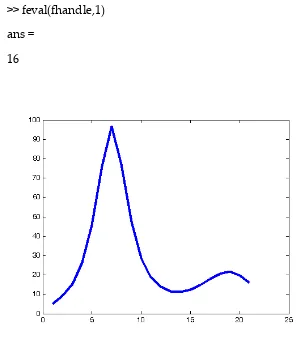
If we use the function provided by Matlab called humps. To evaluate the function, we must create a handle function by using @ sign.
>> fhandle=@humps; >> feval(fhandle,1) ans =
16
Polyval
Function polyval is used to specify the value of the polynomial of the form px=a0a1x1a2x2a3x3a4x4...an−1xn−1anxn
Matlab has a simply way to express the form of the polynomial by p=
[
an an−1 ... a3 a2 a1 a0]
Example
Given a polynomial px=x43x24x5 . It will be evaluated at x=2, −3 and 4.
Solution
● First, we type the polynomial by simply way p=[1 0 3 4 5].
● Second, we type the point we are going to evaluate x=[2,-3,4]
● Third, Evaluate the polynomial at point x by command polyval(p,x) If we write in the command window
>> p=[1 0 3 4 5]; >> x=[2,-3,4]; >> polyval(p,x) ans =
Polyfit
Fungsi polyder
Fungsi poly
CHAPTER 3
VECTOR AND MATRICES
Vector is one-dimensional array of numbers. Vector can be a coulomn or row. Matlab can create a coulomn vector by enclosing a set of numbers sparated by semicolon. For example, to create a coulomn vector with three elements we write:
>> a=[1;2;3] a =
1 2 3
To create a row vector, we enclose a set of numbers in square brackets, but this time we use coma or blank space to delimite the elements.
>> a=[4,5,6] a =
4 5 6 >> a=[4 5 6] a =
A column vector can be turned into a row vector by three ways. The first, we can turn using the transpose operation.
>> v=[3,2,1]; >> v'
ans = 3 2 1
Secondly, we can create a column vector by enclosing a set of numbers with semicolon notation to delimite the numbers.
>> w=[3;2;1] w =
3 2 1
>> p=[-1;2;3;1]; >> q=[2;1;-3;-2]; >> p+q
ans = 1 3 0 -1
Now, let's subtract one row vector from another: >> p=[-1,2,3,1];
>> q=[2,1,-3,-2]; >> p+q
ans =
1 3 0 -1
1
CREATING LARGER VECTOR FROM EXISTING VARIABLES
[u;v].
>> u=[1;2;3]; >> v=[5;6]; >> w=[u;v] w =
1 2 3 5 6
This can also be done with row vector. If we have two row vectors r and s with m and n elements respectively. So, a new row vector can be created by writing [r,s].
>> r=[1,2,3]; >> s=[5,6,7,8]; >> [r,s]
ans =
1 2 3 5 6 7 8
2
CREATING A VECTOR WITH UNIFORMLY SPACED ELEMENTS
by increment q. To create a vector x that have unformly spaced elements with first element a, final element b and stepsize q is
x= [ a : q : b];
We can create a list of even number from 0 to 10 with uniformly spaced elements: >> x=[0:2:10]
x =
0 2 4 6 8 10
Again, let's we create a list of small number starts from 0 to 1 with uniformly space 0.1;
>> x=0:0.1:1 x =
Columns 1 through 7
0 0.1000 0.2000 0.3000 0.4000 0.5000 0.6000 Columns 8 through 11
0.7000 0.8000 0.9000 1.0000
The set of x values can be used to create a list of points representing the values of some given function. For example, suppose that whave y=ex , then we have
>> y=exp(x) y =
1.0000 1.1052 1.2214 1.3499 1.4918 1.6487 1.8221 Columns 8 through 11
2.0138 2.2255 2.4596 2.7183
But, if we have a function y=x2 , we can not obtain a list of values representing the function without adding dot notation.
>> x^2
??? Error using ==> ^ Matrix must be square.
If we use dot notation behind the variable x; >> x.^2
ans =
Columns 1 through 7
0 0.0100 0.0400 0.0900 0.1600 0.2500 0.3600 Columns 8 through 11
0.4900 0.6400 0.8100 1.0000
Matlab also allow us to create a row vector with m uniformly spaced element by typing
0 0.5000 1.0000 1.5000 2.0000
Matlab also allow us to create a a row vector with n logaritmically spaced elements by typing
logspace(a,b,n) >> logspace(1,3,5) ans =
1.0e+003 *
0.0100 0.0316 0.1000 0.3162 1.0000
3
Characterizing Vector
The length command returns a number of a vector elements, for example: >> a=[0:5];
>> length(a) ans =
6
We can find the largest and smallest of a vector by max and min command, ffor example:
5 >> min(a) ans = 0
Accessing the array elements
If we have array a=[1,2,3,4;5,6,7,8;6,7,8,9]. To display all of array elements at the 3th row, we can type
>> a(3,:) ans =
6 7 8 9
The colon notation means all of array elements.
For example, if we want to display all of array elements at the first and second colomn then we can type
>> a(:,[1 2]) ans = 1 2 5 6 6 7
To access the array elements a at the 1st dan 2nd row, and 3rd and 4th colomn,
>> a(1:2,3:4) ans = 3 4 7 8
Ifwe wish to replace all of the array elements at 2nd and 3rd row and 1st and 2nd
colomn with the value equal to 1 >> a(2:3,1:2)=ones(2) a =
1 2 3 4 1 1 7 8 1 1 8 9
We are able to create the table using the colon operator. For example, if we wish to create the sinus table starting from a given angle and step size 30o
>> x=[0:30:180]'; >> trig(:,1)=x;
>> trig(:,2)=sin(pi/180*x); >> trig(:,3)=cos(pi/180*x); >> trig
trig =
30.0000 0.5000 0.8660 60.0000 0.8660 0.5000 90.0000 1.0000 0.0000 120.0000 0.8660 -0.5000 150.0000 0.5000 -0.8660 180.0000 0.0000 -1.0000
The Colon operator can be used to perform the operation at Gauss elimination. For example
>> a=[-1,1,2,2;8,2,5,3;10,-4,5,3;7,4,1,-5]; >> a(2,:)=a(2,:)-a(2,1)/a(1,1)*a(1,:) a =
-1.00 1.00 2.00 2.00 0 10.00 21.00 19.00 10.00 -4.00 5.00 3.00 7.00 4.00 1.00 -5.00 >> a(3,:)=a(3,:)-a(3,1)/a(1,1)*a(1,:)
a =
0 6.00 25.00 23.00 7.00 4.00 1.00 -5.00 >> a(4,:)=a(4,:)-a(4,1)/a(1,1)*a(1,:)
a =
-1.00 1.00 2.00 2.00 0 10.00 21.00 19.00 0 6.00 25.00 23.00 0 11.00 15.00 9.00 >> a(3,:)=a(3,:)-a(3,2)/a(2,2)*a(2,:)
a =
-1.00 1.00 2.00 2.00 0 10.00 21.00 19.00 0 0 12.40 11.60 0 11.00 15.00 9.00 >> a(4,:)=a(4,:)-a(4,2)/a(2,2)*a(2,:)
a =
0 0 -8.10 -11.90 >> a(4,:)=a(4,:)-a(4,3)/a(3,3)*a(3,:) a =
-1.00 1.00 2.00 2.00 0 10.00 21.00 19.00 0 0 12.40 11.60 0 0 0 -4.32
The keyword end states the final element of the array elements. For example, if we have a vector
>> a=[1:6]; >> a(end) ans = 6
>> sum(a(2:end)) ans =
20
The colon operator can play as a single subscript. For a spcial case, the colon operator can be used to replace all of the array elements
1 2 3 4 5 6 7 8 >> a(:)=-1
a =
-1 -1 -1 -1 -1 -1 -1 -1
Replication of row and column
Sometimes, we need to generate the array elements at a given row and column to any other row and column. For this purpose, we need Matlab command repmat to replicate the row/column elements.
>> a=[1;2;3];
>> b=repmat(a,[1 3]) b =
1 1 1 2 2 2 3 3 3
The command repmat(a,[1 3]) means that “replicate vector a into one row and three columns.
1 2 3 1 2 3
The command repmat(a,[2 1]) means that “replicate vector a into two rows and 1 column.
The alternative command repmat (a,[1 3]) is repmat(a,1,3) and repmat (a,[2 1]) is repmat(a,2,1).
Deleting rows and columns
We can use the colon operator and the blank array to delete the array elements.
>> b=[1,2,3;3,4,5;6,7,8] b =
1 3 3 5 6 8
If we want to delete the array elements at 2nd and 3rd column, we just type
>> b=[1,2,3;3,4,5;6,7,8]; >> b(:,[2 3])=[]
b = 1 3 6
Similarly, if we want to delete the array elements at 2nd and 3rd rows
>> b=[1,2,3;3,4,5;6,7,8]; >> b([2 3],:)=[]
b =
1 2 3
Array manipulation
Below are some funtions applied to manipulate an array,
>> v=[1:4]; >> diag(v) ans =
1 0 0 0 0 2 0 0 0 0 3 0 0 0 0 4
To move right or move down the diagonal elements, we just type diag(v,b) >> diag(v,2)
ans =
0 0 1 0 0 0 0 0 0 2 0 0 0 0 0 0 3 0 0 0 0 0 0 4 0 0 0 0 0 0 0 0 0 0 0 0
>> diag(v,-2) ans =
1 0 0 0 0 0 0 2 0 0 0 0 0 0 3 0 0 0 0 0 0 4 0 0
fliplr, . The function is used to exchange the array elements at left colomn to right colomn.
>> a=[1,2,3;4,5,6]' a =
1 4 2 5 3 6 >> fliplr(a) ans = 4 1 5 2 6 3 If a is a vector,
>> a=[1,2,3,4,5,6] a =
>> fliplr(a) ans =
6 5 4 3 2 1
flipud, this function is used to exchange the array elements at the upper row to lower row.
>> a=[1,2,3;4,5,6] a =
1 2 3 4 5 6 >> flipud(a) ans =
4 5 6 1 2 3
rot90, this function is used to rotate matrix A with 90o counter clockwise.
>> a=[1,2,3;4,5,6] a =
ans = 3 6 2 5 1 4
tril, this function is used to determine the elements of lower tridiagonal matrix, and triu is used to determine the elements of upper tridiagonal matrix.
>> a=[1,2,3;4,5,6] a =
1 2 3 4 5 6 >> tril(a) ans =
1 0 0 4 5 0 >> triu(a) ans =
Another Functions in Matlab
Masih ada banyak fungsi yang dapat digunakan untuk manipulasi matriks. Beberapa diantaranya
det,fungsi ini digunakan untuk menentukan determinan matriks. Ingat, bahwa matriks yang memimiliki determinan hanyalah matriks bujur sangkar.
>> a=[1,2,3;4,3,-2;-1,5,2]; >> det(a)
ans = 73
eig, ini digunakan untuk menentukan nilai eigen. >> a=[1,2,3;4,3,-2;-1,5,2];
>> eig(a) ans =
5.5031 0.2485 + 3.6337i 0.2485 – 3.6337i
inv, fungsi ini digunakan untuk melakukan invers matriks seperti telah dijelaskan di atas.
>> a=[1,2,3;4,3,-2;-1,5,2]; >> [L,U]=lu(a)
L =
0.25 0.22 1.00 1.00 0 0 -0.25 1.00 0 U =
CHAPTER 4
INTRODUCTION TO GRAPHICS
Basic 2-D graphs
Graphs in 2-d are drawn with the plot statement. Axes are automatically created and scaled to include the minimum and maximum data points. The most common form of plot is plot(x,y) where x and y are vectors with the same length. For example
x=0:pi/200:10*pi; y=cos(x);
plot(x,y)
We may also use the linspace command to specify thefunction domain, so the previous scripts can be writen as
x=linspace(0,10*pi,200);
y=cos(x); plot(x,y)
Multiple plot on the same axes
There are at least two ways of drawing multiple plots on the same axes. The ways are followings:
1. The simplest way is to use hold to keep the current plot on the axes. All subsequents plots are added to the axes until hold is released. For example, x=linspace(0,2*pi,200);
y1=cos(x); plot(x,y1); hold;
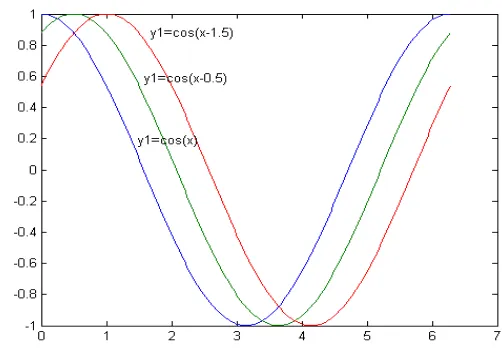
y2=cos(x-0.5); plot(x,y2); y3=cos(x-1.0); plot(x,y3)
2. The second way is to use plot with multiple arguments, e.g plot(x1,y1,x2,y2,x3,y3,...)
plot the vector pairs (xi,y1), (x2,y2), (x3,y3), etc. For example, x=linspace(0,2*pi,200);
y1=cos(x); y2=cos(x-0.5); y3=cos(x-1.0); plot(x,y1,x,y2,x,y3)
Line style, markers and color
Line style, markers and color may be selected for a graph with a string argument to plot. The general form of using line style, markers and color for a graph is
plot(x,y,'LineStyle_Marker_Color)
For example
x=linspace(0,2*pi,200); y1=cos(x);
y2=cos(x-0.5); y3=cos(x-1.0);
plot(x,y1,'-',x,y2,'o',x,y3,':') grid
Notice that picture 4.4 is displayed with grids. The grids can be accompanied on the graph with grid command.
x=linspace(0,2*pi,200); y=cos(x);
plot(x,y,'-squarer')
We can specify color and line width on the graph with commands:
LineWidth: specify line width of the graph
MarkerEdgeColor: specify the marker color and edge color of the graph. MarkerFaceColor: specify the face color of the graph.
MarkerSize: specify the size of the graph
x = -pi:pi/10:pi;
y = tan(sin(x)) - sin(tan(x)); plot(x,y,'--rs','LineWidth',3,... 'MarkerEdgeColor','k',... 'MarkerFaceColor','g',... 'MarkerSize',5)
The previous script will display a graph y vs x with
Line style is dash with red color and the marker is square('--rs'), Line width is 3
Color of the edge marker is balack(k),
The face marker is green (g), The size of marker is 5
Adding Label, Legend and Title of the Graph
It is very important to add label on the axes of the graph. As it can be used to make easy understanding the meaning of the graph. The commands that are common :
xlabel : to add label on the absis (x axes) ylabel : to add label on the ordinat (y axes) zlabel : to add label on the absis (z axes) tittle : to add title of the graph
legend : to add legend of the graph
For example, notice the script below clear; close all;
x=-2:0.1:2; y=-2:0.1:2;
[X,Y]=meshgrid(x,y);
f=-X.*Y.*exp(-2*(X.^2+Y.^2)); mesh(X,Y,f);
xlabel('Sumbu x'); ylabel('Sumbu y'); zlabel('Sumbu z');
Adding Text on the Graph
Sometime, we need to add any text to make clearly if there are more than one graph on the one axes. To add some texts one the graph, we can use gtext(). For example
clear; close all;
x=linspace(0,2*pi,200); y1=cos(x);
gtext('y1=cos(x)');gtext('y1=cos(x-0.5)'); gtext('y1=cos(x-1.5)');
We can also add the adding text on the graph with the way as below clear; close all;
x=linspace(0,2*pi,200); y1=cos(x);
y2=cos(x-0.5); y3=cos(x-1.0); plot(x,y1,x,y2,x,y3)
text(pi/2,cos(pi/2),'\leftarrowy1=cos(x)');
text(pi/3,cos(pi/3-0.5),'\leftarrowy1=cos(x-0.5)'); text(2*pi/3,cos(2*pi/3-1.0),'\leftarrowy1=cos(x-1.0)')
CHAPTER 6
FLOW CONTROL
There are eight flow control statements in MATLAB:
1. if, together with else and elseif, executes a group of statements based on some logical condition.
2. switch, together with case and otherwise, executes different groups of statements depending on the value of some logical condition.
3. while executes a group of statements an indefinite number of times, based on some logical condition.
4. for executes a group of statements a fixed number of times.
5. continue passes control to the next iteration of a for or while loop, skipping any remaining statements in the body of the loop.
6. break terminates execution of a for or while loop.
7. try...catch changes flow control if an error is detected during execution.
8. return causes execution to return to the invoking function. All flow constructs use end to indicate the end of the flow control block.
if (logical_expression) statements
end
If the logical expression is true (1), MATLAB executes all the statements between the if and end lines. It resumes execution at the line following the end statement. If the condition is false (0), MATLAB skips all the statements between the if and end lines, and resumes execution at the line following the end statement. For example,
if mod(a,2) == 0 disp('a is even') b = a/2;
end
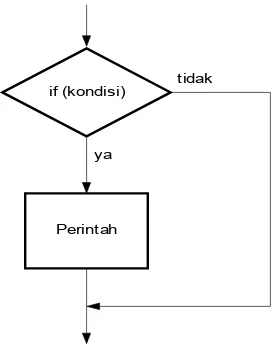
The if statement can be desribed in the diagram as picture 3 below
Gambar 6.1 Diagram alir percabangan if if (kondisi)
Perintah ya
Generally, the condition is logical expression, that is, the expression consisting of
relational operator that is true (1) or false (0). The followings are some relational operators:
Relational
>= Greater than or equal == Equal to
~= Not equal
The followings are some examples of logical expression using relational operator
and its meaning
b^2-4*a*c<0 b2−4a c0 b^2>4*a*c b24a c
b^2-4*a*c==0 b2−4a c=0 b~=4 b≠4
There are also some logical operators as below
Logical
a b a&b a|b ~a ~b a xor b
TRUE TRUE TRUE TRUE FALSE FALSE FALSE
TRUE FALSE FALSE TRUE FALSE TRUE TRUE
FALSE TRUE FALSE TRUE TRUE FALSE TRUE
FALSE FALSE FALSE FALSE TRUE TRUE FALSE
1
else and elseif statements
The else statement has no logical condition. The statements associated with it execute if the preceding if (and possibly elseif condition) is false (0). The elseif statement has a logical condition that it evaluates if the preceding if (and possibly elseif condition) is false (0). The statements associated with it execute if its logical condition is true (1). You can have multiple elseifs within an if block. if n < 0 % If n negative, display error message.
disp('Input must be positive');
elseif rem(n,2) == 0 % If n positive and even, divide by 2. A = n/2;
else
if Statements and Empty ArraysAn if condition that reduces to an empty array represents a false condition. That is, if A
S1 else S0 end
CHAPTER 6
FLOW CONTROL
1
Introduction
There are eight flow control statements in MATLAB:
1. if, together with else and elseif, executes a group of statements based on some logical condition.
2. switch, together with case and otherwise, executes different groups of statements depending on the value of some logical condition.
3. while executes a group of statements an indefinite number of times, based on some logical condition.
4. for executes a group of statements a fixed number of times.
5. continue passes control to the next iteration of a for or while loop, skipping any remaining statements in the body of the loop.
6. break terminates execution of a for or while loop.
7. try...catch changes flow control if an error is detected during execution.
use end to indicate the end of the flow control block.
2
The if Statement
The flow control, if, else, and elseif evaluates a logical expression and executes a group of statements based on the value of the expression. In its simplest form, its syntax is
if (logical_expression) statements
end
If the logical expression is true (1), MATLAB executes all the statements between the if and end lines. It resumes execution at the line following the end statement. If the condition is false (0), MATLAB skips all the statements between the if and end lines, and resumes execution at the line following the end statement. For example,
a=3; if (a>2)
disp('TRUE') end
Generally, the condition is logical expression, that is, the expression consisting of
relational operator that is true (1) or false (0). The followings are some relational operators:
Relational
>= Greater than or equal == Equal to
~= Not equal
The followings are some examples of logical expression using relational operator
and its meaning
b^2-4*a*c<0 b2−4a c0 b^2>4*a*c b24a c
b^2-4*a*c==0 b2−4a c=0 b~=4 b≠4
Picture 6.1 Ilustration for if statement if (kondisi)
Perintah ya
There are also some logical operators as below
Logical Operator
Symbol Meaning
And & And
Or | Or
Not ~ not
Xor Eksklusiv Or
The following is a table to describe the value of the expression with logical operator.
a b a&b a|b ~a ~b a xor b
TRUE TRUE
TRUE FALSE
FALSE TRUE
FALSE FALSE
3
else and elseif statements
Exercise 2.
Create a program to express the number of days every a specific month. As you know that January, Maret, May, July, August, October and Desember have 31 days, and April, June, September and November have 30 days. February has 28 days, but when number of the year can be divided by 4, so it has 29 days.
Exercise 3.
Create a computer program to determine the letter grade if it is given some criterions as below
1. Grade A as numerical grade > 80
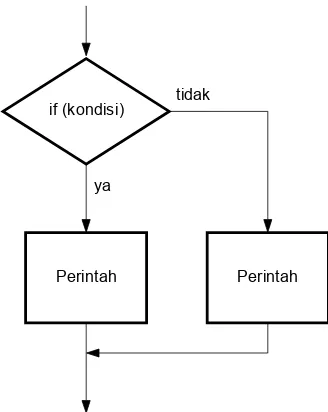
2. Grade B as numerical grade in the range 71 and 80 Figure 6.2 Ilustration for if – else statement
if (kondisi)
Perintah ya
tidak
3. Grade C as numerical grade in the range 61 and 70 4. Grade D as numerical grade in the range 40 and 60 5. Grade E as numerical grade < 39.
4
Switch-case statement
The switch statement executes certain statements based on the value of a variable or expression. In this example it is used to decide whether a random integer is 1, 2 or 3
Multiple expressions can be handled in a single case statement by enclosing the case expression in a cell array
Exercise 4.
Write a computer program to compute (1) area of a circle, (2) area of square (bujur sangkar) and (3) area of rectangle (persegi panjang). In this program, you must set if your input is 1, it means that you must calculate the area of circle. Similarly, if your input is 2, so you calculate the area of bujursangkar, and so on.
CHAPTER 7
LOOPING
So far we have seen how to get data into a program, how to do arithmetic, and how to get some answers out. In this section we look at a new feature: repetition. This is implemented by the extremely powerful for construct. We will first look at some examples of its use, followed by explanations. For starters, enter the following group of statements on the command line. Enter the command format compact first to make the output neater:
for i = 1:5, disp(i), end Now change it slightly to
for i = 1:3, disp(i), end And what about
for i = 1:0, disp(i), end
Can you see what’s happening? The disp statement is repeated five times, three times, and not at all.
Square rooting with Newton
The square root x of any positive number a may be found using only the arithmetic operations of addition, subtraction and division, with Newton’s method. This is an iterative (repetitive) procedure that refines an initial guess. The structure plan of the algorithm to find the square root, and the program with sample output for a = 2 is as follows. Run it.
2. Initialize x to a/2 3. Repeat 6 times (say)
Replace x by (x + a/x)/2
disp( ’Matlab’’s value: ’ ) disp( sqrt(2) )
Output (after selecting format long):
The value of x converges to a limit, which is √a. Note that it is identical to the value returned by MATLAB’s sqrt function. Most computers and calculators use a similar method internally to compute square roots and other standard mathematical functions.
Factorials!
Run the following program to generate a list of n and n! (spoken as ‘n factorial’, or ‘n shriek’) where
Do an experiment to find largest value of n for which MATLAB can find n factorial (you’d better leave out the disp statement!).
The basic for construct
statements end
Note the following points carefully:
1. j:k is a vector with elements j, j + 1,j + 2,...,k.
2. j:m:k is a vector with elements j, j + m, j + 2m,..., such that the last element does not exceed k if m> 0, or is not less than k if m< 0.
3. index must be a variable. Each time through the loop it will contain the next element of the vector j:k or j:m:k, and for each of these values statements (which may be one or more statement) are carried out.
The for statement in a single line
If you insist on using for in a single line, here is the general form: for index = j:k, statements, end
or
for index = j:m:k, statements, end Note:
1. Don’t forget the commas (semi-colons will also do if appropriate). If you leave them out you will get an error message.
2. Again, statements can be one or more statements, separated by commas or semi-colons.
3. If you leave out end, MATLAB will wait for you to enter it. Nothing will happen until you do so.
Exercise 1.
Create a computer program to calculate
∑
n=1 1000
Exercise 2.
n where n=999 with the for statement.
The while Statement
.The while loop is used in cases where the looping process must terminate when a specified condition is satisfied, and thus the number of passes is not known in advance. A simple example of a while loop is
The loop variable x is initially assigned the value 5, and it keeps this value until the statement x = 2*x - 1 is encountered the first time. Its value then changes to 9. Before each pass through the loop, x is checked to see if its value is less than 25. If so, the pass is made. If not, the loop is skipped and the program continues to execute any statements following the end statement. The variable x takes on the values 9, 17, and 33 within the loop. The resulting array y contains the values y (1) = 15, y ( 2) = 27, y ( 3) = 51.
Create a computer program, when algoritm of the program is given. Here is the algoritm
1. Generate random integer 2. Ask user for guess
3. While guess is wrong: If guess is too low Tell her it is too low Otherwise
Tell her it is too high Ask user for new guess 4. Polite congratulations 5. Stop.
Example.
Create a computer program to make an arragement of number shown below 1
Make a program to calculate the series of number shown below −1+1/3−1/5+1/7−1/9+⋯
MODUL 8
BREAK AND CONTINUE
break
The break statement will terminate execution of a for loop or while loop Syntax
break
Description
The break statement will terminate the execution of a for or while loop. Statements in the loop that appear after the break statement are not executed. In nested loops, break exits only from the loop in which it occurs. Control passes to the statement that follows the end of that loop.
Remarks
The break statement is not defined outside a for or while loop. Use return in this context instead.
Examples
N=20; for i=1:N if (i>5) break; end
end
The break statement at the above program will exit the for loop when i>5 is encountered. In other word, the sentence “ I am a student at UNY” will not be displayed when i=6.
Exercise 1.
Create a Matlab program to calculate the sumation as below −1+1/3−1/5+1/7−1/9+⋯
until the last term is less than 10−4 . Following is algoritm of the program
(1) initialize jum=0,
(2) determine the constant tol=10−4 , N=10000000
(3) initialize sign=1 (4) initialize term=1
(5) Repeat N times, starting from k=1
WHILE loop in which it appears, skipping any remaining statements in the body of the FOR or WHILE loop. In nested loops, CONTINUE passes control to the next iteration of FOR or WHILE loop enclosing it.
Example.
Calculate the series of number as shown below
1+1/2+1/4+1/6+1/8+⋯
and the program will be stoped after the final summation is greater than 6 and how many terms of the series are?
Exercise 3.
Below is shown part of Matlab script if a>b
end else if c>b tmp=c; else tmp=b; end end
fprintf(tmp)
If a=2, b=4 and c=5, determine the final value of variable tmp. Exercise 4.
Here is an algoritm which will display the variable N,P and E. Create a program based on the algoritm
• initialize A=1 and N=6
• Repeat 10 times
• replace N with 2N
• suppose L=NA/2 and U=L
1−A2/2• suppose P=(U+L)/2
• suppose E=(U-L)/2
• displayN,P,E
CHAPTER 6
SOLVING ALGEBRAIC EQUATION
To solve an algebraic equation in MATLAB we can call upon the solve command. At its most basic all we have to do is type in the equation we want to solve enclosed in quotes and hit return. Let’s start by looking at a trivial example. Suppose that we wanted to use MATLAB to fi nd the value of x that solves:
x + 3 =0
To solve this equation, we just write comand as >> solve ('x+3=0')
ans = -3
Now it isn’t necessary to include the right-hand side of the equation. To verify this, we run this command line
>> solve ('x+3') ans =
-3
It is possible to include multiple symbols in the equation you pass to solve. For stance, we might want to have a constant included in an equation like this:
>> solve ('a*x+3=0') ans =
-3/a
But, if we want to determine a specific variable in the equation. For example, we can determine the variale a from the above equation by writing
>> solve ('a*x+3=0','a') ans =
-3/x
Solving Quadratic Equation
The solve command can be used to solve higher order equations as quadratic equation.
>> s=solve ('x^2+3*x-2=0') s =
-3/2+1/2*17^(1/2) -3/2-1/2*17^(1/2)
The alternative way to write command line is >> d='x^2+3*x-2=0';
-3/2+1/2*17^(1/2) -3/2-1/2*17^(1/2)
Plotting Symbolic Equation
For clearly, let’s create the string to represent the equation: >> d='x^2+3*x-2';
![Keputusan Menteri Kesehatan Republik Indonesia Nomor 1114/MENKES/PER/IX/2007 tentang Pedoman Pelaksanaan Pengadaan calon pegawai negeri sipil - [PERATURAN]](data:image/gif;base64,R0lGODlhAQABAIAAAP///wAAACH5BAEAAAAALAAAAAABAAEAAAICRAEAOw==)