Build
well designed
tables, queries,
forms, and reports
Harness
the
power of functions,
expressions, controls,
and VBA in Office XP
Put
Access data on
the Web using XML
and Data Access Pages
A
ccess 2002
Cary Prague and Michael Irwin
Microsoft Certified ProfessionalsBONUS
CD-ROM
Source code, all examples,
developer tools from Database
Creations, and more!
C O M P R E H E N S I V E
A U T H O R I T A T I V E
W H A T Y O U N E E D
O N E H U N D R E D P E R C E N TA
ccess 2002
le
Cary N. Prague and Michael R. Irwin
Copyright © 2001 Hungry Minds, Inc. All rights reserved. No part of this book, including interior design, cover design, and icons, may be reproduced or transmitted in any form, by any means (electronic, photocopying, recording, or otherwise) without the prior written permission of the publisher.
Library of Congress Catalog Card No.: ISBN: 0-7645-3596-X
Printed in the United States of America 10 9 8 7 6 5 4 3 2 1
1B/RZ/QW/QR/IN
Distributed in the United States by Hungry Minds, Inc.
Distributed by CDG Books Canada Inc. for Canada; by Transworld Publishers Limited in the United Kingdom; by IDG Norge Books for Norway; by IDG Sweden Books for Sweden; by IDG Books Australia Publishing Corporation Pty. Ltd. for Australia and New Zealand; by TransQuest Publishers Pte Ltd. for Singapore, Malaysia, Thailand, Indonesia, and Hong Kong; by Gotop Information Inc. for Taiwan; by ICG Muse, Inc. for Japan; by Intersoft for South Africa; by Eyrolles for France; by International Thomson Publishing for Germany, Austria, and Switzerland; by Distribuidora Cuspide for Argentina; by LR International for Brazil; by Galileo Libros for Chile; by Ediciones ZETA S.C.R. Ltda. for Peru; by WS Computer Publishing Corporation, Inc., for the Philippines; by Contemporanea de Ediciones for Venezuela; by Express Computer Distributors for the Caribbean and West Indies; by Micronesia Media Distributor, Inc. for Micronesia; by Chips
Computadoras S.A. de C.V. for Mexico; by Editorial Norma de Panama S.A. for Panama; by American Bookshops for Finland.
foreign-language translations, please contact our Customer Care department at 800-434-3422, fax 317-572-4002 or write to Hungry Minds, Inc., Attn: Customer Care Department, 10475 Crosspoint Boulevard, Indianapolis, IN 46256.
For information on licensing foreign or domestic rights, please contact our Sub-Rights Customer Care department at 212-884-5000.
For information on using Hungry Minds’ products and services in the classroom or for ordering examination copies, please contact our Educational Sales department at 800-434-2086 or fax 317-572-4005. For press review copies, author interviews, or other publicity information, please contact our Public Relations department at 650-653-7000 or fax 650-653-7500.
For authorization to photocopy items for corporate, personal, or educational use, please contact Copyright Clearance Center, 222 Rosewood Drive, Danvers, MA 01923, or fax 978-750-4470.
LIMIT OF LIABILITY/DISCLAIMER OF WARRANTY: THE PUBLISHER AND AUTHOR HAVE USED THEIR BEST EFFORTS IN PREPARING THIS BOOK. THE PUBLISHER AND AUTHOR MAKE NO REPRESENTATIONS OR WARRANTIES WITH RESPECT TO THE ACCURACY OR COMPLETENESS OF THE CONTENTS OF THIS BOOK AND SPECIFICALLY DISCLAIM ANY IMPLIED WARRANTIES OF MERCHANTABILITY OR FITNESS FOR A PARTICULAR PURPOSE. THERE ARE NO WARRANTIES WHICH EXTEND BEYOND THE DESCRIPTIONS CONTAINED IN THIS PARAGRAPH. NO WARRANTY MAY BE CREATED OR EXTENDED BY SALES REPRESENTATIVES OR WRITTEN SALES MATERIALS. THE ACCURACY AND COMPLETENESS OF THE INFORMATION PROVIDED HEREIN AND THE OPINIONS STATED HEREIN ARE NOT GUARANTEED OR WARRANTED TO PRODUCE ANY PARTICULAR RESULTS, AND THE ADVICE AND STRATEGIES CONTAINED HEREIN MAY NOT BE SUITABLE FOR EVERY INDIVIDUAL. NEITHER THE PUBLISHER NOR AUTHOR SHALL BE LIABLE FOR ANY LOSS OF PROFIT OR ANY OTHER COMMERCIAL DAMAGES, INCLUDING BUT NOT LIMITED TO SPECIAL, INCIDENTAL, CONSEQUENTIAL, OR OTHER DAMAGES. FULFILLMENT OF EACH COUPON OFFER IS THE SOLE RESPONSIBILITY OF THE OFFEROR.
Trademarks:All trademarks are the property of their respective owners. Hungry Minds, Inc., is not associated with any product or vendor mentioned in this book.
company. Their products include a line of financial software; Business! for Microsoft
Office, a mid-range accounting system, POSitively Business! Point of Sale software, the
Inventory Barcode manager for mobile data collection, and the Check Writer and
General Ledger. Database Creations also produces a line of developer tools including the
appBuilder, an application generator for Microsoft Access, the EZ Access Developer
Tools for building great user interfaces, appWatcher for maintaining code bases among
several developers, and Surgical Strike, the only Patch Manager for Microsoft Access.
Cary also owns Database Creations Consulting, LLC., a successful consulting firm
spe-cializing in Microsoft Access and SQL Server applications. Local and national clients
include many Fortune 100 companies including manufacturers, defense contractors,
insurance, health-care, and software industry companies. His client list includes
Microsoft, United Technologies, ABB, Smith & Wesson Firearms, Pratt and Whitney
Aircraft, ProHealth, OfficeMax, Continental Airlines, and other Fortune 500 companies.
Formerly, he has held numerous management positions in corporate information
sys-tems, including Director of Managed Care Reporting for MetraHealth, Director of
Corporate Finance and Software Productivity at Travelers Insurance where he was
responsible for software support for 35,000 end users, and Manager of Information
Systems support for Northeast Utilities.
He is one of the top best-selling authors in the computer database management market
having written over forty books which have sold over one million copies on software
including Microsoft Access, Borland (Ashton-Tate) dBASE, Paradox, R:Base, Framework,
and graphics. Cary’s books include eleven books in the Access Bible series (recently
number one on the Ingram Bestselling Database Titles list and in the Amazon.com top
100), Access 97 Secrets, dBASE for Windows Handbook, dBASE IV Programming (winner of
the Computer Press Association’s Book of the Year award for Best Software Specific
Book), and Everyman’s Database Primer Featuring dBASE IV.
He previously completed
three books for Access 2000 including Weekend Crash Course in Access 2000
Programming. Cary recently sold a product line named eTools for Microsoft Access to
MightyWords, a division of FatBrain.com and Barnes and Noble.
Cary is certified in Access as a Microsoft Certified Professional and has passed the
MOUS test in Access and Word. He is a frequent speaker at seminars and conferences
around the country. He is on the exclusive Microsoft Access Insider Advisory Board and
makes frequent trips to Microsoft headquarters in Redmond, WA. He has been voted the
best speaker by the attendees of several national conferences. Recently, he was a
speaker for Microsoft sponsored conferences in New Orleans, Hawaii, Phoenix, Chicago,
Toronto, Palm Springs, Boston, and Orlando. He has also spoken at Borland’s Database
Conference, Digital Consulting’s Database World, Microsoft’s Developer Days,
Computerland’s Technomics Conference, COMDEX, and COMPAQ Computer’s Innovate.
He was a contributing editor to Access Advisor
magazine and has written for the
Microsoft Office Developer’s
journal.
Mr. Irwin has extensive database knowledge, gained by working with the
Metropolitan Police Department in Washington, D.C. as a developer and analyst for
the Information Systems Division for over 20 years and assorted Federal Agencies
of the United States Government. Since retiring in June 1992, he runs his own
con-sulting firm, named The Irwin Group, and is principal partner in the company - IT in
Asia, LLC, specializing in Internet database integration and emphasizing
Client/Server and net solutions. With consulting offices in Cincinnati Ohio, Bangkok
Thailand, and Manila Philippines, his companies offer Training and Development of
Internet and database applications. His company has the distinction of being one of
the first Microsoft Solution’s Providers (in 1992). His local, national, and
interna-tional clients include many software companies, manufacturers, government
agen-cies, and international companies.
His range of expertise includes database processing and integration between
main-frame, minicomputer, and PC-based database systems, as well as B-2-B and B-2-C
integration between back-end databases; he is a leading authority on PC-based
databases.
He is one of the top best-selling authors in the computer database management
market having authored numerous database books, with several of them
consis-tently on the best sellers lists. His books, combined, have sold nearly a million
copies worldwide. His most recent works include The OOPs Primer
(Borland Press,
dBASE 5.5 for Windows Programming (Prentice Hall), Microsoft Access 2000 Bible,
Microsoft Access 2000 Bible Gold Edition (co-authored), and Working with the
Project Editors
Janet Andrews, Erik Schwab, Pat O’Brien
Technical Editor
This book is dedicated to the people closest to me. First and foremost it is dedicated to
my family — my wife, Dra. Arni Lim-Irwin, my sons Richard Rocco, Joseph Patrick, and
David Joseph. While writing this book, I had to be separated from my family for over
three months, who where in another country, to finish on deadline. It is also dedicated
to my mother, Aurelia Irwin, 72 years young and as strong as ever — who has
continued to be my sounding board and example of strength. Finally, my partner,
Richard Mahonski, who is ‘holding down the fort’ in Asia while I write this book under
a horrific deadline!
— MRI
This book is dedicated to the memory of my father who died in 1999. I miss him more
every year. My Dad gave me strength, motivation, and pushed me beyond my limits. I
can only hope that my sons — David, Jeffrey, and Alex — someday will understand
how proud I am of them and how I too will relentlessly push them to do their best and
beyond, no matter what. This book is also dedicated to my wife Karen, who puts up
with more than she should have to and whom I also hope someday realizes why I push
our children so hard. Success is not without a struggle, and no goal is ever achieved
unless there is another right behind it.
W
elcome to the Access 2002 Bible
— your personal guide to a powerful,
easy-to-use database management system. This book is in its ninth revision and
has been totally re-written for Access 2002.
It examines Access 2002 with more examples than any other Access book ever
writ-ten. We think that Microsoft Access is an excellent database manager and the best
Windows database on the market today. Our goal with this book is to share what we
know about Access and, in the process, to help make your work and your life easier.
This book contains everything you need in order to learn Microsoft Access to a
mid-advanced level. You’ll find that the book starts off with the basics and builds,
chapter by chapter, on topics previously covered. In places where it is essential
that you understand previously covered topics, we present the concepts again and
review how to perform specific tasks before moving on. Although each chapter is
an integral part of the book as a whole, each chapter can also stand on its own. You
can read the book in any order you want, skipping from chapter to chapter and
from topic to topic. (Note that this book’s index is particularly thorough; you can
refer to the index to find the location of a particular topic you’re interested in.)
The examples in this book have been well thought out to simulate the types of
tables, queries, forms, and reports most people need to create when performing
common business activities. There are many notes, tips, and techniques (and even
a few secrets) to help you better understand the product.
This book can easily substitute for the manuals included with Access. In fact, many
users do not get manuals today, often relying on just the online help. This book will
guide you through each task you might want to do in Access. We even created
appendixes to be used as reference manuals for common Access specifications.
This book follows a much more structured approach than the Microsoft Access
manuals — going into more depth on almost every topic and showing many
differ-ent types of examples.
Is This Book for You?
the Northwinds sample files, you may want to start with the later parts of this book.
Note, however, that starting at the beginning of a book is usually a good idea so you
don’t miss out on the secrets and tips in the early chapters.
We think this book covers Microsoft Access in detail better than any other book
currently on the market. We hope you will find this book helpful while working with
Access, and that you enjoy the innovative style of a Hungry Minds book (formally
IDG books).
Yes — If you have no database experience
If you’re new to the world of database management, this book has everything you
need to get started with Microsoft Access. It then offers advanced topics for
refer-ence and learning.
Yes — If you’ve used other database managers like
dBASE or Paradox
If you’re abandoning another database (such as dBASE, Paradox, FoxPro, R:Base, or
Alpha Four) or even upgrading from Access 2.0 or Access 95 or 97, this book is for
you. You’ll have a head start because you’re already familiar with database
man-agers and how to use them. With Microsoft Access, you will be able to do all the
tasks you’ve always performed with character-based databases — without
program-ming or getting lost. This book will take you through each subject step by step.
Yes — If you want to learn the basics of Visual Basic
Applications Edition (VBA) programming
VBA has replaced the Access Basic language. We know that an entire book is
needed to properly cover VBA, but we took the time to put together several
intro-ductory chapters that build on what you learn in the macros chapters of this book.
The VBA programming chapters use the same examples you will be familiar with by
the end of the book.
Conventions Used in This Book
The following conventions are used in this book:
✦
When you are instructed to press a key combination (press and hold down
Point the mouse refers to moving the mouse so that the mouse pointer is on a
specific item. Click refers to pressing the left mouse button once and releasing
it. Double-click refers to pressing the left mouse button twice in rapid
succes-sion and then releasing it. Right-click refers to pressing the right mouse
but-ton once and releasing it. Drag refers to pressing and holding down the left
mouse button while moving the mouse.
✦
When you are instructed to select a menu, you can use the keyboard or the
mouse. To use the keyboard, press and hold down the Alt key (to activate the
menu bar) and then press the underlined letter of the menu name; press Alt+E
to select the Edit menu, for example. Or you can use the mouse to click on the
word Edit on-screen. Then, from the menu that drops down, you can press the
underlined letter of the command you want (or click on the command name)
to select it.
✦
When you are instructed to select a command from a menu, you will often see
the menu and command separated by an arrow symbol. Edit_Paste, for
exam-ple, indicates that you need to select the Edit menu and then choose the Paste
command from the menu.
✦
Italic type
is used for new terms and for emphasis.
✦
Bold type
is used for material you need to type directly into the computer.
✦
A special typeface is used for information you see on-screen — error
mes-sages, expressions, and formulas, for example.
Icons and Alerts
You’ll notice special graphic symbols, or icons, used in the margins throughout this
book. These icons are intended to alert you to points that are particularly
impor-tant or noteworthy. The following icons are used in this book:
This icon highlights a special point of interest about the topic under discussion.
This icon points to a useful hint that may save you time or trouble.
This icon alerts you that the operation being described can cause problems if
you’re not careful.
This icon points to a more complete discussion in another chapter of the book.
Cross-Reference Caution
This icon highlights information for readers who are following the examples and
using the sample files included on the disk accompanying this book.
This icon calls attention to new features of Access 2002.
How This Book Is Organized
This book contains 36 chapters divided into six main parts. In addition, the book
contains five appendixes.
Part I: First Things First
Part I consists of the first four chapters of the book. In Chapter 1, you receive
back-ground information on Microsoft Access and an overview of its features. Chapter 2
covers installation — what you need in terms of hardware and software, as well as
how to get Access running properly. You also learn how to start and stop Access,
plus several techniques for moving between Access and other applications.
Chapter 3 provides a quick hands-on test drive of Access, offering you a quick look
at the features of access. Chapter 4 gives an in-depth explanation of database
con-cepts for new users of a database product and is a case study of the up-front design
that is necessary to properly implement a database system; otherwise, you must go
through many false starts and redesigns when creating an application. You will
design on paper the tables, forms, queries, reports, and menus necessary for
creating the application.
Part II: Creating the Objects
The next six chapters make up Part II. You learn how to create a database table in
Chapter 5, and you also examine how to change a database table, including moving
and renaming fields without losing data. You will also learn about the new data
types in Access, including the new Internet data types. In Chapter 6 you will learn
NewFeature On the CD-ROM
Sidebars
about creating many tables and relating tables and using the Relationship builder
tool in Access. In Chapter 7, you learn how to enter, display, change, and delete
data. Chapter 8 teaches the basics of creating data-entry forms and using Wizards
to simplify the creation process; using data-entry forms is also discussed. In
Chapter 9, you examine the concept of queries; then you create several queries to
examine how data can be rearranged and displayed. Chapter 10 covers the basics
of report creation and printing.
Part III: Using Access in Your Work
Part III contains 11 chapters that go into more depth on creating and using forms,
queries, and reports. In Chapter 11 you examine the meanings of operators,
tions, and expressions. This chapter also covers many of the more common
func-tions and expressions you will use in Access. You will also learn how to create the
expressions and built-in functions that are so important in forms and reports. In
Chapter 12, you learn how to create relations and joins in queries. Chapter 13
dis-cusses basic selection queries, using many examples and pictures. In Chapter 14,
you examine the concepts of controls and properties, and then learn how to
manip-ulate controls in a form. Chapter 15 examines in detail how to create and use
data-entry forms. Chapter 16 covers how to use visual effects to create great-looking
forms and reports that catch the eye and increase productivity. In Chapter 17, you
learn how to add complex data validation to tables and data-entry forms. Chapter
18 explains the use of pictures, graphs, sound, video, and other OLE objects.
Chapters 19–21 cover reports — from simple controls to complex calculations,
sum-maries, printing, and desktop publishing.
Part IV: Advanced Access Database Topics
Part V: Access Application Tools
This part contains five chapters and looks at Access as an application environment.
Chapter 28 covers the concept of event-driven software and how Access uses
macros to automate manual processes. This chapter also examines what a macro
is, how macros are created, and how to debug them. Chapter 29 demonstrates how
to use Macros in Forms and Reports. In Chapter 30 and 31 you work with Visual
Basic for Applications (VBA) in Access with focus on using VBA in forms and
reports; it explains data manipulation, including posting totals and filling in
data-entry fields. In Chapter 32, you learn how to create button menus known as
switch-boards, as well as traditional pull-down menus, custom toolbars, and dialog boxes
using the new Access Tab Control. In Access 2002, you will also learn about the new
command bars used to build menus and toolbars.
Part VI: Access and the External World
The four chapters of Part VI are the last part of the book and focuses on using
Access to work SQL Server, Access projects and Data Access Pages, XML, and the
Internet. In Chapter 33, you will learn about client/server topics including installing,
starting, connecting to, and building Access Data Projects using the new Microsoft
Database Engine. It also focuses on moving from the local ‘Jet Engine’ to the
Microsoft Database Engine and SQL Server, focusing on the issues surrounding the
two different engines and how to use tables in SQL Server. Chapter 34 shows how to
work with Access Projects and the advantage of using them. Chapters 35 and 36
cover the Web and Access. Chapter 35 shows how to create and maintain HTML
documents from Access Objects. Chapter 36 is dedicated to Data Access Pages and
XML and how they are used for creating live data links to intranet web pages and
the other incredible web capabilities of Access 2002.
Appendixes and Reference Material
W
hen we first saw Access in July of 1992, we were instantly sold on this
new-generation database management and access tool. Both of us have spent
the last nine years using Access daily. In fact, we eat, breathe, live, and sleep
Access! The fact that we can earn a living from our work on principally one product
is a tribute to the designers of Microsoft Access. This product has changed the
pro-ductivity of corporations and private citizens of the world. More people use this
product to run their businesses, manage their affairs, track the most important
things in their lives, and manage data in their work and play than any other product
ever written. It is indeed a privilege to be part of this worldwide community. We
have found readers in every county on the map and a few countries we never heard
of. The global Internet age has allowed readers in emerging countries, in the
Himalayan mountains, in Siberia, and even in Antarctica to contact us this year.
Now we have completely rewritten this book for all the incredible new features in
Access 2002. We’ve covered every new feature we could think of for the beginning
user and especially enhanced our programming section. Over 450,000 copies of our
Access Bibles have been sold for all versions of Microsoft Access; for this we thank
all of our loyal readers.
Our first acknowledgment is to all the users of Access who have profited and
bene-fited beyond everyone’s wildest dreams.
There are many people who assisted us in writing this book. We’d like to recognize
each of them.
To Kim Manzone, an employee of Database Creations, who helped write several of
the chapters on forms and reports. To Diana Reid, also an employee of Database
Creations, who had assisted in previous versions of this book (on programming and
forms chapters) and was the technical editor for several of the previous versions of
this book. To her we offer an additional and special thank you. Thanks to Jennifer
Reardon, one of Cary’s top developers, for stepping in as always and for writing the
Visual Basic for Application chapters. To John S. Dranchak for designing the reports
so long ago, used in Chapters 19 and 21, and creating the logo for Mountain Animal
Hospital. It still lives!!!!!
use your imagination – we must get this book out first). Cary thinks he wants us to
get started on the Access 2004 Bible next month, although the software won’t be in
Beta for another 18 months.
Special acknowledgements go to our technical editors Janet Andrews and Pat
O’Brien. Janet edited the first half of the book and found bugs, problems,
mis-spellings, and more that have eluded us and her predecessors for years. She had
some very insightful comments throughout the editing process and didn’t mind
that she had to edit the entire book twice. She is a seasoned professional and we
found her to be one of the best editors we have ever worked with in our now
20+-year career writing books. A special thank you to Pat O’Brien, and all the other
unnamed editors, who were brought in at the last minute to edit the second half of
the book — they had to do the same amount of work as Janet, but had less than half
the time. What a terrific job and dedication — another truly seasoned professional.
A special thank you must also go to Kyle Looper, Editorial Manager, also from
Hungry Minds. When things started getting crazy with deadlines and trying to make
Access work as expected with non-released product, he was the one that was there
to bring calm to the trouble. He was more than just a coordinator between the
authors, tech editors, and wordsmiths. He was the one person that kept everything
on an even playing field and got everyone to work together cohesively.
To the best literary agents in the business, Matt Wagner and Bill Gladstone, and all
the folks at Waterside Productions for helping us negotiate our fairest advance ever
and for keeping the screaming down at the flying pig company (Hungry Minds new
logo).
We would be remiss if do not thank several people at Microsoft, especially David
Gainer, Microsoft Access Product Manager, Rich Dickinson, Microsoft Development
Manager and Lucille Pan, the Access Product Manager. These folks were incredibly
helpful in supplying us with beta builds and information not publicly available.
They kept us informed about last minute changes and sent us new CD’s when our
examples didn’t work. Thanks to Microsoft and these wonderful people, we were
able to deliver a quality book to our readers.
Michael R. Irwin and Cary N. Prague
To the people of Database Creations who let me miss all my deadlines while I
worked on this book. To Kim, Jerry, Larry, Diana, Julie, Phuc, Nate, Tom, Debbie,
Karen, and especially Dick James for handling all my technical support calls. To Vic
my golfing partner, thanks for dragging me to Las Vegas after I finished most of the
book. Kaching!
First to all our clients who let me get away and spend four months solely on
re-writing this book. Although my telephone bills seem to reflect the opposite —
I am so grateful to them for not insisting that I personally appear to solve their
‘critical’ problems. To my family, Arni, Richard, Joseph, and David, who had to put
up with the long months away from me while I dedicated myself to this book and
organizing it into the best Access Bible yet. Even worse, having to be away, in a
country (13,000 miles away), literally on the other side of the world, for three of the
four months it took to solely focus on this book.
I also want to thank Dave Gainer and Clint Covington of Microsoft who offered many
suggestions for the Data Access Pages section of this book. Data Access Pages
have been greatly enhanced and things were being added and cut from this section
so rapidly it was impossible to figure out what was going to be in the final build.
Without Dave and Clint’s help, these sections may have missed some items and put
others in that were pulled.
Preface. . . ix
Acknowledgments . . . xv
Part I: First Things First . . . 1
Chapter 1: What Is Access 2002? . . . 3
Chapter 2: Installing and Running Access 2002 . . . 23
Chapter 3: A Hands-on Tour of Access 2002 . . . 55
Chapter 4: Database Concepts and Design . . . 81
Part II: Creating the Objects . . . 117
Chapter 5: Creating Database Tables . . . 119
Chapter 6: Setting Relationships Between Tables . . . 165
Chapter 7: Working with Information in Tables . . . 211
Chapter 8: Creating and Using Simple Data-Entry Forms . . . 249
Chapter 9: Understanding and Creating Simple Queries . . . 269
Chapter 10: Creating and Working with Simple Reports . . . 295
Part III: Using Access in Your Work . . . 315
Chapter 11: Using Operators, Functions, and Expressions . . . 317
Chapter 12: Creating Relations and Joins in Queries . . . 343
Chapter 13: Working with Select Queries . . . 369
Chapter 14: Understanding Form Controls . . . 395
Chapter 15: Creating and Customizing Data-Entry Forms . . . 423
Chapter 16: Creating Great Looking Forms . . . 471
Chapter 17: Adding Data-Validation Controls to Forms . . . 493
Chapter 18: Using OLE Objects, Graphs, Pivot Tables/Charts,
and ActiveX Controls . . . 519
Chapter 19: Creating and Customizing Reports . . . 571
Chapter 20: Presentation-Quality Reports and Printing . . . 623
Chapter 21: Creating Calculations and Summaries in Reports . . . 655
Part IV: Advanced Access Database Topics . . . 689
Chapter 22: Working with External Data . . . 691
Chapter 23: Working with Advanced Select Queries . . . 741
Chapter 25: Advanced Query Topics . . . 800
Chapter 26: Working with Subforms . . . 833
Chapter 27: Creating Mail Merge and Label Reports . . . 863
Part V: Access Application Tools . . . 891
Chapter 28: Working with Macros and Events . . . 893
Chapter 29: Using Macros in Forms and Reports . . . 917
Chapter 30: Working with Visual Basic in Access 2002 . . . 961
Chapter 31: Using Visual Basic in Forms and Reports . . . 993
Chapter 32: Creating Switchboards, Command Bars, Menus,
Toolbars, and Dialog Boxes . . . 1049
Part VI: Access and the External World . . . 1111
Chapter 33: Moving from Jet to the SQL Server 2000 Desktop Engine . . . 1113
Chapter 34: Working with Access Projects . . . 1151
Chapter 35: Using and Creating Access Objects for Intranets
and the Internet . . . 1179
Chapter 36: Building Web Applications, Data Access Pages, and XML . . . 1217
Appendix A: Access 2002 Specifications . . . 1273
Appendix B: Mountain Animal Hospital Tables . . . 1279
Appendix C: What’s on the CD-ROM . . . 1287
Appendix D: Chapter Cross-Reference Guide . . . 1297
Index . . . 1305
Coupons . . . 1343
Hungry Minds, Inc. End-User License Agreement. . . 1348
Preface. . . ix
Acknowledgments . . . xv
Part I: First Things First
1
Chapter 1: What Is Access 2002? . . . 3
Modules: Visual Basic for Applications — database programming . . 16
Step 1: The Overall Design —
Part II: Creating the Objects
117
Creating Relationships . . . 177
Using the Relationship window . . . 178
Creating relationships between tables . . . 180
Specifying relationship options in the
Edit Relationships dialog box . . . 181
Saving the relationships between tables . . . 184
Adding another relationship . . . 184
Deleting an existing relationship . . . 184
Join lines in the Relationships window . . . 184
Creating the relationships for the
Choosing the fields . . . 303
Part III: Using Access in Your Work
315
Creating Choices with Option Buttons . . . 496
Chapter 18: Using OLE Objects, Graphs, Pivot Tables/Charts,
Sinking controls . . . 646
Part IV: Advanced Access Database Topics
689
Working with Linked Tables . . . 712
Exporting objects to other external databases or to
Selecting the form title . . . 840
Part V: Access Application Tools
891
Filtering Records in Procedures . . . 1018
Chapter 32: Creating Switchboards, Command Bars,
Part VI: Access and the External World
1111
Chapter 33: Moving from Jet to the
SQL Server 2000 Desktop Engine . . . 1113
Running the SQL Server 2000 Desktop
Engine Installation Program . . . 1117
Customizing the installation of SQL Server 2000
Chapter 35: Using and Creating Access Objects
Chapter 36: Building Web Applications,
Appendix A: Access 2002 Specifications . . . 1273
Appendix B: Mountain Animal Hospital Tables . . . 1279
Appendix C: What’s on the CD-ROM . . . 1287
Appendix D: Chapter Cross-Reference Guide . . . 1297
First Things First
✦
✦
✦
✦
In This Part
Chapter 1
What Is Access
2002?
Chapter 2
Installing and
Running Access
2002
Chapter 3
A Hands-on Tour of
Access 2002
Chapter 4
Database Concepts
and Design
✦
✦
✦
✦
What Is
Access 2002?
B
efore you begin to use a software product, it is
impor-tant to understand its capabilities and the types of
tasks that it’s designed to perform. Microsoft Access 2002
(also known simply as Access) is a multifaceted product; its
uses are bounded only by your imagination.
Access Is . . .
Essentially, Access is a database management system
(DBMS).
Like other products in this category, Access stores and
retrieves information (often referred to as data), presents
requested information, and automates repetitive tasks (such
as maintaining accounts payable or a personnel system, and
performing inventory control and scheduling). With Access
you can create easy-to-use input forms like the one shown in
Figure 1-1. You can display your information in any way that
you want and run powerful reports.
Figure 1-1:
A typical Access data-entry form
Using OLE
(Object Linking and Embedding) objects in Windows and Microsoft
Office products (Excel, Word, PowerPoint, and Outlook), you can extend Access’s
ability to incorporate viewable objects of these Microsoft products — without the
need to copy their contents and paste them into Access. This ability enables you to
work with the actual data already included in these products without the need to
duplicate the information. By using OLE, you can actually change the information in
the underlying form object (Excel, Word, etc.). With the Internet extensions in
Access, you can create forms that interact with data directly from the World Wide
Web and then translate your forms directly into data access pages for corporate
intranets that work directly with your Internet browser.
The data access pages feature of Access 2002 enables you to create
browser-based forms to view and edit live data on a corporate intranet or across the
Internet. In Access 2000, data access pages only work with Microsoft Internet
Explorer 5.0. In version 2002, however, data access pages work with any browser
that supports XML 1.1 — including Netscape Navigator 6.x. Browsers that don’t
support this standard include older versions of Netscape (4.x or earlier) or Internet
Explorer (3.x or earlier).
Access is more than just a local database manager. As a relational
database
man-ager, it allows users to access information from more than one database table at a
time — even linking database tables to create a new table. It can reduce the
com-plexity of your data and make your job easier to finish. You can connect your
Access tables with mainframe or server data — you can even use a table created
in dBASE or Excel. You can easily combine the results of the link with an Excel
worksheet.
Access’s ability to link to outside data (stored in other database formats) makes it a
very robust program. Access can be used in a network environment to connect to a
wide range of tables from other databases — both locally (on the same machine) and
remotely (even to a mainframe computer’s database, such as Oracle or DB2). Access
can link directly to these “outside” tables or import them for local use. Once outside
tables are linked or imported, you can create forms and reports to work with the
information — to make changes or to view or print the information for later use.
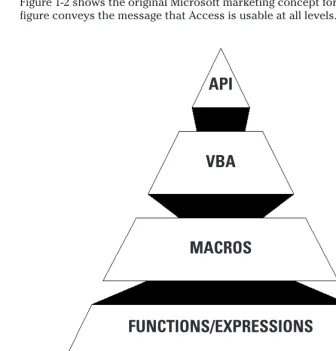
Figure 1-2 shows the original Microsoft marketing concept for Access. This simple
figure conveys the message that Access is usable at all levels.
Figure 1-2:
The Access usability hierarchy
OBJECTS, TABLES, QUERIES, FORMS. REPORTS
FUNCTIONS/EXPRESSIONS
MACROS
VBA
Beginning at the lowest level of the hierarchy and moving up, you see objects
listed
first; these give the end user the capability of creating tables, queries, forms, and
reports easily. You can perform simple processing by using expressions to validate
data, enforce a business rule, or simply display a number with a currency symbol.
Following the chart, you see that you can use the built-in macros
to perform
rela-tively complex tasks without the need for creating a formal program.
However, Access also lets you build professional quality programs by using VBA
(Visual Basic for Applications), which is a code written by the
programmer/devel-oper to let the database perform complex processes repetitively. Finally, by using
Windows API
(Application Programming Interface) calls to functions or DLLs
(Dynamic Link Libraries) written in other languages, such as C, Java, or Visual
Basic, a programmer can write interfaces to other programs and data sources —
using the existing functions built into Windows or other applications.
Access has a complete set of tools for end-user database management. Access has a
table creator, a form designer, a query manager, a Data Access Page Creator, and a
Report Writer. Access also offers a powerful environment for developing complete
database applications. As Figure 1-2 points out, you can use macros or modules to
automate tasks and create user-oriented applications as powerful as the
applica-tions created with programming languages — complete with buttons, menus, and
dialog boxes, as shown in Figure 1-3. By programming in Visual Basic for
Applications, you can create programs as powerful as Access itself. In fact, many of
the tools in Access (such as Wizards and Builders) are written in VBA. The power
and usability of Access make it, by far, the best database management software on
the market.
Figure 1-3:
A macro switchboard
user’s point of view. In the remaining pages, you learn the basics of VBA, the
Internet, and the client/server. This book offers you the ability to examine many
topics to a depth that your reference manuals can only begin to touch.
What Access Offers
The following sections briefly describe some of Access’s key features and prepare
you for some of the subjects covered in this book.
True relational database management
Access provides a true relational database management system. It allows you to build
a system consisting of multiple tables that you store in a single container. After these
tables are created, they can be linked together to display information from several
tables in a single common view. This simply means that when you create and store
your information you aren’t required to duplicate information in a single table.
For instance, you may need a birthday and Christmas card table that contains the
names of all the people that you send cards each year. You may only send birthday
cards to some people and you may only send Christmas cards to others. You may
also want to track gifts that you send. You can create a single table with a lot of fields
for each person — for instance, his or her name and address, whether you sent a
birthday card or Christmas gift, and what type of gift you sent. You would probably
have to create one table with up to 25 fields in each record, or you can create two
tables — one for personal information and the other for the card and gift information.
The first example — one single table — is prone to all sorts of problems. For
exam-ple, each year you have to re-enter the names and addresses of the people you sent
gifts and cards to (thus, you have a lot of duplicate information about their names
and addresses, which is prone to error). In addition, you may be tempted to add
even more fields to the single table — card2 field or gift2 field, for example —
mak-ing it even larger and more prone to error. The second method of employmak-ing two
tables is more efficient. The first table can contain all of the person’s personal
infor-mation; and the second table can include many records for each person about the
gifts and cards sent. These two tables can then be linked together using a common
field that allows you to display information from both tables.
Database design is covered more in-depth in Chapters 4 and 6.
As we pointed out earlier in this chapter, Access is a true relational database
manage-ment system and includes the ability to define primary
and foreign
keys that support
full referential integrity at the database engine level (which prevents inconsistent
updates or deletions). In addition, tables in Access have data-validation rules to
pre-vent entry of inaccurate data, regardless of how data is entered, and every field in a
table has format and default definitions for more productive data entry. Access
sup-ports all the necessary field types, including Text, Number, AutoNumber (counter),
Currency, Date/Time, Memo, Yes/No, Hyperlink, and OLE objects. If values are missing
in special processing, Access provides full support for null values.
The relational processing in Access fills many needs with its flexible architecture. It
can be used as a stand-alone database management system, in a file-server
configu-ration, or as a front-end client to products like a SQL server. Access also features
ODBC
(Open DataBase Connectivity), which permits connection to many external
formats, such as SQL/Server, Oracle, Sybase, or mainframe IBM DB/2.
Access provides complete support for transaction processing, ensuring the
integrity of transactions. In addition, user-level security provides control over
assigning user and group permissions to view and modify database objects.
Context-sensitive Help and the Office Assistant
The Microsoft Help feature is still the industry’s best for beginners and experienced
users alike. Access provides context-sensitive Help — pressing the F1 key instantly
brings up help information about the item that you’re working on. Access Help also
has an easy-to-use table of contents, a search facility, a history log, and bookmarks.
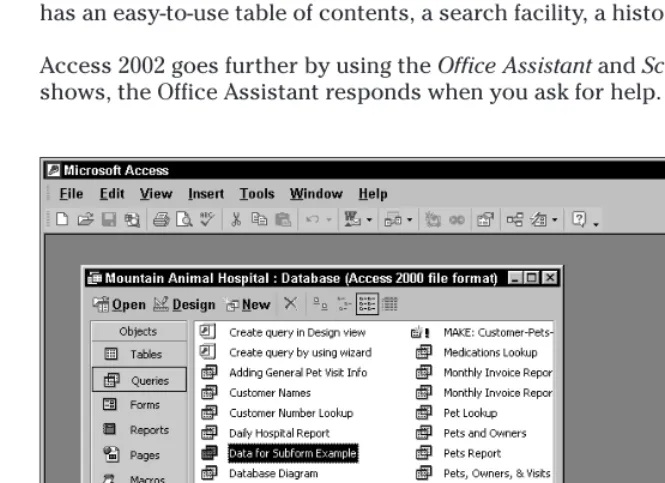
Access 2002 goes further by using the Office Assistant
and Screen Tips. As Figure 1-4
shows, the Office Assistant responds when you ask for help.
Screen Tips (also known as What’s This?) give you brief, on-screen explanations of
what the cursor is pointing to. You can choose from a gallery of ten different
assis-tants. You can also turn them off at any time if they become annoying.
Ease-of-use Wizards
A wizard
can turn hours of work into minutes. Figure 1-5 shows a Form Wizard
screen. You can customize wizards for use in a variety of tasks.
Figure 1-5:
A typical Form Wizard screen
Wizards ask questions about content, style, and format, and then they
automati-cally build the object that you requested. Nearly 100 Wizards design databases,
applications, tables, forms, reports, graphs, mailing labels, controls, and properties.
Importing, exporting, and linking external table files
Access lets you import from or export to many common database formats,
includ-ing dBASE, FoxPro, Excel, SQL Server, Oracle, Btrieve, many ASCII text formats
(including fixed width and delimited), as well as data in HTML (HyperText Markup
Language) format. Importing creates an Access table; exporting an Access table
cre-ates a file in the native file format that you are exporting to.
In addition to importing tables from external files, you can import any object from
other Access databases. This means you can import tables, forms, queries, reports,
macros, and/or modules.
You can import information from many sources, including another Access database,
an Excel spreadsheet, a Lotus spreadsheet, text files, Paradox tables, dBase tables,
HTML files, Outlook, Exchange, or any ODBC-compliant database table (these
include SQL Server, Oracle, FoxPro, Sybase, and many others).
You can also export information to a wide range of sources, including another
Access database, Excel or Lotus spreadsheets, text (simple text and Rich Text
Format — .rtf) and HTML files, Paradox and dBase tables, Microsoft’s IIS and Active
Server Pages, or ODBC-supported database tables.
In addition to importing and exporting data, Access supports linking data in other
tables to the database that is currently open. Linking
(formally known as attaching)
means that external data can be used without creating an Access table. You can link
to dBASE files, Paradox files, Excel, ASCII Text, HTML files, Outlook, Exchange, and
other ODBC-compliant tables (such as SQL data). After you have established a link
to external tables, you can then relate these tables to other tables, either in the
sys-tem or also linked through Access. This is a very powerful capability because you
can link to several Access tables, an Excel spreadsheet, a dBASE file, and an SQL
server table — all at the same time in order to display related information that’s
stored in these different types of tables and files.
Some import or export types require purchasing a license from their respective
vendors while some are available from Microsoft’s Web site as a free download.
Today, the Web is a valuable source of free software, such as import and export
engines, along with valuable tips and techniques.
When linking external information, Access uses its built-in query engine as the tool
to link and display the information from the different sources.
WYSIWYG forms and reports
The Form and Report Design windows share a common interface and power. You
design your form or report in a WYSIWYG (What You See Is What You Get)
environ-ment. As you add each control, you can visually see the form take shape.
You can add labels, text data fields, option buttons, tab controls, check boxes, lines,
boxes, colors, shading — even pictures, graphs, subforms, or subreports — to your
forms and reports. In addition, you have complete control over the style and
pre-sentation of data in a form or report, as shown in Figure 1-6. Forms can have
multi-ple pages; reports can have many levels of groupings and totals.
After you create your form or report, you can view it in page preview
mode, which
allows you to zoom out for a bird’s-eye view. You can also view your report with
sample data while you design it — so you don’t waste valuable time waiting for a
large data file to be processed.
The Report Writer is a very powerful tool because it allows up to ten levels of
aggre-gation and sorting. To accomplish this, the Report Writer performs two passes on
the data, allowing you to create reports that show the row percentage of a group
total, which can be done only by having a calculation based on a calculation that
requires two passes through the data. You can create many types of reports that
include mailing labels and mail-merge reports.
Figure 1-6:
A database-published report
Multiple-table queries and relationships
One of the most powerful features in Access is also one of the most important — the
query engine and Access’s queries.
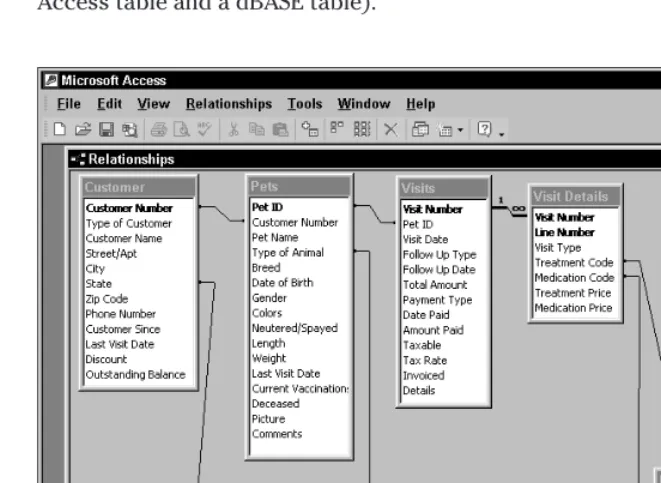
As Figure 1-7 shows, the tables in this relationship were built by using the
Relationship tool. The links in these tables were created by using drag-and-drop
methods and are displayed in an easy-to-understand graphical way. As we pointed
out earlier in this chapter, you can even link tables of different file types (such as an
Access table and a dBASE table).
Figure 1-7:
A relationship window
When linked, your tables act as a single table, which you can use to view and
manipulate your information — even change the contents of the data shown in the
query.
You can select specific fields, define sorting orders, create calculated expressions,
and enter criteria to select desired records. The results of a query can be displayed
and used in a datasheet, form, or report. Although you can pre-define or build
rela-tionships between tables, you don’t have to set relarela-tionships in advance. Rather
than set your relationships permanently, you can use a query window to set
rela-tionships when you need them for a specific purpose, such as a report.
If you are working in an environment where people are using several different
ver-sions of Access (2002, 2000, 97, 95, and 2) you can attach to MDB files of
differ-ent versions and update data without any problems. This way, the people who
only have Access 2 or Access 97 can continue to use that version and those who
have upgraded to Access 2002 can use their data for reporting.
Queries have other uses as well. You can create queries to calculate totals and
dis-play cross-tabs and then make new tables from the results. You can even use a
query to update data in tables, delete records, or append one table to another.
Figure 1-8 shows a cross-tab query that a user can create very quickly.
Figure 1-8:
The results of a cross-tab query built using the
Query Tool
Queries and the ability to easily create them make Access one of the most powerful
databases available today — especially from a productivity standpoint.
Business graphs and charts
The same graph application that is found in Microsoft Word, Excel, PowerPoint, and
Project is built into Access. You can create hundreds of types of business graphs
and customize the display to meet your every business need. You can create bar
charts, column charts, line charts, pie charts, area charts, and high-low-close
charts — in two and three dimensions. You can add free-form text, change the
grid-lines, adjust the color and pattern in a bar, display data values on a bar or pie slice,
and rotate the viewing angle of a chart from within the Graph program.
Although these graphs can be built by hand — and often require a lot of training to
build them — you can use the built-in Graph Wizards to build them quickly and
accurately.
Figure 1-9:
A typical form linked to a graph
DDE and OLE capabilities
Through the capabilities of DDE
(Dynamic Data Exchange) and OLE
(Object Linking
and Embedding), you can use objects from other applications and third-party tools
in your Access forms and reports. The objects that you can add include sound,
tures, graphs, and video clips. You can embed OLE objects (such as a bitmap
pic-ture) or documents from word processors (such as Word or WordPerfect), or link to
a range of cells in an Excel spreadsheet. By linking these objects to records in your
tables, you can create dynamic database forms and reports and share information
between Windows applications. These forms and reports can display the most
up-to-date information every time they are used — by obtaining the data dynamically.
The Internet is also accessible
Access is full of features that allow you to easily make your applications
Internet/intranet-ready. With just a click of the mouse, you can save tables, queries,
reports, and form datasheets as HTML files.
The data access pages feature lets you create complex forms for a corporate
intranet, or for use across the Internet, that link with live data on your network.
Even a novice can create live data pages on the Web. Hyperlinks allow you and
oth-ers to access your published data (and other published data) as hypertext links,
directly from your Access forms.
Figure 1-10:
Creating a Data Access Page
True Client/Server for Everyone
In previous versions of Microsoft Access, a true Client/Server environment was
very difficult to achieve. First you had to have an expensive copy of SQL Server.
This required owning a high-end computer capable of running Windows NT Server,
plus a high-priced consultant to install and maintain it. Access 2002 comes with the
Microsoft Database Engine (MSDE, also known as the SQL Server 2000 Desktop
Engine). This allows you to create true client/server-based applications on your
desktop, which you can relatively easily upsize to the more robust SQL Server
Enterprise Edition when you’re ready.
Access 2002, like its predecessors, still comes with the Jet engine. Jet is the original
Access Database Engine — it handles the creation and storage of your tables and it
runs your queries. Though not as powerful or as fast as SQL Server, it is quite
satis-factory for smaller applications of 20 workstations or less, and up to about 30-50MB
of data (although some say only up to 10-20MB of data). Unless you have hundreds
of thousands of data records, Jet is quite satisfactory for your needs.
Built-in functions
Macros: Programming without programming
Macros
are available for those of you who are nonprogrammers (or power users
who simply don’t want to program). Macros let you perform common tasks without
user intervention. Nearly 50 macro actions let you manipulate data, create menus
and dialog boxes, open forms and reports, and basically automate any task that you
can imagine. Macros can probably solve 50-75 percent of your processing problems.
Figure 1-11 shows a macro being created in Access.
Figure 1-11:
Creating a macro in Access
Modules: Visual Basic for Applications — database
programming
Access is a serious development environment with a full-featured programming
language.
The Visual Basic Application edition (VBA, for short, and formerly known as Access
Basic) features an event-driven programming model that lets you do more than you
can with just forms and reports. VBA is a powerful structured programming
lan-guage; it’s also fully extensible, featuring API call routines in any dynamic link
library
(DLL) for the Windows 95, Windows 98, Windows ME, Windows 2000, and
Windows NT operating systems.
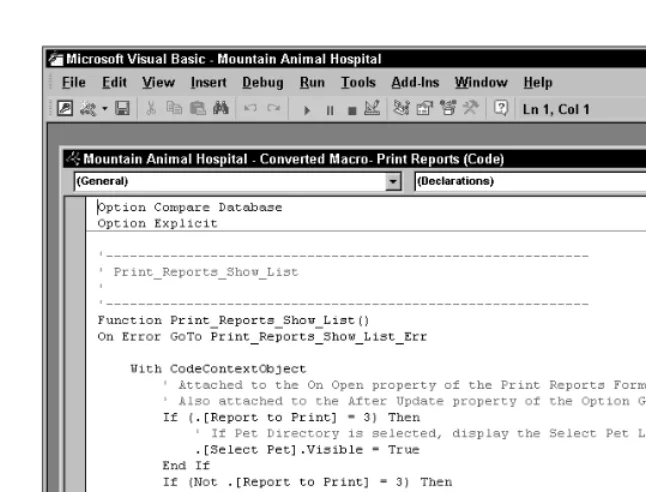
Figure 1-12:
Creating a VBA program in the Development Environment
Information for Database Users
If you’re already a database user, chances are you’re ready to jump right in and
start using Access. A word of warning: This is not your father’s database. You may be
an expert in relational database management software, such as dBASE, FoxPro, or
Paradox, but you may never have used a database under Windows.
You should be familiar with Windows software before you jump into a database
package. Play with Windows Paint and experiment with Word or Excel. Learn how
to use the mouse to click, double-click, select, drag, and drop. Create a graph in
Excel, use a Wizard, and try the Help system. Knowing how to perform these tasks
will make your learning experience much faster with Access.
Table 1-1
Access, dBASE/FoxPro, and Paradox Terminology
Microsoft Access dBASE/FoxPro Paradox
Database Catalog Directory of related files
Table Database file Table
Datasheet BROWSE command View command
Table Design MODIFY STRUCTURE Modify Restructure
Text data type Character data type Alphanumeric data type
Primary key Unique Index Key field
Index Index Tools QuerySpeed
Validation rule PICTURE/VALID Clause ValChecks
Query Query, QBE, View Query
Form Screen Forms
Subform Multiple File Screen Multiple-record selection
Open a form SET FORMAT TO, EDIT Image PickForm
Find command LOCATE AND SEEK Zoom
Data-entry command APPEND Modify DataEntry
List box, combo box Pick list Lookup
Exclusive/shared access SET EXCLUSIVE ON/OFF Edit/Co-edit mode
Module Program file Script