• Tidak ada hasil yang ditemukan

Learning the bash Shell Ebook free download

N/A
N/A
Protected

Academic year: 2019

Membagikan "Learning the bash Shell Ebook free download"

Copied!
284
0
0

Teks penuh

(1)

Copyright © 1998, 1995 O'Reilly & Associates, Inc. All rights reserved. Printed in the United States of America.

Published by O'Reilly & Associates, Inc., 101 Morris Street, Sebastopol, CA 95472.

The O'Reilly logo is a registered trademark of O'Reilly & Associates, Inc. Many of the designations used by manufacturers and sellers to distinguish their products are claimed as trademarks. Where those designations appear in this book, and O'Reilly & Associates, Inc. was aware of a trademark claim, the designations have been printed in caps or initial caps. The use of the fish image in association with the bash shell is a

trademark of O'Reilly & Associates, Inc.

While every precaution has been taken in the preparation of this book, the publisher assumes no

responsibility for errors or omissions, or for damages resulting from the use of the information contained herein.

(2)

Preface

The first thing users of the UNIX or Linux operating systems come face to face with is the shell. "Shell" is the UNIX term for a user interface to the system—something that lets you communicate with the computer via the keyboard and the display. Shells are just separate programs that encapsulate the system, and, as such, there are many to choose from.

Systems are usually set up with a "standard" shell that new users adopt without question. However, some of these standard shells are rather old and lack many features of the newer shells. This is a shame, because shells have a large bearing on one's working environment. Since changing shells is as easy as changing hats, there is no reason not to change to the latest and greatest in shell technology.

Of the many shells to choose from, this book introduces the Bourne Again shell (bash for short), a modern general-purpose shell. Other useful modern shells are the Korn shell (ksh) and the "Tenex C shell" (tcsh); both are also the subjects of O'Reilly handbooks.

(3)

bash Versions

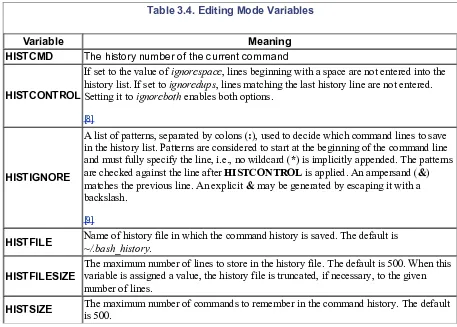
This book is relevant to all versions of bash, although older versions lack some of the features of the most recent version. []You can easily find out which version you are using by typing echo $BASH_VERSION. The earliest public version of bash was 1.0, and the most recent is 2.01 (released in May 1997). If you have an older version, you might like to upgrade to the latest one. Chapter 11, shows you how to go about it. [] Even though version 2.0 has been out for a while, bash version 1.14.x is still in widespread use. Throughout this book we have clearly marked with footnotes the features that are not present in the earlier versions.

(4)

Summary of bash Features

bash is a backward-compatible evolutionary successor to the Bourne shell that includes most of the C shell's major advantages as well as features from the Korn shell and a few new features of its own. Features appropriated from the C shell include:

· Directory manipulation, with the pushd, popd, and dirs commands.

· Job control, including the fg and bg commands and the ability to stop jobs with CTRL-Z.

· Brace expansion, for generating arbitrary strings.

· Tilde expansion, a shorthand way to refer to directories.

· Aliases, which allow you to define shorthand names for commands or command lines.

· Command history, which lets you recall previously entered commands.

bash's major new features include:

· Command-line editing, allowing you to use vi- or emacs-style editing commands on your

command lines.

· Key bindings that allow you to set up customized editing key sequences.

· Integrated programming features: the functionality of several external UNIX commands, including

test, expr, getopt, and echo, has been integrated into the shell itself, enabling common programming tasks to be done more cleanly and efficiently.

· Control structures, especially the select construct, which enables easy menu generation.

· New options and variables that give you more ways to customize your environment.

· One dimensional arrays that allow easy referencing and manipulation of lists of data.

· Dynamic loading of built-ins, plus the ability to write your own and load them into the running

shell.

(5)

Intended Audience

This book is designed to address casual UNIX and Linux users who are just above the "raw beginner" level. You should be familiar with the process of logging in, entering commands, and doing simple things with files. Although Chapter 1, reviews concepts such as the tree-like file and directory scheme, you may find that it moves too quickly if you're a complete neophyte. In that case, we recommend the O'Reilly &

Associates handbook, Learning the UNIX Operating System, by Jerry Peek, Grace Todino, and John Strang. If you're an experienced user, you may wish to skip Chapter 1 altogether. But if your experience is with the C shell, you may find that Chapter 1 reveals a few subtle differences between the bash and C shells. No matter what your level of experience is, you will undoubtedly learn many things in this book that make you a more productive bash user—from major features down to details at the "nook-and-cranny" level that you may not have been aware of.

If you are interested in shell programming (writing shell scripts and functions that automate everyday tasks or serve as system utilities), you should also find this book useful. However, we have deliberately avoided drawing a strong distinction between interactive shell use (entering commands during a login session) and shell programming. We see shell programming as a natural, inevitable outgrowth of increasing experience as a user.

Accordingly, each chapter depends on those previous to it, and although the first three chapters are oriented toward interactive use only, subsequent chapters describe interactive, user-oriented features in addition to programming concepts.

This book aims to show you that writing useful shell programs doesn't require a computing degree. Even if you are completely new to computing, there is no reason why you shouldn't be able to harness the power of bash within a short time.

Toward that end, we have decided not to spend too much time on features of interest exclusively to low-level systems programmers. Concepts like file descriptors and special file types can only confuse the casual user, and anyway, we figure that those of you who understand such things are smart enough to extrapolate the necessary information from our cursory discussions.

(6)

Code Examples

This book is full of examples of shell commands and programs that are designed to be useful in your everyday life as a user, not just to illustrate the feature being explained. In Chapter 4, and onwards, we include various programming problems, which we call tasks, that illustrate particular shell programming concepts. Some tasks have solutions that are refined in subsequent chapters. The later chapters also include programming exercises, many of which build on the tasks in the chapter.

Feel free to use any code you see in this book and to pass it along to friends and colleagues. We especially encourage you to modify and enhance it yourself.

If you want to try examples but you don't use bash as your login shell, you must put the following line at the top of each shell script:

#!/bin/bash

If bash isn't installed as the file /bin/bash, substitute its pathname in the above.

(7)

Chapter Summary

If you want to investigate specific topics rather than read the entire book through, here is a chapter-by-chapter summary:

Chapter 1, introduces bash and tells you how to install it as your login shell. Then it surveys the basics of interactive shell use, including overviews of the UNIX file and directory scheme, standard I/O, and background jobs.

Chapter 2, discusses the shell's command history mechanism (including the emacs- and vi-editing modes), history substitution and the fc history command, and key bindings with readline and bind.

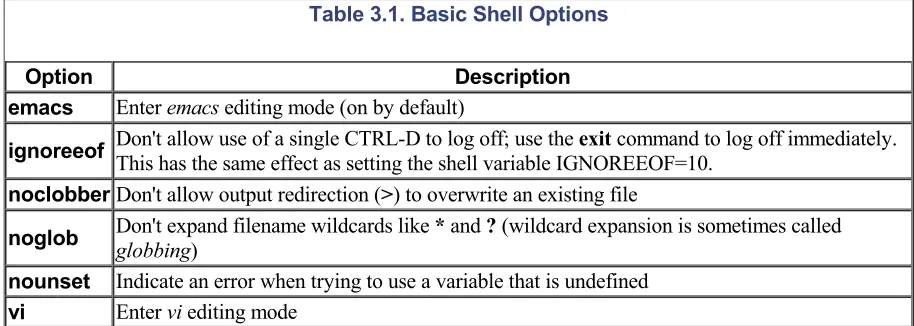
Chapter 3, covers ways to customize your shell environment without programming, by using the startup and environment files. Aliases, options, and shell variables are the customization techniques discussed.

Chapter 4, is an introduction to shell programming. It explains the basics of shell scripts and functions, and discusses several important "nuts-and-bolts" programming features: string manipulation operators, brace expansion, command-line arguments (positional parameters), and command substitution.

Chapter 5, continues the discussion of shell programming by describing command exit status, conditional expressions, and the shell's flow-control structures: if, for, case, select, while, and until.

Chapter 6, goes into depth about positional parameters and command-line option processing, then discusses special types and properties of variables, integer arithmetic, and arrays.

Chapter 7, gives a detailed description of bash I/O. All of the shell's I/O redirectors are covered, as are the line-at-a-time I/O commands read and echo. Then the chapter discusses the shell's command-line

processing mechanism and the eval command.

Chapter 8, covers process-related issues in detail. It starts with a discussion of job control, then gets into various low-level information about processes, including process IDs, signals, and traps. The chapter then moves to a higher level of abstraction to discuss coroutines and subshells.

Chapter 9, discusses various debugging techniques, like trace and verbose modes, and the "fake" signal traps. We then present in detail a useful shell tool, written using the shell itself: a bash debugger. Chapter 10, gives information for system administrators, including techniques for implementing system-wide shell customization and features related to system security.

Chapter 11, shows you how to go about getting bash and how to install it on your system. It also outlines what to do in the event of problems along the way.

Appendix A compares bash to several similar shells, including the standard Bourne shell, the IEEE 1003.2 POSIX shell standard, the Korn shell (ksh) and the public-domain Korn shell (pdksh), and the MKS Toolkit shell for MS-DOS and OS/2.

Appendix B contains lists of shell invocation options, built-in commands, built-in variables, conditional test operators, options, I/O redirection, and emacs and vi editing mode commands.

Appendix C gives information on writing and compiling your own loadable built-ins.

Appendix D lists the bash reserved words and provides a complete BNF description of the shell.

Appendix E lists the ways that you can obtain the major scripts in this book for free, using anonymous FTP or electronic mail.

(8)

Conventions Used in This Handbook

We leave it as understood that, when you enter a shell command, you press RETURN at the end. RETURN is labeled ENTER on some keyboards.

Characters called CTRL-X, where X is any letter, are entered by holding down the CTRL (or CTL, or CONTROL) key and pressing that letter. Although we give the letter in uppercase, you can press the letter without the SHIFT key.

Other special characters are LINEFEED (which is the same as CTRL-J), BACKSPACE (same as CTRL-H), ESC, TAB, and DEL (sometimes labeled DELETE or RUBOUT).

This book uses the following font conventions:

Italic

is used for UNIX filenames, commands not built into the shell (which are files anyway), and shell functions. Italic is also used for dummy parameters that should be replaced with an actual value, to distinguish the vi and emacs programs from their bash modes, and to highlight special terms the first time they are defined.

Bold

is used for bash built-in commands, aliases, variables, and options, as well as command lines when they are within regular text. Bold is used for all elements typed in by the user within regular text.

Constant

Width is used in examples to show the contents of files or the output from commands.

Constant

Bold

is used in examples to show interaction between the user and the shell; any text the user types in is shown in Constant Bold. For example:

$

pwd/home/cam/adventure/carrol

$

Constant Italic

is used in displayed command lines for dummy parameters that should be replaced with an actual value.

Reverse Video

is used in Chapter 2, to show the position of the cursor on the command line being edited. For example:

grep -l Alice < ~cam/book/[[a]]iw

We use UNIX as a shorthand for "UNIX and Linux." Purists will correctly insist that Linux is not UNIX— but as far as this book is concerned, they behave identically.

(9)

We'd Like to Hear from You

We have tested and verified all of the information in this book to the best of our ability, but you may find that features have changed (or even that we have made mistakes!). Please let us know about any errors you find, as well as your suggestions for future editions, by writing:

O'Reilly & Associates, Inc. 101 Morris Street

Sebastopol, CA 95472

1-800-998-9938 (in the US or Canada) 1-707-829-0515 (international/local) 1-707-829-0104 (FAX)

You can also send us messages electronically. To be put on the mailing list or request a catalog, send email to:

[email protected]

To ask technical questions or comment on the book, send email to: [email protected]

We have a web site for the book, where we'll list examples, errata, and any plans for future editions. You can access this page at:

http://www.oreilly.com/catalog/bash2/

For more information about this book and others, see the O'Reilly web site: http://www.oreilly.com

(10)

Acknowledgments for the First Edition

This project has been an interesting experience and wouldn't have been possible without the help of a number of people. Firstly, I'd like to thank Brian Fox and Chet Ramey for creating bash and making it the polished product it is today. Thanks also to Chet Ramey for promptly answering all of my questions on bash and pointing out my errors.

Many thanks to Bill Rosenblatt for Learning the korn Shell, on which this book is based; Michael O'Reilly and Michael Malone at iiNet Technologies for their useful comments and suggestions (and my

net.connection!); Chris Thorne, Justin Twiss, David Quin-Conroy, and my mum for their comments, suggestions, and corrections; Linus Torvalds for the Linux operating system which introduced me to bash and was the platform for all of my work on the book; Brian Fox for providing a short history of bash; David Korn for information on the latest Korn shell. Thanks also to Depeche Mode for "101" as a backdrop while I worked, Laurence Durbridge for being a likable pest and never failing to ask "Finished the book yet?" and Adam (for being in my book).

The sharp eyes of our technical reviewers picked up many mistakes. Thanks to Matt Healy, Chet Ramey, Bill Reynolds, Bill Rosenblatt, and Norm Walsh for taking time out to go through the manuscript. The crew at O'Reilly & Associates were indispensable in getting this book out the door. I'd like to thank Lenny Muellner for providing me with the formatting tools for the job, Chris Reilley for the figures, and Edie Freedman for the cover design. On the production end, I'd like to thank David Sewell for his copyediting, Clairemarie Fisher O'Leary for managing the production process, Michael Deutsch and Jane Ellin for their production assistance, Ellen Siever for tools support, Kismet McDonough for providing quality assurance, and Seth Maislin for the index.

I'm grateful to Frank Willison for taking me up on my first piece of email to ORA: "What about a book on bash?"

Last but by no means least, a big thank you to my editor, Mike Loukides, who helped steer me through this project.

(11)

Acknowledgments for the Second Edition

Thanks to all the people at O'Reilly & Associates. Gigi Estabrook was the editor for the second edition. Nicole Gipson Arigo was the production editor and project manager. Nancy Wolfe Kotary and Ellie Fountain Maden performed quality control checks. Seth Maislin wrote the index. Edie Freedman designed the cover, and Nancy Priest designed the interior format of the book. Lenny Muellner implemented the format in troff. Robert Romano updated the illustrations for this second edition.

(12)

Chapter 1. bash Basics

Since the early 1970s, when it was first created, the UNIX operating system has become more and more popular. During this time it has branched out into different versions, and taken on such names as Ultrix, AIX, Xenix, SunOS, and Linux. Starting on minicomputers and mainframes, it has moved onto desktop workstations and even personal computers used at work and home. No longer a system used only by academics and computing wizards at universities and research centers, UNIX is used in many businesses, schools, and homes. As time goes on, more people will come into contact with UNIX.

You may have used UNIX at your school, office, or home to run your applications, print documents, and read your electronic mail. But have you ever thought about the process that happens when you type a command and hit RETURN?

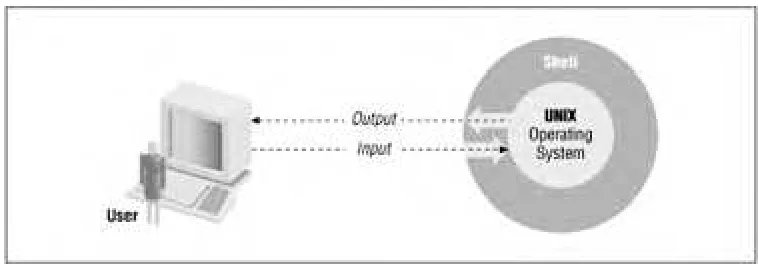
Several layers of events take place whenever you enter a command, but we're going to consider only the top layer, known as the shell. Generically speaking, a shell is any user interface to the UNIX operating system, i.e., any program that takes input from the user, translates it into instructions that the operating system can understand, and conveys the operating system's output back to the user. Figure 1.1 shows the relationship between user, shell, and operating system.

Figure 1.1. The shell is a layer around the UNIX operating system

There are various types of user interfaces. bash belongs to the most common category, known as character-based user interfaces. These interfaces accept lines of textual commands that the user types in; they usually produce text-based output. Other types of interfaces include the increasingly common graphical user interfaces (GUI), which add the ability to display arbitrary graphics (not just typewriter characters) and to accept input from a mouse or other pointing device, touch-screen interfaces (such as those on some bank teller machines), and so on.

(13)

1.1 What Is a Shell?

The shell's job, then, is to translate the user's command lines into operating system instructions. For example, consider this command line:

sort -n phonelist > phonelist.sorted

This means, "Sort lines in the file phonelist in numerical order, and put the result in the file phonelist.sorted." Here's what the shell does with this command:

1. Breaks up the line into the pieces sort, -n, phone list, >, and phone list.sorted. These pieces are

called words.

2. Determines the purpose of the words: sort is a command, -n and phone list are arguments, and >

and phonelist.sorted, taken together, are I/O instructions.

3. Sets up the I/O according to > phonelist.sorted (output to the file phone list.sorted) and some

standard, implicit instructions.

4. Finds the command sort in a file and runs it with the option -n (numerical order) and the argument

phonelist (input filename).

Of course, each of these steps really involves several substeps, each of which includes a particular instruction to the underlying operating system.

Remember that the shell itself is not UNIX—just the user interface to it. UNIX is one of the first operating systems to make the user interface independent of the operating system.

(14)

1.2 Scope of This Book

In this book you will learn about bash, which is one of the most recent and powerful of the major UNIX shells. There are two ways to use bash: as a user interface and as a programming environment.

This chapter and the next cover interactive use. These two chapters should give you enough background to use the shell confidently and productively for most of your everyday tasks.

After you have been using the shell for a while, you will undoubtedly find certain characteristics of your environment (the shell's "look and feel") that you would like to change, and tasks that you would like to automate. Chapter 3 shows several ways of doing this.

Chapter 3, also prepares you for shell programming, the bulk of which is covered in Chapter 4 through Chapter 6. You need not have any programming experience to understand these chapters and learn shell programming. Chapter 7 and Chapter 8 give more complete descriptions of the shell's I/O and process handling capabilities, while Chapter 9, discusses various techniques for debugging shell programs. You'll learn a lot about bash in this book; you'll also learn about UNIX utilities and the way the UNIX operating system works in general. It's possible to become a virtuoso shell programmer without any previous programming experience. At the same time, we've carefully avoided going into excessive detail about UNIX internals. We maintain that you shouldn't have to be an internals expert to use and program the shell effectively, and we won't dwell on the few shell features that are intended specifically for low-level systems programmers.

(15)

1.3 History of UNIX Shells

The independence of the shell from the UNIX operating system per se has led to the development of dozens of shells throughout UNIX history—although only a few have achieved widespread use.

The first major shell was the Bourne shell (named after its inventor, Steven Bourne); it was included in the first popular version of UNIX, Version 7, starting in 1979. The Bourne shell is known on the system as sh. Although UNIX has gone through many, many changes, the Bourne shell is still popular and essentially unchanged. Several UNIX utilities and administration features depend on it.

The first widely used alternative shell was the C shell, or csh. This was written by Bill Joy at the University of California at Berkeley as part of the Berkeley Software Distribution (BSD) version of UNIX that came out a couple of years after Version 7. It's included in most recent UNIX versions.

The C shell gets its name from the resemblance of its commands to statements in the C Programming Language, which makes the shell easier for programmers on UNIX systems to learn. It supports a number of operating system features (e.g., job control; see Chapter 8) that were unique to BSD UNIX but by now have migrated to most other modern versions. It also has a few important features (e.g., aliases; see Chapter 3) that make it easier to use in general.

In recent years a number of other shells have become popular. The most notable of these is the Korn shell. This shell is a commercial product that incorporates the best features of the Bourne and C shells, plus many features of its own. The Korn shell is similar to bash in most respects; both have an abundance of features that make them easy to work with. The advantage of bash is that it is free. For further information on the Korn shell see Appendix A.

1.3.1 The Bourne Again Shell

The Bourne Again shell (named in punning tribute to Steve Bourne's shell) was created for use in the GNU project. [1]The GNU project was started by Richard Stallman of the Free Software Foundation (FSF) for the purpose of creating a UNIX-compatible operating system and replacing all of the commercial UNIX

utilities with freely distributable ones. GNU embodies not only new software utilities, but a new distribution concept: the copyleft. Copylefted software may be freely distributed so long as no restrictions are placed on further distribution (for example, the source code must be made freely available).

[1] GNU is a recursive acronym, standing for "GNU's Not UNIX".

bash, intended to be the standard shell for the GNU system, was officially "born" on Sunday, January 10, 1988. Brian Fox wrote the original versions of bash and readline and continued to improve the shell up until 1993. Early in 1989 he was joined by Chet Ramey, who was responsible for numerous bug fixes and the inclusion of many useful features. Chet Ramey is now the official maintainer of bash and continues to make further enhancements.

In keeping with the GNU principles, all versions of bash since 0.99 have been freely available from the FSF. bash has found its way onto every major version of UNIX and is rapidly becoming the most popular Bourne shell derivative. It is the standard shell included with Linux, a widely used free UNIX operating system.

In 1995 Chet Ramey began working on a major new release, 2.0, which was released to the public for the first time on December 23, 1996. bash 2.0 adds a range of new features to the old release (the last being 1.14.7) and brings the shell into better compliance with various standards.

This book describes the latest release of bash 2.0 (version 2.01, dated June 1997). It is applicable to all previous releases of bash. Any features of the current release that are different in, or missing from, previous releases will be noted in the text.

(16)

1.3.2 Features of bash

Although the Bourne shell is still known as the "standard" shell, bash is becoming increasingly popular. In addition to its Bourne shell compatibility, it includes the best features of the C and Korn shells as well as several advantages of its own.

bash's command-line editing modes are the features that tend to attract people to it first. With command-line editing, it's much easier to go back and fix mistakes or modify previous commands than it is with the C shell's history mechanism—and the Bourne shell doesn't let you do this at all.

The other major bash feature that is intended mostly for interactive users is job control. As Chapter 8 explains, job control gives you the ability to stop, start, and pause any number of commands at the same time. This feature was borrowed almost verbatim from the C shell.

The rest of bash's important advantages are meant mainly for shell customizers and programmers. It has many new options and variables for customization, and its programming features have been significantly expanded to include function definition, more control structures, integer arithmetic, advanced I/O control, and more.

(17)

1.4 Getting bash

You may or may not be using bash right now. Your system administrator probably set your account up with whatever shell he or she uses as the "standard" on the system. You may not even have been aware that there is more than one shell available.

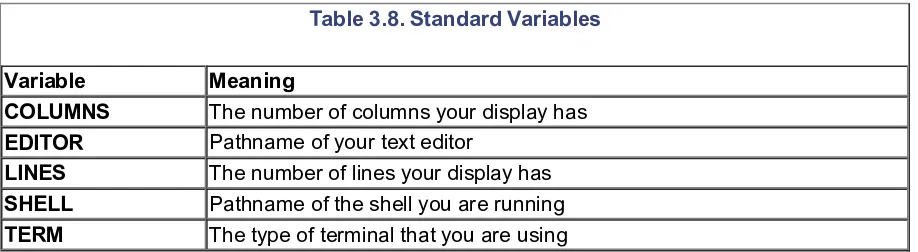
Yet it's easy for you to determine which shell you are using. Log in to your system and type echo $SHELL at the prompt. You will see a response containing sh, csh, ksh, or bash; these denote the Bourne, C, Korn, and bash shells, respectively. (There's also a chance that you're using another shell such as tcsh.)

If you aren't using bash and you want to, then you first need to find out if it exists on your system. Just type bash. If you get a new prompt consisting of some information followed by a dollar-sign (e.g: bash2-2.01$ ), then all is well; type exit to go back to your normal shell.

If you get a "not found" message, your system may not have it. Ask your system administrator or another knowledgeable user; there's a chance that you might have some version of bash installed on the system in a place (directory) that is not normally accessible to you. If not, read Chapter 11, to find out how you can obtain a version of bash.

Once you know you have bash on your system, you can invoke it from whatever other shell you use by typing bash as above. However, it's much better to install it as your login shell, i.e., the shell that you get automatically whenever you log in. You may be able to do the installation by yourself. Here are instructions that are designed to work on the widest variety of UNIX systems. If something doesn't work (e.g., you type in a command and get a "not found" error message or a blank line as the response), you'll have to abort the process and see your system administrator or, alternatively, turn to Chapter 11 where we demonstrate a less straightforward way of replacing your current shell.

You need to find out where bash is on your system, i.e., in which directory it's installed. You might be able to find the location by typing whereis bash (especially if you are using the C shell); if that doesn't work, try whence bash, which bash, or this complex command: [2]

[2] Make sure you use the correct quotation mark in this command:

'

rather than

`

.

grep bash /etc/passwd | awk -F: '{print $7}' | sort -u

You should see a response that looks like /bin/bash or /usr/local/bin/bash.

To install bash as your login shell, type chsh bash-name, where bash-name is the response you got to your whereis command (or whatever worked). For example:

%

chsh /usr/local/bin/bash

You'll either get an error message saying that the shell is invalid, or you'll be prompted for your password.

[3]Type in your password, then log out and log back in again to start using bash.

[3] For system security reasons, only certain programs are allowed to be installed as login shells.

(18)

1.5 Interactive Shell Use

When you use the shell interactively, you engage in a login session that begins when you log in and ends when you type exit or logout or press CTRL-D. [4]During a login session, you type in command lines to the shell; these are lines of text ending in RETURN that you type in to your terminal or workstation.

[4] The shell can be set up so that it ignores a single CTRL-D to end the session. We recommend doing this, because CTRL-D is too easy to type by accident. See the section on options in Chapter 3 for further details.

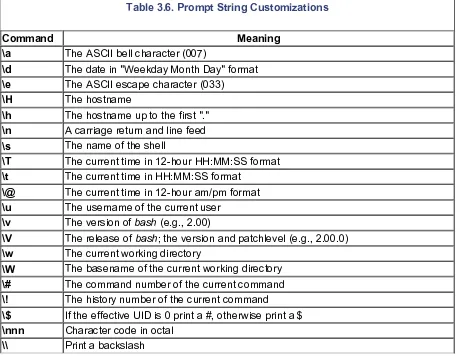
By default, the shell prompts you for each command with an information string followed by a dollar sign, though as you will see in Chapter 3, the entire prompt can be changed.

1.5.1 Commands, Arguments, and Options

Shell command lines consist of one or more words, which are separated on a command line by blanks or TABs. The first word on the line is the command. The rest (if any) are arguments (also called parameters) to the command, which are names of things on which the command will act.

For example, the command line lp myfile consists of the command lp (print a file) and the single argument myfile. lp treats myfile as the name of a file to print. Arguments are often names of files, but not

necessarily: in the command line mail cam, the mail program treats cam as the username to which a message will be sent.

An option is a special type of argument that gives the command specific information on what it is supposed to do. Options usually consist of a dash followed by a letter; we say "usually" because this is a convention rather than a hard-and-fast rule. The command lp -h myfile contains the option -h, which tells lp not to print the "banner page" before it prints the file.

Sometimes options take their own arguments. For example, lp -d lp1 -h myfile has two options and one argument. The first option is -d lp1, which means "Send the output to the printer (destination) called lp1." The second option and argument are the same as in the previous example.

(19)

1.6 Files

Although arguments to commands aren't always files, files are the most important types of "things" on any UNIX system. A file can contain any kind of information, and indeed there are different types of files. Three types are by far the most important:

Regular files

Also called text files; these contain readable characters. For example, this book was created from several regular files that contain the text of the book plus human-readable formatting instructions to the troff word processor.

Executable files

Also called programs; these are invoked as commands. Some can't be read by humans; others—the shell scripts that we'll examine in this book—are just special text files. The shell itself is a (non-human-readable) executable file called bash.

Directories

These are like folders that contain other files—possibly other directories (called subdirectories).

1.6.1 Directories

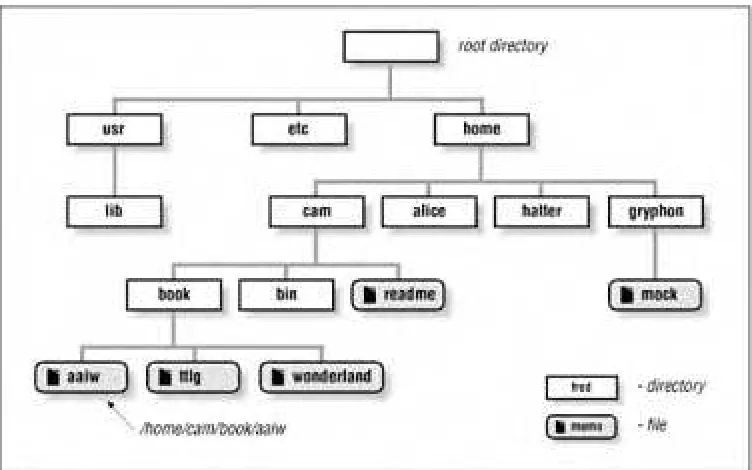
Let's review the most important concepts about directories. The fact that directories can contain other directories leads to a hierarchical structure, more popularly known as a tree, for all files on a UNIX system. Figure 1.2 shows part of a typical directory tree; rectangles are directories and ovals are regular files.

Figure 1.2. A tree of directories and files

The top of the tree is a directory called root that has no name on the system. [5] All files can be named by expressing their location on the system relative to root; such names are built by listing all of the directory names (in order from root), separated by slashes (/), followed by the file's name. This way of naming files is called a full (or absolute) pathname.

(20)

[5] Most UNIX tutorials say that root has the name /. We stand by this alternative explanation because it is more logically consistent with the rest of the UNIX filename conventions.

For example, say there is a file called aaiw that is in the directory book, which is in the directory cam, which is in the directory home, which is in the root directory. This file's full pathname is

/home/cam/book/aaiw.

1.6.1.1 The working directory

Of course, it's annoying to have to use full pathnames whenever you need to specify a file. So there is also the concept of the working directory (sometimes called the current directory), which is the directory you are "in" at any given time. If you give a pathname with no leading slash, then the location of the file is worked out relative to the working directory. Such pathnames are called relative pathnames; you'll use them much more often than full pathnames.

When you log in to the system, your working directory is initially set to a special directory called your home (or login) directory. System administrators often set up the system so that everyone's home directory name is the same as their login name, and all home directories are contained in a common directory under root.

For example, /home/cam is a typical home directory. If this is your working directory and you give the command lp memo, then the system looks for the file memo in /home/cam. If you have a directory called hatter in your home directory, and it contains the file teatime, then you can print it with the command lp hatter/teatime.

1.6.1.2 Tilde notation

As you can well imagine, home directories occur often in pathnames. Although many systems are organized so that all home directories have a common parent (such as /home or /users), you should not rely on that being the case, nor should you even have to know the absolute pathname of someone's home directory. Therefore, bash has a way of abbreviating home directories: just precede the name of the user with a tilde (~). For example, you could refer to the file story in user alice's home directory as ~alice/story. This is an absolute pathname, so it doesn't matter what your working directory is when you use it. If alice's home directory has a subdirectory called adventure and the file is in there instead, you can use

~alice/adventure/story as its name.

Even more convenient, a tilde by itself refers to your own home directory. You can refer to a file called notes in your home directory as ~/notes (note the difference between that and ~notes, which the shell would try to interpret as user notes's home directory). If notes is in your adventure subdirectory, then you can call it ~/adventure/notes. This notation is handiest when your working directory is not in your home directory tree, e.g., when it's some system directory like /tmp.

1.6.1.3 Changing working directories

If you want to change your working directory, use the command cd. If you don't remember your working directory, the command pwd tells the shell to print it.

cd takes as an argument the name of the directory you want to become your working directory. It can be relative to your current directory, it can contain a tilde, or it can be absolute (starting with a slash). If you omit the argument, cd changes to your home directory (i.e., it's the same as cd ~ ).

Table 1.1 gives some sample cd commands. Each command assumes that your working directory is /home/cam just before the command is executed, and that your directory structure looks like Figure 1.2.

(21)

Table 1.1. Sample cd Commands

Command New Working Directory

cd book /home/cam/book

cd book/wonderland /home/cam/book/wonderland

cd ~/book/wonderland /home/cam/book/wonderland

cd /usr/lib /usr/lib

cd .. /home

cd ../gryphon /home/gryphon

cd ~gryphon /home/gryphon

The first four are straightforward. The next two use a special directory called .. (two dots), which means "parent of this directory." Every directory has one of these; it's a universal way to get to the directory above the current one in the hierarchy—which is called the parent directory. [6]

[6] Each directory also has the special directory . (single dot), which just means "this directory." Thus, cd. effectively does nothing. Both . and .. are actually special hidden files in each directory that point to the directory itself and to its parent directory, respectively. root is its own parent.

Another feature of bash's cd command is the form cd -, which changes to whatever directory you were in before the current one. For example, if you start out in /usr/lib, type cd without an argument to go to your home directory, and then type cd -, you will be back in /usr/lib.

1.6.2 Filenames, Wildcards, and Pathname Expansion

Sometimes you need to run a command on more than one file at a time. The most common example of such a command is ls, which lists information about files. In its simplest form, without options or arguments, it lists the names of all files in the working directory except special hidden files, whose names begin with a dot (.).

If you give ls filename arguments, it will list those files—which is sort of silly: if your current directory has the files duchess and queen in it and you type ls duchess queen, the system will simply print those

filenames.

Actually, ls is more often used with options that tell it to list information about the files, like the -l (long) option, which tells ls to list the file's owner, size, time of last modification, and other information, or -a (all), which also lists the hidden files described above. But sometimes you want to verify the existence of a certain group of files without having to know all of their names; for example, if you use a text editor, you might want to see which files in your current directory have names that end in .txt.

Filenames are so important in UNIX that the shell provides a built-in way to specify the pattern of a set of filenames without having to know all of the names themselves. You can use special characters, called wildcards, in filenames to turn them into patterns. Table 1.2 lists the basic wildcards.

Table 1.2. Basic Wildcards

Wildcard Matches

? Any single character

* Any string of characters

[set] Any character in set

[!set] Any character not in set

The ? wildcard matches any single character, so that if your directory contains the files program.c,

(22)

The ? wildcard matches any single character, so that if your directory contains the files program.c, program.log, and program.o, then the expression program.? matches program.c and program.o but not program.log.

The asterisk (*) is more powerful and far more widely used; it matches any string of characters. The expression program.* will match all three files in the previous paragraph; text editor users can use the expression *.txt to match their input files. [7]

[7] MS-DOS and VAX/VMS users should note that there is nothing special about the dot (.) in UNIX filenames (aside from the leading dot, which "hides" the file); it's just another character. For example, ls* lists all files in the current directory; you don't need *.* as you do on other systems. Indeed, ls*.* won't list all the files—only those that have at least one dot in the middle of the name.

Table 1.3 should help demonstrate how the asterisk works. Assume that you have the files bob, darlene, dave, ed, frank, and fred in your working directory.

Table 1.3. Using the * Wildcard

Expression Yields

fr* frank fred

*ed ed fred

b* bob

*e* darlene dave ed fred

*r* darlene frank fred

* bob darlene dave ed frank fred

d*e darlene dave

g* g*

Notice that * can stand for nothing: both *ed and *e* match ed. Also notice that the last example shows what the shell does if it can't match anything: it just leaves the string with the wildcard untouched.

The remaining wildcard is the set construct. A set is a list of characters (e.g., abc), an inclusive range (e.g., a-z), or some combination of the two. If you want the dash character to be part of a list, just list it first or last. Table 1.4 should explain things more clearly.

Table 1.4. Using the Set Construct Wildcards

Expression Matches

[abc] a, b, or c

[.,;] Period, comma, or semicolon

[-_] Dash or underscore

[a-c] a, b, or c

[a-z] All lowercase letters

[!0-9] All non-digits

[0-9!] All digits and exclamation point

[a-zA-Z] All lower- and uppercase letters

[a-zA-Z0-9_-] All letters, all digits, underscore, and dash

In the original wildcard example, program.[co] and program.[a-z] both match program.c and program.o, but not program.log.

An exclamation point after the left bracket lets you "negate" a set. For example, [!.;] matches any character except period and semicolon; [!a-zA-Z] matches any character that isn't a letter. To match ! itself, place it after the first character in the set, or precede it with a backslash, as in [\!].

(23)

The range notation is handy, but you shouldn't make too many assumptions about what characters are included in a range. It's safe to use a range for uppercase letters, lowercase letters, digits, or any subranges thereof (e.g., [f-q], [2-6]). Don't use ranges on punctuation characters or mixed-case letters: e.g., [a-Z] and [A-z] should not be trusted to include all of the letters and nothing more. The problem is that such ranges are not entirely portable between different types of computers. [8]

[8] Specifically, ranges depend on the character encoding scheme your computer uses. The vast majority use ASCII, but IBM mainframes use EBCDIC.

The process of matching expressions containing wildcards to filenames is called wildcard expansion or globbing. This is just one of several steps the shell takes when reading and processing a command line; another that we have already seen is tilde expansion, where tildes are replaced with home directories where applicable. We'll see others in later chapters, and the full details of the process are enumerated in Chapter 7. However, it's important to be aware that the commands that you run only see the results of wildcard

expansion. That is, they just see a list of arguments, and they have no knowledge of how those arguments came into being. For example, if you type ls fr* and your files are as on the previous page, then the shell expands the command line to ls fred frank and invokes the command ls with arguments fred and frank. If you type ls g*, then (because there is no match) ls will be given the literal string g* and will complain with the error message, g*: No such file or directory. [9]

[9] This is different from the C shell's wildcard mechanism, which prints an error message and doesn't execute the command at all.

Here is an example that should help make things clearer. Suppose you are a C programmer. This means that you deal with files whose names end in .c (programs, also known as source files), .h (header files for programs), and .o (object code files that aren't human-readable) as well as other files. Let's say you want to list all source, object, and header files in your working directory. The command ls*.[cho] does the trick. The shell expands *.[cho] to all files whose names end in a period followed by a c, h, or o and passes the resulting list to ls as arguments. In other words, ls will see the filenames just as if they were all typed in individually—but notice that we required no knowledge of the actual filenames whatsoever! We let the wildcards do the work.

The wildcard examples that we have seen so far are actually part of a more general concept called pathname expansion. Just as it is possible to use wildcards in the current directory, they can also be used as part of a pathname. For example, if you wanted to list all of the files in the directories /usr and /usr2, you could type ls /usr*. If you were only interested in the files beginning with the letters b and e in these directories, you could type ls /usr*/[be]* to list them.

1.6.3 Brace Expansion

A concept closely related to pathname expansion is brace expansion. Whereas pathname expansion wildcards will expand to files and directories that exist, brace expansion expands to an arbitrary string of a given form: an optional preamble, followed by comma-separated strings between braces, and followed by an optional postscript. If you type echo b{ed,olt,ar}s, you'll see the words beds, bolts, and bars printed. Each instance of a string inside the braces is combined with the preamble b and the postscript s. Notice that these are not filenames—the strings produced are independent of filenames. It is also possible to nest the braces, as in b{ar{d,n,k},ed}s. This will result in the expansion bards, barns, barks, and beds.

Brace expansion can also be used with wildcard expansions. In the example from the previous section where we listed the source, object, and header files in the working directory, we could have used ls*. {c,h,o}.[10]

[10] This differs slightly from C shell brace expansion. bash requires at least one unquoted comma to perform an expansion, otherwise the word is left unchanged, e.g., b{o}lt remains as b{o}lt.

(24)
(25)

1.7 Input and Output

The software field—really, any scientific field—tends to advance most quickly and impressively on those few occasions when someone (i.e., not a committee) comes up with an idea that is small in concept yet enormous in its implications. The standard input and output scheme of UNIX has to be on the short list of such ideas, along with such classic innovations as the LISP language, the relational data model, and object-oriented programming.

The UNIX I/O scheme is based on two dazzlingly simple ideas. First, UNIX file I/O takes the form of arbitrarily long sequences of characters (bytes). In contrast, file systems of older vintage have more

complicated I/O schemes (e.g., "block," "record," "card image," etc.). Second, everything on the system that produces or accepts data is treated as a file; this includes hardware devices like disk drives and terminals. Older systems treated every device differently. Both of these ideas have made systems programmers' lives much more pleasant.

1.7.1 Standard I/O

By convention, each UNIX program has a single way of accepting input called standard input, a single way of producing output called standard output, and a single way of producing error messages called standard error output, usually shortened to standard error. Of course, a program can have other input and output sources as well, as we will see in Chapter 7.

Standard I/O was the first scheme of its kind that was designed specifically for interactive users at terminals, rather than the older batch style of use that usually involved decks of punch-cards. Since the UNIX shell provides the user interface, it should come as no surprise that standard I/O was designed to fit in very neatly with the shell.

All shells handle standard I/O in basically the same way. Each program that you invoke has all three standard I/O channels set to your terminal or workstation, so that standard input is your keyboard, and standard output and error are your screen or window. For example, the mail utility prints messages to you on the standard output, and when you use it to send messages to other users, it accepts your input on the standard input. This means that you view messages on your screen and type new ones in on your keyboard. When necessary, you can redirect input and output to come from or go to a file instead. If you want to send the contents of a pre-existing file to someone as mail, you redirect mail's standard input so that it reads from that file instead of your keyboard.

You can also hook programs together in a pipeline, in which the standard output of one program feeds directly into the standard input of another; for example, you could feed mail output directly to the lp program so that messages are printed instead of shown on the screen.

This makes it possible to use UNIX utilities as building blocks for bigger programs. Many UNIX utility programs are meant to be used in this way: they each perform a specific type of filtering operation on input text. Although this isn't a textbook on UNIX utilities, they are essential to productive shell use. The more popular filtering utilities are listed in Table 1.5.

Table 1.5. Popular UNIX Data Filtering Utilities

Utility Purpose

cat Copy input to output

grep Search for strings in the input

sort Sort lines in the input

cut Extract columns from input

sed Perform editing operations on input

(26)

tr Translate characters in the input to other characters

You may have used some of these before and noticed that they take names of input files as arguments and produce output on standard output. You may not know, however, that all of them (and most other UNIX utilities) accept input from standard input if you omit the argument. [11]

[11] If a particular UNIX utility doesn't accept standard input when you leave out the filename argument, try using a dash (-) as the argument.

For example, the most basic utility is cat, which simply copies its input to its output. If you type cat with a filename argument, it will print out the contents of that file on your screen. But if you invoke it with no arguments, it will expect standard input and copy it to standard output. Try it: cat will wait for you to type a line of text; when you type RETURN, cat will repeat the text back to you. To stop the process, hit CTRL-D at the beginning of a line. You will see ^D when you type CTRL-D. Here's what this should look like:

$

catHere is a line of text.Here is a line of text.This is another line of text.

1.7.2 I/O Redirection

cat is short for "catenate," i.e., link together. It accepts multiple filename arguments and copies them to the standard output. But let's pretend, for now, that cat and other utilities don't accept filename arguments and accept only standard input. As we said above, the shell lets you redirect standard input so that it comes from a file. The notation command < filename does this; it sets things up so that command takes standard input from a file instead of from a terminal.

For example, if you have a file called cheshire that contains some text, then cat < cheshire will print cheshire's contents out onto your terminal. sort < cheshire will sort the lines in the cheshire file and print the result on your terminal (remember: we're pretending that these utilities don't take filename arguments). Similarly, command > filename causes the command's standard output to be redirected to the named file. The classic "canonical" example of this is date > now: the date command prints the current date and time on the standard output; the previous command saves it in a file called now.

Input and output redirectors can be combined. For example: the cp command is normally used to copy files; if for some reason it didn't exist or was broken, you could use cat in this way:

$

cat <

file1

>

file2

This would be similar to cp file1 file2.

1.7.3 Pipelines

It is also possible to redirect the output of a command into the standard input of another command instead of a file. The construct that does this is called the pipe, notated as |. A command line that includes two or more commands connected with pipes is called a pipeline.

Pipes are very often used with the more command, which works just like cat except that it prints its output screen by screen, pausing for the user to type SPACE (next screen), RETURN (next line), or other

commands. If you're in a directory with a large number of files and you want to see details about them, ls -l | more will give you a detailed listing a screen at a time.

Pipelines can get very complex, and they can also be combined with other I/O directors. To see a sorted listing of the file cheshire a screen at a time, type sort < cheshire | more. To print it instead of viewing it on your terminal, type sort < cheshire | lp.

Here's a more complicated example. The file /etc/passwd stores information about users' accounts on a

(27)

Here's a more complicated example. The file /etc/passwd stores information about users' accounts on a UNIX system. Each line in the file contains a user's login name, user ID number, encrypted password, home directory, login shell, and other information. The first field of each line is the login name; fields are

separated by colons (:). A sample line might look like this:

cam:LM1c7GhNesD4GhF3iEHrH4FeCKB/:501:100:Cameron Newham:/home/cam:/bin/bash

To get a sorted listing of all users on the system, type:

$

cut -d: -f1 < /etc/passwd | sort

(Actually, you can omit the <, since cut accepts input filename arguments.) The cut command extracts the first field (-f1), where fields are separated by colons (-d:), from the input. The entire pipeline will print a list that looks like this:

adm bin cam daemon davidqc ftp games gonzo ...

If you want to send the list directly to the printer (instead of your screen), you can extend the pipeline like this:

$

cut -d: -f1 < /etc/passwd | sort | lp

Now you should see how I/O directors and pipelines support the UNIX building block philosophy. The notation is extremely terse and powerful. Just as important, the pipe concept eliminates the need for messy temporary files to store command output before it is fed into other commands.

For example, to do the same sort of thing as the above command line on other operating systems (assuming that equivalent utilities are available...), you need three commands. On DEC's VAX/VMS system, they might look like this:

$

cut [etc]passwd /d=":" /f=1 /out=temp1$

sort temp1 /out=temp2$

print temp2

After sufficient practice, you will find yourself routinely typing in powerful command pipelines that do in one line what it would take several commands (and temporary files) in other operating systems to

accomplish.

(28)

1.8 Background Jobs

Pipes are actually a special case of a more general feature: doing more than one thing at a time. This is a capability that many other commercial operating systems don't have, because of the rigid limits that they tend to impose upon users. UNIX, on the other hand, was developed in a research lab and meant for internal use, so it does relatively little to impose limits on the resources available to users on a computer—as usual, leaning towards uncluttered simplicity rather than overcomplexity.

"Doing more than one thing at a time" means running more than one program at the same time. You do this when you invoke a pipeline; you can also do it by logging on to a UNIX system as many times

simultaneously as you wish. (If you try that on an IBM's VM/CMS system, for example, you will get an obnoxious "already logged in" message.)

The shell also lets you run more than one command at a time during a single login session. Normally, when you type a command and hit RETURN, the shell will let the command have control of your terminal until it is done; you can't type in further commands until the first one is done. But if you want to run a command that does not require user input and you want to do other things while the command is running, put an ampersand (&) after the command.

This is called running the command in the background, and a command that runs in this way is called a background job; by contrast, a job run the normal way is called a foreground job. When you start a background job, you get your shell prompt back immediately, enabling you to enter other commands. The most obvious use for background jobs is programs that take a long time to run, such as sort or

uncompress on large files. For example, assume you just got an enormous compressed file loaded into your directory from magnetic tape. [12]Let's say the file is gcc.tar.Z, which is a compressed archive file that contains well over 10 MB of source code files.

[12] Compressed files are created by the compress utility, which packs files into smaller amounts of space; they have names of the form filename.Z, where filename is the name of the original uncompressed file.

Type uncompress gcc.tar & (you can omit the .Z), and the system will start a job in the background that uncompresses the data "in place" and ends up with the file gcc.tar. Right after you type the command, you will see a line like this:

[1] 175

followed by your shell prompt, meaning that you can enter other commands. Those numbers give you ways of referring to your background job; Chapter 8, explains them in detail.

You can check on background jobs with the command jobs. For each background job, jobs prints a line similar to the above but with an indication of the job's status:

[1]+ Running uncompress gcc.tar &

When the job finishes, you will see a message like this right before your shell prompt:

[1]+ Done uncompress gcc.tar

The message changes if your background job terminated with an error; again, see Chapter 8 for details.

1.8.1 Background I/O

Jobs you put in the background should not do I/O to your terminal. Just think about it for a moment and you'll understand why.

(29)

By definition, a background job doesn't have control over your terminal. Among other things, this means that only the foreground process (or, if none, the shell itself) is "listening" for input from your keyboard. If a background job needs keyboard input, it will often just sit there doing nothing until you do something about it (as described in Chapter 8).

If a background job produces screen output, the output will just appear on your screen. If you are running a job in the foreground that produces output too, then the output from the two jobs will be randomly (and often annoyingly) interspersed.

If you want to run a job in the background that expects standard input or produces standard output, you usually want to redirect the I/O so that it comes from or goes to a file. Programs that produce small, one-line messages (warnings, "done" messages, etc.) are an exception to this general rule; you may not mind if these are interspersed with whatever other output you are seeing at a given time.

For example, the diff utility examines two files, whose names are given as arguments, and prints a summary of their differences on the standard output. If the files are exactly the same, diff is silent. Usually, you invoke diff expecting to see a few lines that are different.

diff, like sort and compress, can take a long time to run if the input files are very large. Suppose that you have two large files that are called warandpeace.txt and warandpeace.txt.old. The command diff warandpeace.txt warandpeace.txt.old[13]reveals that the author decided to change the name "Ivan" to "Aleksandr" throughout the entire file—i.e., hundreds of differences, resulting in very large amounts of output.

[13] You could use diff warandpeace* as a shorthand to save typing—as long as there are no other files with names of that form. Remember that diff doesn't see the arguments until after the shell has expanded the wildcards. Many people overlook this use of wildcards.

If you type diff warandpeace.txt warandpeace.txt.old &, then the system will spew lots and lots of output at you, which will be difficult to stop—even with the techniques explained in Chapter 7. However, if you type:

$

diff warandpeace.txt warandpeace.txt.old > txtdiff &

then the differences will be saved in the file txtdiff for you to examine later.

1.8.2 Background Jobs and Priorities

Background jobs can save you a lot of thumb-twiddling time. Just remember that such jobs eat up lots of system resources like memory and the processor (CPU). Just because you're running several jobs at once doesn't mean that they will run faster than they would if run sequentially—in fact, performance is usually slightly worse.

Every job on the system is assigned a priority, a number that tells the operating system how much priority to give the job when it doles out resources (the higher the number, the lower the priority). Commands that you enter from the shell, whether foreground or background jobs, usually have the same priority. The system administrator is able to run commands at a higher priority than normal users.

Note that if you're on a multiuser system, running lots of background jobs may eat up more than your fair share of resources, and you should consider whether having your job run as fast as possible is really more important than being a good citizen.

Speaking of good citizenship, there is also a UNIX command that lets you lower the priority of any job: the aptly named nice. If you type nice command, where command can be a complex shell command line with pipes, redirectors, etc., then the command will run at a lower priority. [14]You can control just how much lower by giving nice a numerical argument; consult the nice manpage for details. [15]

(30)

[14] Complex commands following nice should be quoted.

[15] If you are a system administrator logged in as root, then you can also use nice to raise a job's priority.

(31)

1.9 Special Characters and Quoting

The characters <, >, |, and & are four examples of special characters that have particular meanings to the shell. The wildcards we saw earlier in this chapter (*, ?, and [...]) are also special characters.

Table 1.6 gives the meanings of all special characters within shell command lines only. Other characters have special meanings in specific situations, such as the regular expressions and string-handling operators that we'll see in Chapter 3 and Chapter 4.

Table 1.6. Special Characters

Character Meaning See Chapter

~ Home directory 1

` Command substitution (archaic) 4

# Comment 4

$ Variable expression 3

& Background job 1

* String wildcard 1

( Start subshell 8

) End subshell 8

\ Quote next character 1

| Pipe 1

[ Start character-set wildcard 1

] End character-set wildcard 1

{ Start command block 7

} End command block 7

; Shell command separator 3

' Strong quote 1

<"> Weak quote 1

< Input redirect 1

> Output redirect 1

/ Pathname directory separator 1

? Single-character wildcard 1

! Pipeline logical NOT 5

1.9.1 Quoting

Sometimes you will want to use special characters literally, i.e., without their special meanings. This is called quoting. If you surround a string of characters with single quotation marks (or quotes), you strip all characters within the quotes of any special meaning they might have.

The most obvious situation where you might need to quote a string is with the echo command, which just takes its arguments and prints them to the standard output. What is the point of this? As you will see in later chapters, the shell does quite a bit of processing on command lines—most of which involves some of the special characters listed in Table 1.6. echo is a way of making the result of that processing available on the standard output.

But what if we wanted to print the string 2* 3 > 5 is a valid inequality? Suppose you typed this:

$

echo 2 * 3 > 5 is a valid inequality.

(32)

$

echo 2 * 3 > 5 is a valid inequality.

You would get your shell prompt back, as if nothing happened! But then there would be a new file, with the name 5, containing "2", the names of all files in your current directory, and then the string 3 is a valid inequality. Make sure you understand why. [16]

[16] This should also teach you something about the flexibility of placing I/O redirectors anywhere on the command line—even in places where they don't seem to make sense.

However, if you type:

$

echo '2 * 3 > 5 is a valid inequality.'

the result is the string, taken literally. You needn't quote the entire line, just the portion containing special characters (or characters you think might be special, if you just want to be sure):

$

echo '2 * 3 > 5' is a valid inequality.

This has exactly the same result.

Notice that Table 1.6 lists double quotes (") as weak quotes. A string in double quotes is subjected to some of the steps the shell takes to process command lines, but not all. (In other words, it treats only some special characters as special.) You'll see in later chapters why double quotes are sometimes preferable; Chapter 7 contains the most comprehensive explanation of the shell's rules for quoting and other aspects of command-line processing. For now, though, you should stick to single quotes.

1.9.2 Backslash-Escaping

Another way to change the meaning of a character is to precede it with a backslash (\). This is called backslash-escaping the character. In most cases, when you backslash-escape a character, you quote it. For example:

$

echo 2 \* 3 \> 5 is a valid inequality.

will produce the same results as if you surrounded the string with single quotes. To use a literal backslash, just surround it with quotes ('\') or, even better, backslash-escape it (\\).

Here is a more practical example of quoting special characters. A few UNIX commands take arguments that often include wildcard characters, which need to be escaped so the shell doesn't process them first. The most common such command is find, which searches for files throughout entire directory trees.

To use find, you supply the root of the tree you want to search and arguments that describe the

characteristics of the file(s) you want to find. For example, the command find . -name string searches the directory tree whose root is your current directory for files whose names match the string. (Other arguments allow you to search by the file's size, owner, permissions, date of last access, etc.)

You can use wildcards in the string, but you must quote them, so that the find command itself can match them against names of files in each directory it searches. The command find . -name '*.c

' will match all

files whose names end in .c anywhere in your current directory, subdirectories, sub-subdirectories, etc.

1.9.3 Quoting Quotation Marks

You can also use a backslash to include double quotes within a quoted string. For example:

$

echo \"2 \* 3 \> 5\" is a valid inequality.

produces the following output:

(33)

"2 * 3 > 5" is a valid inequality.

However, this won't work with single quotes inside quoted expressions. For example, echo'Hatter\'s tea party' will not give you Hatter's tea party. You can get around this limitation in various ways. First, try eliminating the quotes:

$

echo Hatter\'s tea party

If no other characters are special (as is the case here), this works. Otherwise, you can use the following command:

$

echo 'Hatter'\''s tea party'

That is, '\'' (i.e., single quote, backslash, single quote, single quote) acts like a single quote within a quoted string. Why? The first ' in '\'' ends the quoted string we started with ('Hatter), the \' inserts a literal single quote, and the next ' starts another quoted string that ends with the word "party". If you understand this, then you will have no trouble resolving the other bewildering issues that arise from the shell's often cryptic syntax.

1.9.4 Continuing Lines

A related issue is how to continue the text of a command beyond a single line on your terminal or

workstation window. The answer is conceptually simple: just quote the RETURN key. After all, RETURN is really just another character.

You can do this in two ways: by ending a line with a backslash, or by not closing a quote mark (i.e., by including RETURN in a quoted string). If you use the backslash, there must be nothing between it and the end of the line—not even spaces or TABs.

Whether you use a backslash or a single quote, you are telling the shell to ignore the special meaning of the RETURN character. After you press RETURN, the shell understands that you haven't finished your command line (i.e., since you haven't typed a "real" RETURN), so it responds with a secondary prompt, which is > by default, and waits for you to finish the line. You can continue a line as many times as you wish.

For example, if you want the shell to print the first sentence of Chapter 5 of Lewis Carroll's Alice's Adventures in Wonderland, you can type this:

$

echo The Caterpillar and Alice looked at each other for some \

>

time in silence: at last Caterpillar took the hookah out of its \

Or you can do it this way:

$

echo 'The Caterpillar and Alice looked at each other for some

>

time in silence: at last Caterpillar took the hookah out of its>

1.9.5 Control Keys

Control keys—those that you type by holding down the CONTROL (or CTRL) key and hitting another key —are another type of special character. These normally don't print anything on your screen, but the

operating system interprets a few of them as special commands. You already know one of them: RETURN is actually the same as CTRL-M (try it and see). You have probably also used the BACKSPACE or DEL key to erase typos on your command line.

Actually, many control keys have functions that don't really concern you—yet you should know about them for future reference and in case you type them by accident.

(34)

Perhaps the most difficult thing about control keys is that they can differ from system to system. The usual arrangement is shown in Table 1.7, which lists the control keys that all major modern versions of UNIX support. Note that DEL and CTRL-? are the same character.

You can use the stty command to find out what your settings are and change them if you wish; see Chapter 8 for details. If the version of UNIX on your system is one of those that derive from BSD (such as SunOS and Ultrix), type stty all to see your control-key settings; you will see something like this:

erase kill werase rprnt flush lnext susp intr quit stop eof ^? ^U ^W ^R ^O ^V ^Z/^Y ^C ^\ ^S/^Q ^D

Table 1.7. Control Keys

Control Key stty Name Function Description

CTRL-C intr Sto

Gambar

Figure 1.1. The shell is a layer around the UNIX operating system
Figure 1.2. A tree of directories and files
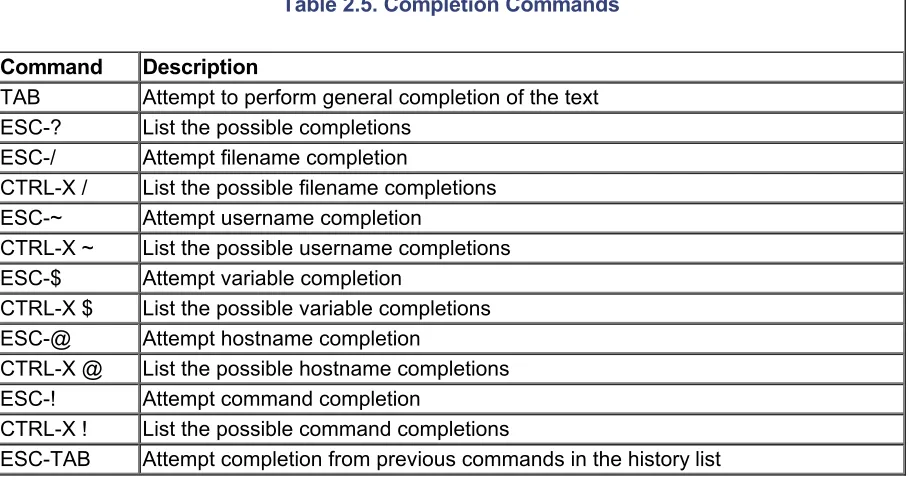
Table 2.6. emacs-Mode Miscellaneous Commands
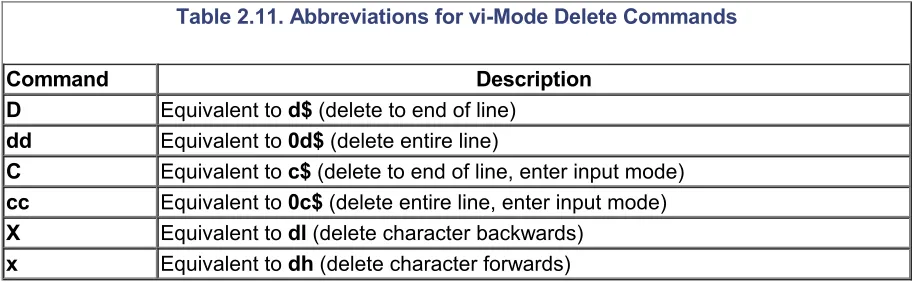
Table 2.11. Abbreviations for vi-Mode Delete Commands
+7

Referensi

Dokumen terkait

Although you don't need to know a single bit about Perl to begin reading this book, we do recommend that you already have familiarity with basic programming concepts such as

In order for the search server to run, you must have a Java interpreter, either the Java Developers' Kit (JDK) or the Java Runtime Engine (JRE).. A JRE is provided for some platforms

To use MongoDB in your Node.js applications, you need to do two things: install the database server itself and make it work with Node.

For example, to import table cities created by user kathleen from Oracle using user sqoop , you would execute the following Sqoop command:. sqoop

“You don’t want it,” Sairché said, eyes still on the sword.. “Give it to me.” “You tried that already,”

‘I should have called you,’ Freddi says, and although she’s looking at Hodges, he has an idea it’s really herself she’s speaking to.. ‘I would have, if I’d thought

“Lady Duff Gordon, I can’t believe I’m actually seeing you,” she burst out, pushing forward.. All she wanted was

Using the above syntax you can list new revisions introduced in the master, feature, and brave-idea branches with the command shown in Listing 7-3. This command