X
POWER
TOOLS
®Chris Tyler
X Power Tools® by Chris Tyler
Copyright © 2008 O’Reilly Media, Inc. All rights reserved. Printed in the United States of America.
Published by O’Reilly Media, Inc., 1005 Gravenstein Highway North, Sebastopol, CA 95472. O’Reilly books may be purchased for educational, business, or sales promotional use. Online editions are also available for most titles (safari.oreilly.com). For more information, contact our
corporate/institutional sales department: (800) 998-9938 or[email protected].
Editor: Andy Oram
Production Editor: Mary Brady
Copyeditor: Mary Brady
Proofreader: Laurel Ruma
Indexer: Ellen Troutman-Zaig
Cover Designer: Marcia Friedman
Interior Designer: David Futato
Illustrator: Robert Romano
Printing History:
December 2007: First Edition.
Nutshell Handbook, the Nutshell Handbook logo, and the O’Reilly logo are registered trademarks of O’Reilly Media, Inc.X Power Tools, the image of a power sander, and related trade dress are trademarks of O’Reilly Media, Inc.
Many of the designations used by manufacturers and sellers to distinguish their products are claimed as trademarks. Where those designations appear in this book, and O’Reilly Media, Inc. was aware of a trademark claim, the designations have been printed in caps or initial caps.
While every precaution has been taken in the preparation of this book, the publisher and author assume no responsibility for errors or omissions, or for damages resulting from the use of the information contained herein.
This book uses RepKover™, a durable and flexible lay-flat binding.
iii
Preface
. . .ix
Part I
The X Server
1.
Introduction to the X Window System
. . . .3
1.1 The X Window System 3
1.2 The History of X 4
1.3 The Renaissance: New X Versus Old X 4
1.4 X by Any Other Name 6
1.5 Seven Layers of an X-based GUI 6
1.6 Where Is the Server? 9
1.7 Why Windows Look and Act Differently 9 1.8 Toolkits and Desktop Environments 10 1.9 The Role of Freedesktop.org 11
1.10 Display Hardware 11
1.11 Displays, Screens, and Xinerama 19
1.12 Display Specifications 20
1.13 TCP/IP Ports 21
1.14 Local Connection Mechanisms 21
1.15 Server Extensions 22
1.16 Where to Draw the Line: Kernel Versus User-Space Drivers 24
2.
Starting a Local X Server
. . . .25
2.1 One Size Doesn’t Fit All 25
2.2 Virtual Terminals 25
iv Table of Contents
2.4 Using a Display Manager to Start the X Server 27 2.5 Enabling or Disabling the Display Manager at Boot Time 28 2.6 What Started the Display Manager? 30 2.7 Starting Multiple X Servers Using a Display Manager 31 2.8 Starting Additional X Servers on Demand Using
a Display Manager 33
2.9 Starting an X Server with Clients Only When Needed 35 2.10 Switching VTs from the Shell Prompt 36
2.11 Starting X Within X 36
2.12 No Mouse! 37
2.13 Bailing Out: Zapping X 39
2.14 Terminating X Automatically 39
3.
Basic X.org Configuration
. . . .40
3.1 What Is There to Configure? 40 3.2 Why Only root Can Configure the X Server 40 3.3 Places Your Configuration Could Hide 41 3.4 Let the X Server Configure Itself 43 3.5 The xorg.conf Configuration File 44 3.6 Optional Sections in the xorg.conf Configuration File 49 3.7 Configuring the Pointer Device 51 3.8 Configuring a Two-Button Mouse 52 3.9 Configuring a Mouse with a Scrollwheel 53 3.10 Configuring a Synaptics TouchPad 53
3.11 Enabling DPMS 54
3.12 Configuring Video Card Driver Options 56 3.13 LightSteelBlue and Other Color Names 58 3.14 Configuring a Monitor’s Scan Rates 59 3.15 Reading Server Log Files 62 3.16 Configuring the Default Depth of a Screen 64 3.17 Configuring the Resolution of a Screen 65
4.
Advanced X.org Configuration
. . . .67
4.1 Multi-Screen Configuration 67
4.2 Xinerama Configuration 68
4.3 Differences Between Multi-Screen and Xinerama Modes 69
4.4 Positioning Screens 71
4.5 Overlapping Xinerama 72
Table of Contents v
4.9 Parallel Keyboards 81
4.10 Using X with GPM or MOUSED 83
5.
Using the X Server
. . . .85
5.1 Interacting with the X Server 85 5.2 Changing Resolution On-the-Fly 85 5.3 Changing the Resolution and the Screen Size Dynamically 86 5.4 Using the Middle Mouse Button 87
5.5 Using the Clipboard 88
5.6 Keyboard Focus 90
5.7 Keyboard and Mouse Grabs 90
Part II
X Clients
6.
X Utility Programs
. . . .95
6.1 The Unused Toolbox 95
6.2 Determine the Display Configuration 96 6.3 Getting Window Information 97 6.4 Viewing Server Settings 100
6.5 Control That Bell! 101
6.6 Adjusting the Keyboard Repeat Rate 102 6.7 Adjusting the Mouse Acceleration 103 6.8 Playing with the Lights 104
6.9 Killing a Rogue Client 105
6.10 Examining Part of the Display in Detail 105
6.11 Script a Screen Dump 107
6.12 Preventing the Screen from Blanking During Presentations 108 6.13 Eye Candy: xscreensaver 109
6.14 Redrawing the Screen 111
7.
Running X Clients
. . .112
7.1 Running X Clients 112
7.2 Background Operation 112
7.3 Geometry 113
vi Table of Contents
8.
Session Managers, Desktop Environments,
and Window Managers
. . .118
8.1 X and Desktop Environments 118
8.2 Session Managers 119
8.3 Virtual Desktops 120
8.4 Starting GNOME 123
8.5 Starting KDE 126
8.6 Starting Xfce 128
8.7 Using a Window Manager Alone 129
Part III
Colors, Fonts, and Keyboards
9.
Color
. . .135
9.1 RGB and Other Color Systems 135
9.2 Visuals 136
9.3 Gamma 138
9.4 Color Management Systems 140
10.
Core Fonts: Fonts the Old Way
. . .142
10.1 Old Fonts Versus New Fonts 142 10.2 Configuring the Font Path 143
10.3 Using a Font Server 145
10.4 Font Names 146
10.5 Installing and Removing Fonts 148
11.
Pango, Xft, Fontconfig, and Render: Fonts
the New Way
. . .150
11.1 Client-Side Fonts 150
11.2 Adding and Removing Fonts Manually 151 11.3 Adding and Removing Fonts Using GNOME 151 11.4 Adding and Removing Fonts Using KDE 153
11.5 Fontconfig Font Names 155
11.6 Fontconfig Utilities 156
11.7 Installing the Microsoft Fonts 157
Table of Contents vii 12.2 The Location of XKB Files 162
12.3 XKB Components 162
12.4 Selecting an XKB Keymap Using Rules 163
12.5 Using Keyboard Groups 166
12.6 Setting the Keymap in the xorg.conf File 167 12.7 Setting the Keymap from the Command Line 168 12.8 Setting the Keymap Using a Keyboard Configuration File 169 12.9 Compiling Keyboard Maps 169
12.10 Viewing or Printing a Keyboard Layout 170
Part IV
Using X Remotely
13.
Remote Access
. . .175
13.1 Network Transparency 175
13.2 Displaying on a Remote Server 175 13.3 Enabling Remote Sessions 176 13.4 Accessing a Remote Session on a Specific Host 178 13.5 Accessing a Remote Session on Any Available Host 178 13.6 Accessing a Remote Session from a List of Available Sessions 179 13.7 The Three Challenges of Remote Access 181 13.8 Host-Based Access Control 182 13.9 xauth and Magic Cookies 183
13.10 The X Security Extension 186
13.11 Low-Bandwidth X (LBX) 187
13.12 X Tunneling with SSH 188
13.13 Using Public Keys with SSH 190
13.14 Using Passphrase Protection of SSH Keys 191
13.15 OpenSSH and the SECURITY Extension 192
14.
Using VNC
. . .193
14.1 The VNC System 193
14.2 So Many VNC Versions! 194
14.3 Xvnc Basics 195
viii Table of Contents
14.5 Using the VNC Viewers 197
14.6 Using Standing VNC Servers 198 14.7 Configuring the Xvnc Web Server 199 14.8 Customizing the VNC Java Applet Web Page 199 14.9 Starting VNC On Demand Using xinetd 202
14.10 Starting VNC On Demand Using inetd 204
14.11 Using the Java Applet with On-Demand VNC Servers 204
14.12 Accessing VNC Securely Using SSH 205
14.13 Embedding an X Application in a Web Page 206
14.14 Using KDE and Gnome Remote DesktopAccess Tools 210
14.15 Using the VNC Extension to the X.Org Server 212
14.16 Using VNC to Share a Presentation 213
14.17 Bypassing a Firewall 215
Part V
Special Configurations
15.
Building a Kiosk
. . .219
15.1 What Is a Kiosk, and Why Do I Want One? 219 15.2 Selecting Kiosk Hardware 219 15.3 Configure X for a Kiosk 221 15.4 Controlling the Keyboard 222
15.5 Controlling the Mouse 223
15.6 Starting a Single Fullscreen Application 224 15.7 Network Status Monitoring 225 15.8 Using xscreensaver to Reset a Kiosk 228 15.9 Refining the Kiosk Appearance 229
15.10 Putting It All Together: Scripting a Kiosk 230
15.11 Booting a Kiosk 232
15.12 Creating a Video Wall 233
ix
This is a book about the X Window System, a technology that continues to amaze observers in many ways. It was released as open source software before that term was formally defined, it’s more than 20 years old but has an installed base that is grow-ing daily, and it maintains compatibility with decades-old software while still takgrow-ing full advantage of the very latest hardware.
This software is so versatile and can be used in so many different ways that it’s not easy to cover it in a traditional book format—so this book is written in the Power Tools format, as a collection of short, independent articles that are extensively cross-referenced.
This book is written for experienced computer users who need to manage, config-ure, and support the X Window System, whether on a single laptop, a network of hundreds of remote displays, or a public-access kiosk.
How This Book Is Organized
Each article in this book is numbered by its chapter number and section number—so 3.2 is the second article in Chapter 3. There are 15 chapters.
Part I: The X Server
Chapter 1,Introduction to the X Window System
Covers the origin, history, and structure of the X Window System. Chapter 2,Starting a Local X Server
Outlines how the X server can be executed in different ways to meet a wide vari-ety of needs.
Chapter 3,Basic X.org Configuration
x Preface
Chapter 4,Advanced X.org Configuration
Covers multiple-device configuration: multiple screens, multiple mice, or multi-ple keyboards.
Chapter 5,Using the X Server
Describes keyboard sequences and mouse actions that directly affect the X Server.
Part II: X Clients
Chapter 6,X Utility Programs
Discusses the often ignored but very useful utility programs that are distributed with the X Window System.
Chapter 7,Running X Clients
Deals with starting X clients—programs that draw on the display. Chapter 8,Session Managers, Desktop Environments, and Window Managers
Covers software that works with the X Window System to provide a full-fledged graphical user interface and desktop environment.
Part III: Colors, Fonts, and Keyboards
Chapter 9,Color
Describes how color is represented and managed within X. Chapter 10,Core Fonts: Fonts the Old Way
Explains the traditional font system available in all versions of the X Window System.
Chapter 11,Pango, Xft, Fontconfig, and Render: Fonts the New Way
Gives the detail of the new client-side font rendering used in almost all new X-based applications.
Chapter 12,Keyboard Configuration
Deals with the configuration of keyboards for the global environment, where the user may use several different languages with different character sets.
Part IV: Using X Remotely
Chapter 13,Remote Access
Covers the safe and effective use of X’s powerful remote-display capabilities. Chapter 14,Using VNC
Preface xi
Part V: Special Configurations
Chapter 15,Building a Kiosk
Discusses how public-access GUI systems can be built using X Window technology.
Conventions Used in This Book
The following typographical conventions are used in this book: Plain text
Indicates menu titles, menu options, menu buttons, and keyboard modifiers (such as Alt and Ctrl)
Italic
Indicates new terms, URLs, email addresses, filenames, file extensions, path-names, directories, commands, and Unix utilities
Constant width
Indicates options, variables, values, the contents of files, and the output from commands
Constant width bold
Shows commands or other text that should be typed literally by the user, as well as important lines of code.
Constant width italic
Shows text that may be replaced with user-supplied values to adapt a command to a particular circumstance
This icon signifies a tip, suggestion, or general note.
This icon indicates a warning or caution.
Using Code Examples
This book is here to help you get your job done. In general, you may use the code in this book in your programs and documentation. You do not need to contact us for permission unless you’re reproducing a significant portion of the code. For example, writing a program that uses several chunks of code from this book does not require permission. Selling or distributing a CD-ROM of examples from O’Reilly booksdoes
xii Preface
code does not require permission. Incorporating a significant amount of example code from this book into your product’s documentationdoes require permission. We appreciate, but do not require, attribution. An attribution usually includes the title, author, publisher, and ISBN. For example: “X Power Tools, by Chris Tyler. Copyright 2008 O’Reilly Media Inc., 978-0-596-10195-4.”
If you feel your use of code examples falls outside fair use or the permission given above, feel free to contact us at[email protected].
We’d Like to Hear from You
Please address comments and questions concerning this book to the publisher: O’Reilly Media, Inc.
1005 Gravenstein Highway North Sebastopol, CA 95472
800-998-9938 (in the United States or Canada) 707-829-0515 (international or local)
707-829-0104 (fax)
We have a web page for this book, where we list errata, examples, and any addi-tional information. You can access this page at:
http://www.oreilly.com/catalog/9780596101954
To comment or ask technical questions about this book, send email to:
For more information about our books, conferences, Resource Centers, and the O’Reilly Network, see our web site at:
http://www.oreilly.com
Safari
®
Books Online
When you see a Safari® Books Online icon on the cover of your favorite technology book, that means the book is available online through the O’Reilly Network Safari Bookshelf.
Preface xiii
Acknowledgments
Thank you to the X developers for creating such a powerful and enduring technol-ogy, engineered from the beginning with sufficient flexibility to withstand changes that could not be forseen.
I’d like to thank Andy Oram, David Brickner, and Isabel Kunkle from O’Reilly for working with me on this book. I’d also like to thank Matt Frye, Jim McQuillan, and Josh More for their detailed technical review; and my colleague John Selmys at Sen-eca College for his review and feedback on the early chapters.
My deep gratitude to my loving wife Diane and my girls Saralyn and Laura for their patience and understanding as I started this book, interrupted it to write another, and then resumed work on this volume. It’s been a long haul, and I couldn’t have done it without their love and support.
3
1
Introduction to the X Window
System
1.1
The X Window System
The X Window System is aportable, network-based display system. That short defini-tion contains three of the keys to X’s success:
Portable
The X Window System is primarily used on Unix, Linux, and BSD systems, but it can also be used on Microsoft Windows, Mac OS X, and many other sys-tems—in fact, it can be used on just about any modern operating system. It sup-ports a wide range of hardware, from PDAs and standalone terminals to multimonitor workstations and information displays. Technology may be mixed and matched to suit user preferences, needs, and budget.
Network-based
Programs can display anywhere on the network, and windows from programs running on machines several time zones apart can be displayed side-by-side on one screen. With X, users have complete freedom to work wherever they want.
Display system
X is not a graphical user interface (GUI), but it provides a solid foundation for building one. GUI developers can escape from dealing with the intricacies of the display hardware and focus on user interface design, and legacy applications written for decades-old X-based GUIs will continue to work with modern ones. Although most users of Unix (or Linux, or FreeBSD, or Darwin) often take X for granted, a good understanding of how it works opens up a world of possibilities, from speeding up remote access to building personal video recorders to configuring multiuser computers and information kiosks.
1.2
4 Chapter 1: Introduction to the X Window System
1.2
The History of X
X originated at MIT in 1984. It was a part of Project Athena, a campus-wide, cross-platform system, and it was loosely based on the W Window System from Stanford. Before long, Unix vendors started to gain an interest in X. They realized that X would make it easier to port graphical applications to new hardware, which in turn would attract independent software vendors (ISVs)—and the more software became avail-able, the more systems would be sold.
After a brief flirtation with restrictive licenses, version 11 of the X Window system was released in 1987 under the MIT license, and a vendor-neutral group calledThe X Consortiumwas formed to manage development. This was one of the earliest exam-ples of an open source project. In fact, it predates the termopen sourceby more than a decade. Each vendor used the sample code from the X Consortium as a starting point and implemented a server tuned for their particular display hardware and oper-ating system.
Control of X passed from group to group until 1999, whenX.orgwas established by The Open Group to manage the technology. Unfortunately, official work on X had almost come to a standstill by that point.
However, one particular implementation of X for PCs, named X386, piqued the interest of many developers in 1992. When distribution of a commercial version of X386 began, the open source version was renamedXFree86(say both names aloud to realize the pun). Eventually, most X innovations were made within the XFree86 project rather than coming from the official guardians of the X standard.
But internal politics and a rigid organizational structure took their toll on theThe XFree86 Project, Inc, and after a license dispute in 2003, some key developers decided that they’d had enough. They moved development back to the almost-defunct X.org, formedThe X.org Foundation, and shifted work into high gear. Most open source operating system distributions adopted the X.org server in 2004.
In the end, active X development wound up where it had started, the successor to the XFree86 project replaced the sample implementation of X technology, and a revital-ized developer community started to once again steadily advance the state of the technology.
1.3
The Renaissance: New X Versus Old X
1.3 The Renaissance: New X Versus Old X 5
I have started to think of X development in terms of two eras: Old X(1984–1996) andNew X(2000–present). Old X was characterized by the development of the core protocols, essential extensions, and Xt-based toolkits. New X development was kicked off by the release of the RENDER extension in 2000, which, along with Xft, OpenGL, the COMPOSE extension, and non-Xt toolkits (Qt and KDE), is causing large portions of the core X protocol to fall into disuse. Between these two eras, X development almost came to a standstill.
Here is a summary of some of the key differences in the technology of the two eras:
Element Old X New X
Fonts Bitmapped fonts and scalable fonts
without anti-aliasing, rendered by the core font capabilities in the server.
Scalable fonts with full anti-aliasing, managed on the client side by fontconfig, and displayed by the Xft library using the REN-DER extension.
Desktop environments No standard desktop environments (though HP Vue morphed into CDE and made a late appearance). Con-sequently, window managers played a much larger role than they do today. Panel bars were rare— icons for minimized windows sat directly on the desktop (or, some-times, in a separate icon box win-dow). Clients were usually started through root-window menus or by typing commands in anxterm.
Two widely used desktop environ-ments (KDE and Gnome) and a lightweight desktop (Xfce) with well-integrated root desktop, menu, and panel-bar operation.
Toolkits and configuration Lots of Xt-based toolkits, including Motif, OpenLook, and the Athena Widgets. All of the toolkits could be configured throughresources.
Xt has almost completely fallen into disuse; Qt and GTK+ have captured developer mindshare. Each provides their own configura-tion systems. freedesktop.org has coordinated shared standards for desktop menu entries and icons.
Display hardware Entry-level desktop displays starting at 0.45 megapixels (800×600) and ranging up to 1.25 megapixels on the high end, with a typical resolu-tion of 75dots per inch (dpi). Com-mon color capabilities ranged from monochrome to 256-color palettes, with very few high-end systems providing full-color capabilities. Pal-ette management issues were a major headache. 3D hardware was rare and very expensive. LCD dis-plays were rare except on laptops, which seldom exceed 0.75 mega-pixels (1024×768).
24-bit palette-free color with 3D capabilities, and hardware accel-eration is standard issue. 0.75 megapixel resolution (1024×768) is considered entry level; high-end systems have multimegapixel dis-plays at resolutions up to 200 dpi. 1.25 megapixel and higher laptop displays are common.
1.4
6 Chapter 1: Introduction to the X Window System
1.4
X by Any Other Name
The X Window System goes by many different names, and sometimes this is a source of confusion. According to the manpage, X should be referenced using one of these names:
• X
• X Window System • X Version 11
• X Window System, Version 11 • X11
Notice that “X Windows” is not on that list; this omission was originally due to con-cern about confusion with Microsoft’s Windows product line.
This has been used as a shibboleth for many years; anyone referring to “X Win-dows” was considered an outsider or a beginner. Fortunately, this pedantry is wan-ing, but you should probably avoid saying “X Windows” if you find yourself in the company of an industry old-timer.
The version number is almost never mentioned in modern usage, since the previous versions were experimental, and Version 11 has been in use for almost two decades (though the release number keeps going up).
The dominance of the X.org implementation has led a number of people to refer to X itself asXorg orX dot org.
1.5
Seven Layers of an X-based GUI
It is Unix tradition to assemble solutions out of many small programs rather than to use a single, monolithic program. This approach gives more flexibility, since these smaller building blocks may be combined in different ways to meet different needs. GUIs based on the X Window System follow this same philosophy—they’re built in layers that can be mixed and matched as needed.
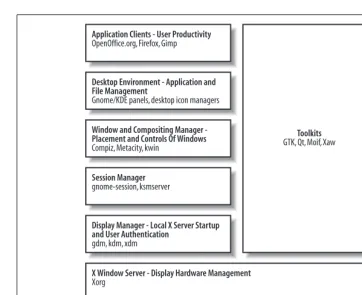
Figure 1-1 shows a simple model of the seven layers found in most X-based GUIs.
Client appearance Low-resolution, high-contrast (to work with the display hardware) with minimal customizability.
Shading, gradients, and fine visual details take good advantage of hardware capabilities. Themes provide extensive opportunities for easy customization.
1.5 Seven Layers of an X-based GUI 7
Elements at the top of the diagram are the most visible and important to the user, and the components at the bottom of the diagram are the least visible. From the bot-tom up, these layers are:
Network Transport
Enables the other layers to communicate. This layer almost always consists of TCP/IP plus a faster connection scheme for local clients (Section 1.14), but many older or proprietary network transports can be used, including IPX/SPX and DecNET.
X Window Server
Consists of the software that manages the display (which normally consists of a keyboard, video screen, and mouse) and runs on the computer connected to the display hardware. All of the layers above the X server are considered clientsof that server and may be located anywhere on the local network, or even over the Internet.
Figure 1-1. The layers of an X-based GUI Application Clients - User Productivity OpenOffice.org, Firefox, Gimp
Desktop Environment - Application and File Management
Gnome/KDE panels, desktop icon managers
Window and Compositing Manager -Placement and Controls Of Windows Compiz, Metacity, kwin
Session Manager gnome-session, ksmserver
Display Manager - Local X Server Startup and User Authentication
gdm, kdm, xdm
X Window Server - Display Hardware Management Xorg
Network Transports - Client -Server Connections TCP/IP, Unix domain sockets
1.5
8 Chapter 1: Introduction to the X Window System
Display manager
Enables a user to log in to the system graphically. Most display managers ask the user to type his user ID and password, but it’s possible to use almost any authen-tication scheme, including biometric scanning.
Session manager
Tracks application state across login sessions, starting standard clients such as the window manager and desktop environment components, restarting applica-tions that were active at the end of a previous session, and optionally restarting applications if they crash.
Window and Compositing manager
Manages window placement and provideswindow decorations. This includes win-dow title bars, borders, and controls for common operations such as resizing, maximizing, minimizing, moving, and closing windows. When the COMPOSITE extension is available, the window manager also acts as the compositing manager. The X developers tried separating them, but in order to work really well, the com-positing manager needs access to information about the windows that only a win-dow manager knows. A winwin-dow manager is considered to be a special class of client, and only one can be active on a display at a time.
Desktop environment
One or more programs that provide a desktop paradigm for the user. This may include menus to start programs, trays or panels to indicate currently running programs, icons that represent files or programs on the desktop background, docked applets, and other useful tools and utilities.
Application clients
Programs that enable the user to perform useful work. They are spreadsheets, word processors, web browsers, media players, video editors, and so forth.
Toolkits
Programming libraries that are used to simplify the task of writing clients that communicate with an X server. Toolkits are not a layer per se, but they do sup-port and simplify the construction of the client layers.
The software used in any layer can be changed without affecting the other layers. For example, you can switch from theXDMdisplay manager to theGDMdisplay man-ager without making any changes to the other layers.
1.7 Where Is the Server? 9
Or, if X is started after the user logs in (Section 2.9), the user has already been authenticated, so the display manager is not needed and may be left out.
1.6
Where Is the Server?
In most network terminology, theclient systemis the one that is on your desktop, in your hand, or on your lap, and theserveris the computer in the closet down the hall. But in X terminology, the computer in front of you runs the server, and the client programs may be located on the computer in the closet.
As confusing as this may seem at first, it makes sense if you think in terms of the resource being served. A file server is located where the files are stored; a print server is located at the printer; and a display server is located at the display.
The specific resources managed by an X server include video cards and monitors, pointing devices (such as mice, trackpads, and touchscreens), and keyboards. These are each located at the physical machine running the X server.
1.7
Why Windows Look and Act Differently
The programs that access and use display resources are the clients. They may be on the same computer as the server, or they may be located down the hall, or they may be on the other side of the planet.
One of the early tenets of the X Window developers was that X should provide a mechanism for implementing a GUI, but should not impose any policy on how that GUI should operate. This has been both a blessing and a curse throughout the his-tory of X.
Since X does not define policy, the look and feel of applications has been left up to application and toolkit developers, and there is a tremendous variation between pro-grams. The advantage is freedom to experiment and innovate; the disadvantage is confusion for users.
On one of my systems, I have three different calculators available:xcalc,kcalc, and
gnome-calculator, as shown in Figure 1-2.
As you can see from this screen dump, each calculator looks different: the fonts, col-ors, button sizes, menu options, icons, and status bar vary from program to pro-gram. They also use different visual effects when buttons are pressed.
1.8
10 Chapter 1: Introduction to the X Window System
One more thing to note in Figure 1-2: each window’s title bar, border, and window controls are the same—because they are being drawn by the window manager, not the individual application programs.
1.8
Toolkits and Desktop Environments
There are three main toolkits currently in use, and desktop environments have been based upon each one:
Most of these desktop environments are distributed with a display manager, win-dow manager, and some application clients, but you can mix and match compo-nents from different environments. The use of one desktop environment does not prevent you from using applications built with another toolkit or distributed with another desktop environment, so you can use KDE along with GTK+ apps, or Xfce with Motif applications.
Almost all new development is now based on the GTK+ and Qt toolkits, primarily because they are open source (http://opensource.org) and therefore more accessible to developers.
However, Motif continues to be an important toolkit for legacy applications, especially in some financial and scientific niche markets. Motif and OpenMotif are
Figure 1-2. xcalc, kcalc, and gnome-calculator
Toolkit
Original programming
language License Open source
Desktops built with this toolkit
GTK+ C GPL Yes Gnome, Xfce
Qt C++ GPL Yes KDE
Motif/OpenMotif C Open Group Master
Software License/Open Group Public License
1.10 The Role of Freedesktop.org 11
essentially the same product, distributed under different licenses. While the Open Group Public License does permit OpenMotif to be freely distributed, this is for use only with open source operating systems such as FreeBSD or Linux, so the license does not meet the Open Source Definition (http://opensource.org/docs/osd) or the
Debian Free Software Guidelines (DFSG, http://www.debian.org/social_ contract#guidelines). Therefore, Motif is not included in most open source operating systems. The Open Group has stated that it intends to switch to a more open license, but it has been slow to do so; meanwhile, the LessTif project (http://www.lesstif.org) has reimplemented most of Motif’s functionality under the GPL.
Motif is the last widely used toolkit based upon the X Intrinsics Toolkit (Xt), an object-oriented library written in C. In addition to Motif, there were widget (user-interface object) sets from the Athena project (Xaw), 3D versions of the Athena wid-gets (Xaw3d), Sun’s OpenLook (Olit), Motif-OpenLook crossover widwid-gets (Moolit), and others. All of these have fallen into disuse, but you may encounter them in older programs from time to time.
1.9
The Role of Freedesktop.org
There’s more to a desktop than just a display—there’s also sound, filesystem integra-tion, on-the-fly hardware discovery, and much more. All of these bases must be cov-ered in order to produce a desktop environment that can compete with commercial offerings such as Microsoft Windows or Mac OS X.
Recognizing this, developers have rallied around freedesktop.org, creating an infor-mal consensus-building forum for desktop-oriented technologies. Freedesktop.org (the web site address is the same as the project’s name) hosts much of the work of the revitalized X.org project, coordinates standards between Gnome and KDE, and supports the development of complimentary technologies such as D-BUS and HAL. freedesktop.org’s lightweight organization and focus on collaboration have made it the centerpiece for most desktop-oriented open source software development.
1.10 Display Hardware
Let’s take a look at the hardware typically managed by an X server. It generally has the following components:
• Zero or more pointing devices (mice, trackballs, touchscreens). • Zero or more keyboards.
• One or more video cards, each connected to one or more monitors.
1.10
12 Chapter 1: Introduction to the X Window System
Pointing Devices
Pointing devices fall into two general categories:relative andabsolute:
Relative pointing devices
These send only movement information to the display. A new pointer position is calculated by taking the previous pointer position and updating it with the indi-cated movement. Mice, trackpads, and trackballs fall into this category.
Absolute pointing devices
These send an exact screen position to the display. Touchscreens, graphics tab-lets, and light pens are all absolute devices.
It is possible to have multiple pointing devices connected to one display. This is com-mon on laptops; some have two built-in pointing devices, and some users add a tra-ditional mouse to compliment a built-in pointing device. The devices act in parallel, and any can be used to move the pointer on the screen (Section 4.8).
A display is rarely configured without a pointing device, but this may be done for an information-only display that does not permit user interaction.
Pointing devices are connected to the computer using a USB, PS/2, serial, or blue-tooth connection. The data rate is very low, so USB pointing devices always run at low speed (1.5 Mbps) even when they are certified to USB 2.0 standards. PS/2 and serial interfaces are electrically identical but have different connectors; you can buy adapters to convert one to the other.
A few years ago, there were dozens of communication protocols used by mice. Fortu-nately, almost all mice now use an extended version of the PS/2 mouse protocol, regardless of how they are connected, though graphics tablets, touch screens, and the other more exotic pointing devices still use unique protocols.
1.10 Display Hardware 13 The memory and raw processing capability of many modern optical
mice exceeds that of the first computer used to run Unix!
Keyboards
Like mice, keyboards are sometimes used in parallel. This is most common on lap-tops, where an add-on numeric keypad may be used along with the built-in key-board, or a larger external keyboard is used in preference to the internal one.
Keyboards typically have PS/2 or USB connectors; USB versions always operate at low speed (1.5 Mbps). The keyboard sends a scancode corresponding to a button location when that button is pressed, and sends another code when that button is released. This permits the system to detect how long buttons are held down and in what combination.
In order to convert these scancodes into characters, the system needs to know which symbol is associated with which key. This is done through a keyboard map. Since most English North American keyboards have a standard layout, one standard key-board map usually suffices; but outside of English North America, additional sym-bols will appear, either supplementing or replacing the English North American symbols. For example, a U.K. keyboard layout will include symbols for the Euro and pound.
The layout of the basic roman letter symbols will also vary; in North America, the top row starts with QWERTY; in Germany, it often starts QWERTZ; and in France, AZERTY. Nonroman alphabets obviously have their own distinctive layouts as well, but typically provide some way to type roman letters for email addresses, URIs, and code.
Some languages use large numbers of accented characters. Keyboards set up for these languages often usedead keys,which don’t actually type a character, but which cause the following character to be accented. This handling is performed by the system and not by the processor in the actual keyboard, so the operation of dead keys can be reconfigured as needed. A compose key is a special type of dead key that builds a character based on two subsequent keypresses. So, the user might presscompose, /,
cto produce the cent symbol (¢) orcompose, c, commato produce the letter c with a cedilla (ç).
1.10
14 Chapter 1: Introduction to the X Window System
Most keyboards contain a simple microprocessor and a serial or USB interface, and have three LEDs to indicate keyboard status.
Monitors
All video systems work by scanning dots (or pixels—picture elements) from left to right, top to bottom on the display. For each pixel on a color display, three pieces of information are sent: the individual brightness levels for the red, green, and blue (RGB) components of that dot. The monitor combines the appropriate amount of red, green, and blue light to form the specified color on the screen. Additional sig-nals are used to synchronize the horizontal and vertical scanning so that pixels are drawn in the correct position.
Cathode ray tube (CRT)
CRT monitors draw pixels by shooting electron beams at colored phosphor dots coated onto the inside of the front glass panel, which then glow. It takes a significant amount of energy to create the electron beams, and X-rays are produced as a side effect. In order to shield the user from these X-rays, a significant amount of lead is embedded into the glass of the CRT. Large electromagnets are used to bend the elec-tron beams as the display is scanned.
CRTs are a proven, reliable, and inexpensive technology, and they present a clear image over a wide range of viewing angles. However, their large size, the use of lead in their construction, their high energy usage, and concern over X-ray and electro-magnetic radiation has caused many people to consider alternatives.
Liquid crystal display (LCD)
LCDs use light-gates made out of tiny liquid cells adjacent to a polarizing filter. By applying an electric current to the liquid, it can be polarized, allowing more or less light to flow through the light gate. Each pixel is made up of three liquid crystal cells, each with a colored filter—one each for red, green, and blue. Fluorescent lights or white LEDs placed behind the LCD panel provide illumination.
LCDs use less power and space than CRTs, but have a narrower range of acceptable viewing angles, may wash out in bright light, and typically have a less durable front surface than CRTs. Some graphic artists prefer CRTs, claiming that they reproduce a wider range of colors with greater accuracy.
1.10 Display Hardware 15 Other flat-panel technologies
Other flat-panel technologies available include:
Plasma displays
These use charged gases to produce an image that is bright and that can be very large, but that has a high power consumption and whose brightness diminishes over time, so this type of display’s market share is diminishing as large-format LCD manufacturing becomes feasible.
Organic Light-Emitting Diode (OLED) displays
These are “printed” onto a flexible substrate. They are currently used on some cell phones and portable music players and hold promise for large, inexpensive display panels once manufacturing issues are refined.
Electronic paper (or electronic ink) technology displays
These use thousands of tiny cells that can be placed in a particular color state and then stay in that state until changed. There are several different approaches to cell construction, but all electronic paper displays are reflective and use ambi-ent light to illuminate the display. This results in a familiar experience for the user and offers very low power consumption for displays that rarely change. Electronic paper displays are used on some cell phones and e-book readers, and may eventually be used for certain types of monitors, signs, and even billboards.
Video projectors
A video projector can also be considered a type of monitor. Projectors either use LCD technology or thousands of tiny mirrors mounted directly on a Digital Light Processor (DLP) chip. This is coupled with a high-power light, projection lenses, a cooling system, and control electronics.
The control electronics in video projectors are usually more sophisticated than the circuits found in CRT or LCD monitors:
• Images can be flipped left to right (for rear-projection applications) or top to bot-tom (for upside-down ceiling mounts).
• Keystone correction permits the sides of the image to be slanted (and the top of the image to be made smaller than the bottom, or vice versa) so that the image will appear rectangular when projected onto the screen at an angle.
• Image scaling and multiple video inputs enable a clear picture to be projected despite huge variations in the resolution, quality, and speed of the incoming signals.
Video timing
1.10
16 Chapter 1: Introduction to the X Window System
The speed of the video signal is dictated by the screen resolution and refresh (scan) rate. Resolution is defined in terms of horizontal and vertical pixels; scan rate is expressed inHertz(Hz), or cycles per second. A scan rate of 70 Hz or higher is rec-ommended for CRTs in order to reduce eyestrain for the user; the refresh rate is not as important for most LCD displays, because the decay time (the time it takes a pixel to change color) is longer.
The length of cable that may be used to connect a video monitor to a video card is directly limited by the scan rate. A cable stores a small amount of energy between conductors; this quality is called capacitance, and it limits the cable’s ability to han-dle fast signals. The longer the cable, or the poorer the insulator, the more energy is stored. This restricts the maximum refresh rate that can be used without noticeable image degradation.
Monitor connections
Monitors connect to a video card using one of these standard connection schemes:
Television
All of the color, luminosity (brightness), and synchronization information is encoded into a single composite analog electrical signal. This type of signal is most useful for connecting to consumer video equipment such as a VCR or tele-vision; the standard connector is a coaxial “RCA” plug.
One variation on a television video signal is S-Video, which separates the lumi-nance and chroma (color) information onto separate wires; many video cards that have a “TV Out” feature use this type of connector. In Europe, a rectangu-lar SCART connector is standard and may include a composite signal.
VGA
An analog connection scheme that uses varying voltages on three separate pins to control the RGB levels. Additional pins are used for synchronization and device probing. The most common physical connector for VGA signals is an
HD15—a high density, 15-pin mini D-shaped connector. “VGA” comes from
video graphics array, which is the name of the original IBM graphics card that used this connector.
Digital Visual Interface (DVI)
A modern connector that supports analog signals, digital signals, or both. DVI-D includes digital signals only; DVI-I includes both; and the unofficial DVI-A con-nector includes analog only.
DVI-I and DVI-A can be connected to VGA equipment through a simple adapter. Where possible, though, the digital signal should be used for greater accuracy and clarity.
1.10 Display Hardware 17
High Definition Multimedia Interface (HDMI)
HDMI provides an easy-to-use single connector that incorporates a DVI-D com-patible digital video signal and digital audio. It is common on high-definition television equipment and monitors, but so far is not used often on computers. HDCP may be used with HDMI. There are two connectors in use: Type A, which supports single-channel connections, and Type B, which has additional conductors to carry a dual-channel signal.
DisplayPort
An alternative to HDMI that provides a similar pure-digital audio and video sig-nal with optiosig-nal HDCP encryption. While HDMI was intended as a consumer specification for entertainment devices, DisplayPort initially targets computer systems. TheVideo Electronics Standard Association (VESA) backs the Display-Port standard and has established compliance testing programs for it, which will ensure interoperability of DisplayPort devices. Offering support for color depths beyond 24 bits per pixel (16 million colors) and the potential of an easy future upgrade to fiber optic connection, DisplayPort is a strong specification. But, it is late to market, and it may be difficult to unseat entrenched standards such as HDMI.
Video Cards
The circuitry that drives the monitor is contained on a video card or integrated into the system motherboard.
There are four main components in a video card, as illustrated in Figure 1-3:
Memory
An area of memory set aside to keep track of the image on the screen (the
framebuffer) and other video-related data such as pixmaps, save-unders, and images that will be composed into the framebuffer by the GPU.
Historically, successive generations of video cards have swung back and forth between using a reserved area of main system memory for the framebuffer and using a completely separate bank of physical memory. Any memory over and above the memory used for the framebuffer may be used for fonts, off-screen rendering, save-unders (remembering what is underneath windows), and tex-ture maps.
Graphics processing unit (GPU)
Performs graphics operations such as block moves, line drawing, area fills, shad-ing, and texture mapping independently from the system’s CPU. Most modern GPUs handle 3D operations, although some of the lower-end devices (typically built into motherboards) have very weak 3D performance.
Bus interface
Connects the host system bus to the memory and GPU.PCI Express(PCI-E) is the preferred connection path on most new systems; anaccelerated graphics port
1.10
18 Chapter 1: Introduction to the X Window System
Video controller
Generates the video signal by repeatedly scanning the framebuffer and convert-ing the pixel information into the format required at the video connector. If an analog connection is used, multiple digital-to-analog converters (DACs) are incorporated to convert the digital brightness values into varying voltages; the DACs speed often limits the maximum refresh rate available at a given resolu-tion. Some graphics systems with DVI, HDMI, or DisplayPort connectors incor-porate encryption chips between the video controller and the video connector.
Signal encryption
This optional circuit encrypts the signal for content protection using HDCP or a competing protocol.
The screen image can be represented in the framebuffer in one of two ways:
• The RGB information for each pixel can be stored in successive memory loca-tions. On modern video cards, 8 bits (1 byte) of informaton is stored for each RGB channel, resulting in a total of 24 bits (3 bytes) of memory used for each pixel. This permits 224= 16 million colors to be used simultaneously on the
dis-play. It is also fairly common to use 8, 15, or 16 bits per pixel, and less common (on specialized cinema-oriented hardware) to use 12 or 16 bits per RGB channel for a total of 36 to 48 bits per pixel.
Figure 1-3. The components of a video card
Signal encryption
Memory Framebuffer
GPU Monitor
Bus interface Video controller
(CRTC)
1.11 Displays, Screens, and Xinerama 19
• A color code for each pixel can be stored. This results in a “paint-by-number” scheme, where the video controller looks up each color code in a palette or lookup table to determine the RGB value. For example, the color code 3, when stored in the memory location for a given pixel, would instruct the video con-troller to look up entry number 3 in the palette and use whatever color is stored there.
Palette-based color is rarely used on modern PCs, but is common on smaller devices such as PDAs and cell phones. It may seem absurd to talk about PDAs and phones in a book about X, but they now have sufficient computing power to viably run an X server!
The size of a framebuffer in bytes is:
WidthInPixels * HeightInPixels * BytesPerPixel
Therefore, a 1280×1024 display with 3 bytes (24 bits) per pixel of color information would take:
1280 x 1024 x 3 = 3932160 bytes = 3.75 MB
Note that since most modern CPUs deal with memory in 32-bit words, many 24-bit video modes actually devote 32 bits to each pixel to simplify manipulation of the data. This wastes 8 bits per pixel, but the resulting increase in speed makes it worth-while. If the video card in the preceding example used 32 bits per pixel, the memory required would be 5 MB.
1.11 Displays, Screens, and Xinerama
In X terminology, adisplaycomprises the user interface for one person. That usually means one keyboard, pointer, video card, and monitor, but for some applications, more video “real estate” is required. Thus, a display can have multiple video cards and monitors, perhaps with different capabilities and resolutions—but this is where the terminology gets tricky.
All of a display’s video cards and monitors can be combined to act like one giant video monitor. This approach is calledXinerama(Section 4.9) as a tribute to the old Cinerama multiprojector wide-screen movie format. Xinerama permits windows to span monitors and works especially well on multipanel LCD displays, video walls, or video projectors.
Alternately, a display’s video cards and monitors may be configured as separate
1.12
20 Chapter 1: Introduction to the X Window System
configuration instead of Xinerama, windows from the control screen will be pre-vented from straying onto the publicly-visible display.
Some window managers, such as the LessTif version of the Motif Window Manager
MWM, are not capable of managing multiple screens and will only register them-selves as the window manager for one screen. On the other hand, some toolkits are not aware of Xinerama, so dialogs that are intended to be positioned in the center of a display always display in the middle of the Xinerama display—and therefore always span across monitors in a dual-monitor Xinerama configuration (which is very, very annoying).
Each display (regardless of the number of screens involved) is managed by exactly one X server process.
1.12 Display Specifications
Since X clients can connect to a display anywhere on the network, it is necessary to have some way of specifying the display to be used. This is done using a display specification (ordisplayspec).
A displayspec takes this form:
host:display[.screen]
The following list describes each element in a displayspec:
host
The name or network address of the system running the X server. This may be: • A DNS hostname or IP address
• Blank, or the wordunix, indicating a local host connection (Section 1.14) • A DecNET, IPX/SPX, or other machine designation (extremely rare)
display
The display number, greater than or equal to zero
screen
An optional screen number within the display; screens are numbered starting at zero
Here are some examples:
:0
Display 0 on the local computer, connected by a local connection scheme
localhost:3
Display 3 on the local computer, connected by TCP/IP
stealth.oreilly.net:2
1.14 TCP/IP Ports 21
172.250.12.7:4.3
Display 4, screen 3 on the host with IPv4 address 172.250.12.7 The displayspec can be passed to clients as an option value:
$ xclock -display displayspec
However, it is more common and convenient to use the DISPLAYenvironment vari-able. If you are using a shell that follows the Bourne syntax (sh, bash,ksh, zsh, or
ash), you can set and export theDISPLAY variable like this:
$ export DISPLAY=displayspec
If you are acsh aficionado, use:
% setenv DISPLAY displayspec
Once theDISPLAYvariable has been set, any new clients started will connect to the specified display by default. (Command-line options take precedence over the
DISPLAY variable.)
1.13 TCP/IP Ports
Each X display uses a unique TCP/IP port so that multiple servers on the same sys-tem do not conflict. All of the screens managed by one display are accessed through the same port; screen selection is accomplished through the X protocol.
The standard port for an X server is6000+display, so display:0uses port 6000, and display:15uses port 6015. Since these port numbers are over 1024, the kernel per-mits anyone to open them—so you don’t need to be root to run an X server. Large display numbers may conflict with other services (such as IRC at port 6667), so it is best to keep display numbers under 100.
1.14 Local Connection Mechanisms
TCP/IP is a great network transport, but it’s overkill for connecting programs run-ning on the same computer. Most X servers provide a faster alternative for local connections.
Unfortunately, there are at least five different local connection schemes in use, including Unix domain sockets, named pipes, and various types of Streams pipes. Open source operating systems use Unix domain sockets without exception.
A displayspec with a blank host field will automatically select the default local con-nection scheme; if the default isn’t a Unix domain socket, then some systems permit a host value ofunix to force a domain socket to be used.
1.15
22 Chapter 1: Introduction to the X Window System
After a local connection has been established, the client and server can negotiate the use of shared memory for faster communication of large blocks of data; this requires the MIT SHM extension.
Binaries compiled for one platform but executed on another may not interpret a blank hostname field in the displayspec correctly. For example, binaries compiled for SCO Unix may default to a Streams mechanism. When running under Linux using the iBCS compatibility layer, this will cause a problem, because Linux doesn’t sup-port Streams. In this case, a hostname value of unixshould force the use of Unix domain sockets; as a last resort, the TCP/IP local loopback mechanism can be used by specifying a hostname oflocalhost(however, this incurs the extra overhead of the TCP/IP stack—twice).
1.15 Server Extensions
The X11 protocol was designed to be enhanced by addingextensionsto the X server. Clients can query the server to find out what extensions are available. This has enabled many features to be added through the years without significant changes to the core protocol (which explains why we’re still using version 11!).
Extensions may be compiled in to the X server, or they may be loaded as modules. Because their presence is optional, the X server can be slimmed down for use on small machines by building it with a smaller set of extensions.
Here are some of the key extensions in widespread use (upper- and lowercase names are those reported by the extensions themselves usingxdpyinfo (Section 6.2):
MIT-BIG-REQUESTS
Permits client requests over 256 Kb, necessary to draw complex images.
MIT-SHM
Offers shared memory for local communication of images.
Composite
Enables off-screen rendering of windows, which are then combined (compos-ited) into the final screen image by hardware under control of a compositing manager. This is usually integrated into the window manager. During composi-tion, images can be distorted, blended, and resized, so the extension provides an easy way to add drop shadows, window transparency, icons, and thumbnails that are “live,” smooth window resizing, and many other 2D and 3D visual effects.
DAMAGE
1.15 Server Extensions 23
DPMS
Displays Power Management Signalling. Enables the X server to reduce monitor power consumption when not in use (Section 3.11).
GLX
OpenGL extension for X11. Enables clients to send OpenGL 3D commands to the X server, which then passes them on to 3D video hardware (or performs the 3D operations in software if necessary—which is very slow!).
LBX
Low-Bandwidth X. Used with lbxproxyto reduce bandwidth requirements and latency for remote clients (Section 13.11).
MIT-SCREEN-SAVER
The eye-candy extension! MIT-SCREEN-SAVER informs screensavers when to start and stop (Section 14.3).
RANDR
Stands for rotate and resize. Notifies clients when the display is resized to a new resolution or rotated (useful on tablet PCs and LCDs on pivot mounts) and enables the hot-plugging of monitors (Section 5.2).
RECORD
Permits X events to be recorded for later analysis or playback. Used to automate application testing and provide macro facilities.
RENDER
Provides a digital image composition model. Render simplifies tasks such as alpha blending (combining partially transparent images) and high-quality anti-aliased text display (Section 11.1).
SECURITY
Divides clients into two categories—trusted and untrusted—and prevents untrusted clients from accessing data held for trusted clients. Properly used, this can reduce the risk of compromise due to actions such as keystroke logging (to steal passwords) or remote screen dumping (to view sensitive information dis-played on the screen).ssh now supports this extension (Section 13.10).
SHAPE
Enables nonrectangular windows. The xeyesandoclock clients provide a good demonstration of this capability.
SYNC
Makes it possible to synchronize the X display with external events—for exam-ple, keeping a movie soundtrack synchronized with the picture.
XInputExtension
1.16
24 Chapter 1: Introduction to the X Window System
XKEYBOARD
Enables complex keyboard mapping and configuration (Section 12.1).
XTEST
Extends the X protocol to simplify performance benchmarking.
XINERAMA
Single-screen, multimonitor support (Sections 1.11 and 4.2).
XVideo
Enables video streams, such as those from a video camera or TV tuner card, to be converted, transformed, and then overlaid on the X display. This is done with hardware support and can dramatically improve video performance (Section 4.1).
XVideo-MotionCompensation
Utilizes hardware support for video decompression—useful for DVD viewing and other MPEG video playback.
1.16 Where to Draw the Line: Kernel Versus
User-Space Drivers
The operating system kernel is usually responsible for managing all of the system hardware, and normal user-space programs access hardware only through the OS. This clear-cut distinction between the kernel and user-space programs has been very difficult to maintain when implementing X servers.
The problem is that video cards vary enormously in terms of their GPU capabilities and general architecture. It’s hard to create a simple, well-defined interface between a video driver in the kernel and an X server in user-space that will work well for all video cards, though several attempts have been made. And of course the X server is too large and complex to safely place it directly into the kernel.
As it stands now, most kernel/X server combinations—including Linux with the X.org server—pretty much give the X server free reign when it comes to video card access, though some of the card drivers (such as the NVIDIA closed-source driver) use a small kernel module to assist them.
25
2
Starting a Local X Server
2.1
One Size Doesn’t Fit All
An X server can be started in different ways to suit different types of use. In this chapter, we’ll examine the techniques available for starting X and discuss the best approach for some common scenarios, including:
• Presenting a graphical login display (Section 2.4)
• Configuring a home system with two graphical login displays, so that two peo-ple can alternately use it without disturbing each others’ work (Section 2.7) • Starting X on a server system only when it is really needed, in order to conserve
system resources for more important uses (Section 2.9)
• Starting an X server that is displayed within another X server (Section 2.11) We’ll also take a look at how to use Virtual Terminals (Sections 2.2 and 2.10), how to simulate a mouse when a bad configuration leaves you without one (Section 2.12), and how to terminate X (Sections 2.13 and 2.14).
2.2
Virtual Terminals
Linux, FreeBSD, and many other modern Unix kernels support a virtual terminal
(VT) (orvirtual console) capability, which provides independent virtual video cards. The monitor, keyboard, mouse, and physical video card are associated with only one VT at a time, and each virtual video card can be in a different display mode—some may be in character mode while others are in graphical mode. This enables multiple X servers and nongraphical sessions to be active at the same time.
2.3
26 Chapter 2: Starting a Local X Server
distributions also configure the Windows key to advance to the next VT; you can also switch virtual terminals using theswitchto orchvt commands (Section 2.10). By default, most Linux distributions boot up with six nongraphical logins on VT1– VT6 and one X server running on VT7.
FreeBSD provides a very similar VT capability, except that the VTs are numbered starting at zero, and the key combination to switch VTs when in character mode is Alt-Fx. Virtual terminals are numbered one off from Alt keys, because there is no F0 key. Therefore, if you’re on VT3 in character mode and press Alt-F1, the kernel will take you to VT0.
System V Release 4.x systems such as UnixWare use Alt-SysReq followed by Fxto switch virtual terminals.
Although most kernels support more than 12 virtual terminals, this capability is rarely used because you can’t usually use the keyboard to go directly to higher-numbered VTs.
2.3
Starting a Raw X Server Manually
The simplest way to start an X server is also the least-used technique: simply type the name of the server at a shell prompt:
$ X
Most Unix command and program names are lowercase, but the X server is an exception. You must enter “X” as a capital letter.
X is actually a symbolic link to the installed server binary, which is namedXorgif you’re using the X.org server,XFree86if you’re using the XFree86 server, and so on. If an X server is already running on display:0, you will get an error message, because the network port will already be in use. In that case, you can give the new X server a different display number:
$ X :1
By default, the X server will start on the first unused VT (usually VT8). You can request a specific VT by specifying it on the command line:
$ X :1 vt10
You can also specify that a particular configuration file should be used, or a particu-lar ServerLayout within a configuration file:
$ X :1 -config configFile
2.4 Using a Display Manager to Start the X Server 27
The downside to starting the X server this way is that no clients are started. Until you start some manually, you’ll be left staring at a blank screen with only a mouse pointer to amuse yourself.
You can start the X server and a client at the same time like this:
$ X :1 -terminate & sleep 2 ; DISPLAY=:1 xterm
The -terminate option will cause the X server to exit when the last client discon-nects, and thesleep 2option ensures that the X server has time to start before the
xtermclient attempts to connect to it—not usually required, but it’s good practice to ensure that your commands will work reliably. Note that this command line does not start a window manager or a desktop environment, so you will not be able to move or resize thextermwindow, start additional programs (except by typing in the terminal), or set the keyboard focus.
The advantage of starting X directly is that you have precise control over the X server startup options and the list of clients displayed, which is perfect for a kiosk.
2.4
Using a Display Manager to Start the X
Server
One of the possible layers of an X-based GUI is a display manager, which is the graphical equivalent of the login program. It is usually configured to start one or more local X servers to present a greeter dialog that collects the user’s name and password. Once the user is authenticated, the display manager starts some preconfig-ured clients—typically a session manager that goes on to start a window manager and desktop environment such as KDE or GNOME. Many display managers let you select a session type, which will in turn activate a specific desktop environment. When the user exits the client(s), the process starts over again.
Three display managers are in common use. The biggest difference between them is the toolkit upon which they are built:
• GDM: GNOME Display Manager (built on GTK) • KDM: KDE Display Manager (Qt)
• XDM: X Display Manager (Xt)
KDM and GDM offer some advanced features not present in the older XDM pro-gram, such as a picture-based face browser and the ability to select the desktop envi-ronment that will be loaded once the user authenticates.
You may be able to recognize the display manager used on your system by its appear-ance, since each toolkit has a distinctive look. Alternately, you can search the pro-cess table to see what’s running, using the following:
2.5
28 Chapter 2: Starting a Local X Server
If you prefer BSD-style arguments, or if your version of ps permits these arguments only, useps ax in place ofps -e.
2.5
Enabling or Disabling the Display Manager
at Boot Time
Many commercial Unix systems and Linux distributions borrow a boot technique pioneered in Unix System V: the use ofrunlevels to start and stop software sets. Table 2-1 lists the standard runlevels.
RunlevelsorSis a special case: it’s used internally byinitand normally shouldn’t be entered directly by the user, who can enter runlevel 1 for single-user mode instead. But it has a special quality: it’s the only runlevel that does not require/etc/inittaband is therefore useful in emergency recovery situations.
When you boot a Linux or Unix system into runlevel 5 (the default for most distribu-tions except Debian/Ubuntu when an X Window server is installed), the display manager will start automatically. To prevent this, you can boot your system into run-level 3 by editing the kernel boot parameters, either temporarily or permanently. To temporarily change the boot into a different runlevel if you are using the grub
bootloader, take the following steps:
1. At the start of the system boot process, access the boot menu (you may or may not need to press a key to do this—watch the screen prompts closely), highlight the menu entry you wish to use, and press A (to append kernel arguments).
Table 2-1. The standard runlevels observed by most System V Unix variants and Linux
Runlevel Description
0 Halt
s, S Single-user mode: no per-runlevel scripts executed;/etc/inittabnot required (emer-gency use only)
1 Single-user maintenance mode
2 Multiuser, nonnetworked mode (the default runlevel for Debian-based systems, including Ubuntu, but rarely used on other systems)
3 Multiuser, networked mode
4 Unused
5 Multiuser, networked mode with l